
GAOCHENG NH55DE NH55HH NH55HJ NH55HK NH70RH NH77DE NH77HP NH55DEQ NH55HHQ NH55HJQ NH55HKQ NH70RHQ NH77DEQ NH77HPQ
GAOCHENG Laptop CPU GPU Fan User Manual
Models: NH55DE, NH55HH, NH55HJ, NH55HK, NH70RH, NH77DE, NH77HP, NH55DEQ, NH55HHQ, NH55HJQ, NH55HKQ, NH70RHQ, NH77DEQ, NH77HPQ
Introduction
This manual provides essential instructions for the installation, operation, and maintenance of your GAOCHENG Laptop CPU and GPU cooling fans. These fans are designed to replace original cooling components in specific Dream Machines laptop models, ensuring optimal thermal performance for your device. Please read this manual thoroughly before installation to ensure correct procedure and safe handling.
Safety Information
- Power Disconnection: Always disconnect the laptop from its power source and remove the battery before attempting any internal component installation or removal.
- Static Electricity: Take precautions against electrostatic discharge (ESD). Use an anti-static wrist strap or frequently touch a grounded metal object to discharge static electricity before handling components.
- Professional Installation: If you are not comfortable with laptop disassembly and reassembly, it is highly recommended to seek professional assistance for installation.
- Component Handling: Handle the fans and other laptop components with care. Avoid touching the fan blades or the thermal paste application area.
- Tool Usage: Use appropriate tools for laptop disassembly to prevent damage to screws or casing.
Package Contents
Verify that your package contains the following items:
- 1 x GAOCHENG Laptop CPU Cooling Fan
- 1 x GAOCHENG Laptop GPU Cooling Fan
- (Optional) Small screwdriver or pry tool (may vary by seller)
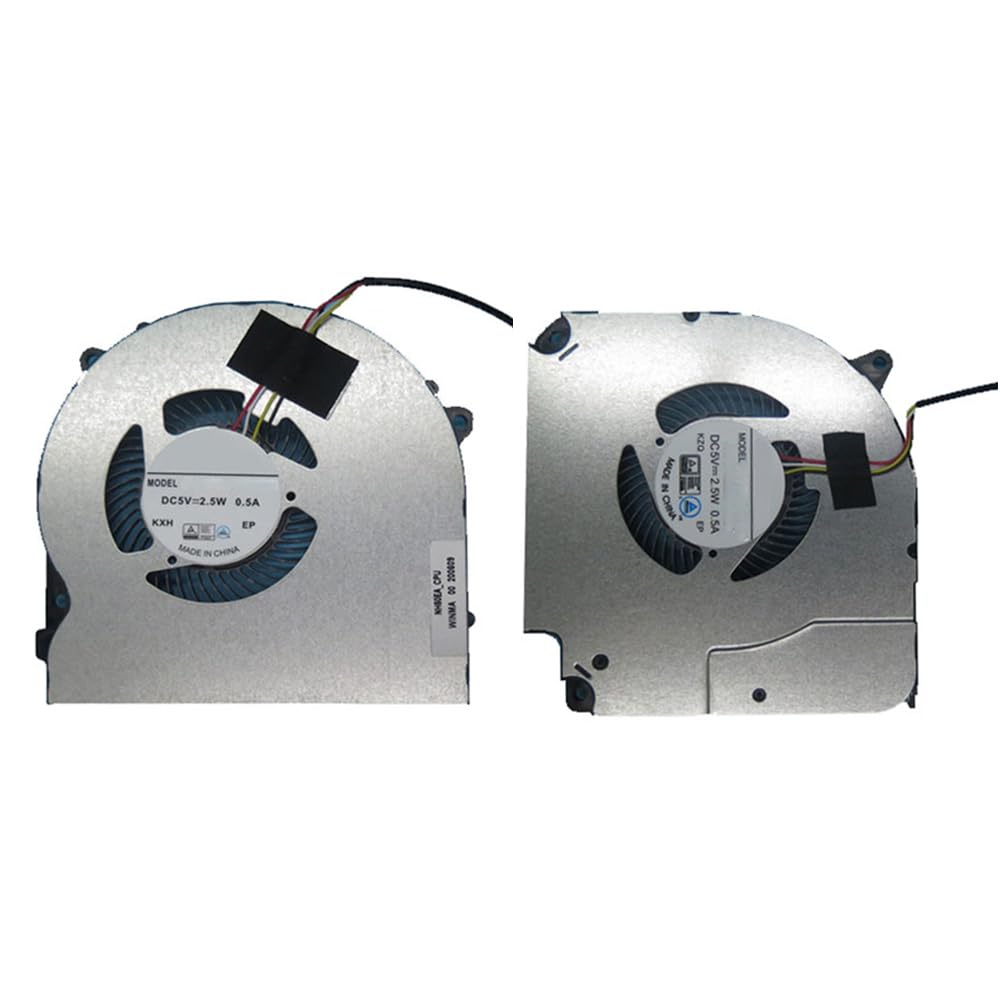
Image: A pair of GAOCHENG laptop CPU and GPU cooling fans, showing their distinct shapes and 4-pin connectors.
Setup and Installation
The installation process involves disassembling your laptop, replacing the old fans, and reassembling the laptop. This is a general guide; specific steps may vary slightly depending on your exact laptop model. Refer to your laptop's service manual or online disassembly guides for detailed instructions specific to your Dream Machines NH55 series laptop.
Required Tools (Not Included):
- Small Phillips head screwdriver
- Plastic pry tool (spudger)
- Anti-static wrist strap
- Thermal paste (if reapplying to CPU/GPU)
- Isopropyl alcohol and lint-free cloth (for cleaning old thermal paste)
Installation Steps:
- Prepare Workspace: Work on a clean, well-lit, and static-free surface.
- Power Down: Shut down your laptop completely, disconnect the AC adapter, and remove the battery.
- Disassemble Laptop: Carefully open the laptop casing. This typically involves removing screws from the bottom panel and using a pry tool to separate the panels. Be mindful of any ribbon cables connecting components.
- Locate Old Fans: Identify the existing CPU and GPU cooling fans. They are usually connected to the heatsink assembly.
- Disconnect Old Fans: Gently disconnect the 4-pin power cables from the motherboard. Unscrew the fans from their mounting points and carefully remove them.
- Clean Heatsink (Optional but Recommended): If you are also replacing thermal paste, carefully remove the heatsink assembly. Clean off any old thermal paste from the CPU and GPU chips and the heatsink contact surfaces using isopropyl alcohol and a lint-free cloth.
- Install New Fans: Place the new GAOCHENG CPU and GPU fans into their respective positions. Ensure they align correctly with the screw holes.
- Secure New Fans: Screw the new fans into place. Do not overtighten.
- Connect Power Cables: Carefully connect the 4-pin power cables of the new fans to the corresponding headers on the motherboard. Ensure the connectors are fully seated.
- Apply Thermal Paste (If Heatsink was removed): If you removed the heatsink, apply a small amount of new thermal paste to the center of the CPU and GPU dies before reattaching the heatsink.
- Reassemble Laptop: Carefully reassemble your laptop, ensuring all cables are connected and no components are pinched. Replace all screws.
- Test Functionality: Reinsert the battery and connect the AC adapter. Power on the laptop and listen for the fans. Check system temperatures using monitoring software to ensure proper cooling.
Operating Instructions
Once correctly installed, the GAOCHENG CPU and GPU fans operate automatically, controlled by your laptop's system. They will adjust their speed based on the thermal load of the CPU and GPU to maintain optimal operating temperatures. No manual intervention is typically required for their operation.
- Normal Operation: The fans will spin quietly during light use and increase speed and noise during demanding tasks (e.g., gaming, video editing) to dissipate heat.
- Monitoring: You can use third-party software to monitor CPU and GPU temperatures and fan speeds to ensure they are functioning within expected parameters.
Maintenance
Regular maintenance helps prolong the lifespan of your cooling fans and maintain optimal laptop performance.
- Dust Cleaning: Periodically (e.g., every 6-12 months, depending on environment) open your laptop and gently clean dust from the fan blades and heatsink fins using compressed air or a soft brush. Ensure the fans are held stationary when using compressed air to prevent over-spinning and potential damage.
- Inspection: Visually inspect the fan blades for any damage or obstructions. Check the fan cables for secure connections.
- Thermal Paste: Over several years, thermal paste can dry out and become less effective. Consider reapplying fresh thermal paste to the CPU and GPU every 2-3 years for sustained performance.
Troubleshooting
| Problem | Possible Cause | Solution |
|---|---|---|
| Fans not spinning or making unusual noise. |
|
|
| Laptop overheating despite new fans. |
|
|
| Fans spinning constantly at high speed. |
|
|
Specifications
| Brand | GAOCHENG |
| Compatible Devices | Laptop (Dream Machines NH55DE, NH55HH, NH55HJ, NH55HK, NH70RH, NH77DE, NH77HP, NH55DEQ, NH55HHQ, NH55HJQ, NH55HKQ, NH70RHQ, NH77DEQ, NH77HPQ series) |
| Power Connector Type | 4-Pin |
| Voltage | DC 5V |
| Power | 2.5W |
| Current | 0.5A |
| Product Dimensions | 11.81 x 7.87 x 3.94 inches (packaging) |
| Item Weight | 1.1 pounds |
Warranty and Support
For warranty information and technical support, please refer to the seller's policy or contact the GAOCHENG customer service directly. Keep your purchase receipt as proof of purchase.
For further assistance, you may also consult online resources or professional laptop repair services.