
1. Introduction
This manual provides instructions for the KRPTQJoo Voice Remote Control, model HTR-U27EMA1. This remote is designed as a replacement for specific EKO, Haier, Bauhn, Soniq, and Aqua Smart 4K LED HDTV Android TV models. It features voice search functionality and is intended to replace or upgrade your current remote.
Important Note: This remote control is not universal. It is only suitable for the specific TV models listed below and requires pairing before use.
Compatible TV Models:
- EKO: HTR-U27EMA1, K58USG, K75USG, K40USG, K40FSG
- Haier Smart 4K TV (HTR-U27 replacement)
- Bauhn TV: HTR-U27
- Soniq Smart TV: G50UW40A, G75UW40A, G58UW40A, G55UW40A
- Aqua Smart LED LCD TVs: HTR-U27E, LE55AQT6600UG, LE43AQT6600FG, LE50AQT6600UG
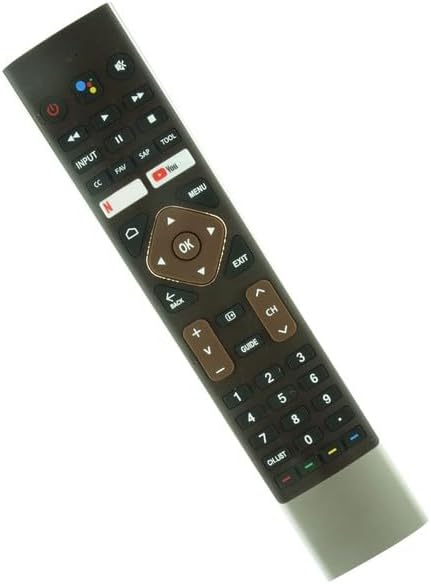
Figure 1: Front view of the KRPTQJoo Voice Remote Control.
2. Setup and Pairing
Before using your new remote control, you must install batteries and pair it with your compatible TV. This remote requires 2 AAA batteries (not included).
2.1 Battery Installation
- Locate the battery compartment on the back of the remote control.
- Slide the battery cover downwards or press the latch and lift to open.
- Insert two (2) AAA batteries, ensuring the positive (+) and negative (-) terminals align correctly with the markings inside the compartment.
- Replace the battery cover by sliding it back into place until it clicks securely.

Figure 2: Remote control with battery cover removed, showing battery compartment.

Figure 3: Back view of the remote control, illustrating the battery compartment location.
2.2 Pairing Instructions
This remote control utilizes Bluetooth for its voice search function and may require pairing for full functionality. The exact pairing process can vary slightly depending on your TV model. Refer to your TV's user manual for specific instructions if these steps do not work.
- Ensure your TV is powered on and functioning correctly.
- On your TV, navigate to the Settings menu. This is typically accessed via a "Settings" or "Gear" icon on your TV's existing remote or on the TV itself.
- Look for options such as Remotes & Accessories, Bluetooth Settings, or Add Device.
- Select the option to Add New Device or Pair Remote.
- While the TV is searching for devices, press and hold the OK button and the Back button simultaneously on your new KRPTQJoo remote control for approximately 3-5 seconds. The remote's indicator light (if present) may flash to indicate pairing mode.
- Once the remote appears in the list of available devices on your TV screen (it might be listed as "HTR-U27" or "Bluetooth Remote"), select it to complete the pairing process.
- A confirmation message should appear on your TV screen once pairing is successful. Test the remote's functions, including voice search, to confirm full operation.
If pairing fails, ensure the remote has fresh batteries and try the process again. You may also need to restart your TV.
3. Operating the Remote Control
The KRPTQJoo Voice Remote Control provides intuitive access to your TV's functions. Below is an overview of key buttons and their uses.

Figure 4: Top section of the remote control, showing power, voice, input, and media buttons.
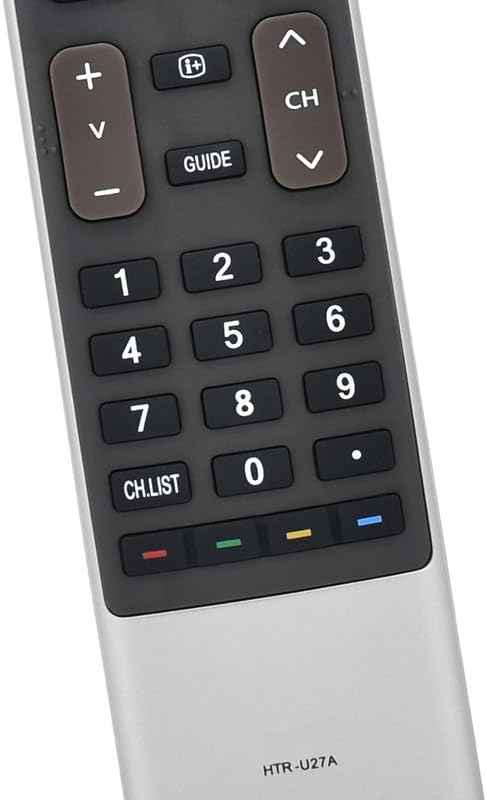
Figure 5: Bottom section of the remote control, showing channel, volume, and number pad.
3.1 Button Functions
| Button | Function |
|---|---|
| Power (⏻) | Turns the TV on or off. |
| Voice Assistant (Google Assistant icon) | Activates the voice search/assistant function. Press and hold to speak your command. |
| Input | Selects the input source (HDMI, AV, etc.). |
| Netflix / YouTube | Direct access buttons for Netflix and YouTube applications. |
| Navigation Pad (Up, Down, Left, Right, OK) | Navigates through menus and selects options. OK confirms selections. |
| Back | Returns to the previous screen or menu. |
| Exit | Exits the current menu or application. |
| Menu | Opens the TV's main menu. |
| Volume (+ / -) | Adjusts the TV volume up or down. |
| Channel (CH ▲ / ▼) | Changes TV channels up or down. |
| Mute (🔇) | Mutes or unmutes the TV sound. |
| Media Playback (Play, Pause, Stop, Rewind, Fast Forward) | Controls media playback (e.g., when watching content from a USB drive or streaming app). |
| Number Pad (0-9) | Directly enters channel numbers or other numerical inputs. |
| CC (Closed Caption) | Toggles closed captions on or off. |
| FAV (Favorites) | Accesses favorite channels or content. |
| SAP (Secondary Audio Program) | Switches between audio programs, often used for different languages. |
| TOOL | Accesses quick settings or tools menu. |
| GUIDE | Opens the electronic program guide (EPG). |
| CH.LIST (Channel List) | Displays the list of available channels. |
| Color Buttons (Red, Green, Yellow, Blue) | Functions vary depending on the TV menu or application. Refer to on-screen prompts. |
3.2 Using Voice Search
The voice search feature allows you to control your TV and search for content using your voice. This function requires the remote to be successfully paired via Bluetooth.
- Press and hold the Voice Assistant button (Google Assistant icon) on the remote control.
- Speak clearly into the microphone located at the top of the remote.
- Release the button when you have finished speaking.
- Your TV will process the command or search query.
Examples of voice commands include: "Open Netflix," "Search for action movies," "What's the weather?", "Switch to HDMI 1," or "Turn off TV."
4. Maintenance
4.1 Battery Replacement
Replace batteries when the remote's response becomes sluggish or it stops functioning. Always replace both batteries at the same time with new AAA batteries.
- Open the battery compartment as described in Section 2.1.
- Remove the old batteries.
- Insert two new AAA batteries, observing the correct polarity (+/-).
- Close the battery compartment securely.
Dispose of used batteries according to local regulations.
4.2 Cleaning
To clean the remote control, wipe it gently with a soft, dry cloth. Do not use liquid cleaners, sprays, or abrasive materials, as these can damage the remote's surface or internal components.
5. Troubleshooting
| Problem | Possible Cause | Solution |
|---|---|---|
| Remote not responding. | Low or dead batteries. Incorrect battery installation. Remote not paired. | Replace batteries. Check battery polarity. Re-pair the remote with the TV (see Section 2.2). |
| Voice search not working. | Remote not paired via Bluetooth. Microphone blocked. Internet connection issue (for online searches). | Ensure remote is paired via Bluetooth (Section 2.2). Ensure nothing is covering the microphone. Check TV's internet connection. |
| Some buttons work, others don't. | Partial pairing issue. Specific button malfunction. | Try re-pairing the remote. If issue persists, contact support. |
| Remote feels sluggish or delayed. | Low batteries. Interference. | Replace batteries. Ensure no strong electronic devices are causing interference near the TV or remote. |
6. Specifications
| Feature | Detail |
|---|---|
| Model | HTR-U27EMA1 |
| Brand | KRPTQJoo |
| Compatible Devices | Specific EKO, Haier, Bauhn, Soniq, Aqua Smart 4K LED HDTV Android TVs |
| Special Feature | Voice Search, Not Universal (requires pairing) |
| Color | Black |
| Max Number of Supported Devices | 1 |
| Batteries Required | 2 AAA batteries |
| Item Weight | 4.2 ounces (approx. 119 grams) |
| Package Dimensions | 10.24 x 2.36 x 1.97 inches (approx. 26 x 6 x 5 cm) |
| Manufacturer | HKDRJoo |
7. Warranty and Support
For warranty information and customer support regarding your KRPTQJoo Voice Remote Control, please refer to the documentation provided with your purchase or contact the seller directly. The manufacturer, HKDRJoo, and seller, HKDRJoo, are committed to providing assistance.
If you encounter issues not covered in this manual, or require further assistance, please reach out to the seller through the platform where the purchase was made. They will do their best to assist you.