
1. Introduction
This manual provides essential instructions for the setup, operation, and maintenance of your Generic Datalogic PowerScan PBT9600-AR Bluetooth Wireless Omnidirectional Rugged Industrial 2D Area Imager Barcode Scanner. The PowerScan 9600 series is designed for demanding industrial environments, offering robust performance and durability. It features an ergonomic design, Bluetooth 5.0 connectivity, and Datalogic's Wireless Charging System for enhanced reliability.
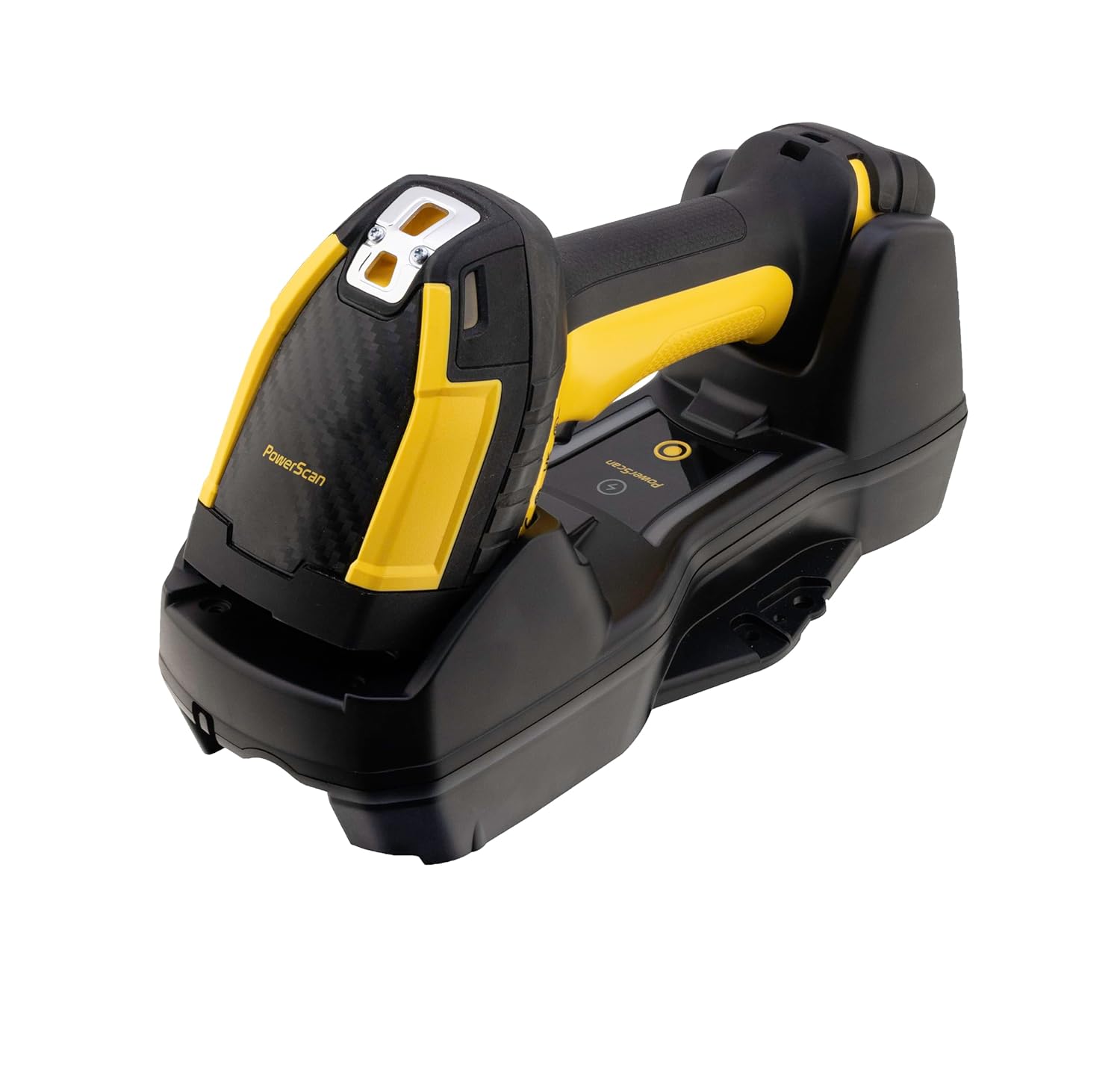
Figure 1: PowerScan PBT9600-AR Barcode Scanner and Cradle.
2. Package Contents
Verify that all items are present in the package before proceeding with setup.
- PowerScan PBT9600-AR Barcode Scanner
- Charging/Communication Cradle (BC9600)
- USB Data Cable
- User Manual (this document)
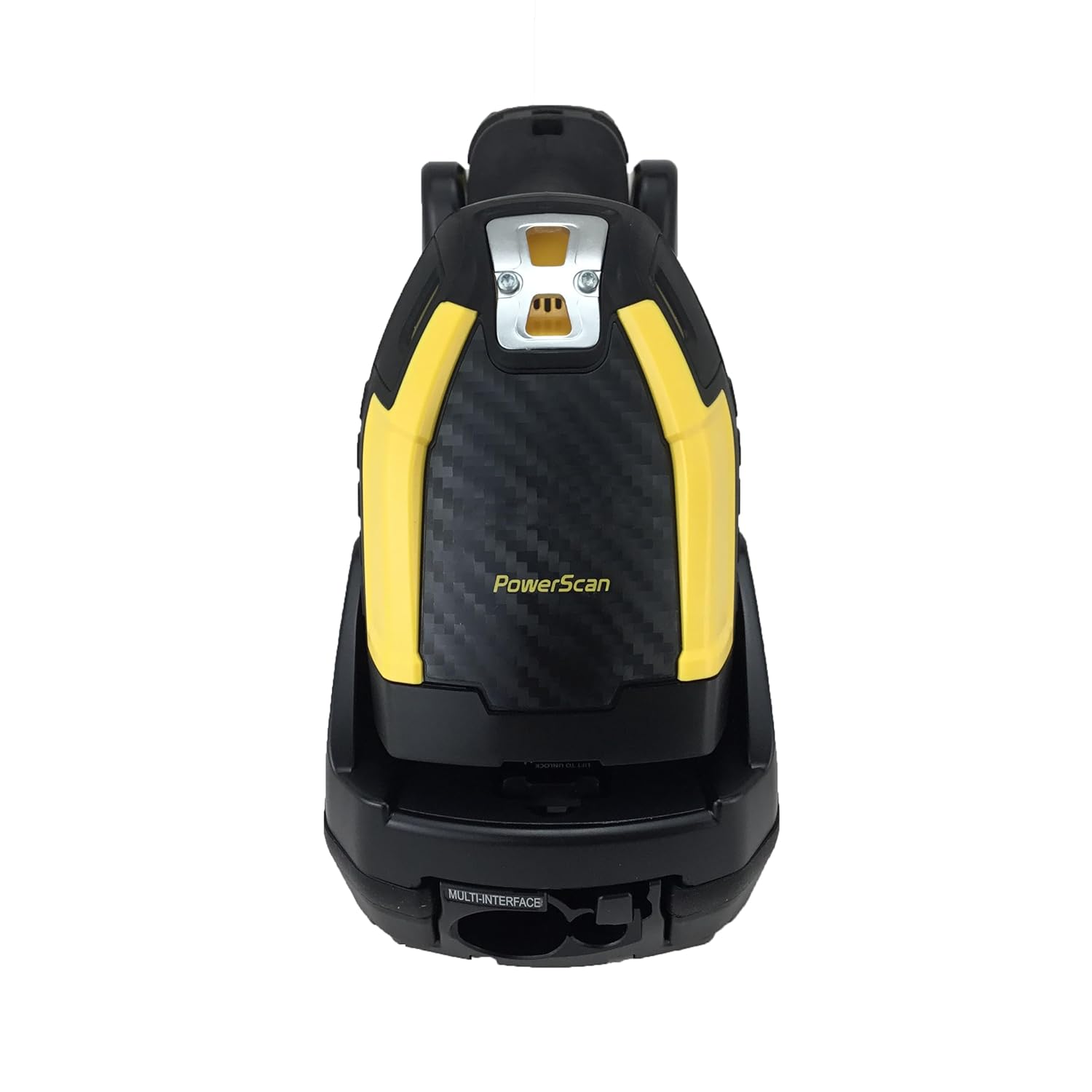
Figure 2: Included Barcode Scanner and Cradle.

Figure 3: USB Data Cable.
3. Setup
3.1 Connecting the Cradle
- Connect the USB data cable to the appropriate port on the BC9600 cradle.
- Connect the other end of the USB cable to your host device (e.g., computer, POS system).
- If using an external power adapter (sold separately or included depending on region), connect it to the cradle and a power outlet.

Figure 4: BC9600 Cradle with Multi-Interface Port.
3.2 Charging the Scanner
The PowerScan PBT9600-AR utilizes Datalogic's Wireless Charging System.
- Place the scanner into the cradle. Ensure it is seated correctly.
- The charging indicator on the cradle and/or scanner will illuminate to confirm charging has begun.
- A full charge typically takes several hours. The scanner is equipped with a Lithium Ion battery.
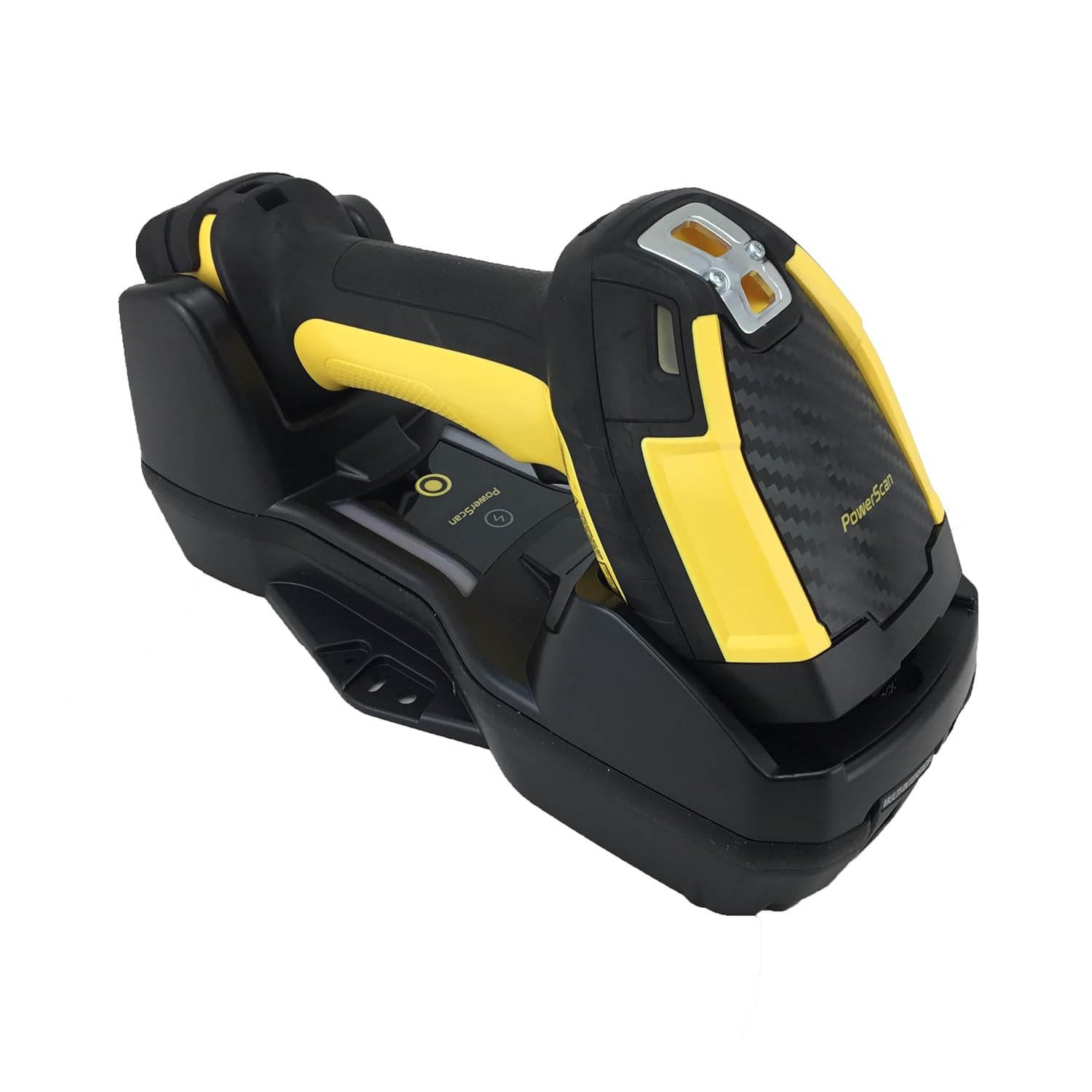
Figure 5: Scanner correctly seated in the charging cradle.
3.3 Bluetooth Pairing
The PBT9600-AR features Bluetooth 5.0 for wireless communication.
- Ensure the scanner is charged and powered on.
- Refer to your host device's manual for instructions on enabling Bluetooth and searching for devices.
- The scanner should appear as a discoverable device. Select it to initiate pairing.
- Some systems may require scanning a specific pairing barcode (refer to the full Datalogic PowerScan 9600 series programming manual for details).
4. Operating Instructions
4.1 Basic Scanning
- Aim the scanner's illumination window at the barcode you wish to read.
- Press and hold the trigger button. The scanner will emit a white illumination light.
- Once the barcode is successfully read, the scanner will provide good-read feedback through Datalogic's 3 Green Lights (3GL) technology and a loud beeper.
- Release the trigger.

Figure 6: PowerScan PBT9600-AR Scanner, showing trigger and illumination window.
4.2 Decoding Capabilities
The PBT9600-AR is an omnidirectional 2D area imager capable of reading a wide range of barcode symbologies, including:
- 1D / Linear Codes: Autodiscriminates all standard 1D codes.
- 2D Codes: Aztec Code, China Han Xin Code, Data Matrix, MaxiCode, Micro QR Code, QR Code.
- Postal Codes: Various postal code formats.
- PDF417.
The scanner is available with different optics:
- Standard Range: Suitable for most common barcode reading distances.
- High Performance: Decodes high-density barcodes and offers an increased depth of field for standard 1D/2D codes.
- Document Capture: Optimized for wide-angle code reading and document capture applications.
5. Maintenance
5.1 Cleaning
To ensure optimal performance, keep the scanner's reading window clean.
- Use a soft, non-abrasive cloth, slightly dampened with water or a mild cleaning solution.
- Do not use harsh chemicals, abrasive cleaners, or solvents.
- Avoid spraying liquids directly onto the scanner.
5.2 Battery Care
The scanner uses a Lithium Ion battery.
- Charge the scanner regularly using the provided cradle.
- The wireless charging system eliminates exposed battery contacts, reducing common points of failure in industrial environments.
- Store the scanner within the recommended temperature range (-40°F to 158°F / -40°C to 70°C) when not in use for extended periods.
6. Troubleshooting
6.1 Scanner Not Reading Barcodes
- Ensure the scanner is powered on and fully charged.
- Verify the barcode is not damaged or poorly printed.
- Check the distance and angle to the barcode. Adjust as necessary.
- Clean the scanner's reading window if it appears dirty.
- Confirm that the correct barcode symbologies are enabled in the scanner's configuration (refer to the full programming manual).
6.2 No Data Transmission to Host
- Check the Bluetooth connection status between the scanner and the host device. Re-pair if necessary.
- Ensure the USB cable is securely connected to both the cradle and the host device.
- Verify that the host device's software or application is correctly configured to receive data from the scanner.
7. Specifications
| Feature | Description |
|---|---|
| Brand | Generic (Datalogic PowerScan) |
| Model | PBT9600-AR |
| Connectivity | Bluetooth 5.0 Wireless |
| Scanning Technology | 2D Area Imager, Omnidirectional |
| Decoding Capability | 1D (all standard), 2D (Aztec, Han Xin, Data Matrix, MaxiCode, Micro QR, QR), Postal Codes, PDF417 |
| Optics | Standard Range, High Performance, Document Capture |
| Good-Read Feedback | 3GL (3 Green Lights), Loud Beeper |
| Motion Sensing | Motionix technology |
| Charging | Wireless Charging System (Inductive) |
| Battery Type | 1 Lithium Ion battery (included) |
| Interfaces (Cradle) | RS-232, USB, Standard Ethernet, Industrial Ethernet protocols |
| Operating Temperature | -4°F to 122°F (0°C to 50°C) |
| Storage Temperature | -40°F to 158°F (-40°C to 70°C) |
| Drop Specification | Withstands repeated drops from 1.8 m (6.0 ft) onto concrete |
| Dimensions (Scanner) | 19.7 x 14.9 x 7.9 cm (7.8 x 5.9 x 3.1 in) |
| Weight (Scanner) | 415 g (14.6 oz) |
8. Safety Information
- Do not stare directly into the scanner's light source.
- Do not attempt to open or modify the scanner or cradle. Refer all servicing to qualified personnel.
- Dispose of batteries according to local regulations. Do not incinerate.
- Keep the device away from extreme temperatures, moisture, and direct sunlight.
9. Warranty and Support
For warranty information and technical support, please refer to the documentation provided with your purchase or contact your vendor.


