
Introduction
This manual provides detailed instructions for the SQUADO Printing Calculator Model 1. Designed for offices and businesses, this professional calculator offers non-fiscal receipt printing, advanced functions, and a robust, compact design for daily use.
Key features include:
- Non-fiscal receipt printing for record-keeping.
- Compact and durable design for portability and longevity.
- Advanced functions: tax calculations, profit margins, cost, and sell price calculations.
- Dual power source: battery and AC adapter for continuous operation.
- Large 12-digit LCD for easy reading of calculations and results.
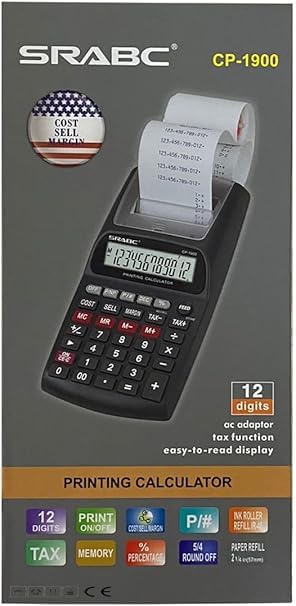
Image: SQUADO Printing Calculators (white and black models) demonstrating their printing capability.
Setup
1. Power Source
The SQUADO Printing Calculator can be powered by batteries or an AC adapter (not always included). Ensure the correct power source is connected before use.
- Battery Installation: Open the battery compartment cover on the underside of the calculator. Insert the required batteries (e.g., AA or AAA, check markings inside compartment) according to the polarity indicators (+/-). Close the cover securely.
- AC Adapter Connection: Plug the AC adapter into the calculator's power jack and then into a standard electrical outlet.
2. Paper Roll Installation
To use the printing function, a paper roll must be installed correctly.
- Gently lift the printer cover located at the top rear of the calculator.
- Place a new paper roll into the paper roll holder, ensuring the paper feeds from the bottom of the roll.
- Feed the leading edge of the paper into the printer slot until it emerges from the front.
- Close the printer cover. Press the FEED button to advance the paper and ensure it is properly aligned.

Image: Black SQUADO Printing Calculator with paper roll correctly installed.
Operating Instructions
This section details the basic and advanced operations of your SQUADO Printing Calculator.
Basic Calculations
- Power On/Off: Press ON/CE-C to turn on. Press OFF to turn off.
- Clear Entry/All Clear: Press CE-C once to clear the last entry. Press CE-C twice to clear all calculations.
- Addition/Subtraction: Enter the first number, press + or -, enter the second number, then press =.
- Multiplication/Division: Enter the first number, press x or ÷, enter the second number, then press =.
- Decimal Point: Use the . button for decimal values.
Printing Functions
- Print On/Off: The calculator typically has a switch or button to enable/disable printing. Look for a P/NP (Print/Non-Print) or similar button. When printing is enabled, all calculations will be printed.
- Paper Feed: Press the FEED button to advance the paper without performing calculations.
Advanced Functions
- Memory Functions (M+, M-, MR, MC):
- M+: Adds the displayed value to memory.
- M-: Subtracts the displayed value from memory.
- MR: Recalls the value stored in memory.
- MC: Clears the memory.
- Tax Calculations (TAX+, TAX-):
- Set the tax rate using the SET button (refer to specific calculator instructions for setting the rate).
- Enter a value, then press TAX+ to add tax or TAX- to subtract tax.
- Cost, Sell, Margin (COST, SELL, MARGIN): These functions are used for profit margin calculations.
- Enter two of the three values (Cost, Sell, Margin), then press the third button to calculate the missing value.
- Percentage (%): Used for percentage calculations. Enter a number, press x, enter percentage, press %.
- Decimal Selector (DEC): Allows selection of the number of decimal places for results.
- Item Count (P/#): Some models include an item count function to track the number of entries.
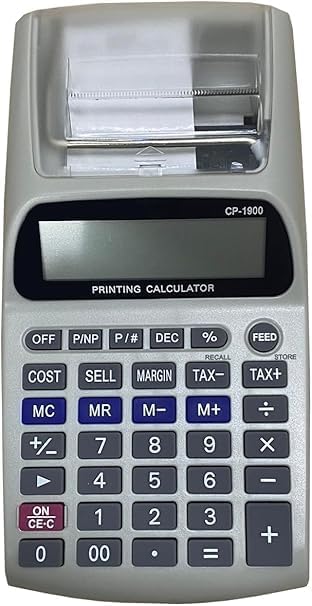
Image: Keypad layout of the SQUADO Printing Calculator, highlighting various function buttons.
Maintenance
Cleaning
To ensure optimal performance and longevity, keep your calculator clean.
- Wipe the exterior of the calculator with a soft, dry cloth.
- For stubborn dirt, slightly dampen the cloth with water or a mild, non-abrasive cleaner. Avoid excessive moisture.
- Do not use harsh chemicals, solvents, or abrasive cleaning pads, as these can damage the casing or display.
- Periodically clean the printer head area with a soft brush to remove paper dust.
Paper Roll Replacement
Replace the paper roll when it runs out or when print quality deteriorates. Refer to the "Setup" section for detailed installation steps.
- Always use paper rolls of the correct size and type specified for your calculator model to prevent jamming or damage to the printer mechanism.
Troubleshooting
If you encounter issues with your SQUADO Printing Calculator, refer to the following common problems and solutions:
| Problem | Possible Cause | Solution |
|---|---|---|
| Calculator does not turn on. | Low or dead batteries; AC adapter not connected or faulty. | Replace batteries or ensure AC adapter is securely plugged in and functional. |
| Nothing prints or print is faint. | Paper roll empty or incorrectly installed; print function disabled; ink roller/ribbon needs replacement (if applicable). | Install new paper roll correctly; ensure print mode is enabled (P/NP button); replace ink roller/ribbon if necessary. |
| Paper jams. | Incorrect paper roll size; paper not fed straight; debris in printer mechanism. | Use correct paper roll; re-feed paper carefully; gently remove any debris. |
| Display shows "Error" or incorrect results. | Incorrect operation; internal error. | Press CE-C to clear. Review operating instructions. If problem persists, remove power for a few minutes and restart. |
Specifications
Below are the technical specifications for the SQUADO Printing Calculator Model 1:
- Brand: SQUADO
- Model Number: 1
- Color: Black (as per product description, though images show white/grey variants)
- Calculator Type: Financial
- Display Type: LCD (12-digit)
- Power Source: Battery Powered (and/or AC adapter)
- UPC: 724129567144
- ASIN: B0D87FZ2BG
- Manufacturer: SQUADO

Image: White SQUADO Printing Calculator, showing its compact design and clear LCD.
Warranty and Support
Warranty Information
The SQUADO Printing Calculator Model 1 comes with a 1-year warranty from the date of purchase. This warranty covers manufacturing defects and ensures the product's durability and reliability under normal use. Please retain your proof of purchase for warranty claims.
The warranty does not cover damage caused by misuse, accidents, unauthorized repairs, or normal wear and tear.
Customer Support
For technical assistance, troubleshooting beyond this manual, or warranty service, please contact SQUADO customer support. Contact information is typically provided with your product packaging or on the manufacturer's official website.
When contacting support, please have your product model number (Model 1) and ASIN (B0D87FZ2BG) ready.