
1. Introduction
This user manual provides comprehensive instructions for the installation, operation, and maintenance of your 2NLF 4MP PTZ 360° Triple Lens Outdoor Security Camera. Please read this manual carefully before using the product to ensure proper functionality and safety. Keep this manual for future reference.
2. Product Features
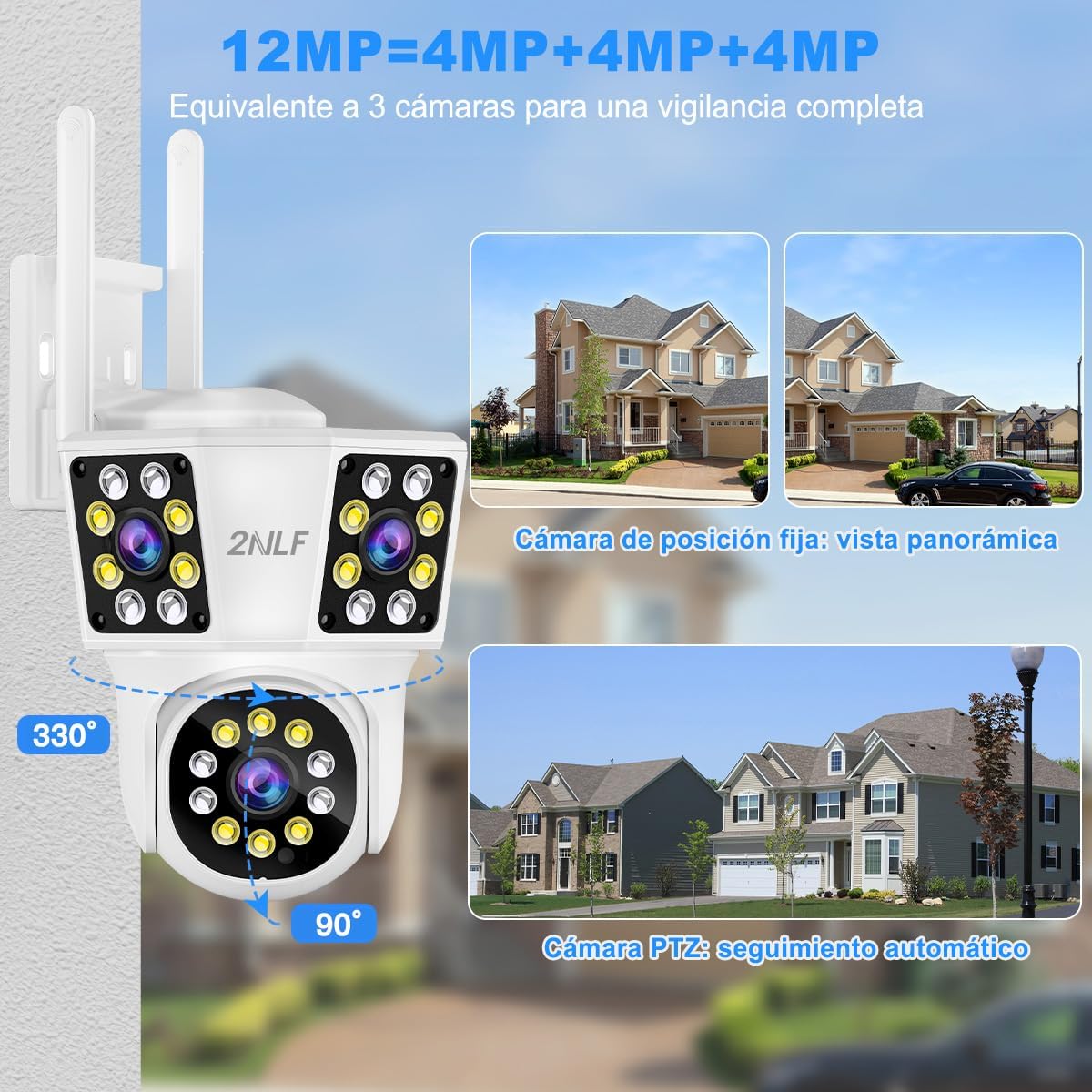
- Triple Lens Design: Equipped with two fixed lenses and one PTZ (Pan-Tilt-Zoom) rotating lens, providing a 360° panoramic view without blind spots. The PTZ lens offers 90° vertical and 330° horizontal rotation.
- 4MP HD Resolution: Captures clear and detailed images and videos.
- Smart Night Vision: Features three night vision modes:
- Infrared (black and white vision)
- Full-Color (color image in darkness)
- Smart Mode (automatic switching between infrared and full-color based on detection)
- Intelligent Alerts & Auto-Tracking: PIR motion detection reduces false alarms. Sends instant notifications to your phone, automatically tracks moving objects, and records video.
- Two-Way Audio: Built-in microphone and speaker allow for remote communication and deterrence of intruders.
- IP66 Weatherproof: Designed for outdoor use, resistant to dust and water. Operates effectively in temperatures from -30°C to 40°C, suitable for various weather conditions.
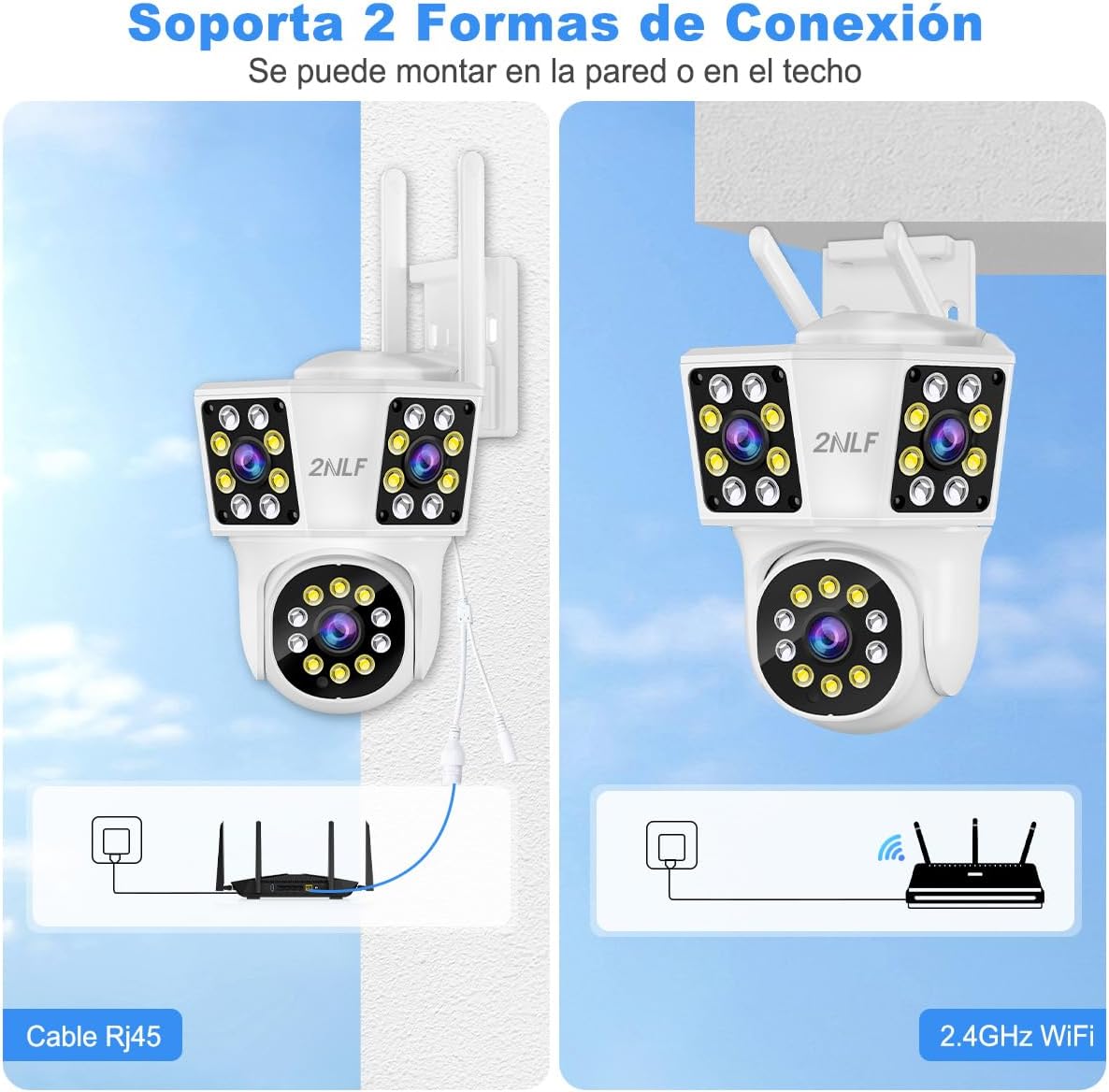
- Flexible Connectivity: Supports both 2.4G WiFi and Ethernet cable connection for stable network access.
- Multiple Storage Options: Supports Micro SD card up to 128GB (not included) and cloud storage (subscription required). Offers 24/7 recording or motion-activated recording.
- Multi-User Sharing: Allows up to 5 simultaneous users to view live feeds via the IPC360 Home application.

3. Package Contents
Verify that all items are present in the package:
- 1 x 2NLF 4MP PTZ 360° Triple Lens Outdoor Security Camera
- 1 x Power Adapter
- 1 x User Manual (this document)
- 1 x Mounting Screw Kit

4. Setup Instructions
4.1 Physical Installation
The camera can be mounted on a wall or ceiling. Choose a location that provides optimal coverage and a stable surface for mounting.
- Mark Drilling Positions: Use the mounting template (if provided) or the camera base to mark the positions for drilling holes.
- Drill Holes: Drill holes at the marked positions. Insert wall anchors if mounting on masonry or drywall.
- Secure the Camera: Align the camera base with the drilled holes and secure it using the provided mounting screws.
- Adjust Angle: Ensure the camera is securely fastened and adjust its initial angle as needed.
4.2 Network Connection
The camera supports both 2.4G WiFi and wired Ethernet connections.
- Power On: Connect the power adapter to the camera and plug it into an electrical outlet. The camera will power on and initiate its startup sequence.
- Download App: Download the "IPC360 Home" app from your smartphone's app store (iOS or Android).
- Register/Login: Open the app and register a new account or log in if you already have one.
- Add Device:
- For WiFi Connection:
- In the app, tap "Add Device" and select your camera model.
- Follow the on-screen prompts to connect the camera to your 2.4GHz WiFi network. You may need to scan a QR code displayed on your phone with the camera.
- Ensure your phone is connected to the 2.4GHz WiFi network during setup.
- For Ethernet Connection:
- Connect an Ethernet cable from your router to the camera's Ethernet port.
- In the app, tap "Add Device" and select your camera model. The app should automatically detect the camera via the wired connection.
- For WiFi Connection:
- Complete Setup: Follow any remaining prompts in the app to name your camera and finalize the setup.

5. Operation
5.1 Live View and PTZ Control
Once the camera is connected, open the IPC360 Home app to access the live view. You can control the PTZ lens directly from the app interface.
- Pan/Tilt: Swipe on the live view screen to move the PTZ lens horizontally (pan) and vertically (tilt).
- Zoom: Use pinch-to-zoom gestures on the live view to digitally zoom in or out.
- Preset Positions: Set and recall specific camera positions for quick monitoring of key areas.

5.2 Night Vision Modes
Switch between night vision modes in the app settings:
- Infrared Mode: Provides clear black and white images in low-light conditions.
- Full-Color Mode: Activates white lights to provide full-color images at night.
- Smart Mode: Automatically switches to full-color mode upon detection of motion, otherwise remains in infrared mode.
5.3 Motion Detection and Alerts
Configure motion detection settings and receive alerts:
- Enable/Disable Detection: Turn PIR motion detection on or off in the app.
- Sensitivity Adjustment: Adjust the detection sensitivity to minimize false alarms.
- Alert Notifications: Receive push notifications on your phone when motion is detected.
- Auto-Tracking: The camera can automatically track moving objects within its field of view.
- Humanoid Detection: Advanced detection specifically identifies human shapes, reducing alerts from animals or inanimate objects.


5.4 Two-Way Audio
Use the two-way audio feature to communicate through the camera:
- Tap the microphone icon in the app's live view to speak. Your voice will be broadcast through the camera's speaker.
- The camera's built-in microphone will capture audio from the camera's vicinity.

5.5 Recording and Storage
The camera supports local and cloud storage options:
- Micro SD Card: Insert a Micro SD card (up to 128GB, not included) into the designated slot for local storage. The camera will record continuously or based on motion detection settings.
- Cloud Storage: Subscribe to the cloud storage service via the IPC360 Home app for secure off-site video storage.
- Playback: Access recorded footage through the app's playback feature.

5.6 Multi-User Sharing
Share access to your camera with family members or colleagues:
- In the IPC360 Home app, navigate to the camera settings and find the sharing option.
- Invite other users by entering their account details. Up to 5 users can view the live feed simultaneously.
6. Maintenance
- Cleaning: Regularly clean the camera lenses with a soft, dry cloth to ensure clear image quality. Do not use harsh chemicals or abrasive materials.
- Firmware Updates: Check the IPC360 Home app periodically for firmware updates. Keeping the firmware updated ensures optimal performance and security.
- Power Supply: Ensure the camera is connected to a stable power source. Avoid using unauthorized power adapters.
- Environmental Conditions: While the camera is IP66 weatherproof, avoid exposing it to extreme conditions beyond its specified operating range (-30°C to 40°C).

7. Troubleshooting
| Problem | Possible Cause | Solution |
|---|---|---|
| Camera offline/Cannot connect to Wi-Fi |
|
|
| No motion detection alerts |
|
|
| Poor image quality |
|
|
| Two-way audio not working |
|
|
8. Specifications
| Feature | Detail |
|---|---|
| Model Number | GAD1031WT1 |
| Brand | 2NLF |
| Resolution | 4MP (1440p video capture) |
| Lens Type | Triple Lens (2 fixed, 1 PTZ) |
| PTZ Rotation | 330° Horizontal, 90° Vertical |
| Field of View | 360° Panoramic |
| Night Vision Range | Up to 10 meters |
| Connectivity | 2.4G WiFi, Ethernet |
| Storage Options | Micro SD card (up to 128GB, not included), Cloud Storage |
| Audio | Two-Way Audio |
| Weather Resistance | IP66 Waterproof |
| Operating Temperature | -30°C to 40°C |
| Power Input | 12 Volts |
| Dimensions (L x W x H) | 7.62 x 7.62 x 12.7 cm (3 x 3 x 5 inches) |
| Material | Acrylonitrile Butadiene Styrene (ABS) |
| Included Components | Camera, Power Adapter, User Manual, Mounting Screw Kit |
9. Warranty and Support
Your 2NLF 4MP PTZ 360° Triple Lens Outdoor Security Camera comes with a 1-year warranty from the date of purchase, covering manufacturing defects. For technical support, warranty claims, or any questions regarding your product, please contact 2NLF customer service through the retailer where you purchased the product or refer to the contact information provided in the IPC360 Home app.
Please retain your proof of purchase for warranty purposes.