
1. Introduction
The Decruil Digital Padlock offers a secure and convenient solution for various applications, including outdoor gates, lockers, and fences. This smart padlock integrates multiple unlocking methods, including numeric code entry and Bluetooth connectivity via a dedicated mobile application. This manual provides comprehensive instructions for setting up, operating, and maintaining your digital padlock.
2. Setup
2.1 Initial Activation and App Connection
- Charge the Padlock: Ensure the padlock is sufficiently charged before initial use. The padlock uses a Lithium Polymer battery (included).
- Download the App: Search for the "Tuya" or "Smart Life" app in your mobile device's app store (iOS or Android) and install it.
- Create an Account: Open the app and follow the on-screen instructions to create a new user account or log in if you already have one.
- Activate Bluetooth: On the padlock, press any button on the numeric keypad to activate its Bluetooth signal.
- Add Device: In the app, select "Add Device" or the "+" icon. The app should detect the padlock via Bluetooth. Follow the prompts to pair the padlock with your account.
- Set Initial Code: During the setup process, you will be prompted to set an initial numeric code for the padlock. Remember this code.

Image: Overview of the smart padlock features, including app control, Bluetooth 4.0, share key functionality, support for 50 user codes, a backlit keypad, multiple user access, IP65 waterproof rating, and a metal body construction.
3. Operation
3.1 Unlocking Methods
The Decruil Digital Padlock offers multiple convenient ways to unlock:
- Numeric Code Unlocking: Enter your pre-set numeric code directly on the padlock's keypad. The padlock will unlock upon correct entry.
- Bluetooth Unlocking: Ensure your mobile device's Bluetooth is enabled and the padlock is within range. Open the connected app and use the unlock function. Remember to press any button on the padlock to activate its Bluetooth if it's been inactive.
- App Unlocking: Once connected via Bluetooth, the app allows direct unlocking. All operations, including unlocking, can be performed through the app interface.

Image: Illustration showing the three primary methods to unlock the padlock: Numeric Code Unlocking, Bluetooth Unlocking, and App Unlocking via the Tuya Smart Home application.
3.2 Managing Passwords
The mobile application provides extensive control over password management:
- Permanent Passwords: Set codes for continuous access.
- Time-Limited Passwords: Generate codes that are valid only for a specific duration.
- One-Time Passwords: Create codes for single use.
- Offline Passwords: Generate codes within the app that can be used even when your phone is not near the padlock. This allows you to grant access remotely.
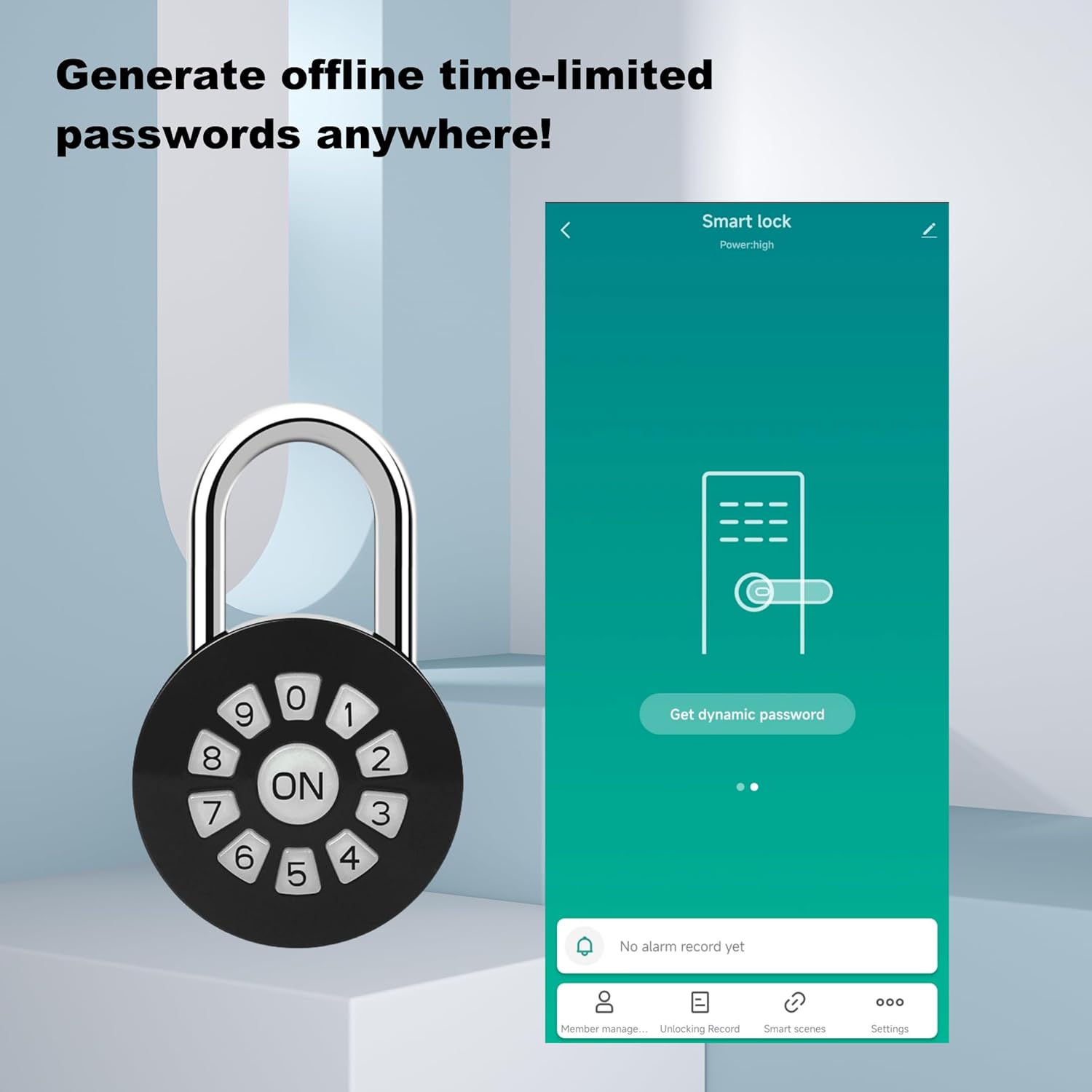
Image: Screenshot of the mobile application demonstrating the process of generating offline time-limited passwords, allowing remote access management.
3.3 Virtual Password Feature
To enhance security, the padlock supports a virtual password feature. You can enter random digits before and after your actual code. This makes it difficult for onlookers to discern your real password.
- Increased Security: Obscures your actual code from prying eyes.
- Flexible Input: Allows input of up to 40 digits, with your correct password embedded within.

Image: Diagram illustrating the virtual password concept, where random numbers can be entered before and after the correct password to increase security and prevent code observation.
3.4 Sharing Access
You can invite family members or other authorized users to the app, allowing them to also control and unlock the smart padlock.
4. Maintenance
4.1 Battery Management
The padlock is powered by a rechargeable Lithium Polymer battery. When the battery level is low, the app will provide a notification. Connect the padlock to a standard USB power source using the provided charging cable to recharge it.
4.2 Cleaning
Wipe the padlock's exterior with a soft, damp cloth. Avoid using abrasive cleaners or solvents, as these can damage the finish or internal components. Ensure the charging port is dry before charging.
4.3 Environmental Considerations
While the padlock has an IP65 waterproof rating, prolonged exposure to extreme weather conditions (e.g., heavy rain, direct sunlight for extended periods, extreme cold) may affect its performance and lifespan. Ensure the padlock is installed in a location that offers some protection from the elements if possible.
5. Troubleshooting
- Padlock not responding:
- Check battery level and recharge if necessary.
- Ensure Bluetooth is active on both the padlock (press any button) and your mobile device.
- Try restarting the app and your phone's Bluetooth.
- Incorrect code entry:
- Verify the numeric code.
- Ensure you are pressing the "ON" button or equivalent to confirm the code.
- If using a virtual password, ensure the correct sequence is embedded.
- Cannot connect to app:
- Ensure the padlock is within Bluetooth range of your device.
- Confirm Bluetooth is enabled on your phone.
- Press any button on the padlock to wake it up and activate Bluetooth.
- If issues persist, try removing the device from the app and re-pairing it.
- Returning the padlock:
Before returning the padlock, it is crucial to remove it from your account within the mobile application. Failure to do so may prevent the return process from being completed successfully.
6. Specifications
| Brand | Decruil |
| Model Number | 2bf6f9bb-49db-4068-8dac-e2635b3ac5a6 |
| Lock Type | Combination Lock / Smart Lock |
| Special Feature | Digital Code, Bluetooth Connectivity, App Control |
| Material | Metal |
| Dimensions (L x W x H) | 3 x 2 x 1 inches |
| Item Weight | 0.19 Kilograms (6.7 ounces) |
| Controller Type | Hand Control, Mechanical Knob, Touch |
| Battery Type | 1 Lithium Polymer (included) |
| Waterproof Rating | IP65 (Inferred from image PT02) |

Image: A collage of images showcasing the Decruil Digital Padlock in different application scenarios, including securing an outdoor gate, lockers, and other enclosures.
7. Warranty & Support
7.1 Warranty Information
Specific warranty details for the Decruil Digital Padlock are not provided in this manual. Please refer to the product packaging or the retailer's website for the most current warranty information.
7.2 Customer Support
For technical assistance, troubleshooting beyond this manual, or inquiries regarding your Decruil Digital Padlock, please contact Decruil customer support through their official website or the retailer from whom you purchased the product.