
1. Introduction
1.1 Product Overview
The MIUCDA SWT60 Smart Water Timer is designed to automate your garden watering system, providing efficient and convenient irrigation. This Wi-Fi enabled device allows you to control and schedule watering via a smartphone application, and integrates with voice assistants like Google Home and Alexa. Its robust design ensures reliable performance for various outdoor watering needs.
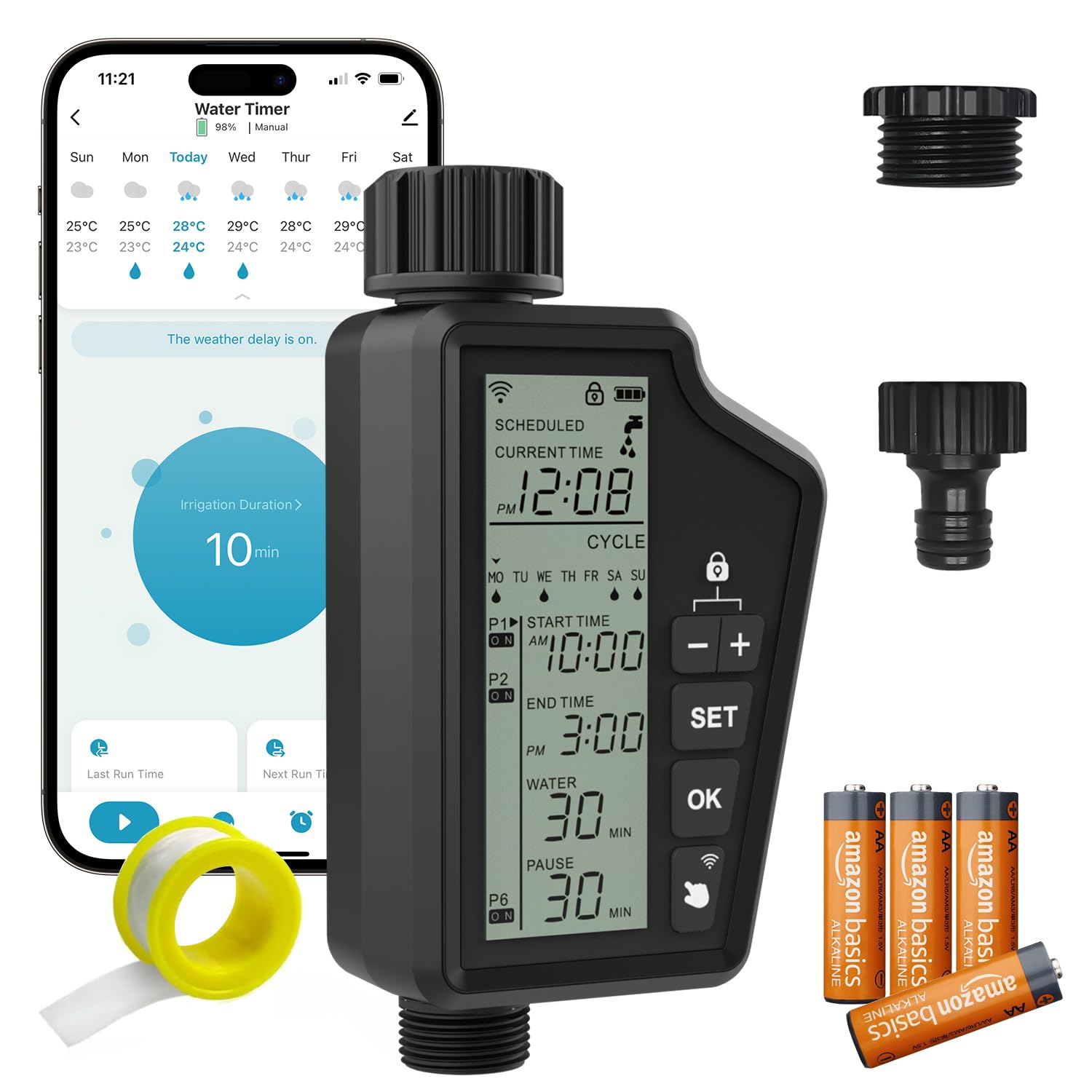
Image 1.1: MIUCDA SWT60 Smart Water Timer. This image shows the main unit with its connections, illustrating its compact design and readiness for installation.
1.2 Package Contents
- MIUCDA SWT60 Smart Water Timer Unit
- User Manual
- Quick Start Guide
- Thread Seal Tape (optional, for leak prevention)
2. Important Safety Information
- Read all instructions carefully before use.
- This device is intended for outdoor use with cold water only. Do not use with hot water or other liquids.
- Do not immerse the device in water.
- Ensure all connections are tight to prevent leaks.
- Use only specified batteries (4 AA batteries, not included). Do not mix old and new batteries, or different types of batteries.
- Keep out of reach of children.
- Protect the device from freezing temperatures. Remove batteries and store indoors during winter months.
3. Setup
3.1 Battery Installation
- Locate the battery compartment cover on the back of the timer.
- Remove the cover by twisting or sliding it according to the markings.
- Insert four (4) new AA alkaline batteries, ensuring correct polarity (+/-).
- Replace the battery compartment cover securely to maintain water resistance.
A diagram showing the battery compartment and correct battery orientation would typically be included here.
3.2 Physical Installation
- Ensure your outdoor faucet is turned off.
- Thread the MIUCDA SWT60 Smart Water Timer onto your standard outdoor faucet. Hand-tighten until snug. Do not overtighten. If necessary, use thread seal tape to prevent leaks.
- Attach your garden hose to the outlet of the smart water timer. Hand-tighten until snug.
- Slowly turn on your outdoor faucet completely. Check for any leaks.
An illustration demonstrating the connection of the timer to the faucet and hose would typically be included here.
3.3 App Download and Wi-Fi Connection
- Download the Smart Life app from the Apple App Store or Google Play Store.
- Register or log in to your Smart Life account.
- Ensure your smartphone is connected to a 2.4GHz Wi-Fi network. The timer does not support 5GHz Wi-Fi.
- Open the Smart Life app, tap the '+' icon in the top right corner to add a device.
- Select 'Water Valve' or 'Irrigation Controller' from the device list.
- Follow the on-screen instructions in the app to put the timer into pairing mode (usually by pressing and holding a button on the timer until an indicator light flashes).
- Enter your Wi-Fi network password when prompted by the app.
- Wait for the app to connect to the device. Once connected, you can rename the device for easy identification.
Screenshots of the Smart Life app interface during the pairing process would typically be included here.
4. Operating Instructions
4.1 Manual Watering
You can manually turn the water on or off directly from the timer unit or through the Smart Life app.
- On the Device: Press the manual button on the timer once to turn the water on. Press it again to turn the water off.
- Via Smart Life App: Open the app, select your timer, and use the 'Manual On/Off' toggle or button. You may also be able to set a manual watering duration.
4.2 Setting Up Schedules
The primary function of the smart water timer is automated scheduling. Use the Smart Life app to create custom watering programs.
- In the Smart Life app, select your MIUCDA SWT60 timer.
- Navigate to the 'Schedule' or 'Program' section.
- Tap 'Add Schedule' or '+'.
- Set the desired start time, watering duration (e.g., 10 minutes), and frequency (e.g., every day, specific days of the week).
- Save the schedule. You can create multiple schedules for different zones or needs.
4.3 Rain Delay Function
The rain delay feature allows you to pause your watering schedule for a set period, preventing overwatering during rainy weather. This can be activated manually or, in some app versions, automatically based on local weather forecasts.
- Via Smart Life App: In the timer's control interface, look for a 'Rain Delay' option. Select the desired delay duration (e.g., 24 hours, 48 hours, 72 hours). The timer will automatically resume its schedule after the delay period.
4.4 Voice Control Integration
The MIUCDA SWT60 is compatible with Google Home and Amazon Alexa, allowing for convenient voice commands.
- Ensure your Smart Life account is linked to your Google Home or Alexa app. (Refer to the Smart Life app's integration guide for detailed steps).
- Once linked, you can use commands such as:
- "Hey Google, turn on [Timer Name]"
- "Alexa, turn off [Timer Name]"
- "Hey Google, water the garden for 15 minutes" (if supported by the app's integration)
5. Maintenance
- Cleaning: Periodically wipe the exterior of the timer with a damp cloth. Do not use abrasive cleaners or solvents.
- Battery Replacement: Replace batteries when the low battery indicator appears in the app or on the device, or at least once a year to ensure optimal performance.
- Winterization: Before the first frost, disconnect the timer from the faucet and hose. Remove the batteries and store the unit indoors in a dry, frost-free location. Failure to do so may result in damage due to freezing water.
- Filter Cleaning: Check the inlet filter screen periodically for debris. Remove and rinse if necessary to maintain proper water flow.
6. Troubleshooting
| Problem | Possible Cause | Solution |
|---|---|---|
| No water flow | Faucet is off; Low battery; Clogged filter; Timer not programmed or manually off. | Ensure faucet is fully open; Replace batteries; Clean inlet filter; Check app for schedule or manual override. |
| Timer not connecting to Wi-Fi | Incorrect Wi-Fi password; Not 2.4GHz network; Timer too far from router; Pairing mode not active. | Verify password; Connect to 2.4GHz Wi-Fi; Move timer closer to router or use a Wi-Fi extender; Re-enter pairing mode. |
| Leaks at connections | Loose connections; Missing or damaged washer; Overtightened connection. | Hand-tighten connections; Check for and replace damaged washers; Use thread seal tape if needed. |
| Schedules not running | Rain delay active; Incorrect schedule settings; Low battery. | Check app for active rain delay; Verify schedule times and days; Replace batteries. |
7. Specifications
- Model: SWT60
- Brand: MIUCDA
- Dimensions: 5 x 9.25 x 17.5 cm (approx.)
- Weight: 498.95 g (approx.)
- Power Source: 4 x AA Batteries (not included)
- Human Interface Input: Buttons
- Connectivity: Wi-Fi (2.4GHz only)
- Compatibility: Smart Life App, Google Home, Amazon Alexa
- Water Pressure Range: [Specific range, if available, e.g., 0.5-8 bar]
- Operating Temperature: [Specific range, if available, e.g., 0°C to 50°C]
8. Warranty and Support
8.1 Warranty Information
MIUCDA products are manufactured to high-quality standards. This product typically comes with a limited warranty against defects in materials and workmanship from the date of purchase. Please refer to the warranty card included in your package or contact customer support for specific warranty terms and conditions.
8.2 Customer Support
For technical assistance, troubleshooting, or warranty claims, please contact MIUCDA customer support through the following channels:
- Email: support@miucda.com (example email, please refer to actual product documentation)
- Website: www.miucda.com (example website, please refer to actual product documentation)
When contacting support, please have your product model (SWT60) and purchase information ready.