1. Introduction
This instruction manual provides comprehensive guidance for the installation, setup, operation, and maintenance of your YAXRO Tuya WiFi Smart Lock, Model 03. This advanced electronic lock is designed for outdoor gate applications, featuring IP65 waterproofing, multiple secure unlocking methods, and an integrated 8-language voice prompt system. Please read this manual thoroughly before installation and use to ensure proper function and longevity of your smart lock.
2. Product Overview and Features
The YAXRO Tuya WiFi Smart Lock offers a robust and convenient solution for securing your outdoor gates. Its design prioritizes durability and ease of use, integrating modern smart home technology.
- Waterproof IP65 Rating: Ensures durability and reliability in various outdoor environments, protecting against dust and water ingress.
- Double-Sided Fingerprint Recognition: Allows for convenient and secure access from both sides of the gate.
- Multiple Unlock Methods: Supports unlocking via fingerprint, password, IC card, Tuya app, and mechanical key.
- 8-Language Voice Prompts: Provides audio guidance in multiple languages for user interaction.
- Tuya App Integration: Enables remote control, user management, and access record viewing via your smartphone.
- Emergency Power: Features a Micro USB port for emergency charging in case of battery depletion.

Figure 2.1: Key components of the YAXRO Tuya WiFi Smart Lock, highlighting the waterproof mat and double-sided fingerprint capability.
3. Specifications
Refer to the following table for detailed product specifications:
| Parameter | Value |
|---|---|
| Material | Zinc Alloy |
| Color | Grey |
| Panel Sizes (L*W*H) | 168mm * 34mm * 60mm |
| Unlock Modes | Fingerprint, Password, IC Card, APP, Mechanical Key |
| Supported App | Tuya App, TTlock App |
| Fingerprint Recognition Time | 0.5 seconds |
| Fingerprint Users Capacity | 100 |
| Card Users Capacity | 100 |
| Password Users Capacity | 100 |
| Power Supply | 4x AA Battery or 12V DC |
| Suitable Door Thickness | 20-65mm (Wooden, Steel, Iron, other metal doors) |
| Emergency Charging | Micro USB Port |
| Waterproof Rating | IP65 |

Figure 3.1: Dimensions of the smart lock and an overview of the 8 supported languages for voice prompts.
4. Setup and Installation
Proper installation is crucial for the optimal performance and security of your smart lock. Ensure your door thickness is between 20-65mm.
4.1 Package Contents
Before starting, verify that all components are present:
- Outdoor Lock Unit
- Indoor Lock Unit
- Lock Cylinder
- Waterproof Pad
- IC Cards (x2)
- Mechanical Keys (x2)
- Mounting Screws and Accessories
- User Manual

Figure 4.1: All components included with the YAXRO Tuya WiFi Smart Lock.
4.2 Physical Installation
- Prepare the Door: Ensure your gate or door is clean and free of obstructions. The lock is designed for easy installation without complex wiring.
- Install Lock Cylinder: Insert the lock cylinder into the door according to the provided template.
- Mount Outdoor Unit: Position the outdoor lock unit on the exterior side of the door. Ensure the waterproof pad is correctly placed between the lock and the door surface to prevent water ingress. The front panel features adhesive injection for enhanced waterproofing.
- Mount Indoor Unit: Attach the indoor lock unit to the interior side of the door, aligning it with the outdoor unit and securing it with the provided screws.
- Install Batteries: Open the battery compartment on the indoor unit and insert 4 AA batteries, ensuring correct polarity.
- Test Mechanical Key: Before proceeding, test the mechanical keys to ensure the lock cylinder operates smoothly.
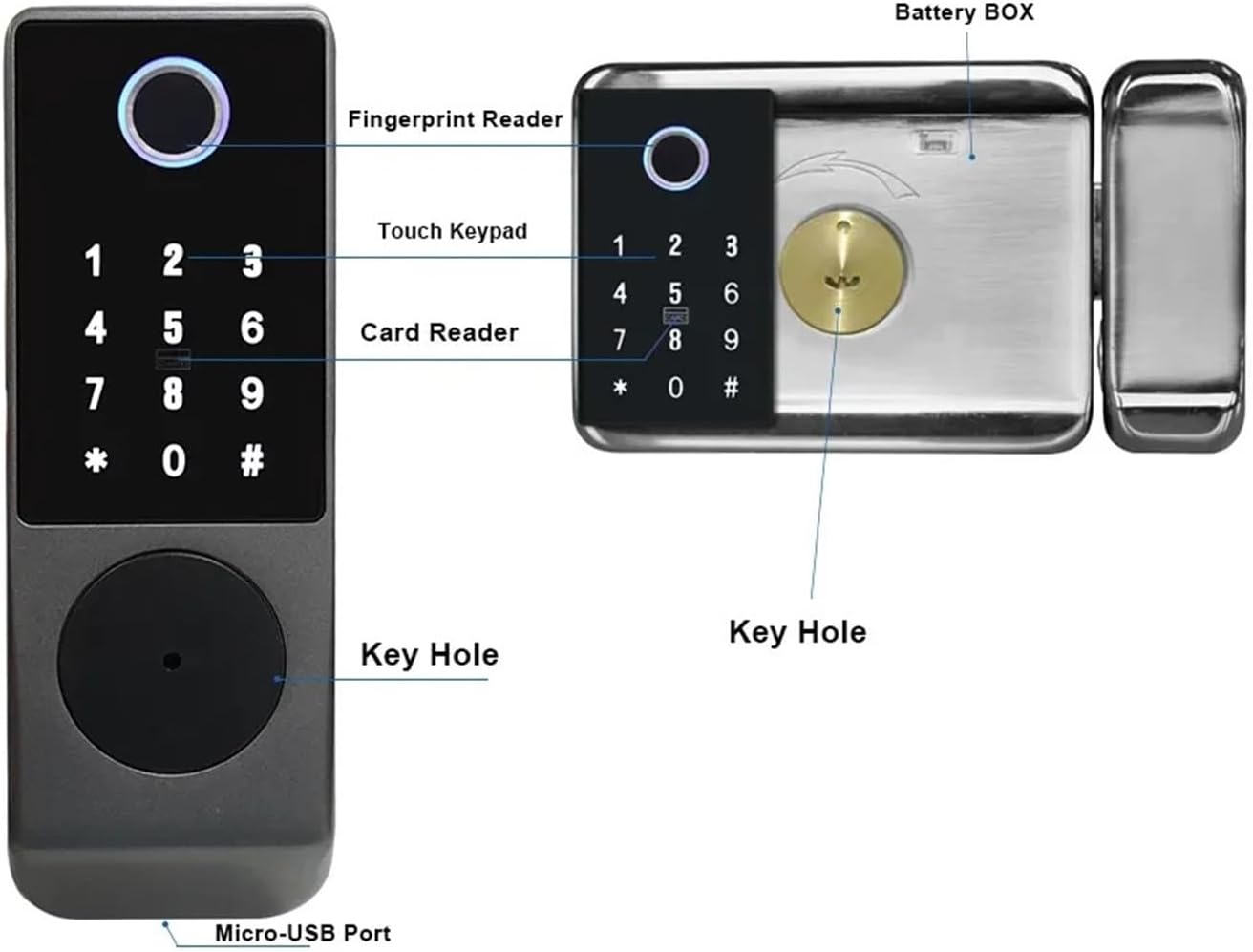
Figure 4.2: Labeled components of the smart lock for installation reference.
4.3 Initial Setup and Language Selection
Upon initial power-up, the lock will prompt you to select a language. This is a critical step for voice guidance.
- Enter Initial Mode: The lock will automatically enter initial setup mode after battery installation.
- Select Language: Use the keypad to enter the corresponding code for your desired language:
- 555666880: English
- 555666881: Vietnamese
- 555666882: Portuguese
- 555666883: Arabic
- 555666884: Russian
- 555666885: Thai
- 555666886: Spanish
- 555666887: Indonesian
- Confirm Selection: Follow the voice prompts to confirm your language choice.
5. Operating Instructions
Your YAXRO Smart Lock offers multiple ways to unlock. Familiarize yourself with each method for convenient and secure access.

Figure 5.1: Overview of the various unlocking methods available.
5.1 Fingerprint Unlocking
- Enroll Fingerprints: Access the lock's administration menu (refer to the app or master code instructions) to enroll new fingerprints. Follow the voice prompts to place your finger on the reader multiple times from different angles.
- Unlock: Place your enrolled finger on the fingerprint reader. The lock will unlock within 0.5 seconds if the fingerprint is recognized.
5.2 Password Unlocking
- Set Passwords: Use the administration menu or Tuya app to set up user passwords. Passwords typically consist of 6-8 digits.
- Unlock: Enter your password on the touch keypad, then press the '#' key to confirm.
5.3 IC Card Unlocking
- Register IC Cards: In the administration menu or Tuya app, select the option to add an IC card. Present the card to the card reader on the lock.
- Unlock: Present the registered IC card to the card reader on the lock.
5.4 Tuya App Unlocking and Management
The Tuya app provides advanced control and monitoring features for your smart lock.
- Download and Install App: Download the 'Tuya Smart' or 'Smart Life' app from your smartphone's app store.
- Pair Lock: Follow the in-app instructions to add your smart lock. This typically involves putting the lock into pairing mode and connecting it to your home WiFi network.
- Remote Unlock: Once paired, you can remotely unlock the gate via the app.
- User Management: Add, modify, or delete fingerprints, passwords, and IC cards for various users.
- View Unlock Records: Access a history of all lock and unlock events.
- Temporary Passwords: Generate time-limited or one-time passwords for guests or service providers.
- Alarm Records: Check for any security alerts or abnormal activities.
- Remaining Power: Monitor the battery level of your lock.

Figure 5.2: Tuya app interface for smart lock management.
5.5 Mechanical Key Unlocking
In case of battery failure or electronic malfunction, the mechanical key provides a reliable backup.
- Insert Key: Insert the mechanical key into the keyhole located on the lock.
- Turn and Unlock: Turn the key to manually unlock the gate.
6. Maintenance
Regular maintenance ensures the longevity and reliable operation of your smart lock.
- Battery Replacement: When the lock indicates low battery (via voice prompt or app notification), replace all 4 AA batteries promptly. Do not mix old and new batteries or different battery types.
- Emergency Power: If batteries die completely, connect a power bank to the Micro USB port on the outdoor unit for temporary power to unlock the door.
- Cleaning: Wipe the lock's surface with a soft, damp cloth. Avoid using abrasive cleaners or solvents that could damage the finish or electronic components.
- Fingerprint Sensor: Keep the fingerprint sensor clean and dry for optimal recognition.
7. Troubleshooting
If you encounter issues with your smart lock, refer to the following common problems and solutions:
| Problem | Possible Cause | Solution |
|---|---|---|
| Lock does not respond | Dead batteries | Replace AA batteries or use Micro USB for emergency power. |
| Fingerprint not recognized | Fingerprint sensor dirty, finger wet/damaged, fingerprint not enrolled correctly | Clean sensor, ensure finger is dry, re-enroll fingerprint, or use another unlock method. |
| Password not working | Incorrect password entered, password expired (temporary) | Verify password, check app for temporary password status, reset password if necessary. |
| IC Card not working | Card not registered, card damaged | Register card via app/admin menu, try another registered card. |
| Tuya App cannot connect to lock | WiFi signal weak, lock not in pairing mode, app not updated | Ensure strong WiFi signal, put lock in pairing mode, update app, restart router. |
| Voice prompts in wrong language | Incorrect language selected during initial setup | Refer to Section 4.3 for language selection codes and re-enter. |
8. Warranty and Support
For warranty information, technical support, or service inquiries, please contact the seller or manufacturer directly through your purchase platform. Keep your proof of purchase for warranty claims.