
1. Introduction
This manual provides detailed instructions for the installation, operation, and maintenance of your podofo 9-inch single DIN car stereo, Model F133. Please read this manual thoroughly before using the product to ensure proper functionality and safety. Keep this manual for future reference.
2. Product Overview
2.1 Key Features
- 9-inch Capacitive Touchscreen Display
- Wireless Apple CarPlay and Android Auto
- Bluetooth for Hands-Free Calling and Audio Streaming
- FM Radio Tuner
- USB and AUX Input
- Support for AHD Backup Camera
- Steering Wheel Control (SWC) Compatibility
- 7-Color Backlight Options
- Built-in Equalizer (EQ) Settings
- Mirror Link Functionality (iOS/Android)
2.2 Package Contents
Verify that all items are present in the package:
- podofo 9-inch Car Stereo Unit (Model F133)
- Power Cable Harness
- Horn Cable Harness
- User Manual (this document)
- External Microphone
- AHD Backup Camera (if included in your specific package)

Image: Illustration of the car stereo unit and its included accessories, including power cables, horn cables, microphone, and backup camera.
3. Installation Guide
Important: Professional installation is recommended. Disconnect the vehicle's battery before beginning installation to prevent electrical shorts and damage.
3.1 Dimensions and Fitment
The unit is a single DIN size with a 9-inch display. Ensure your vehicle's dashboard opening is compatible.

Image: Visual comparison showing a standard car radio before installation and the podofo 9-inch touchscreen stereo after installation in a vehicle dashboard.

Image: Detailed diagram showing the physical dimensions of the car stereo unit from various angles, including the 9-inch screen and the single DIN chassis.
3.2 Wiring Diagram
Refer to the following diagram for correct wiring connections. Incorrect wiring can damage the unit or vehicle electrical system.

Image: Comprehensive wiring diagram illustrating connections for power (GND, +12V Ignition, B+, ACC), speaker outputs (front/rear left/right), video input/output, radio antenna, microphone input, and reversing control line.
- Power Cable: Connect to vehicle's power supply (GND, +12V Ignition, B+, ACC).
- Horn Cable: Connect to vehicle's speaker wiring.
- Video Input/Output: For external video sources or monitors.
- Rear View Camera Input: Connect the AHD backup camera here.
- Microphone Input: Connect the external microphone for hands-free calls.
- Steering Wheel Control (SWC): Connect to vehicle's SWC wires (Key1, Key2) for button functionality.
3.3 Backup Camera Installation
If your package includes a backup camera, follow these steps for installation:
- Mount the camera securely at the rear of your vehicle.
- Connect the camera's video output to the "Rear View Camera Input" on the stereo unit.
- Connect the camera's power wire to the vehicle's reverse light power source (+12V).
- Connect the camera's ground wire to a suitable ground point.
- Connect the "Reversing Control Line" (usually a pink or brown wire from the stereo harness) to the reverse light power source as well. This signals the stereo to switch to the camera view when reversing.

Image: Diagram showing the connections for the backup camera, including video signal to the head unit and power connections to the reverse light circuit.
4. Operating Instructions
4.1 Initial Setup
After installation, turn on your vehicle's ignition. The stereo should power on. Follow any on-screen prompts for initial language and time settings.
4.2 Wireless Apple CarPlay & Android Auto
This unit supports both wireless and wired connections for Apple CarPlay and Android Auto.
- Ensure Bluetooth and Wi-Fi are enabled on your smartphone.
- On the car stereo, navigate to the CarPlay or Android Auto application.
- The stereo will search for available devices. Select your phone from the list.
- Confirm the pairing code on both your phone and the stereo.
- Once connected, your phone's compatible apps will appear on the stereo display.

Image: Display of the car stereo screen showing the interfaces for Apple CarPlay, Android Auto, and Mirror Link, highlighting both wired and wireless connection options.

Image: A car interior view with the podofo stereo displaying Apple CarPlay, and a smartphone next to it, indicating wireless connectivity.

Image: A car interior view with the podofo stereo displaying Android Auto, and a smartphone next to it, indicating wireless connectivity.
4.3 Mirror Link (Phone Link)
Mirror Link allows you to display your smartphone's screen directly on the car stereo. This typically requires a wired USB connection.
- Connect your smartphone to the stereo's USB port using a high-quality USB cable.
- On the stereo, select the "Mirror Link" or "Phone Link" option.
- Follow any on-screen prompts on both your phone and the stereo to establish the connection. You may need to enable USB debugging or allow screen mirroring on your phone.

Image: Step-by-step visual instructions for connecting a smartphone to the car stereo using a USB cable for Mirror Link, Apple CarPlay, and Android Auto functionalities.
4.4 Bluetooth Functionality
Connect your phone via Bluetooth for hands-free calling and audio streaming.
- On the stereo, go to the Bluetooth menu.
- Enable Bluetooth on your smartphone and search for devices.
- Select "podofo F133" (or similar name) from your phone's Bluetooth list.
- Confirm the pairing code if prompted.
- Once connected, you can make/receive calls and play music through the stereo.
Image: The car stereo display showing the Bluetooth interface for phone calls, contact synchronization, and music playback.

Image: A close-up of the car stereo screen showing a hands-free call interface.

Image: A close-up of the car stereo screen showing the Bluetooth music player interface.
4.5 FM Radio
Access the FM radio tuner to listen to local stations.
- Select the "Radio" icon from the main menu.
- Use the on-screen controls to scan for stations, manually tune, or select preset stations.

Image: The car stereo display showing the FM radio interface with frequency display and station preset buttons.

Image: A close-up of the car stereo screen showing the FM radio tuning interface.
4.6 Equalizer (EQ) Settings
Adjust audio output to your preference using the built-in equalizer.
- Access the "EQ" or "Sound Settings" menu.
- Choose from preset sound modes (e.g., Jazz, Rock, Pop, Classic) or customize individual frequency bands.
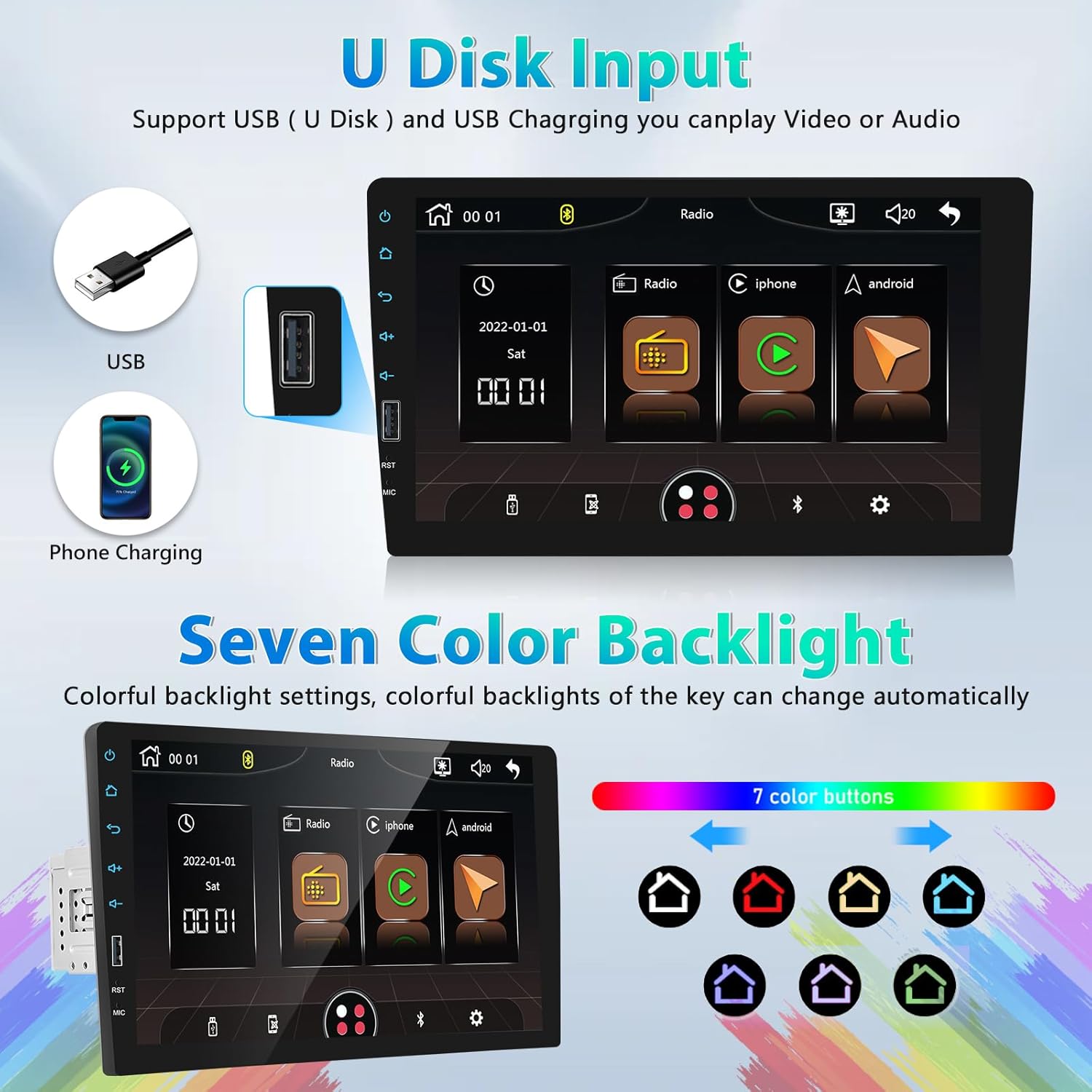
Image: The car stereo display showing the Equalizer (EQ) settings, allowing adjustment of audio frequencies and selection of predefined sound modes.

Image: A close-up of the car stereo screen showing the graphic equalizer for sound customization.
4.7 USB Input and Charging
The unit features a USB port for media playback and device charging.
- Insert a USB flash drive (U Disk) containing audio or video files into the USB port. The stereo will automatically detect and play compatible media.
- Connect your smartphone or other USB-powered devices to the USB port for charging.
Image: The car stereo display showing media playback from a USB disk, alongside illustrations of a USB drive and a phone being charged via the USB port.

Image: A car stereo unit with a USB cable connected to a smartphone, illustrating the USB charging capability.
4.8 Steering Wheel Control (SWC)
If your vehicle supports SWC, you can configure the stereo to respond to your steering wheel buttons.
- After wiring the SWC cables (Key1, Key2) correctly, navigate to the "Steering Wheel Control" settings in the stereo's menu.
- Follow the on-screen instructions to program each button (e.g., Volume Up, Volume Down, Next Track, Previous Track).

Image: The car stereo display showing the Steering Wheel Control setup menu, allowing users to map vehicle steering wheel buttons to stereo functions.

Image: A driver's hand operating steering wheel controls, with the car stereo screen showing the corresponding settings interface.
4.9 7-Color Backlight
Customize the color of the physical buttons on the stereo unit.
- Access the "Backlight Settings" or "Display Settings" menu.
- Choose from 7 available colors or set it to cycle automatically.
Image: The car stereo display showing backlight color options, with examples of buttons illuminated in various colors.

Image: The car stereo unit showcasing its physical buttons illuminated in various colors, demonstrating the 7-color backlight feature.
4.10 Voice Control
Utilize voice commands through Apple CarPlay or Android Auto for navigation, music, and calls.
- Activate your phone's voice assistant (Siri for CarPlay, Google Assistant for Android Auto) by pressing the voice command button on the stereo or steering wheel, or by saying the wake word.
- Speak your commands clearly.

Image: The car stereo screen showing a voice control interface, with speech bubbles indicating commands like "Hey Siri, show me the map" and "Hey, Play music."
5. Specifications
| Feature | Specification |
|---|---|
| Display Size | 9-inch |
| Display Type | Capacitive Touchscreen |
| Connectivity | Wireless Apple CarPlay, Wireless Android Auto, Bluetooth, USB, AUX, RCA |
| Radio Tuner | FM |
| Output Wattage | 45 Watts (per channel, 4 channels) |
| Surround Sound Channel Configuration | 5.1 |
| Compatible Devices | Smartphone |
| Item Model Number | F133 |
| Item Weight | 2.42 pounds |
| Package Dimensions | 11.14 x 9.09 x 5 inches |
6. Troubleshooting
If you encounter issues with your car stereo, refer to the following common problems and solutions:
6.1 No Power
- Check Wiring: Ensure the power cables (B+, ACC, GND) are correctly connected and have proper voltage.
- Check Fuse: Verify the fuse on the stereo's power cable and in your vehicle's fuse box.
- Ignition: Ensure the vehicle's ignition is on.
6.2 No Sound
- Volume Level: Check if the volume is turned up and not muted.
- Speaker Wiring: Verify all speaker wires are correctly connected and not shorted.
- Source Selection: Ensure the correct audio source (e.g., FM, Bluetooth, CarPlay) is selected.
6.3 CarPlay/Android Auto Not Connecting
- Bluetooth/Wi-Fi: Ensure both are enabled on your phone and the stereo.
- USB Cable: If using wired connection, try a different, high-quality USB cable.
- Phone Settings: Check your phone's settings for any permissions or restrictions related to CarPlay/Android Auto.
- Restart: Restart both your phone and the car stereo.
6.4 Backup Camera Not Displaying
- Wiring: Confirm the camera's video cable is connected to the "Rear View Camera Input" and the "Reversing Control Line" is connected to the reverse light power.
- Camera Power: Ensure the camera is receiving power when the vehicle is in reverse.
- Camera Functionality: Test the camera if possible with an external monitor to rule out a faulty camera.
6.5 Touchscreen Unresponsive
- Restart: Turn off the vehicle's ignition and restart it.
- Reset Button: Locate the small reset button (often a pinhole) on the front panel and press it with a thin object (e.g., paperclip).
7. Maintenance
- Cleaning the Screen: Use a soft, lint-free cloth to gently wipe the touchscreen. Do not use abrasive cleaners or solvents.
- Software Updates: Periodically check the manufacturer's website for any available firmware updates to improve performance and add features.
- Avoid Extreme Temperatures: Prolonged exposure to extreme heat or cold can affect the unit's performance and lifespan.
8. Warranty and Support
For warranty information, technical support, or service inquiries, please contact podofo customer support through their official website or the retailer where the product was purchased. Please have your model number (F133) and purchase details ready.