
1. Product Overview
The MokerLink 5 Port Gigabit Industrial DIN-Rail Ethernet Switch is designed for reliable network connectivity in demanding environments. This unmanaged switch features 5 Gigabit Ethernet ports, offering a switching capacity of 14Gbps. Its robust design includes an industrial-grade aluminum alloy casing, IP40 protection, and a wide operating temperature range.
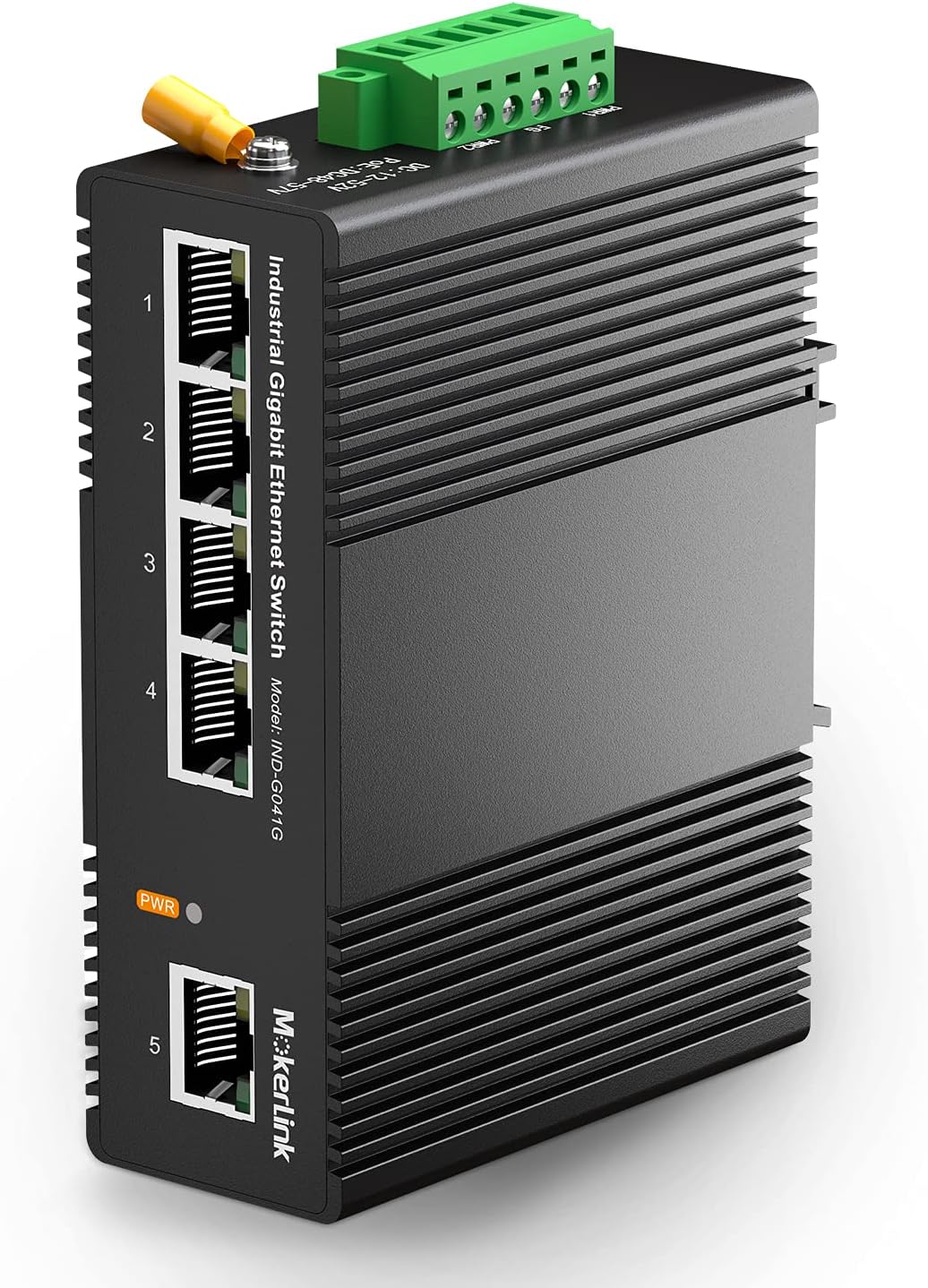
Image 1.1: Front-angled view of the MokerLink 5 Port Gigabit Industrial DIN-Rail Ethernet Switch.
Key Features:
- 5 Gigabit Ethernet Ports: Includes 4 standard Gigabit Ethernet ports and 1 Gigabit uplink port, all supporting 10/100/1000Mbps.
- High Switching Capacity: Up to 14Gbps for efficient data transfer.
- Industrial-Grade Design: Aluminum alloy shell with groove design for enhanced heat dissipation.
- Environmental Durability: IP40 protection rating, operating temperature range of -40°C to 75°C (-40°F to 185°F).
- Redundant Power Supply: Supports dual power inputs for increased reliability, with automatic fault switching and reverse connection protection.
- Easy Installation: Integrated DIN-rail mount kit for simple setup.
- Plug and Play: Auto-negotiation, no configuration required.
- Energy Efficient: Low-power consumption CPU and fanless operation.

Image 1.2: Diagram illustrating key features of the MokerLink 5 Port Gigabit Industrial Switch, including redundant power, DIN rail mountable, IP40 protection, compact size, metal case, and -40 to 85°C operating temperature.
2. Setup Instructions
Follow these steps to set up your MokerLink Industrial Ethernet Switch.
2.1 Package Contents
- MokerLink 5 Port Gigabit Industrial DIN-Rail Ethernet Switch
- UL-certified power adapter
- DIN-rail mount kit
2.2 Mounting the Switch
The switch is designed for DIN-rail mounting. The integrated DIN-rail mount kit allows for easy installation and removal.
- Align the switch's DIN-rail clip with the 35mm DIN-rail.
- Push the switch firmly onto the rail until it clicks into place.
- Ensure the switch is securely fastened to prevent accidental dislodgement.

Image 2.1: The MokerLink switch demonstrating its mounting on a 35mm DIN-rail.
2.3 Power Connection
The switch supports a wide voltage input (DC 12-52V) and features redundant power supply capabilities for enhanced reliability. An UL-certified power adapter is included.
- Locate the green terminal block on the switch for power input (PWR1, FG, PWR2).
- Using a small screwdriver, loosen the screws for the desired power input terminals (e.g., PWR1).
- Insert the pre-stripped wires from the UL-certified power adapter into the corresponding terminals: red wire (+) into the positive terminal and black wire (-) into the negative terminal.
- Tighten the screws to secure the wires.
- For redundant power, connect a second power supply to the PWR2 terminals following the same procedure.
- Plug the power adapter into a suitable power outlet. The PWR indicator on the switch will illuminate when power is supplied.

Image 2.2: Close-up of the redundant power supply terminal block on the MokerLink switch, showing PWR1, FG, PWR2 connections, and an included UL-certified AC adapter.
2.4 Network Connection
The switch is plug-and-play and requires no configuration.
- Connect your network devices (e.g., computers, servers, other switches) to any of the 5 Gigabit Ethernet ports using standard RJ45 Ethernet cables.
- The switch supports auto-negotiation, automatically detecting the speed and duplex mode of connected devices.
- The link/activity LEDs for each port will illuminate when a valid connection is established and blink during data transmission.
3. Operating Instructions
The MokerLink Industrial Ethernet Switch operates automatically once powered and connected.
3.1 Power Indicators
- PWR LED: Illuminates when the switch receives power.
3.2 Port Indicators
- Each Ethernet port has an associated LED indicator.
- A solid light indicates a stable network link.
- A blinking light indicates active data transmission.
3.3 Data Transmission
The switch provides full Gigabit (1000Mbps) speeds across all 5 ports, facilitating high-speed data transfer within your industrial network.
4. Maintenance
The MokerLink Industrial Ethernet Switch is designed for minimal maintenance due to its robust construction and fanless operation.
4.1 Environmental Considerations
- Temperature: Ensure the operating environment remains within the specified range of -40°C to 75°C (-40°F to 185°F).
- Dust Protection: The IP40 rating provides protection against solid objects larger than 1mm, including dust. While protected, avoid excessively dusty environments to prolong device lifespan.
- Ventilation: Although fanless, ensure adequate airflow around the switch's grooved casing for optimal passive heat dissipation.

Image 4.1: Collage showing the compact size of the switch, its low-power consumption CPU, quality electronic components, and fanless heat dissipation design, all contributing to its suitability for industrial environments.
4.2 Cleaning
If necessary, gently clean the exterior of the switch with a soft, dry cloth. Do not use liquid cleaners or solvents.
4.3 Lightning and Surge Protection
The switch incorporates anti-lightning, anti-static, and anti-overload protection features. However, for critical installations, additional external surge protection devices are recommended.
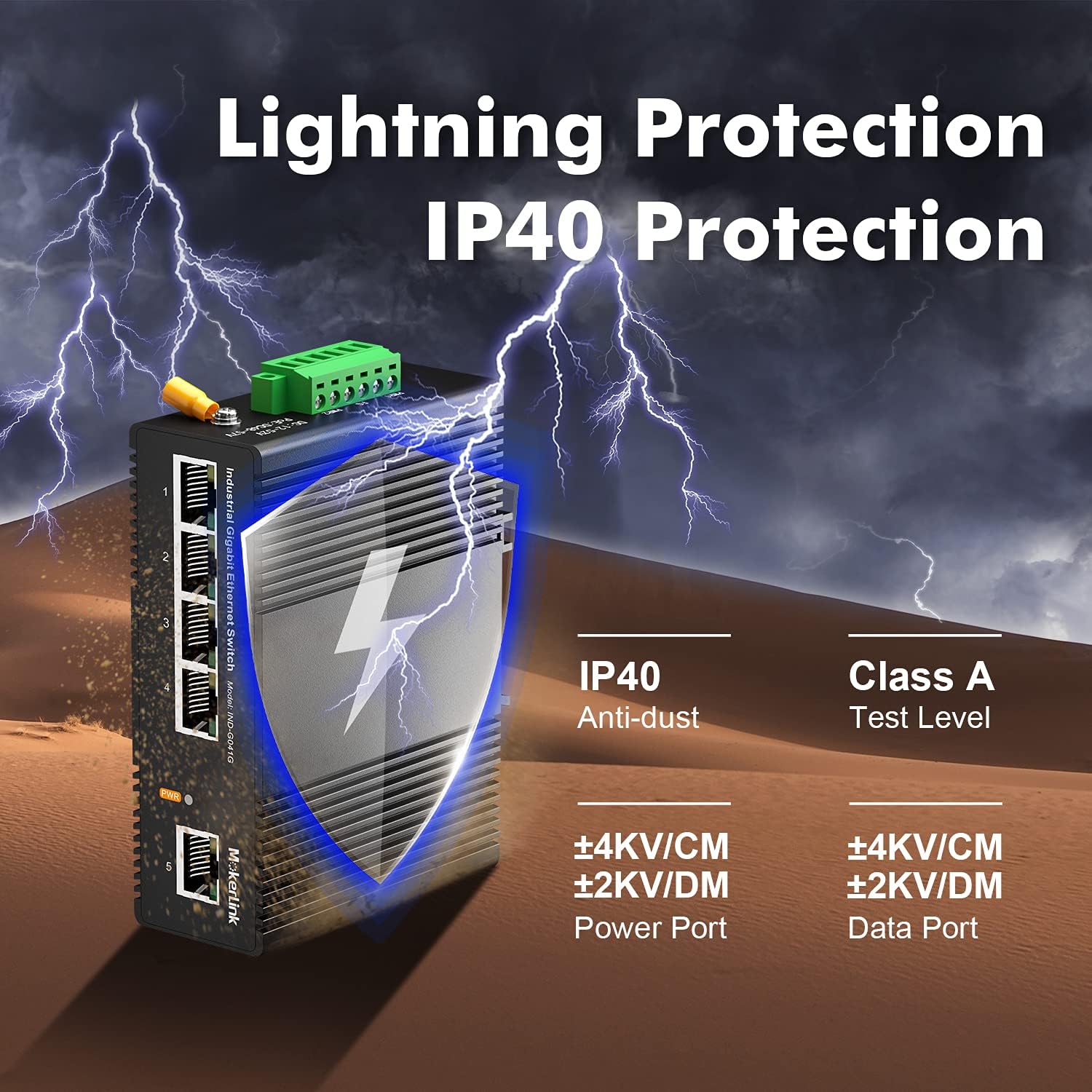
Image 4.2: Image showing the MokerLink switch with lightning bolts, highlighting IP40 anti-dust and lightning protection features.
5. Troubleshooting
This section provides basic troubleshooting steps for common issues.
5.1 No Power Indicator Light
- Check Power Source: Ensure the power outlet is functional and the power adapter is securely plugged in.
- Verify Connections: Confirm that the power wires are correctly and securely connected to the switch's terminal block.
- Test Power Adapter: If possible, test the power adapter with another compatible device or use a different adapter to rule out a faulty power supply.
5.2 No Link Light on a Port
- Check Cable: Ensure the Ethernet cable is securely connected at both ends (switch and connected device). Try a different Ethernet cable.
- Verify Device: Confirm that the connected device (e.g., computer, router) is powered on and functioning correctly.
- Port Test: Try connecting the device to a different port on the switch.
5.3 Slow Network Speed
- Cable Quality: Ensure you are using high-quality Ethernet cables (Cat5e or Cat6) for Gigabit speeds.
- Device Compatibility: Verify that all connected devices support Gigabit Ethernet.
- Network Congestion: High network traffic can affect performance. Monitor network usage.
6. Specifications
| Feature | Specification |
|---|---|
| Brand | MokerLink |
| Model Number | 5 Gigabit |
| Number of Ports | 5 |
| Interface Type | RJ45 |
| Data Transfer Rate | 1000 Megabits Per Second (Gigabit) |
| Switching Capacity | 14Gbps |
| Voltage Input | 12-52 Volts (DC) |
| Operating Temperature | -40 to 75 Degrees Celsius (-40 to 185 Degrees Fahrenheit) |
| IP Rating | IP40 |
| Product Dimensions | 7.4 x 3.39 x 1.54 inches |
| Item Weight | 1.67 pounds |
| Included Components | UL-certified power adapter, DIN-rail mount kit |
| Color | Black |
| UPC | 786118199903 |
7. Warranty and Support
For warranty information and technical support, please refer to the official MokerLink website or contact their customer service directly. You can also visit the MokerLink Brand Store on Amazon for additional resources and contact options.