
Introduction
This manual provides instructions for the setup, operation, maintenance, and troubleshooting of your AZMKIMI BN59-01385A Solar TV Remote. This remote control is designed for use with compatible Samsung TVs and features solar charging, USB-C charging, voice control, and dedicated shortcut buttons for popular streaming services.

Figure 1: Overview of the AZMKIMI BN59-01385A Solar TV Remote.
Initial Setup
1. Charging the Remote
The remote control features an eco-friendly charging system that utilizes both solar power and a USB Type-C port. Before initial use, ensure the remote is adequately charged.
- Solar Charging: Place the remote with its solar panel facing a light source. Direct sunlight is most effective, but indoor lighting can also contribute to charging.
- USB Type-C Charging: Connect a USB Type-C cable (not included) to the remote's charging port and a compatible USB power adapter. The remote includes a built-in Lithium Polymer battery.

Figure 2: The back of the remote control featuring the solar charging panel.
2. Pairing with Your Samsung TV
This remote uses Bluetooth for communication with your Samsung TV. Follow these steps to pair the remote:
- Ensure your TV is powered on.
- Point the remote towards your TV.
- Simultaneously press and hold the Return button (
 ) and the Play/Pause button () for 3 seconds or more.
 - A pairing message should appear on your TV screen, indicating successful pairing.
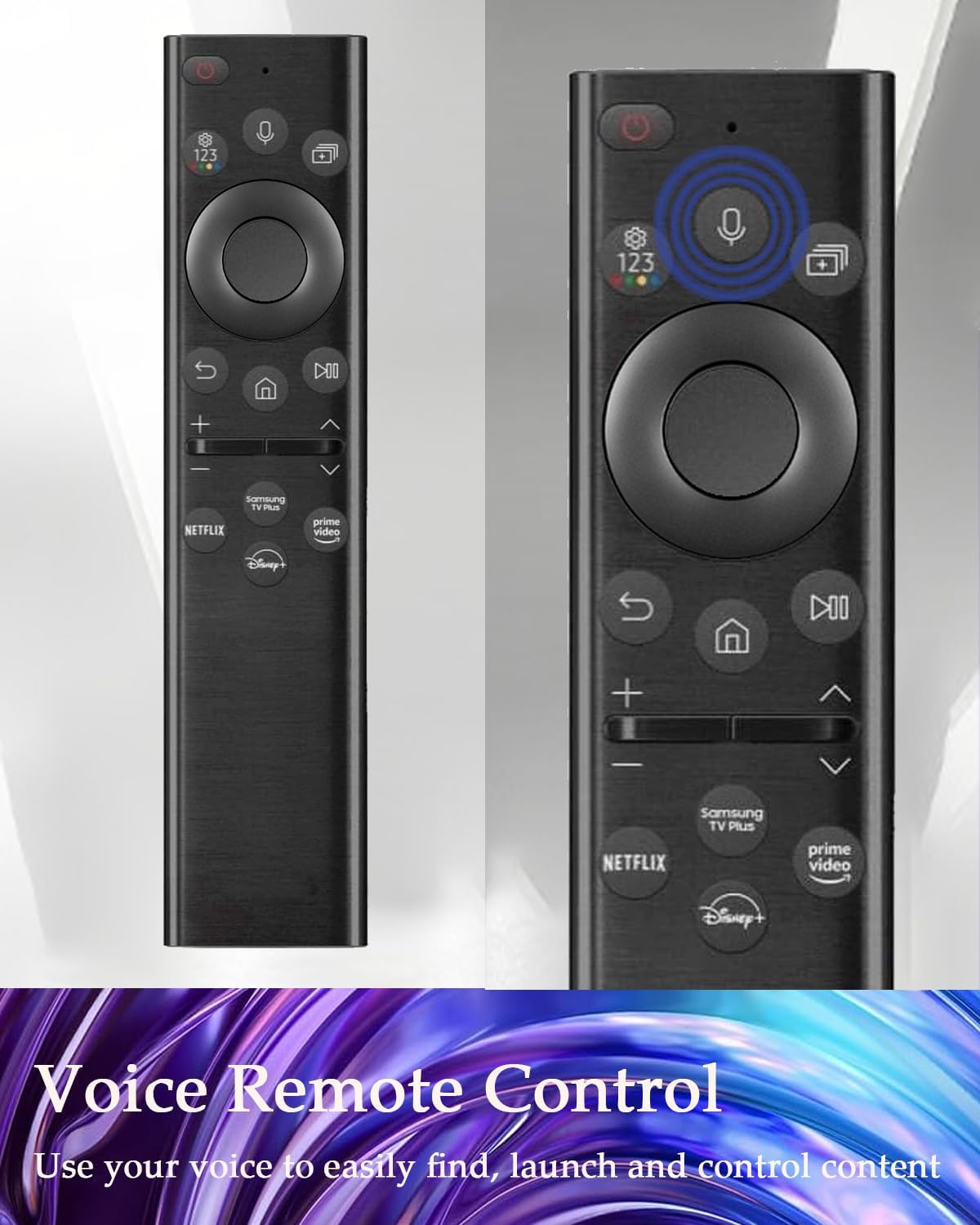
Figure 3: The remote control, showing the location of the voice control button and buttons used for pairing.
Operating Instructions
1. Basic Navigation
The remote features standard buttons for TV control:
- Power Button: Turns the TV on or off.
- Directional Pad (Up, Down, Left, Right, Enter): Navigates menus and selects options.
- Volume Buttons (+/-): Adjusts the TV volume.
- Channel Buttons (Up/Down): Changes TV channels.
- Return Button: Goes back to the previous screen or menu.
- Home Button: Accesses the TV's Smart Hub or home screen.
2. Voice Control Function
The remote includes a voice search function for convenient control. To use voice control:
- Press and hold the Microphone button () on the remote.
- Speak your command clearly into the remote's microphone. For example, say "Open Netflix" or "Search for action movies."
- Release the Microphone button when you are finished speaking.

Figure 4: Using the voice control feature to issue commands to your TV.
3. Shortcut Buttons
The remote features four dedicated shortcut buttons for quick access to popular streaming platforms. Simply press the desired button to launch the corresponding application directly.
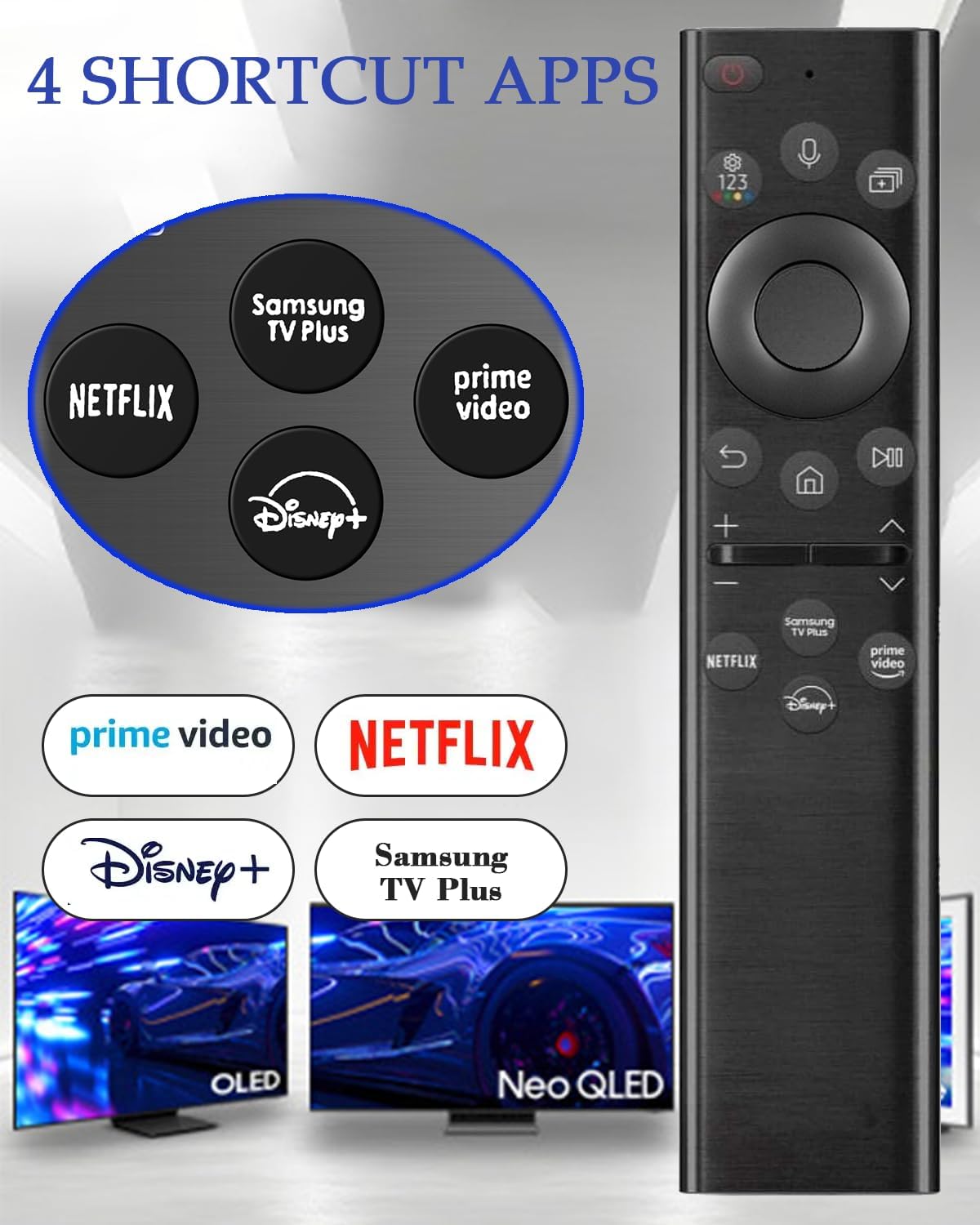
Figure 5: The remote control displaying the dedicated shortcut buttons for streaming applications.
Maintenance
1. Charging Best Practices
- For optimal solar charging, periodically expose the remote's solar panel to light.
- If the remote's battery is low, use the USB Type-C port for a faster charge.
- Avoid prolonged exposure to extreme temperatures or direct harsh sunlight, which can affect battery life.
2. Cleaning
To clean the remote, gently wipe it with a soft, dry cloth. Do not use liquid cleaners, aerosols, or abrasive materials, as these can damage the remote's surface or internal components.
Troubleshooting
1. Remote Not Responding
- Check Battery: Ensure the remote is sufficiently charged. Charge it via solar panel or USB Type-C.
- Re-pair Remote: If the remote becomes unresponsive, try re-pairing it with your TV by holding the Return and Play/Pause buttons simultaneously for 3 seconds.
- Obstructions: Ensure there are no obstructions between the remote and the TV.
2. Voice Control Not Working
- Check Pairing: Confirm the remote is properly paired via Bluetooth.
- Microphone Access: Ensure the microphone is not covered and you are speaking clearly.
- TV Settings: Verify that voice control is enabled in your TV's settings.
3. Charging Issues
- USB-C Charging: If USB-C charging fails, try a different USB-C cable and power adapter.
- Solar Charging: Ensure the solar panel is clean and exposed to adequate light.
- If charging issues persist, the internal battery may be faulty. Contact customer support.
Product Specifications
| Model Number | BN59-01385A |
| Brand | AZMKIMI |
| Compatible TV Models | Samsung 6, 7, 8 series, Frame, Crystal UHD Series, QLED Q60T, Q70T, Q80T series Smart TV (e.g., RU9000, TU8000, Q60, Q70, Q80, Q900, NU8000, NU8500, Q6F, Q7F, Q7C, Q8F, Q9F Series) |
| Compatible Remote Models | BN59-01259E, BN59-01312B/H/G, BN59-01312F, BN59-01312M, BN59-01312A, BN59-01199F, BN59-01259B, BN59-01260A, BN59-01266A, BN59-01241a, BN59-01301A |
| Power Source | Solar Charging, USB Type-C Charging |
| Battery Type | 1 Lithium Polymer battery (included) |
| Special Features | Rechargeable, Solar Charging, Type-C Charging, Voice Search |
| Product Dimensions | 1.5 x 0.5 x 4 inches |
| Item Weight | 2.08 ounces |
Warranty and Support
For warranty information or technical support, please contact the manufacturer, AZMKIMI, directly through their official channels or the retailer where the product was purchased. Please retain your proof of purchase for any warranty claims.