
1. Introduction
This manual provides detailed instructions for the assembly, operation, and maintenance of your GIKPAL Computer Desk. Designed for versatility and efficiency, this L-shaped desk features reversible storage shelves, integrated power outlets, an adjustable monitor stand, and an LED strip, making it ideal for home office, gaming, or study environments. Please read this manual thoroughly before assembly and use to ensure proper setup and safe operation.
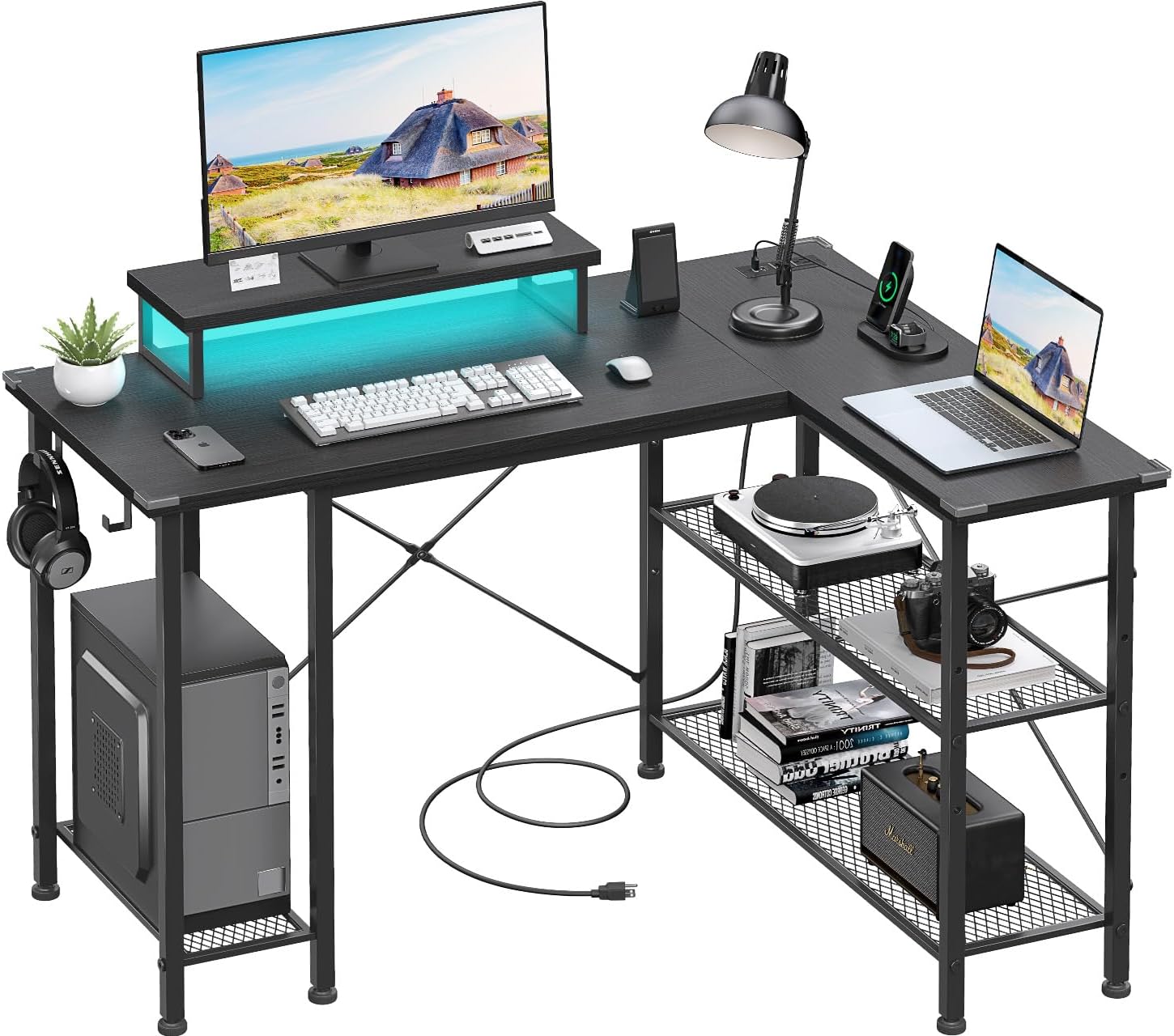
Figure 1.1: GIKPAL L-Shaped Computer Desk. This image shows the desk fully assembled with a computer, monitor, laptop, and various office accessories, highlighting its spacious and organized design.
2. Safety Information
Adhering to these safety guidelines will help prevent injury and damage to the product.
- Assembly: Always assemble the desk on a soft, clean surface to prevent scratches. Ensure all screws and fasteners are tightened securely before use. Do not overtighten.
- Weight Capacity: Do not exceed the specified weight limits for the desktop, monitor stand, and shelves. Refer to the Specifications section for details.
- Electrical Safety: The built-in power outlets and USB ports are designed for standard electronic devices. Do not overload the outlets. Ensure the power cable is not pinched or damaged. Disconnect power before cleaning or moving the desk.
- Stability: Place the desk on a level surface. If the desk feels unstable, recheck all connections.
- Children and Pets: Keep small parts away from children and pets during assembly. Do not allow children to climb on or play with the desk.
- Maintenance: Regularly inspect the desk for loose parts or damage. Address any issues promptly.
3. Package Contents
Before beginning assembly, verify that all components listed below are present and undamaged. If any parts are missing or damaged, please contact GIKPAL customer support.
- Desktop Panels (Main, L-shaped extension)
- Metal Frame Components (Legs, support bars)
- Storage Shelves (Mesh design)
- Adjustable Monitor Stand
- Built-in Power Outlet Unit (with 2 AC outlets, 2 USB ports, and 4.9 ft cable)
- LED Light Strip with Remote Control
- Assembly Hardware (Screws, bolts, Allen wrench)
- Side Hooks (2 units)
- Anti-Collision Table Corner Protectors
- Instruction Manual
4. Setup and Assembly
Follow these steps carefully to assemble your GIKPAL Computer Desk. It is recommended to have two people for assembly.
- Prepare the Area: Clear a spacious area and lay down a blanket or cardboard to protect the desk components and your floor from scratches during assembly.
- Assemble the Main Desk Frame: Begin by attaching the main desk legs to the primary desktop panel using the provided hardware. Ensure all connections are finger-tight at this stage.
- Configure L-Shape Orientation: The L-shaped extension is reversible. Decide whether you want the longer side of the L-shape on the left or right. Attach the extension desktop panel to the main desk frame according to your chosen orientation.

Figure 4.1: Reversible L-Shaped Desk Configuration. This diagram illustrates how the L-shaped desk can be assembled with the longer section on either the left or right side to suit different room layouts.
- Install Storage Shelves: Attach the mesh storage shelves to the designated frame sections. The shelves are adjustable, allowing you to customize their height based on your storage needs. Secure them firmly.
- Mount Power Outlet Unit: Carefully insert the built-in power outlet unit into the pre-cut slot on the desktop. Ensure it sits flush and is securely fastened if applicable.
- Attach Monitor Stand: Place the adjustable monitor stand on the desktop. This stand is movable, allowing you to position it optimally for your viewing comfort.
- Apply LED Strip: Adhere the LED light strip to the underside of the monitor stand or along the back edge of the desk, as desired. Connect it to the USB port on the power outlet unit.
- Attach Side Hooks and Corner Protectors: Secure the two side hooks to the desk frame for hanging headphones or other items. Apply the anti-collision table corner protectors to the desk corners.
- Final Tightening: Once all components are in place and aligned, systematically tighten all screws and fasteners using the provided Allen wrench. Do not overtighten.
- Cable Management: Route the power cable from the built-in outlet unit to a wall socket. Organize any other cables using cable ties or clips (not included) for a tidy workspace.
5. Operating Instructions and Features
Your GIKPAL Computer Desk is equipped with several features designed to enhance your productivity and comfort.
5.1. Built-in Power Outlets
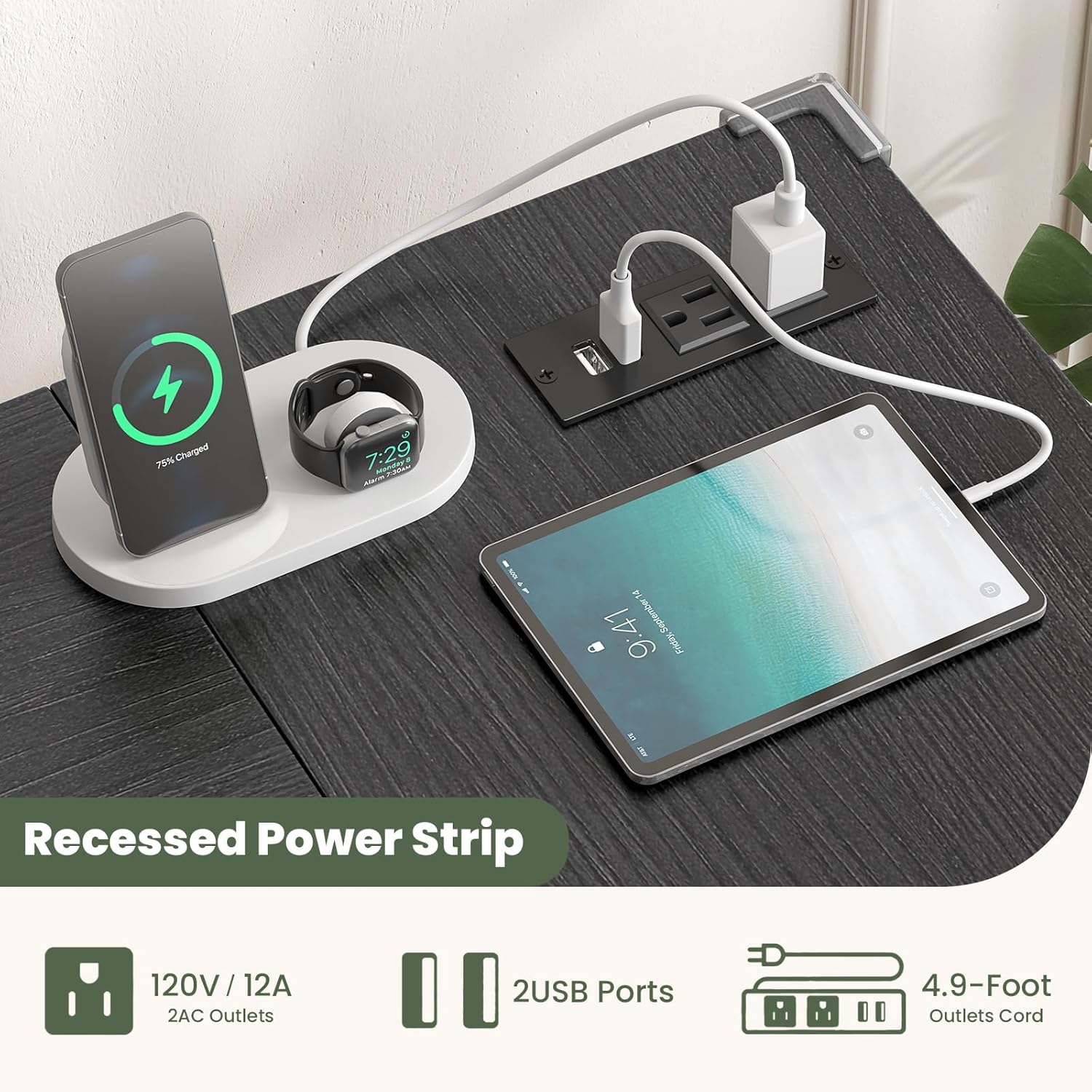
Figure 5.1: Recessed Power Strip. This image highlights the integrated power strip with two AC outlets and two USB charging ports, along with its 4.9-foot power cord.
The desk includes a convenient built-in power strip with 2 standard AC outlets and 2 USB charging ports. This allows you to power and charge your computer, monitor, phone, headphones, and other devices directly from your desk, reducing cable clutter. The 4.9-foot charging cable provides flexibility for desk placement.
- AC Outlets: Use for devices requiring standard wall power (e.g., monitors, laptops, lamps).
- USB Ports: Ideal for charging smartphones, tablets, smartwatches, and other USB-powered devices.
- Usage: Simply plug your devices into the appropriate ports. Ensure the desk's main power cable is connected to a wall outlet.
5.2. Adjustable Monitor Stand

Figure 5.2: Movable Monitor Stand. This image demonstrates how the elevated monitor stand helps reduce neck strain by positioning the screen at an ergonomic height, improving posture.
The desk features a removable monitor stand designed to elevate your screen to an ergonomic height. This helps reduce neck strain and improves your viewing posture during long work or gaming sessions. The stand can be moved anywhere on your desktop for optimal positioning.
- Positioning: Place the monitor stand on the main desktop surface. Adjust its position left or right to align with your monitor and seating.
- Ergonomics: Ensure your monitor's top edge is at or slightly below eye level when you are seated comfortably.
5.3. Storage Shelves

Figure 5.3: Customized Storage Space. This image illustrates the three levels of adjustable shelves, demonstrating how they can be configured to accommodate items of various heights, providing flexible storage.
The L-shaped desk is equipped with three spacious, adjustable storage shelves to help keep your workspace organized.
- Adjustable Shelves: The shelves can be adjusted to different heights to accommodate various items such as books, office supplies, computer towers, or decorative items. To adjust, carefully remove the shelf, reposition the support pins, and reinsert the shelf.
5.4. RGB LED Strip

Figure 5.4: RGB LED Strips. This image shows the LED lights illuminating the monitor stand, demonstrating the customizable lighting options with 16 static colors and 4 dynamic modes, enhancing the gaming or work atmosphere.
Enhance your workspace ambiance with the integrated RGB LED strip. It offers a variety of lighting options to suit your mood or activity.
- Power On/Off: Ensure the LED strip's USB connector is plugged into a USB port on the desk's power outlet unit. Use the provided remote control to turn the lights on or off.
- Color Selection: The LED strip offers 12 static colors. Use the color buttons on the remote control to select your desired color.
- Dynamic Modes: Choose from 4 dynamic modes (Flash, Strobe, Fade, Smooth) to create different lighting effects.
- Brightness Adjustment: Adjust the brightness level using the brightness control buttons on the remote.
- Memory Function: The LED lights have a memory function, retaining the last selected mode and color when turned back on.
5.5. Additional Features

Figure 5.5: Additional Desk Features. This image highlights practical design elements such as the two side hooks for hanging items, the removable monitor stand, and the anti-collision table corners for safety.
Beyond the primary features, the GIKPAL Computer Desk incorporates thoughtful design elements for enhanced usability and safety.
- Side Hooks: Two integrated side hooks are provided for convenient hanging of headphones, bags, or other accessories, keeping your desktop clear.
- Anti-Collision Table Corners: The desk is equipped with corner protectors to minimize the risk of injury from accidental bumps.
6. Maintenance
Proper care and maintenance will extend the life of your GIKPAL Computer Desk.
- Cleaning:
- For the desktop surface, wipe with a soft, damp cloth. Avoid abrasive cleaners or harsh chemicals that could damage the finish.
- For metal parts, use a dry or slightly damp cloth.
- Ensure the power outlet unit is unplugged from the wall before cleaning around it.
- Regular Inspection: Periodically check all screws and fasteners to ensure they remain tight. Retighten if necessary.
- Avoid Excessive Moisture: Do not expose the desk to excessive moisture or direct sunlight for prolonged periods, as this may cause warping or discoloration.
- Weight Distribution: Distribute weight evenly across the desktop and shelves to prevent stress on specific areas.
7. Troubleshooting
If you encounter any issues with your GIKPAL Computer Desk, refer to the following common problems and solutions.
| Problem | Possible Cause | Solution |
|---|---|---|
| Desk is wobbly or unstable. | Loose screws or uneven floor. | Ensure all assembly screws are tightened. Adjust leveling feet if present, or place shims under legs on uneven surfaces. |
| Power outlets/USB ports not working. | Desk not plugged in, power strip switch off, or overloaded circuit. | Verify the desk's main power cable is securely plugged into a functional wall outlet. Check if there's a power switch on the outlet unit and ensure it's on. Reduce the number of devices if overloaded. |
| LED strip not lighting up. | USB connection loose, remote battery dead, or strip damaged. | Ensure the LED strip's USB connector is firmly plugged into the desk's USB port. Check the remote control battery. If issues persist, contact support. |
| Parts missing or damaged upon arrival. | Shipping damage or packing error. | Do not proceed with assembly. Contact GIKPAL customer support immediately with your purchase details. |
8. Specifications
| Feature | Detail |
|---|---|
| Brand | GIKPAL |
| Model Number | HI01 |
| Color | Black |
| Product Dimensions | 80.01 x 119.89 x 74.93 cm (D x W x H) |
| Item Weight | 14.97 kg (approx. 15 kg) |
| Material | Alloy Steel (Frame), Wood (Top Material) |
| Desk Design | L-Shape Computer Desk |
| Special Features | Adjustable, Built-In Monitor Stand, Built-In USB Outlet, Electric (Power Outlets), Reversible L-Shape, LED Strip, Storage Shelves, Side Hooks, Anti-Collision Corners |
| Power Outlet | 2 AC Outlets, 2 USB Charging Ports, 4.9 ft Cable |
| LED Lights | 12 Colors, 4 Dynamic Modes, Brightness Adjustment, Memory Function |
| Monitor Stand Capacity | 22 lbs (approx.) |
| Desktop Capacity | 110 lbs per section (approx.) |
| Shelf Capacity | 44 lbs per shelf (approx.) |
9. Warranty and Customer Support
GIKPAL is committed to providing high-quality products and customer satisfaction. While specific warranty details are not provided in this manual, we stand behind our products.
If you have any questions regarding the assembly, operation, maintenance, or if you encounter any issues with your GIKPAL Computer Desk, please do not hesitate to contact our customer support team. We are dedicated to providing satisfactory solutions.
Please have your purchase information (e.g., order number, date of purchase) ready when contacting support to facilitate a quicker resolution.
For the most up-to-date contact information, please refer to the GIKPAL official website or your purchase platform.