
2NLF GAD1029WT1
2NLF 12MP Outdoor Security Camera User Manual
Model: GAD1029WT1
1. Introduction
Thank you for choosing the 2NLF 12MP Outdoor Security Camera. This device is designed to provide comprehensive surveillance for your property with advanced features including a triple-lens system, 360° PTZ control, color night vision, and two-way audio. This manual will guide you through the installation, operation, and maintenance of your security camera to ensure optimal performance and security.
2. Product Overview
2.1 Key Features
- 12MP Triple-Lens System: Combines two 4MP bullet cameras and one 4MP PTZ dome camera for wide-ranging, high-definition coverage.
- 360° PTZ Control: Pan, Tilt, and Zoom functionality for comprehensive area monitoring.
- 10X Digital Zoom: Allows for detailed inspection of specific areas.
- Color Night Vision: Provides clear and vibrant images even in low-light conditions.
- Advanced Motion Detection & Automatic Tracking: Intelligent sensors detect movement and track objects, sending real-time notifications.
- Two-Way Audio: Built-in microphone and speaker for communication.
- Multiple Connection Options: Supports 2.4 GHz Wi-Fi (5 GHz not supported), AP hotspot, and Bluetooth.
- Flexible Storage: Supports local storage via TF card (up to 128GB, not included) and cloud storage (subscription required).
- IP66 Weatherproof: Designed to withstand various outdoor weather conditions.
2.2 Package Contents
- 2NLF 12MP Outdoor Security Camera (Model GAD1029WT1)
- Power Adapter
- Mounting Screws and Anchors
- User Manual
2.3 Camera Components

Image 1: Front view of the 2NLF 12MP Outdoor Security Camera, illustrating its design and a smartphone displaying the live feed from the camera.

Image 2: Diagram illustrating the camera's triple-lens system, where two bullet cameras and one dome camera provide three distinct views simultaneously on a single screen.
3. Setup
3.1 Installation Location
Choose a suitable location for your camera. The camera is IP66 weatherproof, making it suitable for outdoor installation. Ensure the chosen location has a stable 2.4 GHz Wi-Fi signal and a power outlet nearby.
3.2 Mounting the Camera
- Mark the drilling positions on the wall using the camera's base as a template.
- Drill holes and insert the provided anchors.
- Secure the camera base to the wall using the mounting screws.
- Adjust the camera angle as needed.
3.3 Powering On and App Connection
- Connect the power adapter to the camera and plug it into a power outlet. The camera will power on and initiate its self-test.
- Download the designated mobile application (refer to the packaging or included quick start guide for app name) from your smartphone's app store.
- Register an account and log in.
- Follow the in-app instructions to add your camera. This typically involves scanning a QR code on the camera or connecting via Bluetooth/AP hotspot. Ensure your phone is connected to a 2.4 GHz Wi-Fi network during setup.
4. Operating the Camera
4.1 Live View and PTZ Control
Once connected, access the live view through the mobile app. You can control the camera's pan (horizontal), tilt (vertical), and zoom (digital) functions directly from the app interface.
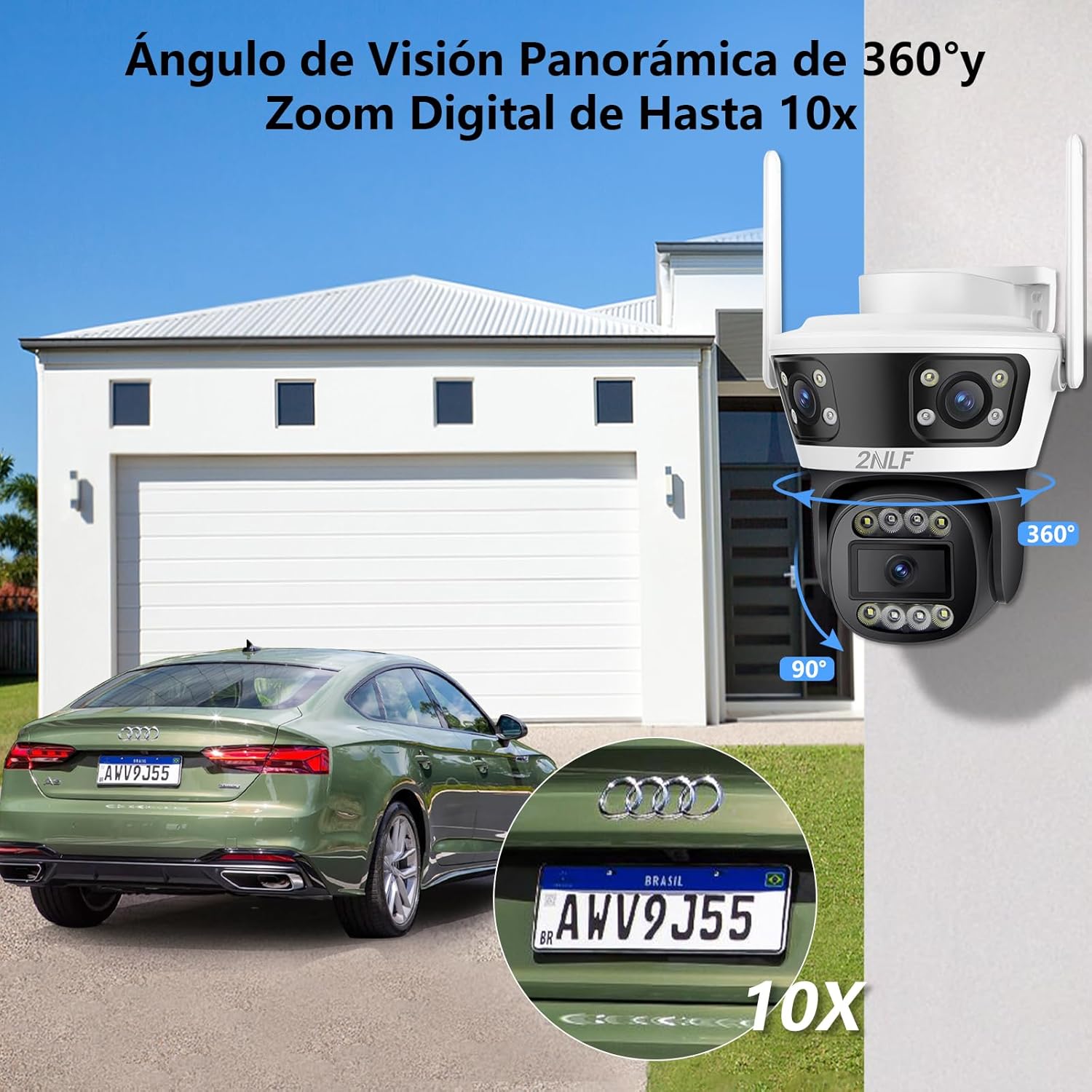
Image 3: Illustration of the camera's 360° panoramic view and 10X digital zoom capability, demonstrated by focusing on a car's license plate.
4.2 Motion Detection and Automatic Tracking
The camera is equipped with intelligent motion sensors. When motion is detected, the camera can automatically track the moving object and send real-time notifications to your smartphone. You can customize motion detection zones and sensitivity settings within the app.

Image 4: Visual representation of the camera's motion detection and automatic tracking feature, showing it following the movement of two children in a yard.
4.3 Night Vision Modes
The camera supports both infrared (black and white) and color night vision. In low-light conditions, the camera can automatically switch to night vision mode. Color night vision provides more detailed and vibrant images.

Image 5: A comparison demonstrating the camera's color night vision capability, showing a clear, illuminated view at night versus a standard infrared (monochrome) view.
4.4 Two-Way Audio
Utilize the two-way audio feature to communicate with individuals near the camera. Press the microphone icon in the app to speak, and release to listen.

Image 6: Depiction of the two-way audio function, showing a person speaking through the camera to someone outside, and the multi-user sharing feature allowing multiple family members to access the camera feed.
4.5 Storage Options
Recordings can be stored in two ways:
- TF Card Storage: Insert a TF (microSD) card (up to 128GB) into the designated slot on the camera for local storage.
- Cloud Storage: Subscribe to the cloud storage service through the app for secure, remote storage of your recordings.

Image 7: Illustration of the camera's flexible storage options, including local storage via a TF (microSD) card and cloud storage, with a smartphone displaying recorded footage.
5. Maintenance
5.1 Cleaning the Camera
Regularly clean the camera lens and housing with a soft, damp cloth. Avoid using harsh chemicals or abrasive materials that could damage the lens or finish.
5.2 Firmware Updates
Periodically check the mobile app for available firmware updates. Keeping your camera's firmware up-to-date ensures optimal performance, security, and access to new features.
6. Troubleshooting
6.1 Common Issues and Solutions
- Camera Offline:
- Check if the camera is powered on.
- Verify your Wi-Fi network is active and the camera is within range.
- Ensure your Wi-Fi is 2.4 GHz, as 5 GHz is not supported.
- Restart the camera and your Wi-Fi router.
- Poor Image Quality:
- Clean the camera lens.
- Ensure adequate lighting, especially for night vision.
- Check your internet connection speed.
- Motion Detection Not Working:
- Verify motion detection is enabled in the app settings.
- Adjust motion detection sensitivity and zones.
- Ensure there are no obstructions blocking the camera's view.
- Two-Way Audio Issues:
- Check microphone and speaker permissions for the app on your phone.
- Ensure the camera's microphone and speaker are not obstructed.
- Adjust volume settings in the app.
7. Specifications
| Model Name | Outdoor Security Camera |
| Model Number | GAD1029WT1 |
| Brand | 2NLF |
| Video Capture Resolution | 1440p (12MP total from 3x 4MP lenses) |
| Connectivity Technology | Wireless (2.4 GHz Wi-Fi, AP Hotspot, Bluetooth) |
| Form Factor | Bullet + Dome |
| Special Features | Weatherproof, Two-way audio, Motion detector, HD Resolution, PTZ Technology, Color Night Vision |
| Night Vision Range | 20 Meters |
| Water Resistance Level | IP66 |
| Power Source | Electric Cord |
| Material | Acrylonitrile Butadiene Styrene (ABS) |
| Product Dimensions (L x W x H) | 17.53 x 16 x 14.99 cm (6.9 x 6.3 x 5.9 inches) |
| Weight | 620 g |
| Mounting Type | Wall Mount (Screw-in) |
8. Warranty and Support
8.1 Warranty Information
- 1-Year Limited Warranty: Your 2NLF camera is covered by a 1-year limited warranty from the date of purchase, covering manufacturing defects.
- 30-Day Money-Back Guarantee: If you are not satisfied with your purchase, you may return the product within 30 days for a full refund.
8.2 Customer Support
Customer satisfaction is our top priority. Our dedicated global support team is available to assist you with any questions or issues you may encounter with your 2NLF security camera.
- Lifetime Technical Support: We provide lifetime technical support for your product.
- All-Day Customer Service: Our customer service team is available all day to provide assistance.
For support, please refer to the contact information provided on the product packaging or the official 2NLF website.
Ask a question about this manual
Ask about setup, troubleshooting, compatibility, parts, safety, or missing instructions. Manuals+ will review the question and use this page’s manual context to help answer it.