
1. Introduction
This manual provides detailed instructions for the LESOGE MFi Certified 128GB Flash Drive. This versatile storage device is designed for seamless data transfer and backup across various platforms, including iPhone, iPad, Android devices, and personal computers. Please read this manual thoroughly to ensure proper usage and to maximize the benefits of your new flash drive.
2. Product Overview
2.1 Key Features
- MFi Certified: Ensures compatibility and reliability with Apple devices.
- Durable Construction: Made of high-quality metal materials, offering waterproof, shockproof, temperature resistance, and magnetic resistance.
- 3-in-1 Design: Features Lightning, USB Type-A, and an independent USB Type-C adapter for broad device compatibility.
- High-Speed Data Transfer: Achieves reading speeds up to 80MB/s and writing speeds up to 40MB/s for efficient backups.
- One-Click Backup: Simplifies backing up photos, videos, and contacts.
- Enhanced Security: Includes an encryption function for selected files to protect personal privacy.
- Portable Design: Compact with a keychain design for easy carrying.
2.2 Product Components

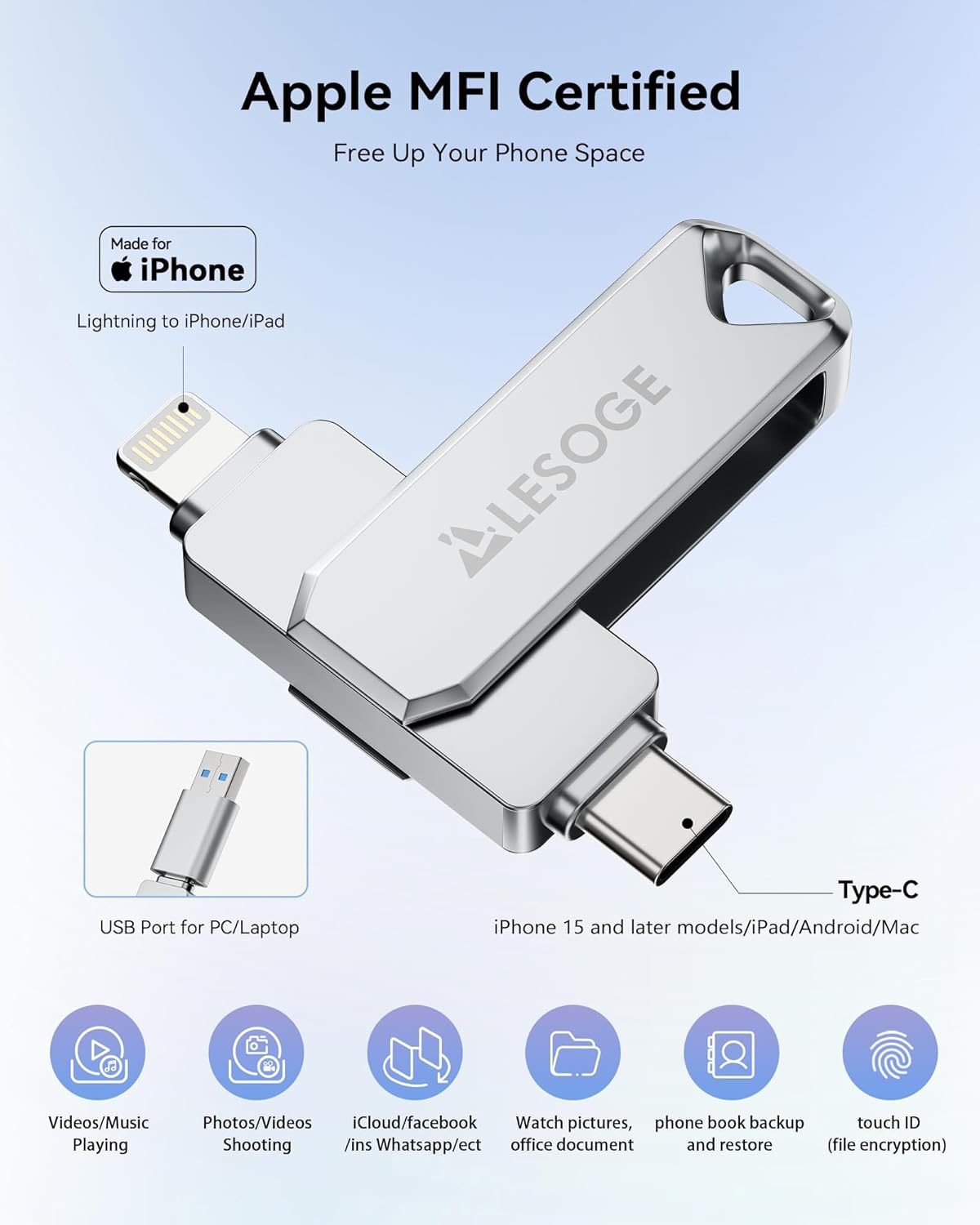

2.3 Official Product Video
3. Setup
3.1 For iOS Devices (iPhone/iPad)
- Connect the Drive: Plug the Lightning connector of the flash drive directly into your iPhone or iPad. If your device uses USB-C (e.g., iPhone 15 or newer iPads), attach the provided USB Type-C adapter to the USB-A end of the flash drive, then connect it to your device.
- Install the App: Upon connecting, your iOS device will prompt you to download the "LESOGE" app from the App Store. Follow the on-screen instructions to install it.
- Grant Permissions: Open the LESOGE app and grant any necessary permissions for accessing photos, videos, and contacts.
3.2 For Android Devices and PCs
- Connect the Drive: For Android devices with a USB Type-C port, attach the provided USB Type-C adapter to the USB-A end of the flash drive, then connect it. For PCs, plug the USB-A connector directly into an available USB port.
- No App Required: Android and PC devices can use the flash drive directly without needing to download any special application. The device will appear as external storage in your file manager.
3.3 Storage Explanation

4. Operating Instructions
4.1 Using the LESOGE App (iOS)
The LESOGE app provides a user-friendly interface for managing your files on iOS devices.
- Accessing Files: Once the app is open and the drive is connected, you will see options to manage your device's internal storage and the external storage (flash drive).
- One-Click Backup: Navigate to the backup section within the app. Select the "Backup" option to quickly transfer all photos, videos, and contacts from your device to the flash drive.
- Transferring Specific Files:
- Select "From Library" or "From Clipboard" to choose specific photos, videos, or documents.
- Select the files you wish to transfer and confirm the action to copy them to the flash drive.
- Direct Photo/Video Capture: The app allows you to take photos or record videos directly, saving them onto the flash drive without using your device's internal storage.
- Viewing Files: Browse the "External Storage" section to view pictures, play videos, or open documents stored on the flash drive.
- File Encryption: The app offers an encryption feature. Select specific files on the flash drive and choose the "Lock" option to set a password for them, enhancing your data security.
- Sharing to Social Media: You can directly share files from the flash drive to social media platforms like Facebook or Twitter via the app's sharing options.

4.2 Using with Android/PC
For Android devices and PCs, the flash drive functions as standard external storage.
- Accessing Files: Once connected, open your device's file manager (Android) or File Explorer (PC). The flash drive will appear as a removable disk or external storage.
- Transferring Files: Drag and drop files between your device's internal storage and the flash drive.
- Viewing Files: Open files directly from the flash drive using your device's default media players or document viewers.
4.3 Official App Usage Video
5. Maintenance
- Physical Care: Keep the flash drive dry and avoid exposure to extreme temperatures or strong magnetic fields. While durable, avoid dropping or subjecting it to excessive force.
- Data Integrity: Regularly back up important data from the flash drive to another storage medium (e.g., computer hard drive) for redundancy.
- Safe Ejection: Always safely eject the flash drive from your computer or device before physically removing it to prevent data corruption.
- Software Updates: Periodically check the App Store for updates to the "LESOGE" app to ensure optimal performance and compatibility.
6. Troubleshooting
6.1 Common Issues and Solutions
- Drive Not Recognized:
- Ensure the flash drive is fully inserted into the port.
- Try connecting to a different USB port or device.
- For iOS devices, confirm the "LESOGE" app is installed and open.
- Slow Transfer Speeds:
- Ensure you are using a USB 3.0 compatible port on your computer for maximum speed.
- Close any unnecessary applications running in the background that might be consuming system resources.
- Files Not Transferring:
- Check if the flash drive has sufficient free space.
- Verify file permissions on your device or computer.
- Restart your device or computer and try again.
- App Crashing (iOS):
- Ensure your iOS is updated to version 12.1 or above.
- Reinstall the "LESOGE" app.
- Clear app cache if possible through iOS settings.
- Encrypted Files Inaccessible:
- Double-check the password entered.
- Ensure you are using the "LESOGE" app to access encrypted files on iOS.
7. Specifications
| Feature | Specification |
|---|---|
| Model Name | LES241 |
| Memory Storage Capacity | 128 GB (Nominal) |
| Read Speed | Up to 80 MB/s |
| Write Speed | Up to 40 MB/s |
| Connectivity Technology | USB |
| Hardware Interface | Lightning, USB Type A, USB Type C (via adapter) |
| Product Dimensions | 0.32"D x 0.47"W x 2.56"H |
| Item Weight | 1.76 ounces |
| Special Features | Lightweight, Shockproof, Water Resistant |
| Compatibility | iOS 12.1 and above (iPhone, iPad), OTG Android phones, Computers (Windows, Mac) |
8. Warranty and Support
LESOGE is committed to providing high-quality products and reliable customer service. If you encounter any questions or issues with your flash drive, please do not hesitate to contact LESOGE customer support for assistance. Our team is ready to provide help and ensure your satisfaction.