
Introduction
This manual provides detailed instructions for the installation, operation, and maintenance of your Alikali 9.7-inch Android 13 Car Stereo Radio. This unit is specifically designed for Ford F150 models from 2009 to 2014, offering advanced features such as wireless CarPlay, Android Auto, GPS navigation, WiFi, Bluetooth connectivity, and steering wheel control integration. Please read this manual thoroughly before installation and use to ensure proper function and safety.

Figure 1: Alikali 9.7-inch Android 13 Car Stereo Radio with included backup camera.
Setup and Installation
Proper installation is crucial for optimal performance. It is recommended that installation be performed by a qualified professional. Always disconnect the vehicle's battery before beginning any electrical work.
1. Wiring Connections
The following steps detail the wiring connections for the car stereo. Refer to the provided wiring harness and the vehicle's specific wiring diagram for accurate connections.
Video 1: Alikali Wiring Installation Reference. This video provides a general guide for wiring connections. For specific installation details, consult the instruction manual and your vehicle's wiring diagram.
- Radio Adapter Cable: Connect the radio adapter cable to the corresponding port on the back of the head unit. This cable adapts the vehicle's antenna input to the stereo.

Figure 2: Connection point for the radio adapter cable.
- GPS Antenna: Connect the GPS antenna to the designated GPS port on the head unit. Position the antenna in a location with a clear view of the sky for optimal signal reception.
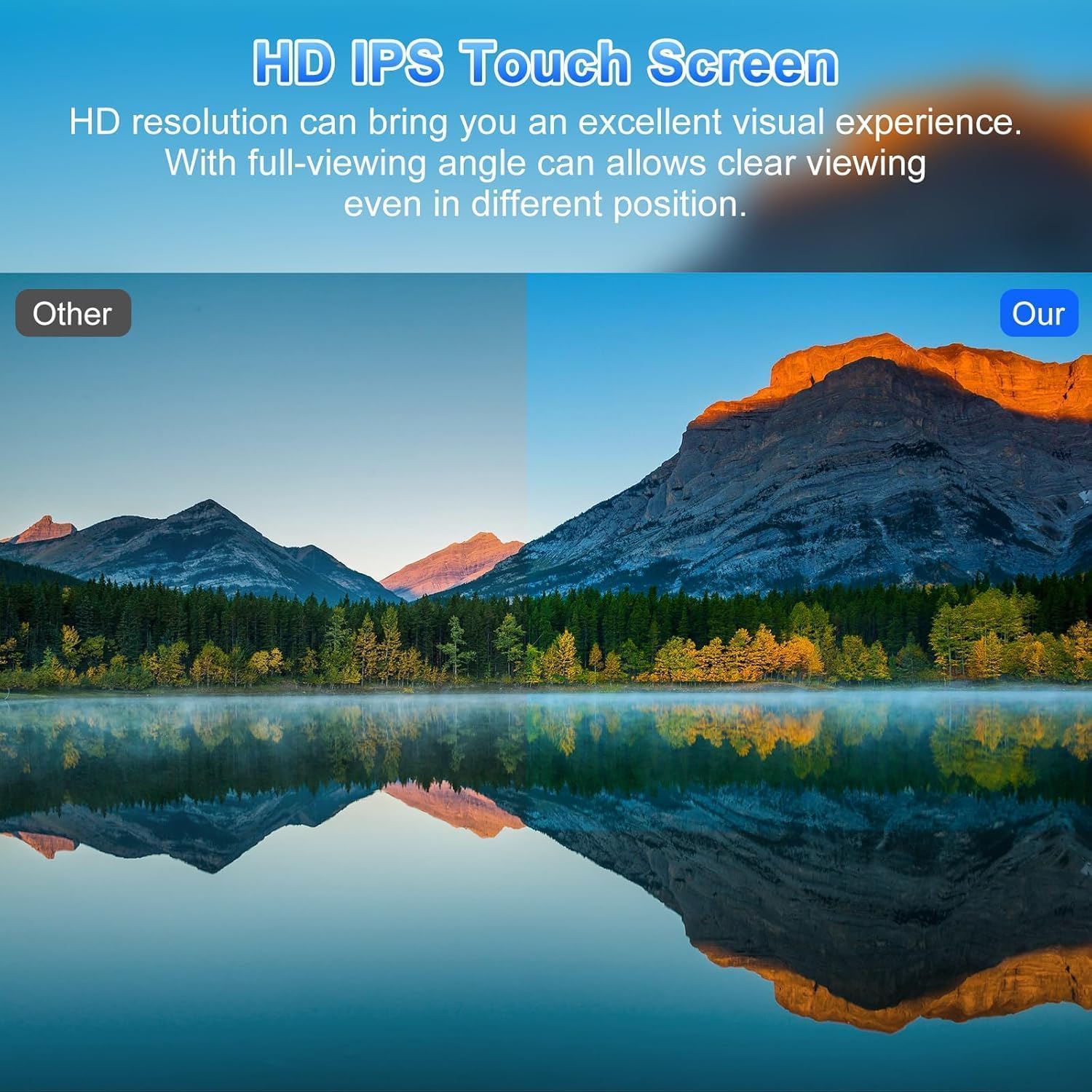
Figure 3: GPS antenna connection.
- Camera Input: Connect the camera input cable to the camera port on the head unit. This is typically a yellow RCA connector. Ensure the small blue wire is connected to the reverse trigger wire of the vehicle.

Figure 4: Camera input connection.
- USB Cables: Connect the USB cables to the USB ports on the head unit. These ports can be used for media playback, charging devices, or connecting external accessories.

Figure 5: USB cable connections.
- RCA Input/Output: Connect the RCA input/output cables for external amplifiers, subwoofers, or other audio/video devices. Match the colors and labels (e.g., FR, FL, RR, RL, SW1, SW2, V-OUT).
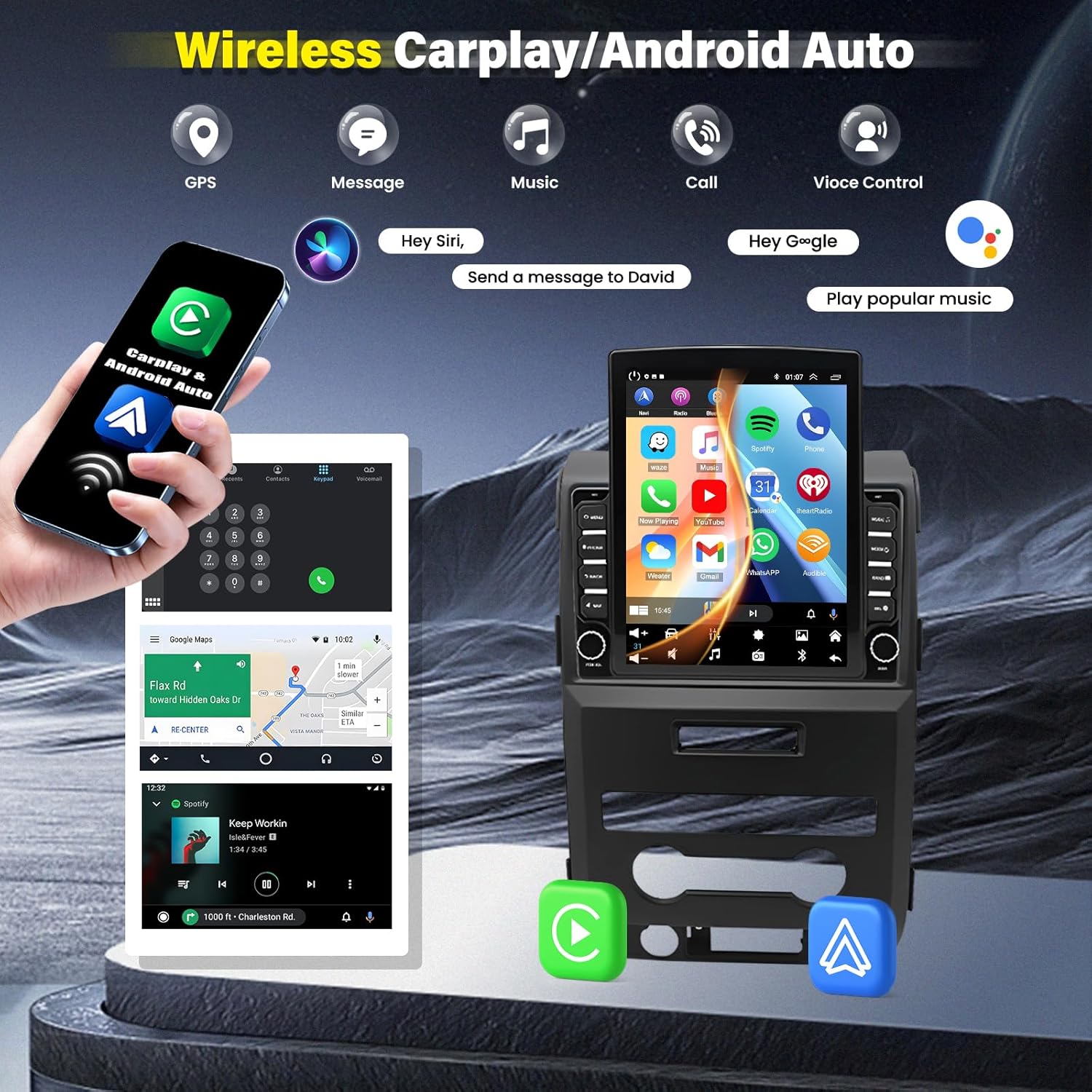
Figure 6: RCA input/output connections.
- Power Cable: Connect the main power cable harness to the head unit. Ensure all wires are correctly matched to the vehicle's wiring harness according to the provided diagram.

Figure 7: Main power cable connection.
Operating Instructions
1. Wireless CarPlay and Android Auto Connection
The Alikali car stereo supports wireless CarPlay and Android Auto for seamless smartphone integration. Follow these steps to connect your device:
Video 2: Connection Guide for Wireless CarPlay and Android Auto. This video demonstrates the steps for connecting your smartphone to the car stereo.
- Bluetooth Connection:
- On the car stereo, navigate to the Bluetooth settings.
- On your smartphone, enable Bluetooth and search for available devices.
- Select "CarBT" from the list of devices on your phone.
- Enter the PIN "0000" (default) on your phone to pair.
- Once connected, the stereo will display "Phone audio, media audio" indicating a successful Bluetooth connection. If these words do not appear, restart the Bluetooth connection.
- ZLINK Connection:
- After successful Bluetooth pairing, open the "ZLINK" application on the car stereo.
- The ZLINK app will attempt to connect to your phone.
- For subsequent connections, simply connecting via Bluetooth should automatically initiate the ZLINK connection.
- Manual WiFi Connection (if ZLINK fails):
- If ZLINK does not connect automatically, go to the car stereo's Android Settings > Network & Internet > Hotspot & tethering > Wi-Fi hotspot.
- Note the "Network name" (e.g., AndroidAP_B442) and "Hotspot password" displayed on the stereo.
- On your smartphone, go to WiFi settings and connect to the network name displayed on the stereo, using the provided password.
- Once connected, the device name will be displayed on the stereo, confirming a successful WiFi connection.
- After manually connecting to the vehicle's WiFi, you may need to delete the history record on the vehicle's WiFi settings and then click ZLINK again for a successful connection.

Figure 8: Wireless CarPlay and Android Auto interface, showing voice control and app integration.
2. GPS Navigation
The car stereo features built-in GPS and supports both online and offline navigation. You can use pre-installed maps or download additional map applications from the app store via WiFi.
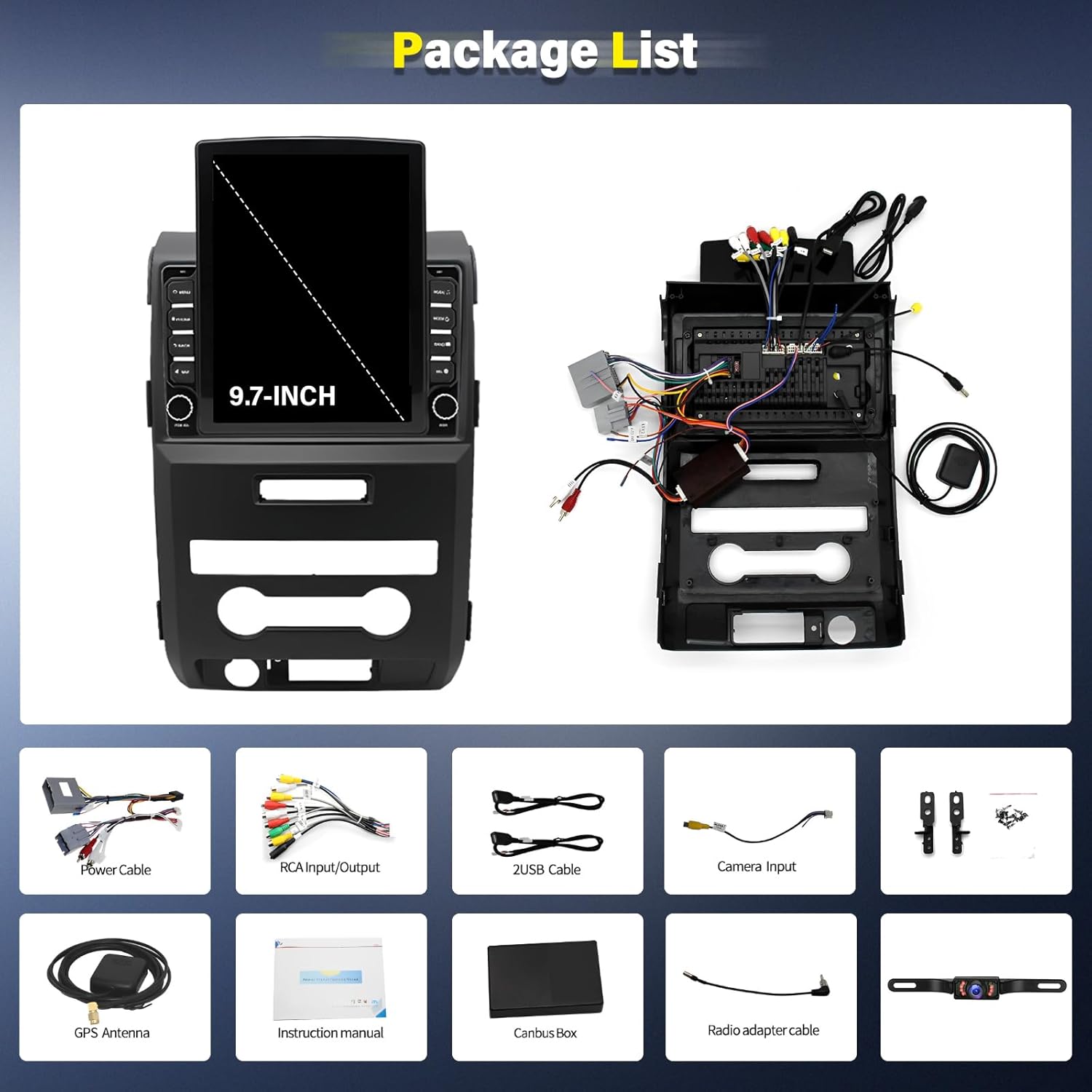
Figure 9: GPS Navigation screen with online and offline map options.
3. DSP Sound Effects
The built-in Digital Sound Processor (DSP) allows for enhanced audio customization, providing a high-quality music experience. Adjust settings to optimize sound output for your vehicle's acoustics.
Figure 10: DSP Sound Effects interface, illustrating audio channel configuration.
4. Other Functions
- Split Screen: Utilize the split-screen feature to run two applications simultaneously, such as navigation and music playback.
- Rear View Camera: The system supports a rear view camera input, automatically displaying the camera feed when the vehicle is in reverse.
- HD IPS Touch Screen: The 9.7-inch IPS touchscreen provides a clear and responsive visual experience with wide viewing angles.
Figure 11: Overview of additional features like split screen and rear view functionality.
Maintenance
To ensure the longevity and optimal performance of your car stereo, follow these general maintenance guidelines:
- Cleaning: Use a soft, dry cloth to clean the touchscreen and exterior surfaces. Avoid abrasive cleaners or solvents that could damage the screen or finish.
- Software Updates: Periodically check for software updates to ensure your system has the latest features and security patches. Updates can typically be performed via WiFi.
- Environmental Conditions: Avoid exposing the unit to extreme temperatures, direct sunlight for prolonged periods, or excessive moisture.
Troubleshooting
If you encounter issues with your Alikali car stereo, refer to the following common troubleshooting steps:
- No Power:
- Check all power connections to ensure they are secure and correctly wired.
- Verify the vehicle's fuse box for any blown fuses related to the stereo.
- Bluetooth/CarPlay/Android Auto Connection Issues:
- Ensure Bluetooth is enabled on both the stereo and your smartphone.
- Try restarting the Bluetooth on both devices.
- If using ZLINK, ensure the app is open and your phone is paired via Bluetooth.
- For persistent issues, try the manual WiFi hotspot connection method described in the Operating Instructions.
- Delete previous connection records on both devices and attempt to pair again.
- Poor Radio Signal:
- Ensure the radio antenna is securely connected.
- Check if the radio adapter cable is properly installed.
- Environmental factors can affect signal quality; try in a different location.
- Steering Wheel Controls Not Working:
- Verify that the steering wheel control wires are correctly connected according to the wiring diagram.
- Access the stereo's settings to configure or remap the steering wheel controls.
- Laggy Performance:
- Close unnecessary background applications on the stereo.
- Ensure sufficient storage space is available.
- Consider performing a factory reset if performance issues persist (note: this will erase all user data).
Specifications
| Feature | Detail |
|---|---|
| Screen Size | 9.7 inches |
| Operating System | Android 13.0 |
| RAM | 2GB |
| ROM | 32GB |
| Connectivity Technology | Bluetooth, USB, Wi-Fi |
| Controller Type | Android, iOS |
| Special Features | IPS Display, FM/AUX Support, AV IN, RCA, RLV/AHD, Touchscreen, Wireless CarPlay & Android Auto, OEM Steering Wheel Control, GPS Navigation |
| Compatible Devices | Smartphone |
| Audio Output Mode | Stereo |
| Surround Sound Channel Configuration | 2.0 |
| Video Encoding | H.264, H.265/HEVC, MPEG-4 |
| Color | Black |
| Item Weight | 5.19 pounds |
| Package Dimensions | 18.1 x 12.3 x 6.3 inches |
Warranty and Support
Alikali is committed to customer satisfaction. If you have any questions or require assistance with your product, please do not hesitate to contact our customer service team. We are available to help you resolve any issues you may encounter.
Before contacting support, ensure you have checked the detailed wiring diagram provided in the product packaging and are using the wiring harness that came with your radio. Some vehicles may require specific wiring harness replacements for proper installation.