
1. Introduction
This manual provides detailed instructions for the installation, operation, and maintenance of your Podofo 7-inch Android Car Stereo. This unit is designed to enhance your driving experience with features such as wireless CarPlay, Android Auto, Bluetooth, GPS navigation, FM/RDS radio, and a license plate backup camera. Please read this manual thoroughly before installation and use to ensure proper functionality and safety.
2. Product Overview and Features
The Podofo 7-inch Android Car Stereo is an advanced in-dash navigation system with a 1080P touchscreen display. It operates on an Android system with 2GB RAM and 64GB ROM, ensuring smooth performance. Key features include:
- 7-inch 1080P HD Capacitive Touch Screen: Provides clear visuals and responsive interaction.
- Wireless/Wired CarPlay & Android Auto: Seamless integration with your smartphone for navigation, music, calls, and messages.
- Bluetooth Connectivity: Supports music streaming, hands-free calling, and phonebook access.
- Built-in WiFi: Allows for app downloads and internet access via hotspot.
- GPS Navigation: Integrated GPS for worldwide map support.
- FM/RDS Radio: Enjoy your favorite radio stations with clear reception.
- License Plate Backup Camera: Provides a clear, wide-angle, waterproof, and night vision rearview for safe reversing.
- Split-Screen Functionality: Use two applications simultaneously on the display.
- Steering Wheel Control Support: Integrate with your vehicle's existing steering wheel controls.
- Full RCA Output: Supports video output to external monitors, such as headrest displays.

Image: Overview of the Podofo car stereo's main features, including CarPlay, Android Auto, voice control, GPS, 2GB RAM + 64GB ROM, 7-inch IPS screen, and AHD 1080P backup camera.
3. Compatibility
This Podofo car stereo is designed to fit various Ford models. Please verify your vehicle's compatibility before installation.
- Ford F150: 2004-2008
- Ford F250/F350: 2006-2014
- Ford E250/E350: 2009-2014
- Ford Edge: 2007-2010
- Ford Taurus/Sable: 2008-2009
- Ford Fusion/Milan: 2006-2009
- Ford Focus/Montego/Freestyle: 2005-2007
- Ford Explorer (U251): 2006-2010
- Ford Escape: 2008-2012
- Ford Expedition: 2007-2014
- Ford MKX: 2007-2009
- Ford Mark LT: 2006-2008
- Ford Mustang: 2005-2009

Image: Visual representation of the car stereo installed in a Ford dashboard, with a list of compatible Ford models and years.

Image: Examples of Ford dashboards showing where the stereo can be installed (green checkmark) and where it cannot (red X).
4. Package Contents
Upon opening the package, ensure all the following components are present:
- Podofo Car Stereo Unit
- Power Cable
- RCA Cable
- 3.8Pin Canbus Plug
- USB Cable
- Rear Camera Input Cable
- Radio Antenna
- GPS Antenna
- Canbus Decoder
- External Microphone
- License Plate Backup Camera
- User Manual
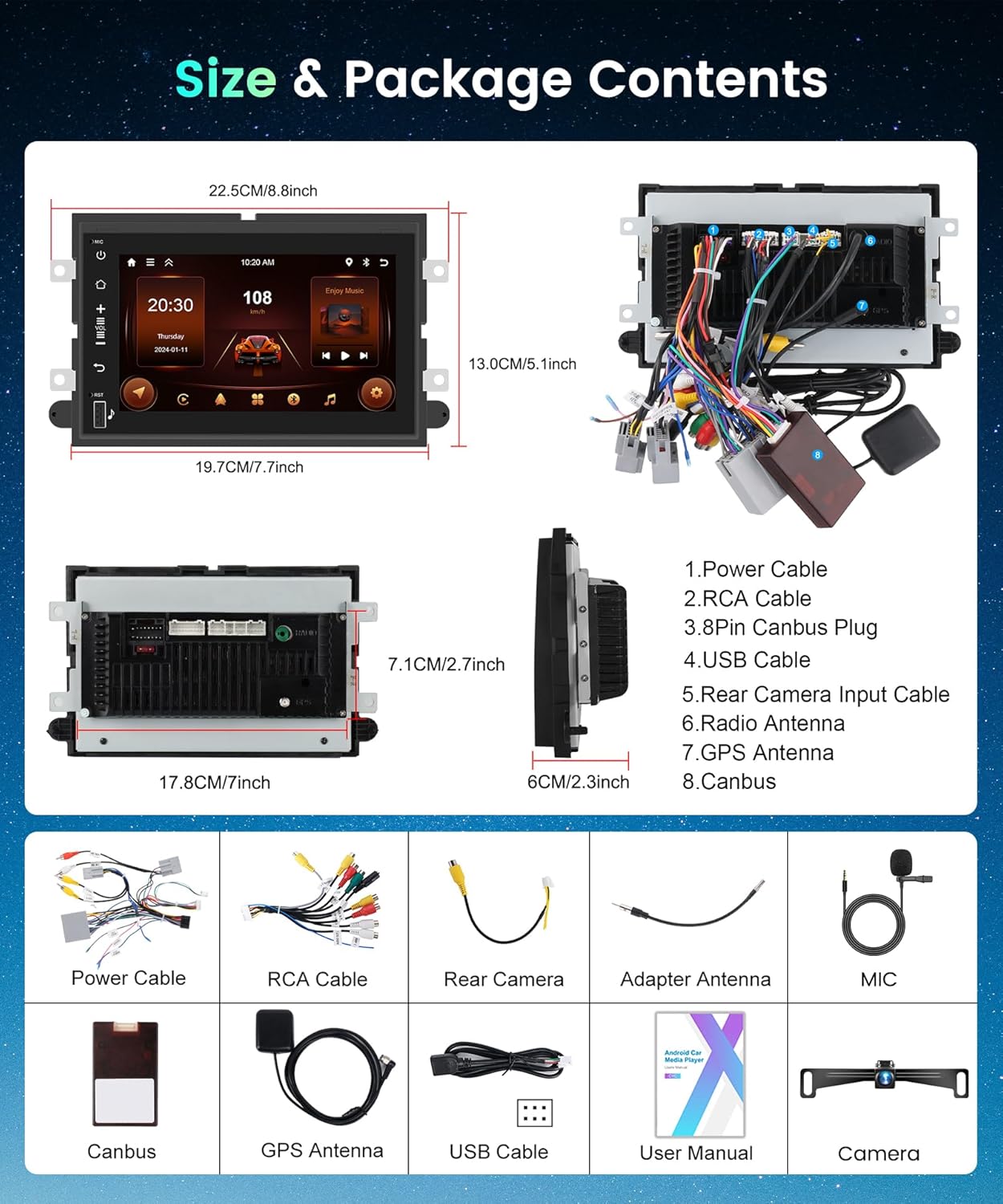
Image: A visual representation of the car stereo unit with its dimensions and all included accessories, such as power cables, RCA cables, USB cables, GPS antenna, external microphone, and backup camera.
5. Setup and Installation
Professional installation is recommended. Ensure the vehicle's battery is disconnected before beginning installation.
5.1 Wiring Diagram
Refer to the detailed wiring diagram for correct connections. Improper wiring can damage the unit or vehicle.

Image: Detailed wiring diagrams showing connections for power, RCA outputs, camera input, and other auxiliary inputs/outputs.
5.2 Backup Camera Wiring
Connect the license plate backup camera according to the diagram. The camera automatically activates when the vehicle is shifted into reverse gear.
- Connect the camera's power wire to the vehicle's reverse light power source.
- Connect the camera's video output cable to the 'Rear Camera Input' on the stereo unit.
- Ensure the reverse trigger wire (usually labeled 'BACK' or 'REVERSE') from the stereo's wiring harness is connected to the vehicle's reverse light signal.

Image: Diagram illustrating the connection of the backup camera to the car stereo and the vehicle's reverse lights.
6. Operating Instructions
6.1 Wireless/Wired CarPlay & Android Auto
Connect your iPhone or Android smartphone to the car stereo for seamless integration. You can use either a wireless connection (Bluetooth/Wi-Fi) or a wired USB connection.
- Wireless Connection: Enable Bluetooth and Wi-Fi on your phone. Pair your phone with the car stereo via Bluetooth. Once paired, the system will prompt you to enable CarPlay or Android Auto wirelessly.
- Wired Connection: Connect your phone to the stereo's USB port using a certified USB cable. The system will automatically detect and launch CarPlay or Android Auto.
Once connected, you can access navigation apps, music streaming services, make calls, send messages, and use voice assistants (Siri/Google Assistant) directly from the stereo's touchscreen.

Image: Demonstrates wireless and wired connectivity options for CarPlay and Android Auto, showing various app interfaces on the car stereo screen.
6.2 Bluetooth Functionality
The built-in Bluetooth allows for hands-free communication and audio streaming.
- Go to the Bluetooth settings on the car stereo.
- Enable Bluetooth on your mobile device and search for available devices.
- Select the car stereo (e.g., "Podofo Car Stereo") from the list on your phone and pair.
- Once connected, you can make/receive calls, access your phonebook, and stream audio.

Image: Displays the Bluetooth interface for phone calls and music playback, alongside the FM radio tuning interface.
6.3 FM/RDS Radio
Access the FM radio application to tune into your favorite stations.
- Tap the 'Radio' icon on the home screen.
- Use the on-screen controls to scan for stations, manually tune, or select preset stations.
- RDS (Radio Data System) provides additional information like station name and song title where available.
6.4 GPS Navigation
The stereo comes with built-in GPS. You can use pre-installed navigation apps or download others via Wi-Fi.
- Ensure the GPS antenna is properly installed and has a clear view of the sky.
- Open your preferred navigation application from the home screen.
- Enter your destination and follow the on-screen and voice-guided directions.

Image: An icon representing GPS navigation functionality.
6.5 Split Screen and Mirror Link
Enhance multitasking and content sharing with these features.
- Split Screen: Allows you to run two applications side-by-side (e.g., navigation and music player). Swipe from the side or use the multi-tasking button to activate.
- Mirror Link: Displays your smartphone's screen directly onto the car stereo. This is useful for apps not natively supported by CarPlay or Android Auto.

Image: Shows the car stereo display utilizing split-screen mode with two applications running simultaneously, and a smartphone screen mirrored onto the stereo.
6.6 Steering Wheel Control (SWC)
Configure your steering wheel buttons to control the stereo functions.
- Access the 'Steering Wheel Control' settings in the stereo's menu.
- Follow the on-screen instructions to program each button (e.g., volume up/down, track skip, mode).
- Ensure the SWC wires are correctly connected during installation.
Image: An icon representing steering wheel control functionality.
7. Backup Camera Operation
The included license plate backup camera provides a clear view of the area behind your vehicle, enhancing safety during reversing maneuvers.
- When the vehicle is shifted into reverse gear, the car stereo automatically switches to the backup camera display.
- The display will show a real-time video feed from the camera, often with superimposed guidelines to assist with parking.
- The camera features night vision for visibility in low-light conditions and is waterproof and dustproof for durability.
Image: A detailed view of the AHD reversing camera and its features, including HD image, night vision, wide angle, and waterproof design.
8. Specifications
| Feature | Specification |
|---|---|
| Brand | podofo |
| Screen Size | 7 Inches |
| Resolution | 1024 x 600 |
| Operating System | Android |
| Memory (RAM) | 2 GB |
| Storage (ROM) | 64 GB |
| Connectivity Technology | Bluetooth, USB, Wi-Fi |
| Special Features | Android Auto, Bluetooth, Carplay, GPS, Touchscreen |
| Included Components | Backup Camera, External Mic, Carplay Car Stereo for Ford |
| Supported Satellite Navigation System | GPS |
| Human-Interface Input | Touchscreen |
| Display Type | LCD |
| Mounting Type | Dashboard Mount |
9. Troubleshooting
If you encounter issues with your Podofo car stereo, refer to the following common problems and solutions:
- No Power: Check all power connections, fuses, and ensure the vehicle's ignition is on.
- No Sound: Verify speaker connections, volume settings, and audio source selection. Check if the mute function is active.
- Bluetooth Connection Issues: Ensure Bluetooth is enabled on both the stereo and your phone. Delete previous pairings and try reconnecting. Ensure your phone is within range.
- CarPlay/Android Auto Not Connecting: Try a different USB cable (if wired). Ensure your phone's operating system is up to date. Restart both the stereo and your phone. Check app permissions on your phone.
- GPS Signal Lost: Ensure the GPS antenna is securely connected and has an unobstructed view of the sky. Move the vehicle to an open area if in a covered or underground location.
- Backup Camera Not Displaying: Check the camera's power and video connections. Ensure the reverse trigger wire is correctly connected and receiving a signal when in reverse.
- Touchscreen Unresponsive: Try restarting the unit. If the issue persists, a factory reset might be necessary (refer to settings menu).
For persistent issues, contact customer support.
10. Maintenance
Proper care and maintenance will extend the life of your car stereo.
- Cleaning the Screen: Use a soft, lint-free cloth to gently wipe the touchscreen. For stubborn smudges, slightly dampen the cloth with water or a screen-safe cleaner. Avoid harsh chemicals or abrasive materials.
- Software Updates: Periodically check for software updates through the system settings or the manufacturer's website to ensure optimal performance and access to new features.
- Environmental Conditions: Avoid exposing the unit to extreme temperatures, direct sunlight for prolonged periods, or excessive moisture.
- Cable Management: Ensure all cables are securely routed and not pinched or exposed to prevent damage.
11. Warranty and Support
Your Podofo car stereo comes with a 2-year warranty on labor and parts, covering manufacturing defects from the date of purchase.
11.1 Technical Support
For technical assistance, troubleshooting, or warranty claims, please contact Podofo Tech customer support. Support is available 24/7.

Image: Information on how to find Podofo Tech support, typically through the seller's page or direct contact.
11.2 Protection Plans
Extended protection plans may be available for purchase to cover your device beyond the standard warranty period. These plans typically offer additional coverage for accidental damage or extended service.
- 2-Year Protection Plan
- 3-Year Protection Plan
- Complete Protect (monthly renewal)