
1. Introduction
This manual provides detailed instructions for the setup, operation, maintenance, and troubleshooting of your Generic Ultra-thin Silent Wireless Keyboard and Mouse Set. This set is designed for use with laptops and desktop computers, offering a quiet and efficient input experience.

Image 1.1: The complete Ultra-thin Silent Wireless Keyboard and Mouse Set.
2. Setup
2.1 Package Contents
- 1 x Ultra-thin Wireless Keyboard (HSA-P003K)
- 1 x Silent Wireless Mouse (HSA-P003M)
- 1 x USB Wireless Receiver
- Batteries (may be included or sold separately)
2.2 Battery Installation
Both the keyboard and mouse require batteries for operation. Please follow these steps:
- Locate the battery compartment on the underside of the keyboard and mouse.
- Open the battery compartment cover.
- Insert the required batteries (typically AAA for keyboard, AA for mouse, refer to compartment labels) ensuring correct polarity (+/-).
- Close the battery compartment cover securely.

Image 2.1: View of the keyboard underside, mouse, batteries, and the USB wireless receiver.
2.3 Connecting to Your Device
The keyboard and mouse connect wirelessly to your computer via a single USB receiver.
- Ensure batteries are correctly installed in both the keyboard and mouse.
- Locate the USB wireless receiver (often stored in the mouse's battery compartment or packaged separately).
- Plug the USB receiver into an available USB port on your computer.
- Your computer should automatically detect and install the necessary drivers. This may take a few moments.
- Once drivers are installed, the keyboard and mouse should be ready for use.
3. Operating Your Device
3.1 Keyboard Functions
The keyboard features a Japanese layout, providing specific characters and functions relevant to the Japanese language. Its ultra-thin design and silent keys ensure a comfortable and quiet typing experience.

Image 3.1: Close-up view of the Japanese keyboard layout, highlighting specific character keys.
Familiarize yourself with the standard QWERTY keys, number pad, and function keys. The silent key design reduces typing noise, making it suitable for quiet environments.
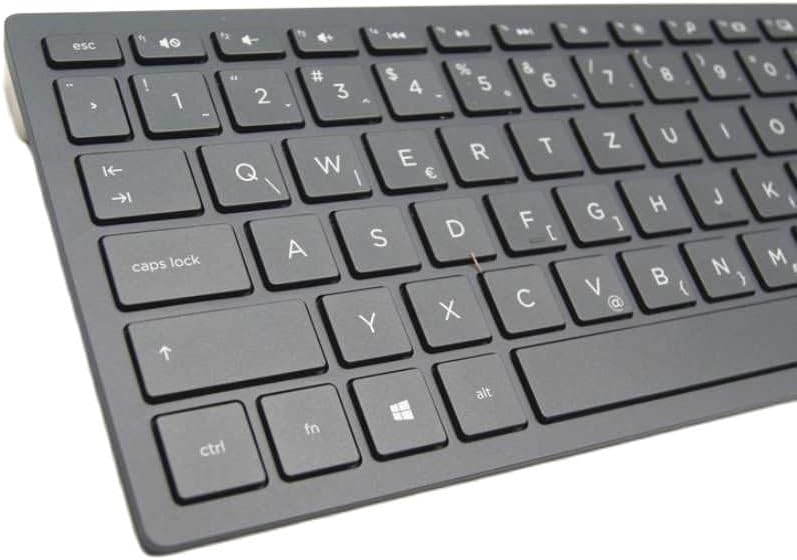
Image 3.2: Angled view of the keyboard's main QWERTY section.
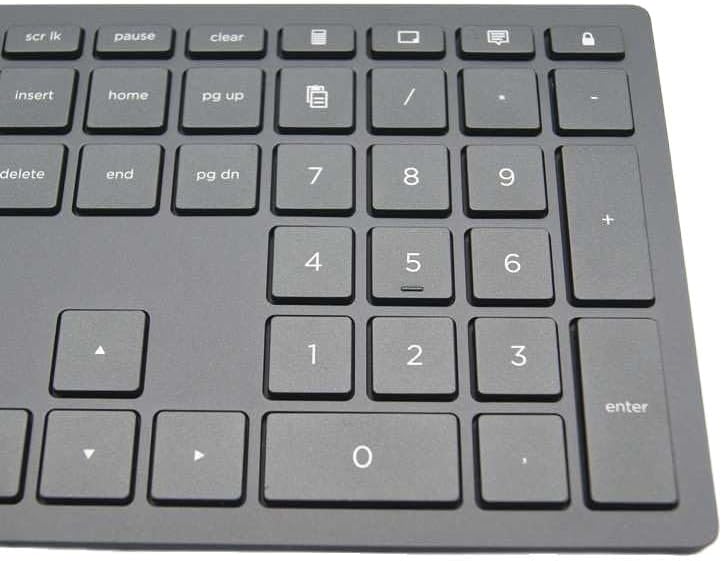
Image 3.3: Close-up view of the keyboard's numeric keypad.
3.2 Mouse Functions
The wireless mouse features optical tracking for precise cursor control and silent click buttons to minimize noise during use. It includes standard left and right click buttons and a scroll wheel.
- Left Click: Primary selection and activation.
- Right Click: Accesses contextual menus.
- Scroll Wheel: Navigates vertically through documents and web pages.
4. Maintenance
4.1 Cleaning
To maintain optimal performance and hygiene, clean your keyboard and mouse regularly:
- Turn off the devices and remove batteries before cleaning.
- Use a soft, lint-free cloth lightly dampened with water or a mild cleaning solution.
- Avoid spraying liquids directly onto the devices.
- For the keyboard, use compressed air to remove debris from between keys.
- For the mouse, clean the optical sensor area gently.
4.2 Battery Replacement
Replace batteries when performance degrades (e.g., input lag, intermittent connection). Refer to Section 2.2 for battery installation instructions. Dispose of used batteries responsibly according to local regulations.
5. Troubleshooting
- No Connection / Intermittent Connection:
- Ensure the USB receiver is securely plugged into a working USB port.
- Check if the batteries in both the keyboard and mouse are correctly installed and have sufficient charge. Replace if necessary.
- Try plugging the USB receiver into a different USB port on your computer.
- Move the keyboard and mouse closer to the USB receiver to rule out range issues.
- Avoid using the devices near strong electromagnetic interference sources (e.g., Wi-Fi routers, other wireless devices).
- Mouse Cursor Jumps or is Inaccurate:
- Clean the optical sensor on the underside of the mouse.
- Ensure you are using the mouse on a suitable surface (non-reflective, non-transparent).
- Replace mouse batteries.
- Keys Not Responding:
- Check keyboard batteries and replace if low.
- Ensure the keyboard is within range of the USB receiver.
- Restart your computer.
6. Specifications
| Brand | Generic |
| Keyboard Model | HSA-P003K |
| Mouse Model | HSA-P003M |
| Connectivity Technology | Wireless (2.4GHz via USB Receiver) |
| Keyboard Layout | Japanese |
| Mouse Movement Detection | Optical |
| Power Source | Battery-Powered (Batteries Required) |
| Compatible Devices | Laptop, Personal Computer |
7. Warranty and Support
This product comes with a 12-month warranty. In the event of any quality issues, you are eligible for a full refund or replacement within this period.
For customer service, including issues with damaged or incorrect items, please contact the seller directly through the platform where the product was purchased. They will provide the best solution to resolve any concerns.


