
1. Introduction
Thank you for choosing the TESHA 9-inch Android Car Stereo. This manual provides essential information for the proper installation, operation, and maintenance of your new car head unit. Please read this manual thoroughly before use to ensure optimal performance and safety.
2. Product Overview
Key Features
- 9-inch Capacitive Touch Screen
- Wireless Android Auto and Apple CarPlay support
- Integrated GPS Navigation
- Steering Control Module compatibility
- Full HD IPS Panel for excellent display quality
- 4GB Flash RAM (2+2 Virtual RAM) for smooth operation
- Digital Sound Processor (DSP) and Audio Signal Processor (ASP) for enhanced sound output
- Front camera support
- Bluetooth and Wi-Fi connectivity
What's in the Box
- 1 x 9 Inch Car stereo unit
- 1 x RCA Cable set
- 1 x CAMERA INPUT CABLE
- 1 x MIC & GPS Antenna
- 1 x USB cable extension

Figure 2.1: Front view of the TESHA 9-inch Android Car Stereo.

Figure 2.2: The TESHA Android Car Stereo packaging box, showing included components.
3. Setup and Installation
Professional installation is highly recommended for this product to ensure correct wiring and functionality. Incorrect installation can damage the unit or your vehicle's electrical system.
3.1 Initial Connections
- Connect the main power harness to your vehicle's wiring. Ensure all connections are secure and insulated.
- Connect the RCA cable set for audio output and any auxiliary inputs.
- Attach the CAMERA INPUT CABLE if installing a reverse or front camera.
- Connect the MIC & GPS Antenna. For optimal GPS signal reception, it is recommended to place the GPS module outside the stereo unit, such as under the dashboard or glovebox.
- Connect the USB cable extension for external USB devices.
3.2 Power On and Initial Configuration
- After installation, turn on your vehicle's ignition. The stereo should power on automatically.
- Follow the on-screen prompts for initial setup, including language selection and time zone.
- Connect to a Wi-Fi network for internet access and app downloads. Go to Settings > Network & Internet > Wi-Fi.
3.3 Wireless Android Auto & Apple CarPlay Setup
The unit supports wireless Android Auto and Apple CarPlay for seamless smartphone integration.
- Ensure Bluetooth is enabled on both your smartphone and the car stereo.
- On the car stereo, open the 'ZLink' or 'CarPlay' application.
- On your smartphone, search for and connect to the car stereo's Bluetooth device name.
- Once connected via Bluetooth, the system will automatically initiate the wireless Android Auto or Apple CarPlay connection.
- Your phone will automatically pair with ZLink when you start your car after the initial setup.

Figure 3.1: Diagram illustrating wireless connection for Android Auto and Apple CarPlay.
4. Operating Instructions
4.1 Touch Screen Control
The 9-inch capacitive touch screen provides intuitive control over all functions. Tap, swipe, and pinch gestures are supported similar to a smartphone.
4.2 Navigation
Utilize the pre-installed Google Maps or other navigation applications. Ensure the GPS antenna is properly connected and positioned for accurate location tracking.

Figure 4.1: Google Maps navigation interface on the car stereo display.
4.3 Audio Settings (DSP & ASP)
The built-in Digital Sound Processor (DSP) and Audio Signal Processor (ASP) allow for advanced audio customization. Access these settings through the 'Sound Music' or 'Equalizer' application.
- Equalizer: Adjust frequency bands to tailor the sound to your preference.
- Surround Sound: Configure virtual surround sound channels (e.g., 5.1) for an immersive experience.
- Subwoofer Control: Adjust subwoofer output levels (Off, Low, Medium, Strongest).
- Balance/Fader: Adjust audio distribution between front/rear and left/right speakers.
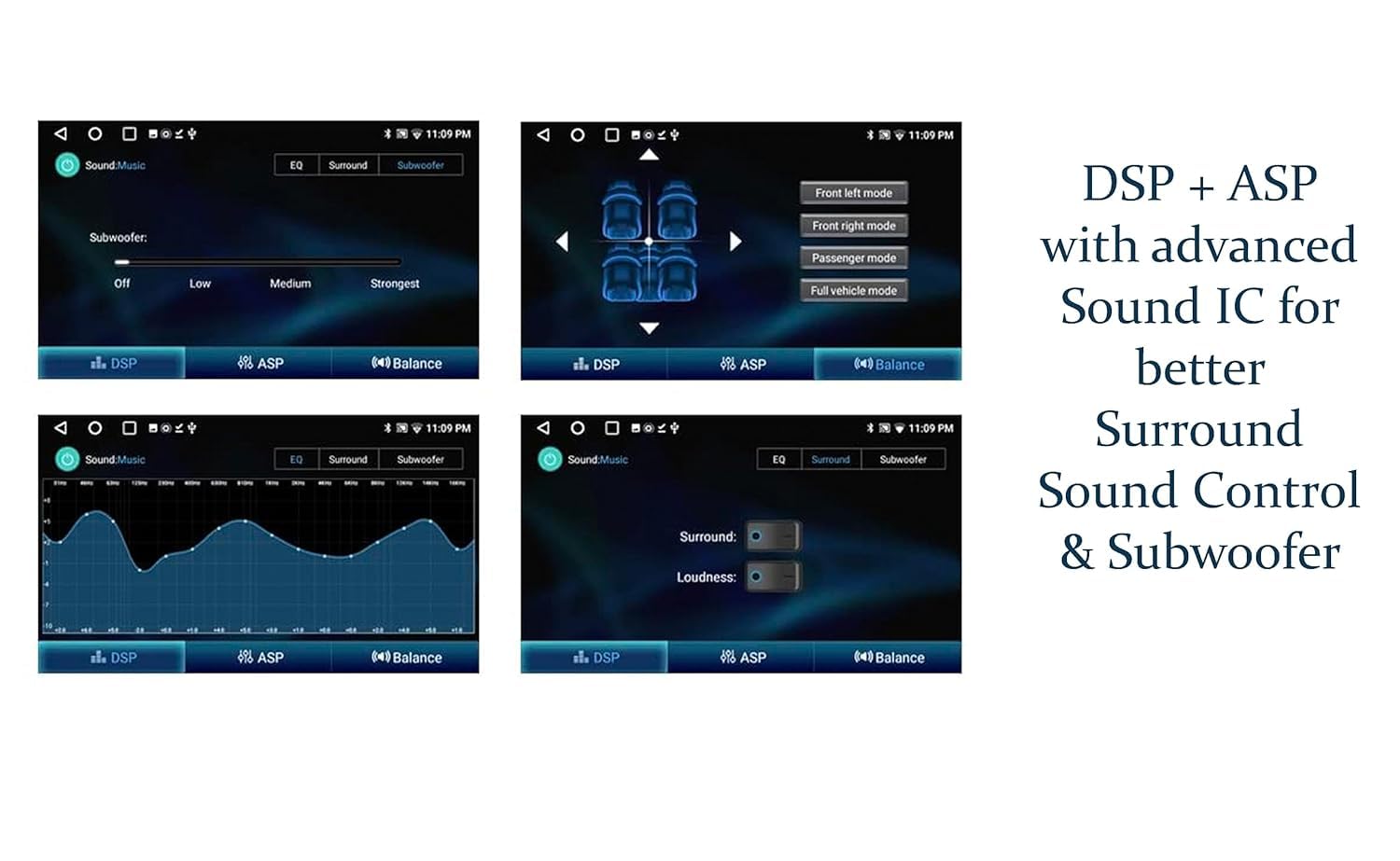
Figure 4.2: Screenshots of the DSP and ASP settings for sound control and subwoofer adjustment.
4.4 Media Playback and Apps
The stereo supports various media streaming applications and allows installation of apps from the Google Play Store. Supported internet services include YouTube, WhatsApp, and Google Maps.
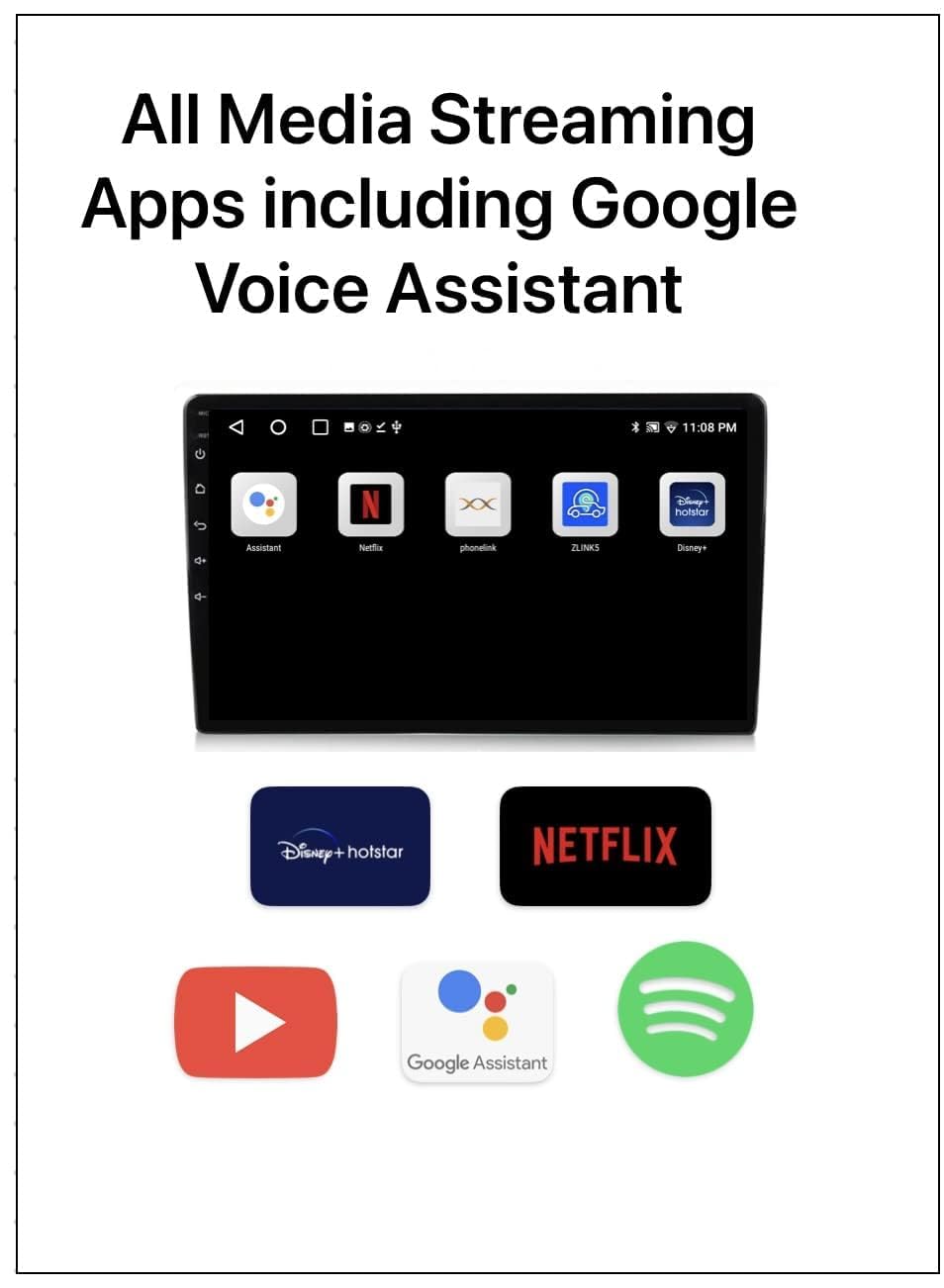
Figure 4.3: Display showing various media streaming and utility applications.
4.5 Front Camera Support
If a front camera is connected, you can access its feed through the dedicated camera input application on the stereo. This feature enhances parking and maneuvering safety.
4.6 Steering Wheel Control
The unit is compatible with your vehicle's steering wheel controls. Refer to your vehicle's manual or a professional installer for configuration of these controls with the stereo.
4.7 User Interface Themes
Customize the look of your stereo with over 20 integrated hardware themes. These themes offer fresh, sleek, and stylish interface options.
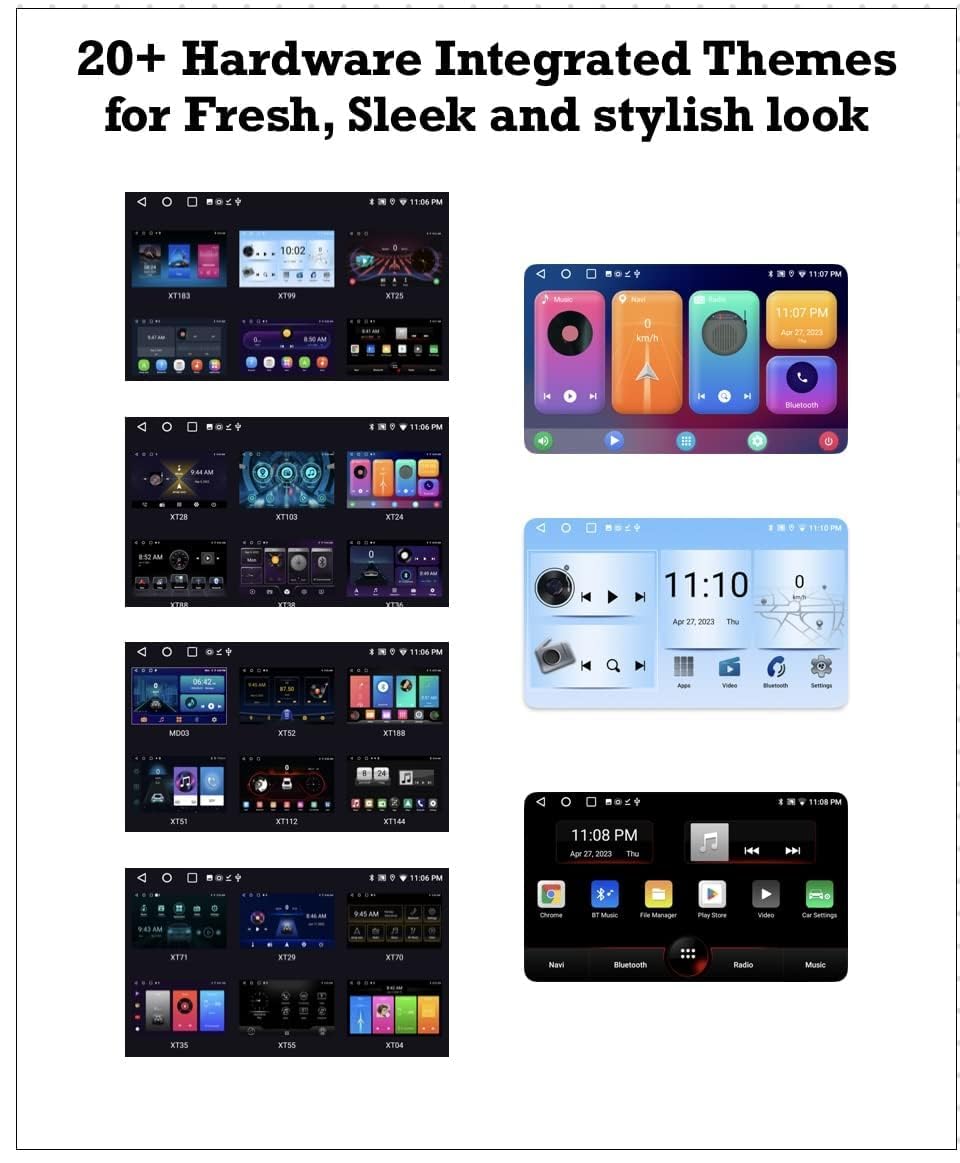
Figure 4.4: Examples of different hardware-integrated themes available for the stereo interface.
5. Maintenance
5.1 Screen Cleaning
To clean the capacitive touch screen, use a soft, lint-free cloth. For stubborn smudges, lightly dampen the cloth with water or a screen-safe cleaner. Avoid abrasive materials or harsh chemicals.
5.2 General Care
- Keep the unit free from dust and debris.
- Ensure all cables and connections remain secure to prevent intermittent issues.
- Avoid exposing the unit to extreme temperatures or direct sunlight for prolonged periods.
6. Troubleshooting
| Issue | Possible Cause | Solution |
|---|---|---|
| Weak FM Radio Signal | Antenna not fully extended or poorly positioned. | Ensure car antenna is fully extended. Consider relocating the antenna for better reception. |
| Inaccurate GPS Location | GPS module obstructed or poorly positioned. | Ensure the GPS module is placed in an open area, ideally outside the stereo unit (e.g., under the glovebox or dashboard) to receive a clear signal. |
| System Lag or Freezing | Too many applications running, low memory, or software glitch. | Close unnecessary applications. Restart the stereo unit. Ensure sufficient storage space. If issues persist, consider a factory reset (backup data first). |
| No Power | Loose power connection or blown fuse. | Check all power connections. Inspect vehicle's fuse box and the stereo's inline fuse for any blown fuses. Consult a professional if unsure. |
7. Specifications
| Feature | Detail |
|---|---|
| Brand | TESHA |
| Model Number | TS9 - k2401 |
| Connectivity Technology | Bluetooth, USB, Wi-Fi |
| Controller Type | Android |
| Special Features | Android Auto, Apple CarPlay, Built-In Bluetooth, Built-In Wi-Fi, Front View Camera Input |
| Compatible Devices | CAR |
| Connector Type | RCA |
| Audio Output Mode | Stereo |
| Surround Sound Channel Configuration | 5.1 |
| Product Dimensions (D x W x H) | 10D x 18W x 6H Centimeters |
| Item Weight | 999 Grams |
| Wattage | 50 Watts |
| Number of Channels | 6 |
| Supported Internet Services | YouTube, WhatsApp, Google Maps |
| Control Method | Touch |
| Wireless Technology | Wi-Fi |
8. Warranty and Support
8.1 Warranty Information
This TESHA product comes with a 1-year limited warranty against all manufacturing defects from the date of purchase.
8.2 Customer Support
For any technical assistance, warranty claims, or product-related inquiries, please contact TESHA customer support:
- WhatsApp Contact: 8607172728
- Email: tejshree.enterprises@gmail.com