
1. Product Overview
The BALDR RAINPOINT Wi-Fi Soil Moisture Meter system provides real-time monitoring of soil moisture, temperature, and light levels for your plants. This system includes a smart soil sensor and a 2.4 GHz Mini Wi-Fi Smart Gateway Hub, enabling remote monitoring and automated watering capabilities through the HomGar mobile application.
Key Features:
- Accurate Moisture Monitoring: Provides real-time soil moisture readings to prevent over or under-watering.
- Temperature and Light Tracking: Monitors soil temperature and ambient light levels for optimal plant conditions.
- Smart App Integration: Connects to the HomGar app for remote tracking, alerts, and detailed reports.
- Automated Watering Compatibility: Works with RainPoint WiFi Hose Water Timers (sold separately) to adjust watering based on soil conditions.
- Historical Data: Access past moisture trends to refine watering routines.
- Long-Lasting Performance: Designed for extended battery life and minimal maintenance.

Image 1.1: The RainPoint Wi-Fi Soil Moisture Meter, Smart Gateway Hub, and the HomGar app interface.
2. Package Contents
- 1 x RAINPOINT Wi-Fi Soil Moisture Meter
- 1 x 2.4 GHz Mini Wi-Fi Smart Gateway Hub
- Instruction Manual
3. Setup Instructions
3.1. Download the HomGar App
- Search for "HomGar" in your smartphone's app store (Apple App Store for iOS or Google Play Store for Android).
- Download and install the application.
- Register for a new account or log in if you already have one.
3.2. Connect the Smart Gateway Hub
- Plug the Smart Gateway Hub into a power source using the provided USB cable and adapter (if included).
- Ensure the hub is within range of your 2.4 GHz Wi-Fi network.
- Open the HomGar app and follow the on-screen instructions to add the gateway hub. This typically involves putting the hub into pairing mode (refer to the hub's specific indicator lights for status) and connecting it to your home Wi-Fi network.

Image 3.2: The Smart Gateway Hub (top left) wirelessly connecting to multiple soil sensors and the HomGar app.
3.3. Pair the Soil Moisture Meter
- Once the gateway hub is successfully connected, select the option to add a new device in the HomGar app.
- Follow the app's instructions to put the soil moisture meter into pairing mode. This may involve pressing a button on the sensor.
- The app will detect and pair with the soil moisture meter. Assign a name to the sensor (e.g., "Living Room Plant," "Garden Bed 1").
3.4. Sensor Placement
Proper placement ensures accurate readings. The sensor is designed for use in various environments:
- Potted Plants: Insert the sensor into the soil, ensuring the probe is fully submerged up to the "MAX" line, avoiding direct contact with the plant's main stem or roots.
- Garden Beds/Lawns: Insert the sensor into the ground, ensuring the probe is fully submerged. Place it in an area representative of the overall watering conditions.
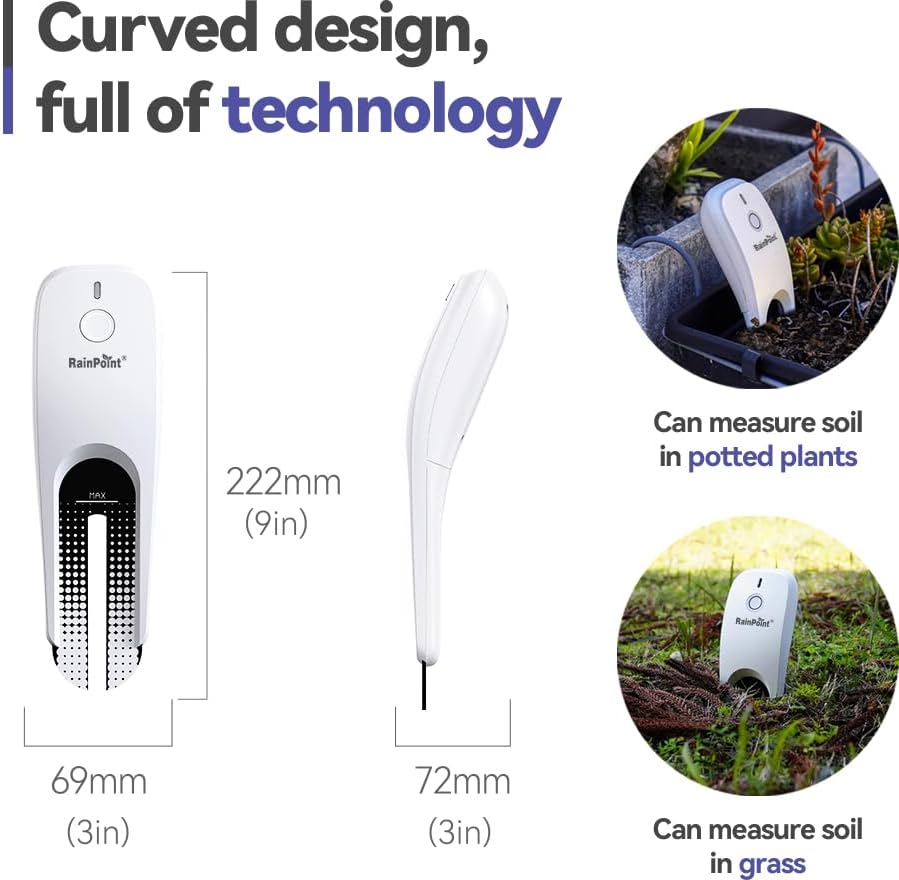
Image 3.4: The soil moisture meter dimensions (222mm/9in height, 69mm/3in width, 72mm/3in depth) and examples of use in potted plants and grass.

Image 3.5: Correct insertion of the soil moisture meter into the soil, ensuring the probe is fully covered up to the MAX indicator.
Important: The sensor is designed for soil only. Do not immerse the sensor in any liquid other than soil moisture.

Image 3.6: Illustration showing the soil sensor should not be used in standing water or other liquids.

Image 3.7: The soil sensor and gateway hub demonstrating a wireless transmission range of up to 100 meters.
4. Operating Instructions
4.1. Monitoring Data via HomGar App
Once connected, the HomGar app provides a comprehensive overview of your plant's environment:
- Soil Moisture: Displays the current moisture percentage, helping you determine watering needs.
- Soil Temperature: Shows the temperature of the soil, crucial for plant health.
- Light Intensity: Measures ambient light (illuminance) to ensure plants receive adequate light.

Image 4.1: The HomGar app interface showing real-time soil moisture (7%), temperature (24.1°C), and light intensity (3229 LX).

Image 4.2: The HomGar app's historical data view, showing trends for moisture, temperature, and light over selected periods.
4.2. Automated Watering (with compatible devices)
The RainPoint soil moisture meter can integrate with RainPoint WiFi Hose Water Timers (sold separately) to create an automated watering system. This allows for:
- Condition-Based Watering: Set up rules in the HomGar app to trigger watering cycles only when soil moisture drops below a specified threshold.
- Prevent Over-watering: The system can automatically stop watering once the ideal hydration level is reached.
Refer to the instruction manual of your RainPoint WiFi Hose Water Timer for detailed setup of automated watering schedules.

Image 4.3: An illustration of the smart watering system, where the soil sensor informs a watering device to maintain optimal soil moisture.
4.3. Sharing Device Access
The HomGar app allows you to share access to your devices with family members or other users. This enables multiple individuals to monitor and manage your plants' conditions.

Image 4.4: The HomGar app's interface for sharing device access with other users.
5. Maintenance
- Battery Replacement: The soil moisture meter operates on batteries. Monitor battery levels in the HomGar app and replace them when indicated to ensure continuous operation.
- Cleaning: Periodically clean the sensor probe with a soft, damp cloth to remove any soil buildup that might affect accuracy. Do not use harsh chemicals.
- Firmware Updates: Check the HomGar app regularly for any available firmware updates for both the sensor and the gateway hub to ensure optimal performance and access to new features.
6. Troubleshooting
| Problem | Possible Cause | Solution |
|---|---|---|
| Sensor not connecting to app/hub. |
|
|
| Inaccurate readings. |
|
|
| Temperature display incorrect (e.g., Celsius instead of Fahrenheit). | App setting for temperature unit needs adjustment. | In the HomGar app, navigate to the Hub's settings (not the individual sensor's settings) to change the temperature unit. |
7. Specifications
| Feature | Detail |
|---|---|
| Model Number | WG021-023KIT |
| Product Dimensions | 9.68 x 3.38 x 4.4 inches |
| Item Weight | 11.2 ounces |
| Manufacturer | BALDR |
| Connectivity | 2.4 GHz Wi-Fi (via Gateway Hub) |
| Monitoring Parameters | Soil Moisture, Soil Temperature, Ambient Light Intensity |
8. Warranty and Support
For warranty information and technical support, please refer to the official BALDR website or contact their customer service directly. Contact details are typically found on the product packaging or within the HomGar application's "About Us" or "Support" section.
You can also visit the BALDR Store on Amazon for more product information and support resources.


