
AUSDOM Sofkeys Air3
AUSDOM Sofkeys Air3 Foldable Bluetooth Keyboard
User Manual
Introduction
Thank you for choosing the AUSDOM Sofkeys Air3 Foldable Bluetooth Keyboard. This portable keyboard is designed for convenience and versatility, featuring a built-in touchpad and a numeric keypad. It supports seamless connection with up to three devices across various operating systems, including Windows, Mac OS, iOS, and Android. Its compact, tri-fold design makes it ideal for travel and on-the-go productivity.
This manual provides detailed instructions on how to set up, operate, and maintain your keyboard to ensure optimal performance.
Package Contents
- AUSDOM Sofkeys Air3 Foldable Bluetooth Keyboard
- USB-C Charging Cable
- User Manual
Video: Unboxing and initial unfolding of the AUSDOM Sofkeys Air3 keyboard.
Setup
1. Charging the Keyboard
Before first use, fully charge the keyboard. Connect the provided USB-C charging cable to the keyboard's USB-C port and the other end to a USB power source (e.g., computer USB port, wall adapter). The charging indicator light will show the charging status.

Image: The AUSDOM Sofkeys Air3 keyboard being charged via its USB-C port.
A full charge takes approximately 2 hours and provides over 30 days of standby time.
2. Powering On/Off
- To power on: Unfold the keyboard. The power indicator will light up.
- To power off: Fold the keyboard. The power will automatically turn off.
3. Bluetooth Pairing
The keyboard can connect to up to 3 devices simultaneously using Bluetooth 5.1 technology.
- Unfold the keyboard to power it on.
- Press and hold the Fn key and one of the Bluetooth channel keys (BT1, BT2, or BT3) for 3-5 seconds until the corresponding Bluetooth indicator light flashes rapidly. This indicates the keyboard is in pairing mode.
- On your device (PC, tablet, smartphone), go to Bluetooth settings and search for new devices.
- Select "AUSDOM Sofkeys Air3" from the list of available devices.
- Follow any on-screen prompts to complete the pairing process. The indicator light will stop flashing once connected.
- To switch between paired devices, simply press the Fn key and the desired Bluetooth channel key (BT1, BT2, or BT3) once.

Image: The keyboard demonstrating its ability to connect to multiple devices simultaneously.
Operating Instructions
Touchpad and Numeric Keypad Switching
The right-hand section of the keyboard functions as both a touchpad and a numeric keypad. To switch between these two modes, press Fn + Spacebar.
- Touchpad Mode: Use multi-touch gestures for navigation, scrolling, managing files, browsing the web, and switching applications.
- Numeric Keypad Mode: Use the keys as a standard 10-key numeric pad for data entry.

Image: The integrated touchpad with an overlay illustrating multi-touch gesture support.

Image: The keyboard in use, demonstrating the numeric keypad function.
Multimedia Shortcut Keys
The keyboard features a full row of multimedia shortcut keys. These keys are used in combination with the Fn key to perform various functions quickly.

Image: An illustration highlighting the multimedia shortcut keys and their functions.
Common functions include volume control, media playback, screen lock, and more. Refer to the key legends for specific functions.
Typing Experience
The keyboard utilizes sensitive and quiet scissor switches, providing a comfortable typing experience similar to a laptop keyboard. The distinctive leather jacket not only protects the keyboard but also increases friction with the desktop, preventing movement during typing.

Image: A detailed view of the scissor switch key mechanism.
Compatibility
The AUSDOM Sofkeys Air3 is compatible with a wide range of devices and operating systems, including:
- Windows PCs and Laptops
- Mac OS devices (MacBook, iMac)
- iOS devices (iPad, iPhone)
- Android devices (Tablets, Smartphones)

Image: Visual representation of the keyboard's compatibility with different device types.
Maintenance
Proper maintenance ensures the longevity and optimal performance of your keyboard.
- Cleaning: Use a soft, dry, lint-free cloth to wipe the keyboard surface. For stubborn dirt, slightly dampen the cloth with water or a mild, non-abrasive cleaner. Avoid excessive moisture.
- Storage: When not in use, fold the keyboard to protect the keys and internal components. Store it in a cool, dry place away from direct sunlight and extreme temperatures.
- Avoid Liquids: Do not expose the keyboard to liquids. While durable, liquid damage can impair functionality.
- Handle with Care: Avoid dropping the keyboard or subjecting it to strong impacts.
Troubleshooting
If you encounter issues with your AUSDOM Sofkeys Air3 keyboard, please refer to the following common solutions:
| Problem | Solution |
|---|---|
| Keyboard does not power on. |
|
| Unable to pair via Bluetooth. |
|
| Keys or touchpad are unresponsive. |
|
| Numeric keypad not working. |
|
Specifications
| Feature | Detail |
|---|---|
| Model Number | Sofkeys Air3 |
| Connectivity Technology | Bluetooth 5.1 |
| Compatible Devices | PC, Tablet, Smartphone (Windows, Mac OS, iOS, Android) |
| Keyboard Description | Flexible, Foldable |
| Special Features | Portable, Bluetooth connection, Foldable, Numeric Keypad, Trackpad |
| Number of Keys | 64 |
| Battery Type | 1 Lithium Polymer battery (included) |
| Charging Port | USB-C |
| Charging Time | Approx. 2 hours |
| Standby Time | More than 30 days |
| Unfolded Dimensions (L x W x H) | 11.98 x 3.86 x 0.31 inches (30.43 x 9.80 x 0.79 cm) |
| Folded Dimensions (L x W x H) | 5.98 x 3.86 x 0.65 inches (15.19 x 9.80 x 1.65 cm) |
| Item Weight | 10.8 ounces (306 grams) |
| Color | Black |
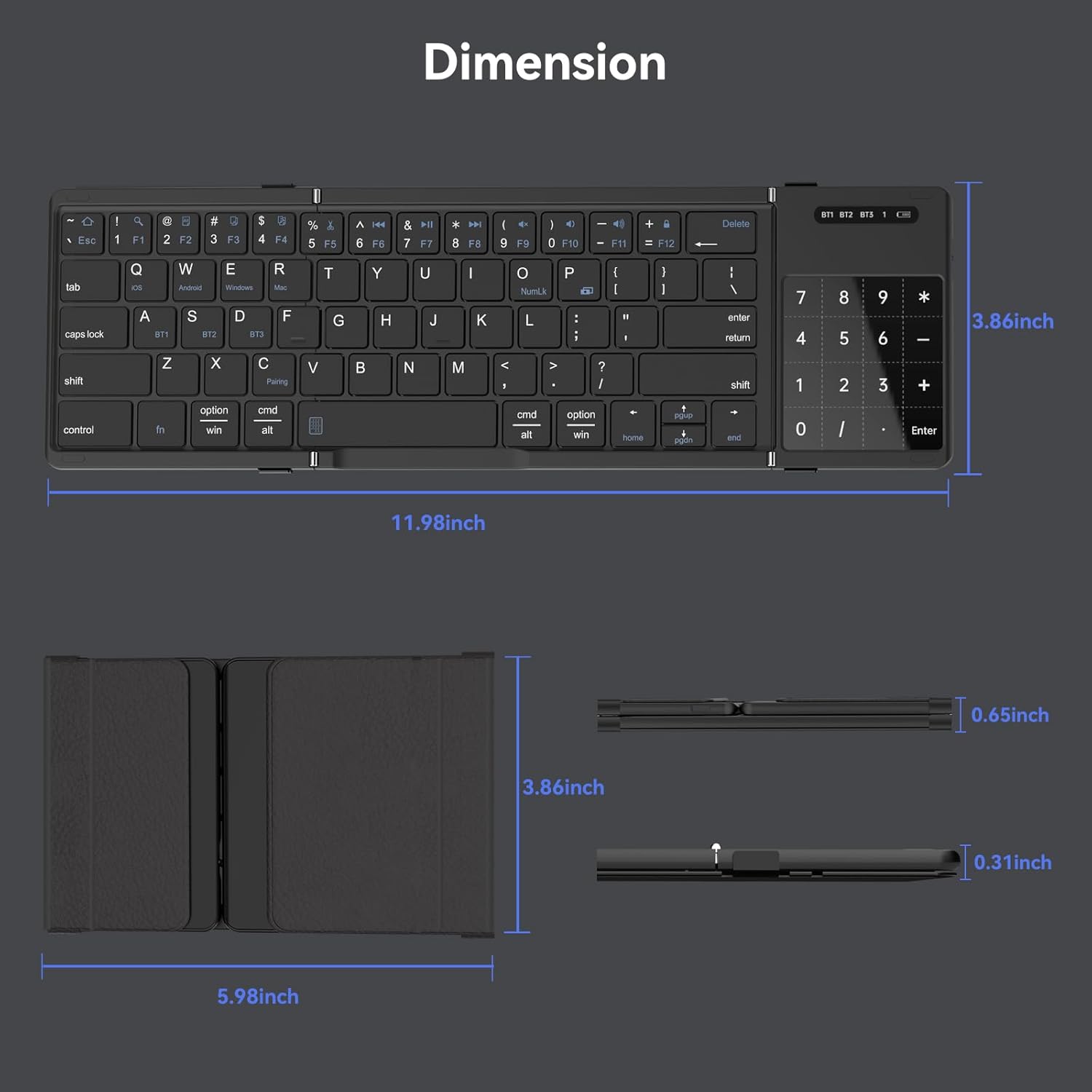
Image: Detailed dimensions of the keyboard in both unfolded and folded states.
Warranty and Support
AUSDOM products are designed and manufactured to the highest quality standards. This product is covered by a limited warranty from the date of purchase. Please refer to the warranty card included in your package for specific terms and conditions.
For technical support, warranty claims, or general inquiries, please contact AUSDOM customer service through the official website or the contact information provided on your product packaging.
Website: www.ausdom.com
Please have your model number (Sofkeys Air3) and purchase details ready when contacting support.
Related Documents - Sofkeys Air3
 |
AUSDOM AW615 1080P HD Webcam: User Manual and Features Comprehensive user manual for the AUSDOM AW615 1080P HD Webcam, detailing features, system requirements, installation, and usage for optimal video conferencing and recording. |
 |
AUSDOM Hola 98 Pro Wireless Mechanical Keyboard User Manual User manual for the AUSDOM Hola 98 Pro Wireless Mechanical Keyboard, providing setup, usage, and technical information. |
 |
AUSDOM E7 Wireless Active Noise Cancelling Headphones User Manual Comprehensive user manual for the AUSDOM E7 Wireless Active Noise Cancelling Headphones, covering setup, features, controls, troubleshooting, and specifications. |
 |
AUSDOM AW651S FHD 2K Webcam User Manual User's manual for the AUSDOM AW651S FHD 2K Webcam. Learn about package contents, system requirements, product overview, mounting, connecting, usage on Windows and Mac, and specifications. |
 |
AUSDOM AF640 4K Webcam User Manual This user manual guides you through the setup and operation of the AUSDOM AF640 4K UHD Webcam. Learn about its features, system requirements, and how to achieve high-quality video for calls and streaming. |
 |
AUSDOM BW01 Wireless Headset User Manual Comprehensive user manual for the AUSDOM BW01 Wireless Headset, covering package contents, product overview, charging instructions, control operations, technical specifications, and warranty information. |