
1. Introduction
This manual provides comprehensive instructions for the relkiney 4-in-1 USB Flash Drive Memory Stick, Model 4116G. This versatile storage device is designed for seamless data transfer and storage across a wide range of devices, including smartphones (iPhone and Android), laptops, and personal computers. Please read this manual carefully to ensure proper use and to maximize the functionality of your device.
2. Product Features
- 4-in-1 Connectivity: Equipped with Lightning, USB Type-A, Micro USB, and USB Type-C connectors for broad compatibility.
- Universal Compatibility: Supports data transfer with OTG-enabled Android smartphones, iPhones (requires dedicated app), PCs, and laptops.
- High-Speed Data Transfer: Facilitates quick and reliable transfer of files, photos, music, and videos.
- Durable Design: Constructed with a metal body for enhanced durability and a premium feel.
- Compact and Portable: Features a compact, foldable design with a lanyard hole for easy carrying.
- Plug and Play: No software installation required for Micro USB, Type-C, and standard USB connections.
- Storage Capacity: This specific model offers 16GB of storage.
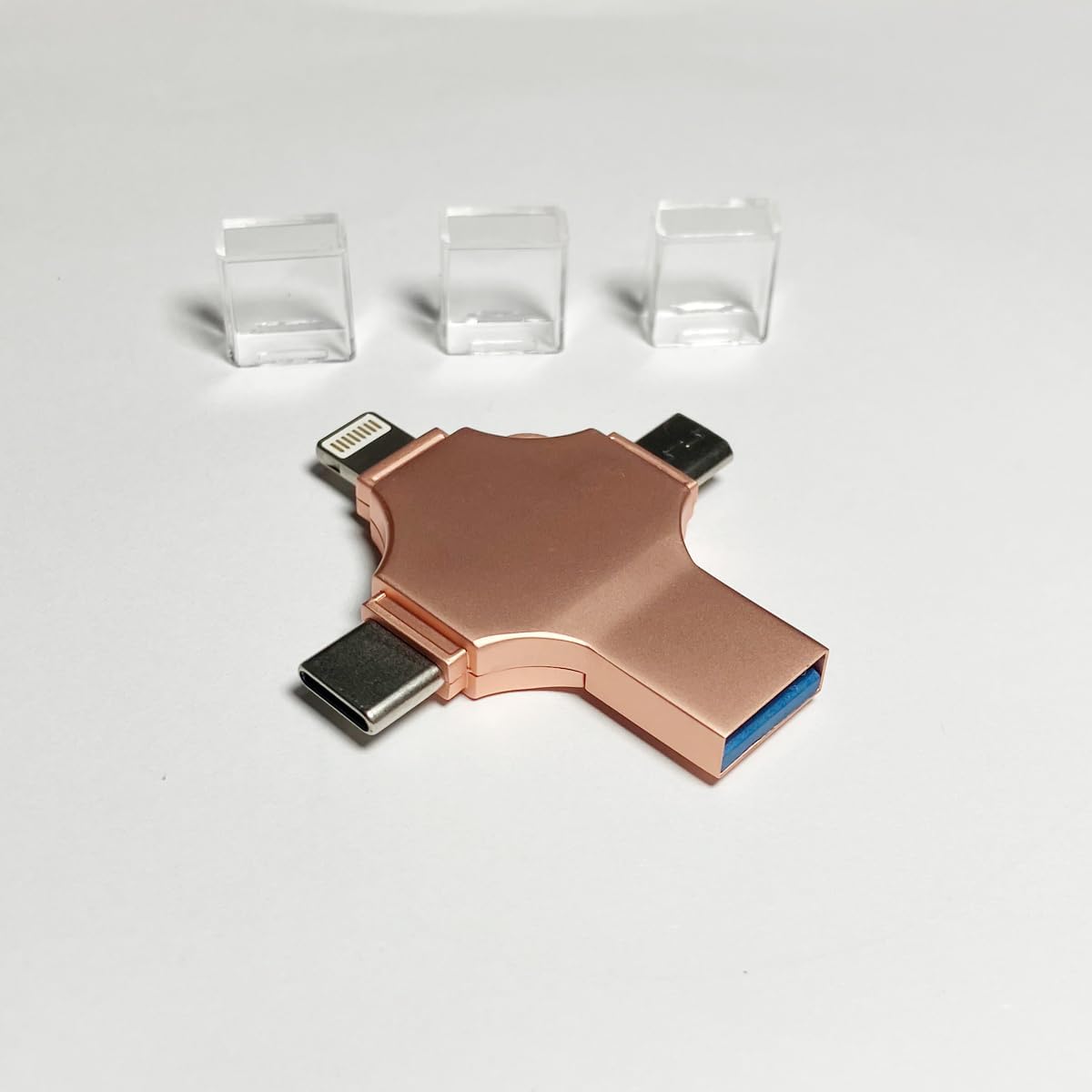
Image: The relkiney 4-in-1 USB Flash Drive, showing its four distinct connectors (Lightning, USB, Micro USB, Type-C) and three clear protective caps.
3. Setup and Initial Use
3.1 General Connection (Android, PC, Laptop)
- Identify the appropriate connector for your device (Micro USB, Type-C, or standard USB).
- Carefully insert the flash drive into the corresponding port on your Android smartphone (ensure OTG function is enabled), PC, or laptop.
- Your device should automatically detect the flash drive. For computers, it will appear as a removable disk in 'My Computer' or 'This PC'. For Android devices, you may need to access it through a file manager application.
3.2 iPhone Connection
- Before connecting, download and install the recommended file management application from the App Store. (Note: The specific app name is not provided in the product information, please refer to product packaging or seller for details.)
- Insert the Lightning connector of the flash drive into your iPhone's charging port.
- Open the installed file management application. The flash drive should be recognized within the app, allowing you to manage files.

Image: The relkiney 4-in-1 USB Flash Drive connected to a laptop, demonstrating its plug-and-play functionality for computers.
4. Operating Instructions
4.1 Transferring Files
- Once the flash drive is recognized by your device, navigate to the files you wish to transfer.
- Select the files and use the 'Copy' or 'Move' function.
- Navigate to the flash drive's directory (or the desired folder within it) and use the 'Paste' function.
- For transferring files from the flash drive to your device, reverse the process.
4.2 Safe Removal
Always ensure safe removal of the flash drive to prevent data corruption. For PCs and laptops, use the 'Safely Remove Hardware' option in the system tray before physically disconnecting the drive. For smartphones, ensure all file operations are complete and then simply unplug the drive.

Image: The relkiney 4-in-1 USB Flash Drive positioned between a smartphone and a laptop, illustrating its multi-device compatibility for data transfer.
5. Maintenance
- Keep Connectors Clean: Regularly inspect the connectors for dust or debris. Use a soft, dry cloth or a small brush to gently clean them if necessary. Avoid using liquids.
- Use Protective Caps: Always use the provided protective caps when the flash drive is not in use to shield the connectors from damage and contamination.
- Avoid Physical Damage: Do not bend, drop, or expose the flash drive to excessive force. Store it in a safe place when not in use.
- Temperature and Humidity: Store the flash drive in a cool, dry environment. Avoid extreme temperatures and high humidity, which can affect performance and longevity.

Image: The relkiney 4-in-1 USB Flash Drive with its clear protective caps, emphasizing the importance of using them for connector protection.
6. Troubleshooting
- Device Not Recognized:
- Ensure the flash drive is fully inserted into the port.
- Try connecting to a different USB port or a different device.
- For Android, verify that OTG functionality is enabled in your device settings.
- For iPhone, confirm the required app is installed and updated.
- Slow Transfer Speeds:
- Ensure your device's USB port supports high-speed data transfer (e.g., USB 3.0 for optimal performance).
- Avoid running multiple demanding applications during transfer.
- Large numbers of small files can transfer slower than a single large file of the same total size.
- iPhone App Issues:
- Ensure the app is up to date.
- Restart the app or your iPhone.
- Check app permissions to ensure it has access to storage.
- Data Corruption:
- Always use the 'Safely Remove Hardware' option on computers before disconnecting.
- Do not remove the drive during active data transfer.
- If data appears corrupted, try formatting the drive (Note: This will erase all data. Back up important files first.).
7. Specifications
| Feature | Detail |
|---|---|
| Brand | relkiney |
| Model Number | 4116G |
| Connectivity Technology | Lightning, USB Type A, USB Type C |
| Special Features | Compact, Foldable |
| Flash Memory Type | USB |
| Color (This Variant) | Gold |
| Capacity (This Variant) | 16GB |

Image: The relkiney 4-in-1 USB Flash Drive (Gold variant) placed on a grid with centimeter markings, illustrating its compact dimensions.
8. Warranty and Support
8.1 Warranty Information
Specific warranty details for the relkiney 4-in-1 USB Flash Drive are not provided in this manual. Please refer to your purchase documentation, the product packaging, or contact the seller directly for information regarding warranty coverage and terms.
8.2 Customer Support
For technical assistance, troubleshooting beyond this manual, or any other inquiries, please contact the seller or manufacturer through the platform where the product was purchased. Ensure you have your purchase details and product model number (4116G) ready when seeking support.