1. Introduction
This manual provides detailed instructions for the installation, operation, and maintenance of your PUSOKEI WiFi Birdhouse Security Camera. Designed for discreet monitoring, this camera features high-resolution imaging, wide-angle infrared night vision, and remote access capabilities, making it ideal for observing wildlife or securing small spaces.
Key Features
- Wide-Angle Infrared Light: Features 10 high-power LEDs for wide-angle infrared illumination, providing perfect night vision performance without hot spots.
- Reliable Operation: Constructed with a thick aluminum alloy casing and heat sink, suitable for high-power illumination with temperatures below 49°C, ensuring durable performance.
- Versatile Functions: Supports up to 128GB storage card (not included), mobile app push alerts for motion detection, and remote monitoring via LAN, Internet, iOS, and Android systems.
- Night Vision and Low Noise: Equipped with an integrated light sensor and infrared lights for silent night vision, providing clear monitoring in darkness.
- Clear Image: Utilizes a 3.6mm lens for clear and detailed 5MP images, enhancing overall indoor and outdoor security.
2. Package Contents
Please check the package contents carefully upon unboxing:
- 1 x PUSOKEI WiFi Birdhouse Security Camera
- 1 x User Manual
3. Product Overview
Familiarize yourself with the camera's components and connections:

Figure 3.1: Camera Components (940nm LED, Microphone, Card Slot, Stents, WiFi Antenna, Reset Button, DC12V, RJ45, Lens)

Figure 3.2: Camera with Connected Cables
4. Setup
4.1 Powering On
- Connect the DC12V power adapter to the camera's power input port.
- Plug the power adapter into a standard electrical outlet. The camera will power on automatically.
4.2 Network Connection
The camera supports 2.4 GHz WiFi connectivity for remote viewing.

Figure 4.1: Connecting to a Wireless Network for Remote Viewing
- Ensure your WiFi router is powered on and broadcasting a 2.4 GHz network.
- Download the dedicated mobile application (refer to the manual for app name or QR code).
- Follow the in-app instructions to add your camera. This typically involves scanning a QR code on the camera or entering its unique ID, then connecting it to your WiFi network.
- Alternatively, you can connect the camera directly to your router using an RJ45 Ethernet cable for a wired connection.
4.3 Mobile Application Installation
Search for the recommended application (e.g., 'iCSee' or similar, check packaging for exact name) in your device's app store (iOS App Store or Google Play Store) and install it. Create an account and log in.
4.4 Initial Configuration
After connecting the camera to the network, use the mobile application to perform initial settings such as:
- Setting date and time.
- Configuring motion detection sensitivity.
- Setting up recording preferences.
5. Operating Instructions
5.1 Remote Monitoring
Once connected to your WiFi network, you can monitor the camera feed remotely using the mobile application on your smartphone or tablet. The application allows real-time viewing from anywhere with an internet connection.
5.2 Motion Detection
The camera features adjustable motion detection. When motion is detected, the camera can automatically take photos, record video footage, and send push notifications to your mobile phone.

Figure 5.1: Motion Detection and Notification System
To adjust motion detection sensitivity (0-100) and define up to 4 detection zones, access the settings within the mobile application.
5.3 Night Vision
The camera is equipped with an integrated light sensor and infrared LEDs for automatic night vision. This allows for clear monitoring in low-light or complete darkness without disturbing subjects.
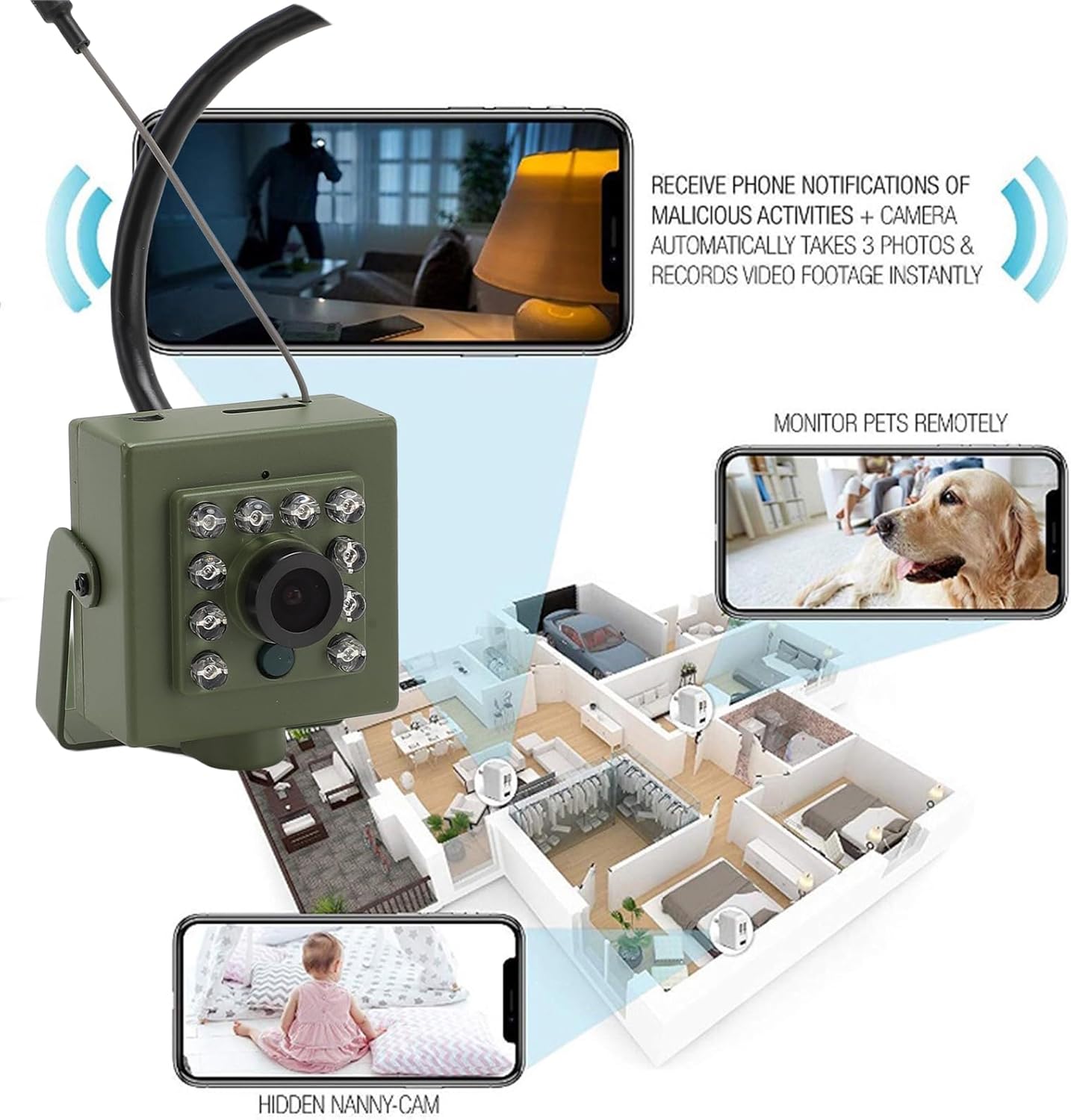
Figure 5.2: High Definition Silent Night Vision

Figure 5.3: Night Vision for Wildlife Monitoring
5.4 Storage
The camera supports a MicroSD storage card up to 128GB (not included). Insert the card into the designated slot to enable local recording. Manage recordings and storage settings through the mobile application.
6. Maintenance
6.1 Cleaning
To ensure optimal performance, periodically clean the camera lens and housing. Use a soft, dry cloth to wipe away dust and dirt. For stubborn marks on the lens, use a lens cleaning solution and a microfiber cloth. Do not use harsh chemicals or abrasive materials.
6.2 Environmental Considerations
While designed for outdoor use, avoid exposing the camera to extreme weather conditions beyond its operating specifications. Ensure proper ventilation if installed in an enclosed space to prevent overheating.
7. Troubleshooting
If you encounter issues with your camera, refer to the following common problems and solutions:
| Problem | Possible Cause | Solution |
|---|---|---|
| Camera not powering on | No power supply; faulty adapter; loose connection. | Check power adapter and cable connections. Ensure the outlet is functional. Try a different power adapter if available. |
| Cannot connect to WiFi | Incorrect WiFi password; camera too far from router; 5GHz network selected; router firewall settings. | Verify WiFi password. Move camera closer to router. Ensure router is broadcasting 2.4GHz WiFi. Check router settings for MAC filtering or firewall restrictions. Reset camera and try again. |
| Poor image quality | Dirty lens; insufficient lighting; network bandwidth issues. | Clean the camera lens. Ensure adequate lighting or check night vision functionality. Verify stable internet connection. |
| Motion detection not working | Sensitivity too low; detection zones not set; app notifications disabled. | Adjust motion detection sensitivity in the app. Define detection zones. Enable push notifications for the app on your phone. |
| MicroSD card not recording | Card full; card not formatted; faulty card. | Check card capacity. Format the card via the app. Replace with a new, compatible MicroSD card if necessary. |
8. Specifications
| Feature | Detail |
|---|---|
| Item Type | Security Camera |
| Lens | 3.6mm |
| Video Format | H.264 |
| Wireless Connection | WiFi 2.4 GHz |
| Mobile Application | Supports motion detection, remote viewing (iOS, Android) |
| Storage Card | Max 128GB (not included) |
| Network Protocols | TP/IP, UDP/IP, HTTP, ICMP, FTP, EMAIL, TELNET, etc. |
| Motion Detection Sensitivity | Adjustable 0-100, supports 4 detection zones |
| Power | 3 Watts |
| Manufacturer | PUSOKEI |
| Package Dimensions | 12 x 8 x 7 cm; 190 grams |
| Item Model Number | PUSOKEI3cwuz8b9m0-12 |
| Size | IMX335 CMOS Sensor 5MP |
| Bulb Type | Infrared |
| Batteries Included | No |
| Batteries Required | No |
| Country of Origin | China |
| Connectivity Technology | Wireless |
| Indoor/Outdoor Use | Outdoor |
| Compatible Devices | Smartphone |
| Power Source | Corded Electric |
| Connectivity Protocol | Wi-Fi |
| Controller Type | iOS |
| Mounting Type | Wall Mount |
| Color | Default |
9. Warranty and Support
9.1 Warranty Information
This product comes with a standard manufacturer's warranty. Please refer to the product packaging or your purchase receipt for specific warranty terms and duration. Keep your proof of purchase for any warranty claims.
9.2 Customer Support
For technical assistance, troubleshooting not covered in this manual, or warranty inquiries, please contact PUSOKEI customer support. Contact details can typically be found on the product packaging, the official PUSOKEI website, or through your retailer.


