
1. Introduction
This manual provides detailed instructions for the setup, operation, and maintenance of your QVWi 2K Android TV Stick Leap L1. Please read this manual thoroughly before using the device to ensure proper functionality and to prevent damage. Keep this manual for future reference.
2. Safety Information
Observe the following safety precautions to avoid damage to the device or injury to yourself:
- Do not expose the device to water, moisture, or extreme temperatures.
- Do not attempt to disassemble or modify the device. This will void the warranty.
- Use only the provided power adapter and cables.
- Keep the device away from direct sunlight and heat sources.
- Ensure proper ventilation around the device during operation.
- Unplug the device during lightning storms or when unused for long periods.
3. Package Contents
Verify that all items are present in the package:
- QVWi 2K Android TV Stick Leap L1
- Remote Control (Bluetooth with Voice Control & IR)
- Micro USB Cable
- HDMI Cable
- Power Adapter (2x AAA Batteries for remote, not always included, check packaging)
- User Manual (this document)

Image 3.1: Contents of the QVWi Leap L1 package, including the TV stick, remote, and cables.

Image 3.2: Front of the QVWi Leap L1 product box, showing the device and remote.
4. Product Overview
The QVWi 2K Android TV Stick Leap L1 is a compact streaming device designed to convert your television into a smart TV. It runs on Android TV 11 and supports various streaming applications.
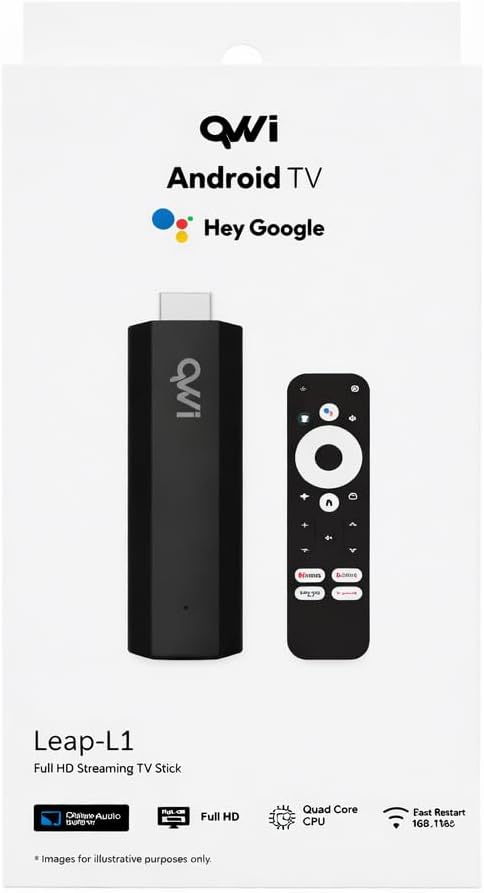
Image 4.1: Various angles of the QVWi Leap L1 TV Stick, highlighting its compact design and ports.

Image 4.2: Detailed view of the QVWi Leap L1 TV Stick, showing the QVWi logo.
Device Components:
- HDMI Connector: Plugs directly into your TV's HDMI port.
- Micro USB Port: For power input.
- Status Indicator Light: Shows device activity.
Remote Control:
The included remote control features Bluetooth connectivity for seamless operation and IR for basic TV functions. It also supports voice control via Google Assistant.

Image 4.3: Back of the product box, highlighting key features such as Android TV, Google Assistant, and Chromecast.
5. Setup
Follow these steps to set up your QVWi 2K Android TV Stick Leap L1:
- Connect the TV Stick: Plug the QVWi Leap L1 directly into an available HDMI port on your television.
- Connect Power: Connect the Micro USB cable to the TV Stick's power port and the other end to the provided power adapter. Plug the power adapter into a wall outlet.
- Power On TV: Turn on your television and select the correct HDMI input source using your TV remote.
- Insert Remote Batteries: Open the battery compartment of the remote control and insert two AAA batteries (not always included).
- Pair Remote: Follow the on-screen instructions to pair the Bluetooth remote control with your TV Stick. This usually involves pressing and holding specific buttons on the remote.
- Initial Setup: Follow the on-screen prompts to complete the initial setup, which includes:
- Selecting your language.
- Connecting to your Wi-Fi network.
- Signing in with your Google account.
- Accepting terms and conditions.
- Install Apps: Once setup is complete, you can download and install your favorite streaming applications from the Google Play Store.
6. Operating the Device
Navigation:
Use the directional pad (up, down, left, right) and the 'OK' button on the remote control to navigate through the Android TV interface. The 'Back' button returns to the previous screen, and the 'Home' button takes you to the main Android TV home screen.
Voice Control (Google Assistant):
Press the Google Assistant button on your remote control and speak into the microphone to search for content, launch apps, control playback, and get answers to questions.
Streaming Applications:
The device comes pre-installed with popular apps like YouTube, Google Play Movies & TV Shows, Netflix, Amazon Prime Video, and Disney+. You can download additional apps from the Google Play Store.
Chromecast Built-in:
Use the built-in Chromecast feature to cast content (videos, photos, music) from your compatible smartphone, tablet, or computer directly to your TV.
7. Maintenance
To ensure the longevity and optimal performance of your QVWi Leap L1 TV Stick, follow these maintenance guidelines:
- Cleaning: Use a soft, dry, lint-free cloth to clean the device. Do not use liquid cleaners or aerosols.
- Storage: When not in use for extended periods, store the device in a cool, dry place away from direct sunlight.
- Software Updates: Ensure your device's software is up to date. The system will usually prompt you for updates. Install them to benefit from new features and security enhancements.
- Ventilation: Do not block the ventilation openings on the device.
8. Troubleshooting
If you encounter issues with your QVWi Leap L1 TV Stick, refer to the following common problems and solutions:
| Problem | Possible Cause | Solution |
|---|---|---|
| No power/Device not turning on | Power cable not connected properly; Faulty power adapter; No power from outlet. | Ensure the Micro USB cable is securely connected. Check if the power adapter is working and the outlet has power. Try a different USB port or power adapter if available. |
| No signal on TV screen | Incorrect HDMI input selected; Loose HDMI connection; TV Stick not powered on. | Verify your TV is on the correct HDMI input. Re-plug the TV Stick into the HDMI port. Ensure the TV Stick is receiving power. |
| Remote control not working | Batteries are low or incorrectly inserted; Remote not paired; Obstruction between remote and device (for IR). | Replace batteries. Re-pair the remote control (refer to setup instructions). Ensure no obstructions for IR. For Bluetooth, ensure the device is not too far. |
| Wi-Fi connection issues | Incorrect Wi-Fi password; Router too far; Network interference. | Double-check your Wi-Fi password. Move the TV Stick closer to the router. Restart your router and the TV Stick. |
| Apps crashing or freezing | Insufficient memory; Outdated app version; Software glitch. | Close background apps. Clear app cache/data (Settings > Apps). Update the app from Google Play Store. Restart the TV Stick. |
If the problem persists after trying these solutions, please contact customer support.
9. Specifications
Technical specifications for the QVWi 2K Android TV Stick Leap L1:
- Model Name: Leap L1
- CPU: Amlogic S805X2 Quad A35
- Operating System: Android TV 11
- Resolution: 1440p (2K)
- Video Formats: HDR10, HDR10+, HLG
- Connectivity: Wi-Fi 5 Dual Band (2.4GHz & 5GHz), Bluetooth Version 5
- Ports: HDMI, Micro USB (for power)
- Remote Control: Bluetooth with Voice Control & IR
- Supported Internet Services: DISNEY, DSTV, Netflix, Prime Video, SHOWMAX, YouTube
- Special Features: Google Assistant, Chromecast built-in, Dust Resistant
- Item Weight: 35 Grams
- Manufacturer's Warranty: 12 Months
10. Warranty and Support
Warranty Information:
The QVWi 2K Android TV Stick Leap L1 comes with a 12-month manufacturer's warranty from the date of purchase. This warranty covers defects in materials and workmanship under normal use. It does not cover damage caused by misuse, accidents, unauthorized modifications, or external causes.
Please retain your proof of purchase for warranty claims.
Customer Support:
For technical assistance, troubleshooting beyond this manual, or warranty inquiries, please contact QVWi customer support through the retailer where you purchased the product or visit the official QVWi website for contact details.
Online Resources: Check the QVWi official website for FAQs, updated drivers, and additional support materials.