
1. Setup and Installation
This section guides you through the proper installation of your PHILODO H8 Colorful LCD Display onto your electric bicycle.
1.1 Unpacking
Carefully remove all components from the packaging. Ensure the display unit, mounting bracket, and connection cables are present.
1.2 Mounting the Display
- Attach the mounting bracket to the handlebar in a central, easily viewable position. Use the provided screws and ensure it is securely fastened.
- Slide the PHILODO H8 LCD Display onto the mounting bracket until it clicks into place. Verify that it is firmly seated and does not wobble.
1.3 Electrical Connection
- Locate the display cable connector on your PHILODO H8 electric bike. This is typically near the handlebar or main wiring harness.
- Align the pins and carefully connect the display cable from the LCD unit to the bike's corresponding connector. Ensure a snug fit. Do not force the connection.
- Once connected, secure any loose cables with zip ties or cable wraps to prevent interference with steering or moving parts.
2. Operating Instructions
Understand the functions and controls of your PHILODO H8 Colorful LCD Display for an optimal riding experience.
2.1 Power On/Off
- To power on the display, press and hold the Power Button (usually located on the side or bottom of the display) for 2-3 seconds.
- To power off, press and hold the Power Button again for 2-3 seconds until the screen turns off.
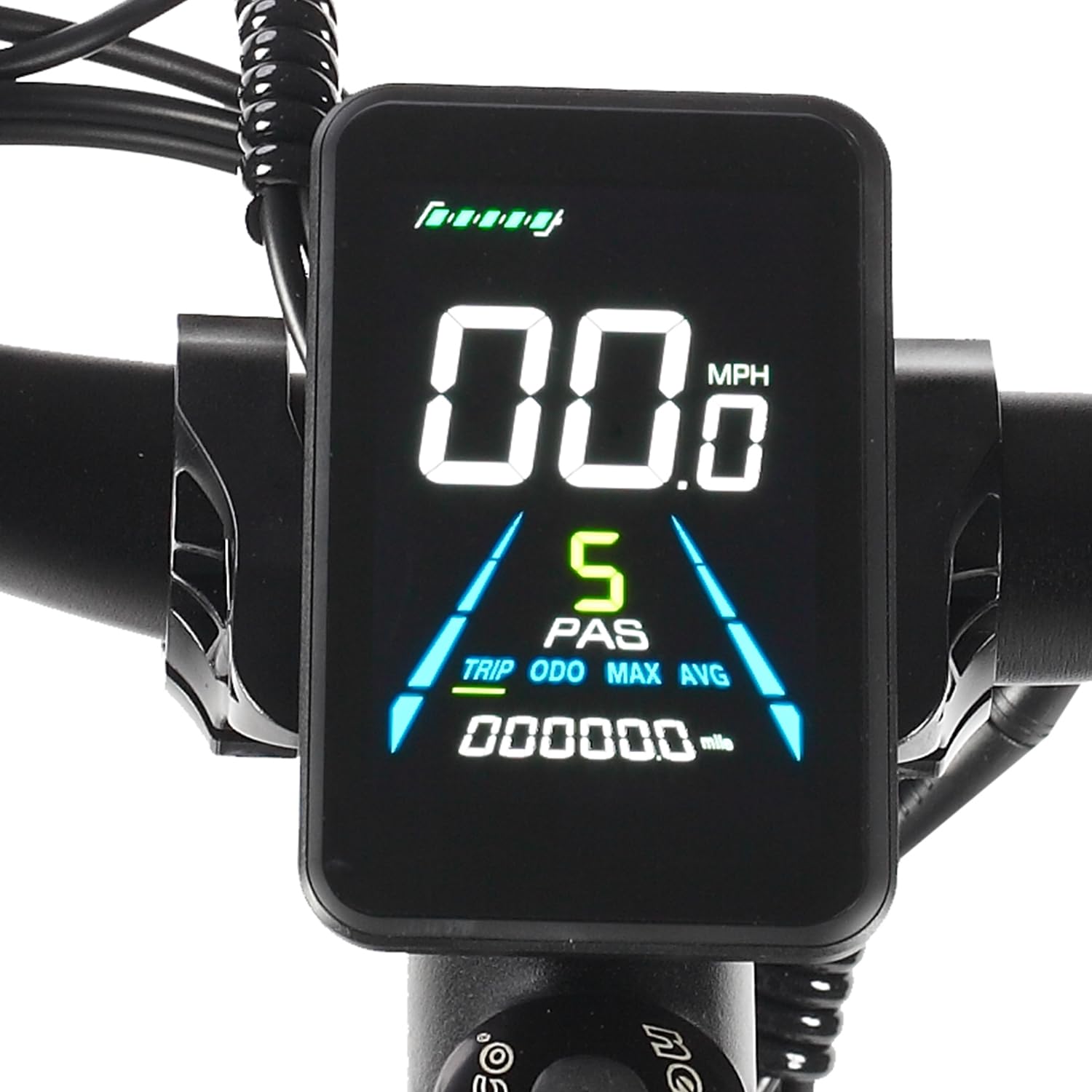
2.2 Display Modes and Information
The display shows various riding data. Use the Mode Button (or Up/Down arrows) to cycle through different screens:
- Current Speed: Displays your real-time riding speed.
- Battery Level: Indicates the remaining battery charge of your e-bike.
- Trip Distance: Shows the distance covered during the current ride.
- Total Odometer: Displays the total distance the bike has traveled.
- Assist Level: Shows the current pedal assist level (0-5 or similar).
2.3 Changing Assist Levels
Use the Up and Down arrow buttons to adjust the pedal assist level. Level 0 typically means no assist, while higher numbers provide more motor assistance.
3. Maintenance
Proper maintenance ensures the longevity and optimal performance of your PHILODO H8 Colorful LCD Display.
3.1 Cleaning
- Wipe the display screen and casing with a soft, damp cloth.
- Do not use abrasive cleaners, solvents, or harsh chemicals, as these can damage the screen or casing.
- Ensure the display is off before cleaning.
3.2 Storage
- If storing the bike for an extended period, ensure the display is turned off.
- Store the bike and display in a cool, dry place, away from direct sunlight and extreme temperatures.
3.3 Water Resistance
The display is designed to be splash-proof for normal riding conditions. Avoid submerging the display in water or exposing it to heavy rain for prolonged periods.
4. Troubleshooting
Refer to this section for solutions to common issues you might encounter with your PHILODO H8 Colorful LCD Display.
| Problem | Possible Cause | Solution |
|---|---|---|
| Display does not turn on. |
|
|
| Incorrect speed or distance readings. |
|
|
| Display shows an error code. |
|
|
5. Specifications
| Brand | PHILODO |
| Model Name | H8 |
| Special Feature | Digital Display |
| Included Components | Display unit |
| Material | Aluminum (for bike frame, display casing typically ABS/plastic) |
Note: Specifications are subject to change without prior notice.
6. Warranty Information
The PHILODO H8 Colorful LCD Display comes with a 1-year warranty from the date of purchase. This warranty covers manufacturing defects under normal use.
The warranty does not cover damage resulting from:
- Improper installation or unauthorized repairs.
- Accidents, misuse, abuse, or neglect.
- Exposure to extreme conditions (e.g., submersion in water, extreme heat/cold).
- Normal wear and tear.
Please retain your proof of purchase for warranty claims.
7. Customer Support
If you encounter any issues not covered in this manual or require further assistance, please contact PHILODO customer support.
- Website: Visit the PHILODO Store on Amazon
- Email: Refer to your purchase documentation for direct contact information.
- Phone: Refer to your purchase documentation for direct contact information.
When contacting support, please have your product model (H8) and proof of purchase ready.