
1. Introduction
The Intellitron WM-1005D is a digital SWR (Standing Wave Ratio) and Power Meter designed to evaluate the efficiency and performance of your radio frequency (RF) system. This device assists in determining how well your antenna system matches the impedance of your transmitter, optimizing power transfer and minimizing signal reflections. It also monitors transmitted power levels, ensuring equipment operates within safe and efficient parameters. The WM-1005D provides essential information for radio operators to assess and maintain optimal RF system functioning.
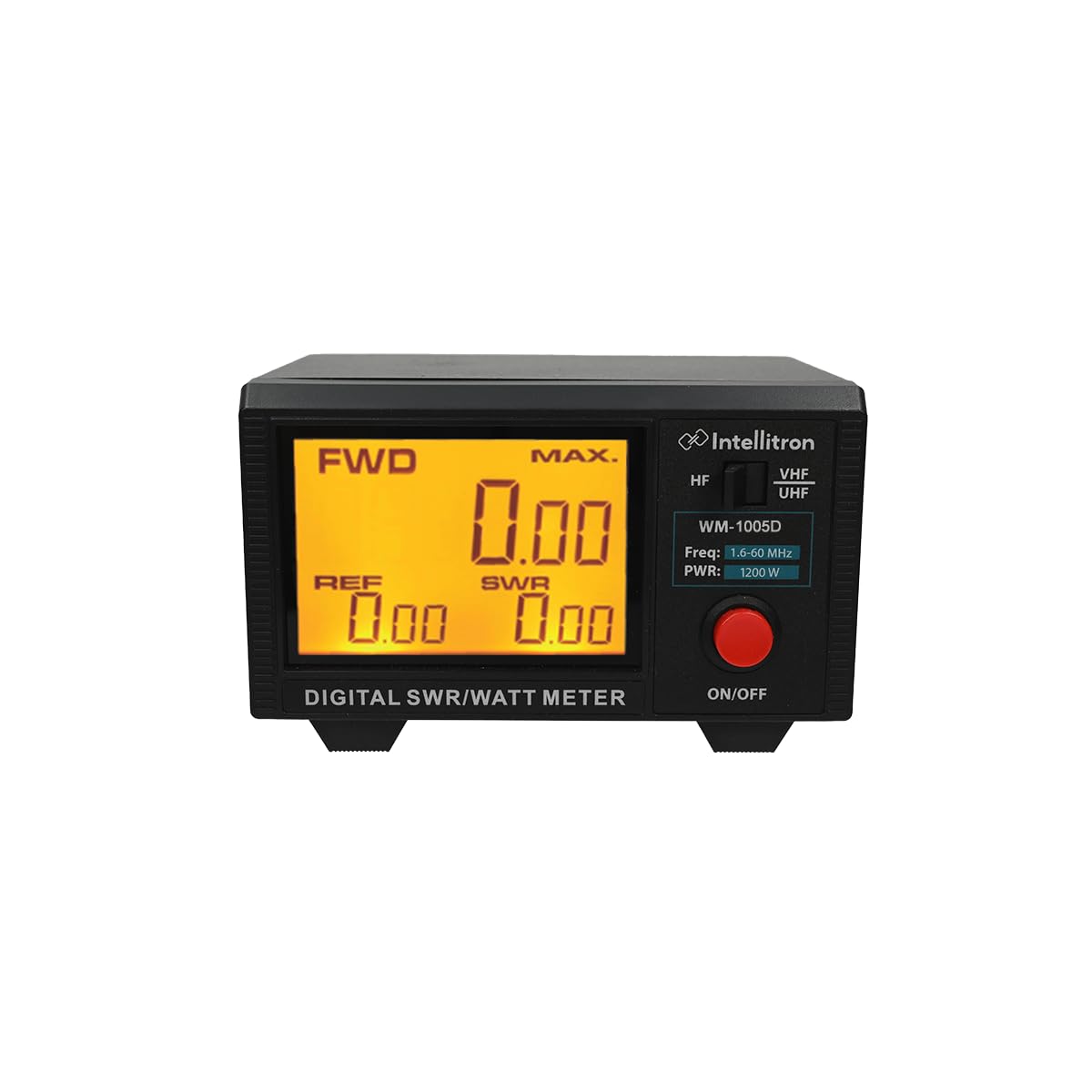
Figure 1: Front view of the Intellitron WM-1005D Digital SWR and Watt Meter, showing the large LCD display and control buttons.
2. Key Features
- Large LCD (3.5″) display for easy reading of measurements.
- Single push-button operation for switching between Forward power, Reflected power, and VSWR ratio display.
- LCD backlight display for visibility in various lighting conditions.
- Convenient control layout for straightforward operation.
- Includes a pigtail 12 VDC cable for power supply.
3. Safety Information
Please read and understand all safety instructions before operating the device. Failure to do so may result in injury or damage to the equipment.
- Power Supply: Use only the supplied 12 VDC pigtail cable and ensure the power source matches the specified voltage. Incorrect voltage can damage the unit.
- RF Connections: Ensure all RF connections are secure before transmitting. Loose connections can cause arcing and damage to the meter or your radio equipment.
- Operating Environment: Do not expose the device to moisture, extreme temperatures, or direct sunlight for prolonged periods. Operate in a well-ventilated area.
- Internal Components: Do not attempt to open or service the unit yourself. Refer all servicing to qualified personnel.
- High Power: Be aware of the power levels you are measuring. High RF power can be dangerous.
4. Package Contents
Verify that all items are present in the package:
- Intellitron WM-1005D Digital SWR and Watt Meter
- 12 VDC Pigtail Power Cable
- User Manual (this document)
5. Setup and Installation
- Placement: Position the WM-1005D on a stable, flat surface away from direct heat sources or excessive moisture.
- Power Connection: Connect the supplied 12 VDC pigtail cable to the power input port on the rear of the WM-1005D. Connect the other end to a suitable 12 VDC power source.
- RF Connections:
- Connect your radio's antenna output to the "TX" (Transmitter) SO239 connector on the WM-1005D using a high-quality coaxial cable.
- Connect your antenna system to the "ANT" (Antenna) SO239 connector on the WM-1005D using a high-quality coaxial cable.
Ensure all connections are finger-tight to prevent signal loss and potential damage.
Figure 2: Illustrative rear view of the WM-1005D, showing the 12 VDC power input and SO239 TX/ANT connectors. (Note: A specific rear view image would be ideal here).
6. Operating Instructions
- Power On: Once connected to a 12 VDC power source, the unit will power on automatically and the LCD backlight will illuminate.
- Display Modes: The WM-1005D displays Forward Power, Reflected Power, and VSWR ratio. Use the dedicated push button on the front panel to cycle through these display modes.
- Measuring SWR and Power:
- With your radio connected and powered on, transmit a carrier (e.g., using a PTT button or tune function) at a low power setting initially.
- Observe the readings on the WM-1005D. Adjust your antenna tuner or antenna system as needed to achieve the lowest possible VSWR reading.
- Monitor Forward Power to ensure your transmitter is operating at desired output levels.
- MAX Switch (On Back): This switch allows for testing of AM/SSB modes. Consult your radio's manual for specific transmission procedures for these modes.
- Digital Mode Observation: NOTE: When measuring TDMA or other digital modes, the display may blink due to the nature of the transmission. This is normal operation and not a fault of the design.
7. Maintenance
- Cleaning: Use a soft, dry cloth to clean the exterior of the unit. Do not use abrasive cleaners or solvents.
- Storage: When not in use for extended periods, store the WM-1005D in a dry, dust-free environment.
- Inspection: Periodically check all cables and connectors for signs of wear or damage.
- No User Serviceable Parts: The WM-1005D contains no user-serviceable parts. Do not attempt to open the casing.
8. Troubleshooting
| Problem | Possible Cause | Solution |
|---|---|---|
| Unit does not power on. | No power or incorrect voltage. | Ensure the 12 VDC power cable is securely connected to a functional 12 VDC power source. Check the power source. |
| No SWR/Power readings. | Incorrect RF connections or no RF signal. | Verify that the radio is transmitting and that RF cables are correctly connected to the TX and ANT ports. Check cable integrity. |
| Display blinks during transmission. | Measuring TDMA or other digital modes. | This is normal operation for digital modes and not a fault. No action required. |
| Inaccurate readings. | Faulty cables, connectors, or antenna system issues. | Inspect all coaxial cables and connectors for damage. Ensure your antenna system is properly tuned and functioning. |
9. Specifications
| Feature | Detail |
|---|---|
| Model | WM-1005D |
| Frequency Range | 1.6 - 60 MHz |
| Power Range | 300mW - 300W / 300W - 1200W (Switchable) |
| Connectors | SO239 |
| Display | Large LCD (3.5") with backlight |
| Power Supply | 12 VDC (pigtail cable included) |
| Brand | Intellitron |
| Color | Black |
| GTIN / UPC | 810106910581 |
10. Warranty and Support
Intellitron products are manufactured to high-quality standards. For specific warranty information, please refer to the warranty card included with your purchase or visit the official Intellitron website. For technical support or service inquiries, please contact Intellitron customer service through their official channels.
Please retain your proof of purchase for warranty claims.