
HP 714L5A#B1H
HP Envy 6155e Wireless All-in-One Color Inkjet Printer User Manual
Model: 714L5A#B1H | Brand: HP
Introduction
The HP Envy 6155e is a versatile All-in-One printer designed for home use, offering color printing, scanning, and copying functionalities. It features wireless connectivity, mobile printing capabilities, and an intuitive color touchscreen for easy navigation. This manual provides essential information for setting up, operating, maintaining, and troubleshooting your printer.
Key Features
- All-in-One Functionality: Print, scan, and copy with a single device.
- Wireless Connectivity: Dual-band Wi-Fi with self-healing capabilities for reliable connection.
- Mobile Printing: Print directly from your smartphone or tablet using the HP Smart app.
- Automatic Duplex Printing: Save paper with automatic two-sided printing for documents and photos.
- Intuitive Touchscreen: Easy navigation and control via the 2.4-inch color touchscreen.
- High-Quality Output: Produces vibrant color documents and true-to-screen photos.
- Paper Capacity: Features a 100-sheet input tray and a 25-sheet output tray.
- Sustainable Design: Made with at least 60% recycled plastic.

Figure 1: HP Envy 6155e All-in-One Printer, highlighting the included 3 months of Instant Ink.

Figure 2: Overview of key features including print/copy/scan, print speeds, touchscreen, and Wi-Fi.

Figure 3: Printer dimensions: 17.05 inches (W), 14.21 inches (D), 5.35 inches (H).
Setup Guide
Follow these steps to set up your HP Envy 6155e printer for the first time. For detailed visual instructions, refer to the included setup guide.
1. Unboxing and Initial Preparation
- Remove the printer from its packaging.
- Remove all packing materials, tapes, and protective films from the exterior and interior of the printer.
- Ensure all components listed in the "What's in the Box" section are present.

Figure 4: Included components: HP Envy 6155e printer, power cord, and HP 68 Setup ink cartridges.
2. Connect Power
- Connect the power cord to the back of the printer and then to a wall outlet.
- Press the Power button to turn on the printer.

Figure 5: Rear view of the printer, showing the power input and USB 2.0 port for PC connection.
3. Install Ink Cartridges
- Open the ink cartridge access door.
- Wait for the carriage to move to the center.
- Unpack the HP 68 Setup Black and Tri-Color cartridges.
- Insert the cartridges into their respective slots until they click into place.
- Close the ink cartridge access door.
4. Load Paper
- Pull out the input tray.
- Load a stack of plain white paper into the tray, print side down.
- Adjust the paper guides to fit the paper size.
- Push the input tray back into the printer.
5. Connect to Network and Install Software
- On the printer's 2.4-inch color touchscreen, follow the prompts to select your language and country/region.
- Select your Wi-Fi network from the list and enter the password. The printer features self-healing Wi-Fi to maintain a stable connection.
- Download the HP Smart app on your smartphone, tablet, or computer from your device's app store or hpsmart.com.
- Open the HP Smart app and follow the on-screen instructions to add your printer and complete the setup. This includes activating your 3-month Instant Ink trial if desired.

Figure 6: Seamless wireless printing and self-healing Wi-Fi connectivity.
Operating the Printer
The HP Envy 6155e offers intuitive controls through its touchscreen and the HP Smart app.
Using the Touchscreen
The 2.4-inch color touchscreen allows you to easily access print, copy, and scan functions, check ink levels, and manage settings.

Figure 7: Navigating printer functions using the intuitive color touchscreen.
Printing Documents and Photos
- From a Computer: Select your HP Envy 6155e from your computer's print dialog. Adjust settings like paper type, size, and print quality.
- From Mobile Devices (HP Smart App): Open the HP Smart app, select "Print Documents" or "Print Photos," choose your file, and adjust print settings before sending to the printer.
- Duplex Printing: The printer supports automatic two-sided printing. Select the duplex option in your print settings to save paper.
- Borderless Printing: Print photos without borders for a professional finish.

Figure 8: The printer produces high-quality documents and vibrant photos.
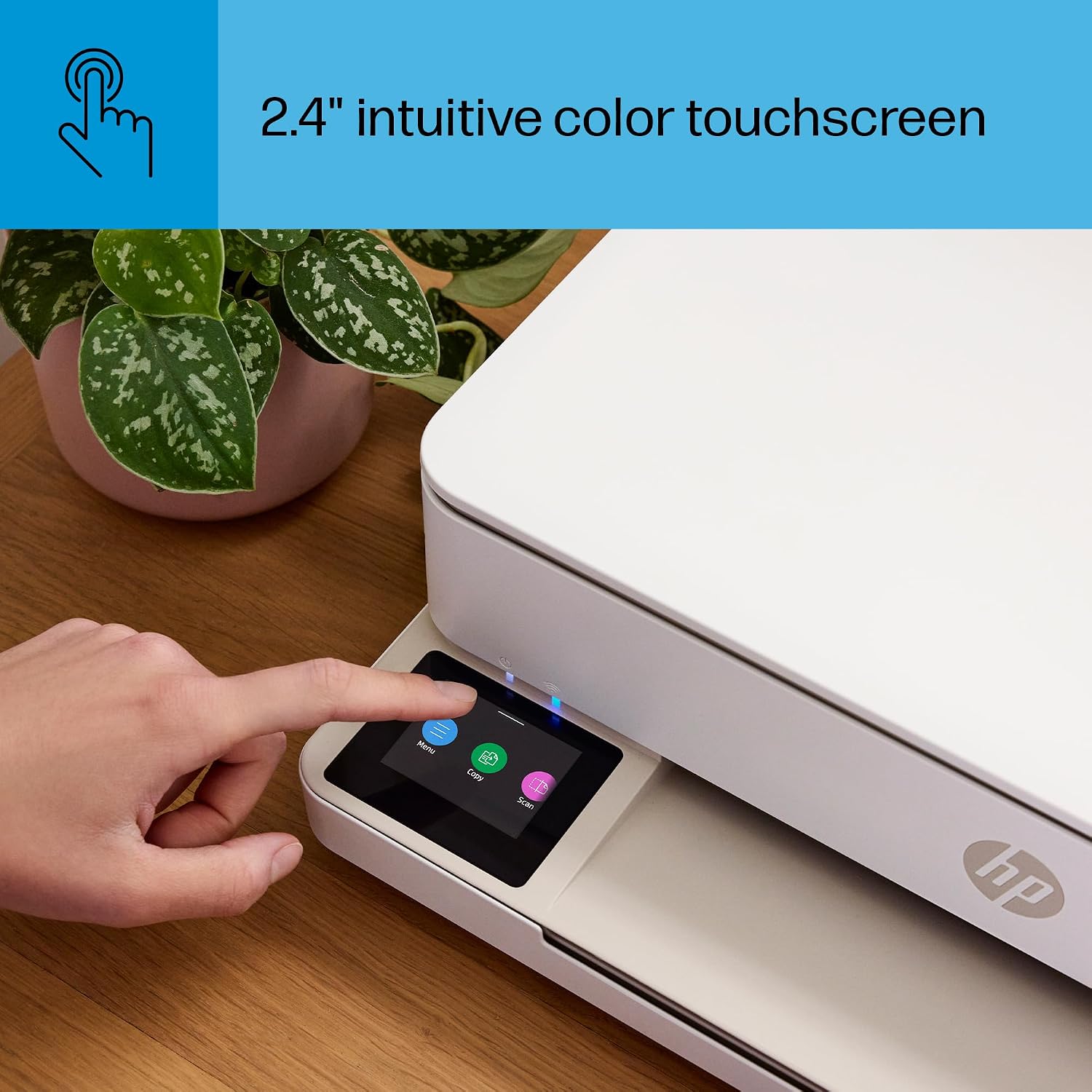
Figure 9: Print photos that look as vibrant as they do on your screen with HP's P3 technology.

Figure 10: Automatic two-sided printing for both photos and documents.
Scanning Documents
- Using the Flatbed Scanner: Lift the scanner lid, place your document or photo face down on the glass, close the lid, and initiate the scan from the printer's touchscreen or the HP Smart app.
- Using the Automatic Document Feeder (ADF): For multi-page documents, load them into the ADF tray. The printer will automatically feed and scan each page.
- HP Smart App Scan: The app allows you to scan directly to your phone, email, or cloud services.

Figure 11: The printer features a flatbed scanner for single pages and an automatic document feeder for multiple pages.

Figure 12: The HP Smart app enables remote printing, scanning, and monitoring ink levels.
Copying Documents
- Place the original document on the scanner glass or in the ADF.
- On the printer's touchscreen, select "Copy."
- Choose the number of copies and whether you want color or black and white.
- Press "Start Copy" to begin.
Maintenance
Regular maintenance ensures optimal performance and longevity of your HP Envy 6155e printer.
Replacing Ink Cartridges
When an ink cartridge is low or empty, the printer will notify you. Replace cartridges with genuine HP 68 ink cartridges.
- Ensure the printer is on.
- Open the ink cartridge access door.
- Wait for the print carriage to stop moving.
- Press down on the old cartridge to release it, then pull it out.
- Unpack the new cartridge, remove the protective tape, and insert it into the correct slot until it clicks.
- Close the ink cartridge access door.
Note: If you are enrolled in HP Instant Ink, replacement cartridges will be shipped to you automatically before you run out.
Cleaning the Printer
- Exterior: Wipe the exterior surfaces with a soft, lint-free cloth. Do not use abrasive cleaners.
- Scanner Glass: Use a soft cloth lightly dampened with glass cleaner (non-abrasive) to clean the scanner glass. Avoid spraying cleaner directly onto the glass.
- Printhead Cleaning: If print quality issues occur (streaks, faded colors), use the printhead cleaning utility available through the printer's touchscreen or the HP Smart app.
Troubleshooting Common Issues
This section addresses common problems you might encounter with your HP Envy 6155e printer.
Printer Not Responding or Offline
- Check Power: Ensure the printer is plugged in and turned on.
- Check Wi-Fi Connection: Verify that the printer is connected to your Wi-Fi network. On the touchscreen, navigate to the wireless settings. If disconnected, reconnect. The printer's self-healing Wi-Fi should automatically attempt to resolve connection issues.
- Restart Devices: Restart your printer, router, and computer/mobile device.
- HP Smart App: Use the HP Smart app's diagnostic tools to identify and resolve connectivity issues.
Poor Print Quality
- Check Ink Levels: Ensure cartridges are not empty. Replace if necessary.
- Run Printhead Cleaning: Access this utility from the printer's touchscreen or HP Smart app.
- Check Paper Type: Ensure you are using the correct paper type for your print job (e.g., photo paper for photos).
- Align Printhead: Perform a printhead alignment from the printer's maintenance menu.
Paper Jams
- Clear Path: Carefully remove any jammed paper from the input tray, output tray, or inside the printer. Refer to the printer's internal diagrams for access points.
- Load Paper Correctly: Ensure paper is loaded correctly and the paper guides are adjusted to the paper size. Do not overload the tray.
Firmware Updates
HP periodically releases firmware updates to improve printer performance and add new features. You can check for and install updates via the HP Smart app or the printer's touchscreen menu.
Technical Specifications
| Feature | Specification |
|---|---|
| Model Name | HP Envy 6155e (New) |
| Model Number | 714L5A#B1H |
| Functions | Print, Scan, Copy |
| Print Technology | Inkjet |
| Print Speed (Black) | Up to 10 ppm (pages per minute) |
| Print Speed (Color) | Up to 7 ppm (pages per minute) |
| Max Print Resolution (Color) | Up to 4800 x 1200 optimized dpi |
| Max Print Resolution (Black) | Up to 1200 x 1200 rendered dpi |
| Duplex Printing | Automatic (standard) |
| Scanner Type | Flatbed |
| Max Input Sheet Capacity | 100 sheets |
| Output Sheet Capacity | 25 sheets |
| Display Type | 2.4-inch Color Touchscreen |
| Connectivity | 802.11a/b/g/n/ac Wi-Fi, USB 2.0 |
| Compatible Cartridges | HP 68 Black, HP 68 Tri-Color |
| Product Dimensions (W x D x H) | 17.05" x 14.21" x 5.35" |
| Item Weight | 11.28 pounds |
| Power Consumption (On-mode) | 4.25 watts |
| Recycled Plastic Content | At least 60% |
Warranty and Support
Warranty Information
The HP Envy 6155e comes with a One-Year limited hardware warranty. There is an option to extend this warranty to two years with the acceptance of the HP+ Offer during setup. For complete warranty terms and conditions, please visit the official HP support website.
Customer Support
For further assistance, technical support, or to access drivers and software, please visit the official HP support website:
You can also find helpful resources, FAQs, and community forums on the HP support portal.
Ask a question about this manual
Ask about setup, troubleshooting, compatibility, parts, safety, or missing instructions. Manuals+ will review the question and use this page’s manual context to help answer it.