
1. Introduction
Thank you for choosing the BRONDI Flipper Flip Dual SIM Mobile Phone. This manual provides essential information for setting up, operating, and maintaining your device. Please read it carefully to ensure proper use and to maximize the phone's features. The BRONDI Flipper Flip is a user-friendly mobile phone featuring a 2.4-inch display, 2G connectivity, Bluetooth, and a classic flip design, ideal for basic communication needs.
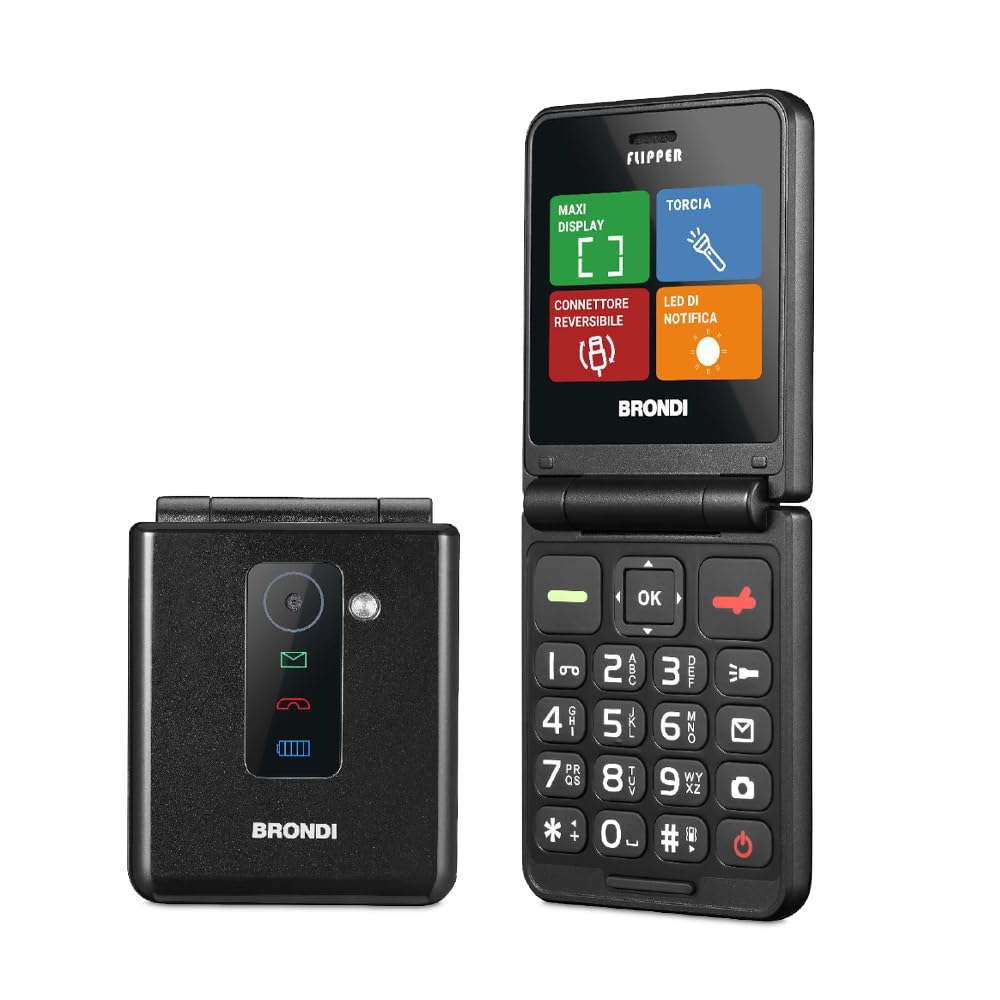
Figure 1.1: BRONDI Flipper Flip Dual SIM Mobile Phone (Closed)
This image shows the BRONDI Flipper Flip mobile phone in its closed, compact state, highlighting its sleek design.
2. Package Contents
Please check the box for the following items:
- BRONDI Flipper Flip Mobile Phone
- Battery
- Charging Cable (Micro USB)
- Instruction Manual
If any items are missing or damaged, please contact your retailer or BRONDI customer support.
3. Device Overview
Familiarize yourself with the main components of your BRONDI Flipper Flip phone.
Figure 3.1: BRONDI Flipper Flip Mobile Phone (Open)
This image displays the BRONDI Flipper Flip phone in its open position, showing the screen, keypad, and various buttons.
Key Components:
- Display Screen: 2.4-inch LCD for viewing menus, messages, and calls.
- Keypad: Alphanumeric keys, navigation keys, call/end call buttons.
- Microphone: Located at the bottom of the phone.
- Speaker: For call audio and ringtones.
- Rear Camera: 2 Megapixels camera for basic photos.
- Charging Port: Micro USB port for charging the device.
- Headphone Jack: 3.5mm port for wired headphones.
4. Setup
4.1. Inserting SIM Cards
The BRONDI Flipper Flip supports two SIM cards.
- Open the phone's back cover by gently prying it from the notch.
- Remove the battery if it is already inserted.
- Locate the SIM card slots. Insert your SIM cards into the designated slots with the gold contacts facing down and the cut corner aligned as shown in the diagram.
- Ensure the SIM cards are securely in place.
Figure 4.1: SIM Card Insertion
This image illustrates the correct orientation and placement for inserting SIM cards into the phone's slots.
4.2. Inserting the Battery
- After inserting the SIM cards, align the battery's gold contacts with the terminals in the phone.
- Gently press the battery into its compartment until it clicks into place.
- Replace the back cover, ensuring it is securely fastened.
Figure 4.2: Battery Insertion
This image demonstrates the correct way to insert the battery into the phone's battery compartment.
4.3. Charging the Phone
Before first use, fully charge the phone's battery.
- Connect the Micro USB end of the charging cable to the phone's charging port.
- Connect the other end of the charging cable to a compatible USB power adapter (not always included) or a computer's USB port.
- The charging indicator on the screen will show the charging status.
- Once fully charged, disconnect the charger.
4.4. Powering On/Off
- To Power On: Press and hold the End Call/Power button until the screen lights up.
- To Power Off: Press and hold the End Call/Power button until the power-off options appear, then select "Power Off".
5. Operating Instructions
5.1. Basic Navigation
- Use the Navigation Keys (Up, Down, Left, Right) to scroll through menus and options.
- Press the Center/OK Key to select an option or confirm an action.
- Press the Left Soft Key for context-sensitive options (e.g., "Menu", "Select").
- Press the Right Soft Key to go back or cancel an action (e.g., "Back", "Clear").
5.2. Making and Receiving Calls
- To Make a Call:
- Enter the phone number using the keypad.
- Press the Call Key (green button) to dial.
- To Answer a Call: When the phone rings, press the Call Key.
- To End a Call: Press the End Call Key (red button).
5.3. Sending and Receiving SMS
- To Send an SMS:
- Go to Menu > Messages > Write Message.
- Enter your message using the keypad.
- Enter the recipient's phone number or select from contacts.
- Press Send.
- To Read an SMS: New messages will typically appear as a notification. Go to Menu > Messages > Inbox to view all received messages.
5.4. Contacts
- To Add a Contact: Go to Menu > Contacts > Add New Contact. Enter the name and phone number, then save.
- To View Contacts: Go to Menu > Contacts. Scroll through the list or use the search function.
5.5. Camera
The phone is equipped with a 2 Megapixel rear camera for capturing basic photos.
- Go to Menu > Camera.
- Frame your shot using the display screen.
- Press the Center/OK Key to take a picture.
- Photos are saved to the phone's internal memory or an inserted memory card (if supported).
5.6. Bluetooth
Use Bluetooth to connect to compatible wireless headsets or transfer files.
- Go to Menu > Settings > Bluetooth.
- Turn Bluetooth On.
- Select Search for devices to find nearby Bluetooth devices.
- Select the desired device and follow the on-screen prompts to pair.
6. Maintenance
- Cleaning: Use a soft, dry cloth to clean the phone's screen and body. Avoid liquid cleaners.
- Storage: Store the phone in a cool, dry place away from direct sunlight and extreme temperatures.
- Battery Care: Avoid fully discharging the battery frequently. Charge the phone regularly.
- Water Resistance: This phone is not water-resistant. Avoid exposure to liquids.
7. Troubleshooting
| Problem | Possible Solution |
|---|---|
| Phone does not power on. | Ensure the battery is correctly inserted and charged. Connect the charger and try again. |
| Cannot make or receive calls. | Check if SIM cards are properly inserted. Ensure you have network coverage. Contact your service provider if the issue persists. |
| No sound during calls. | Check the volume settings. Ensure nothing is blocking the speaker. |
| Battery drains quickly. | Reduce screen brightness. Turn off Bluetooth when not in use. Limit background applications if applicable. |
| Phone freezes or is unresponsive. | Remove the battery, wait a few seconds, and reinsert it to perform a soft reset. |
8. Specifications
| Feature | Detail |
|---|---|
| Brand | BRONDI |
| Model Name | Brondi Flipper Flip |
| Item Model Number | B0D7J6LK71 |
| Operating System | Proprietary Feature Phone OS (Note: Listed as Android, but typically a basic OS for flip phones) |
| CPU Model | ARMv7 |
| Screen Size | 2.4 Inches |
| Display Resolution | 320 x 240 |
| Display Type | LCD |
| Wireless Carrier | Unlocked |
| Cellular Technology | 2G |
| Connectivity Technology | USB |
| Color | Noir (Black) |
| Number of SIM Card Slots | Dual SIM |
| Charging Port Type | Micro USB |
| Form Factor | Flip |
| Human Input | Buttons |
| Water Resistance Level | Not Water Resistant |
| Headphone Jack | 3.5 mm |
| Rear Camera Sensor Resolution | 2 Megapixels |
| GPS Geopositioning Feature | True |
| Special Product Uses | For individuals who prefer basic phones |
9. Warranty and Support
For warranty information, please refer to the warranty card included with your purchase or contact your retailer.
For technical support, troubleshooting assistance beyond this manual, or inquiries about spare parts, please visit the official BRONDI website or contact their customer service department.
Note: Information regarding software updates and spare parts availability is not provided at this time.


