
PHILIPS 24M2N3200A/00
PHILIPS Evnia 24M2N3200A - 24 Inch FHD Gaming Monitor User Manual
Model: 24M2N3200A/00
Introduction
Thank you for choosing the PHILIPS Evnia 24M2N3200A 24-inch FHD Gaming Monitor. This monitor is designed to provide an immersive gaming experience with its 180Hz refresh rate, 1ms response time, and vibrant IPS panel. This manual will guide you through the setup, operation, and maintenance of your new monitor, ensuring optimal performance and longevity.

Figure 1: Front view of the PHILIPS Evnia 24M2N3200A monitor, showcasing its slim bezels and stand.
Safety Information
Please read and follow all safety instructions carefully before operating your monitor. Keep this manual for future reference.
- Ensure the monitor is placed on a stable, flat surface to prevent accidental falls.
- Do not block ventilation openings. Proper airflow is essential to prevent overheating.
- Use only the power adapter supplied with the monitor.
- Do not expose the monitor to rain or moisture to avoid electric shock.
- Unplug the monitor from the power outlet before cleaning.
- Avoid touching the screen directly with sharp objects.
- If any abnormal operation occurs, immediately unplug the monitor and contact customer support.
Package Contents
Verify that all items listed below are present in your package:
- PHILIPS Evnia 24M2N3200A Monitor
- Monitor Stand (Base and Neck)
- Power Cable
- HDMI Cable
- DisplayPort (DP) Cable
- Quick Start Guide
- User Manual CD (or link to online manual)
Setup
1. Assembling the Stand
- Carefully place the monitor face down on a soft, clean surface to prevent scratching the screen.
- Attach the stand neck to the back of the monitor, aligning the mounting holes. Secure it with the provided screws.
- Attach the stand base to the stand neck, ensuring it clicks into place or is secured with the designated screw.

Figure 2: Rear view of the monitor, showing the stand attachment point.
2. Connecting Cables
Connect the necessary cables to the monitor and your computer/device. Refer to Figure 3 for port locations.
- Power Connection: Connect the power cable to the monitor's power input and then to a wall outlet.
- Video Connection:
- For optimal performance, use the supplied DisplayPort (DP) cable to connect the monitor to your graphics card's DP output.
- Alternatively, use an HDMI cable to connect to your device's HDMI output. This monitor supports HDMI 2.0.
- Audio Output: If you wish to use external speakers or headphones, connect them to the Audio Out port on the monitor. The monitor also has built-in stereo speakers.
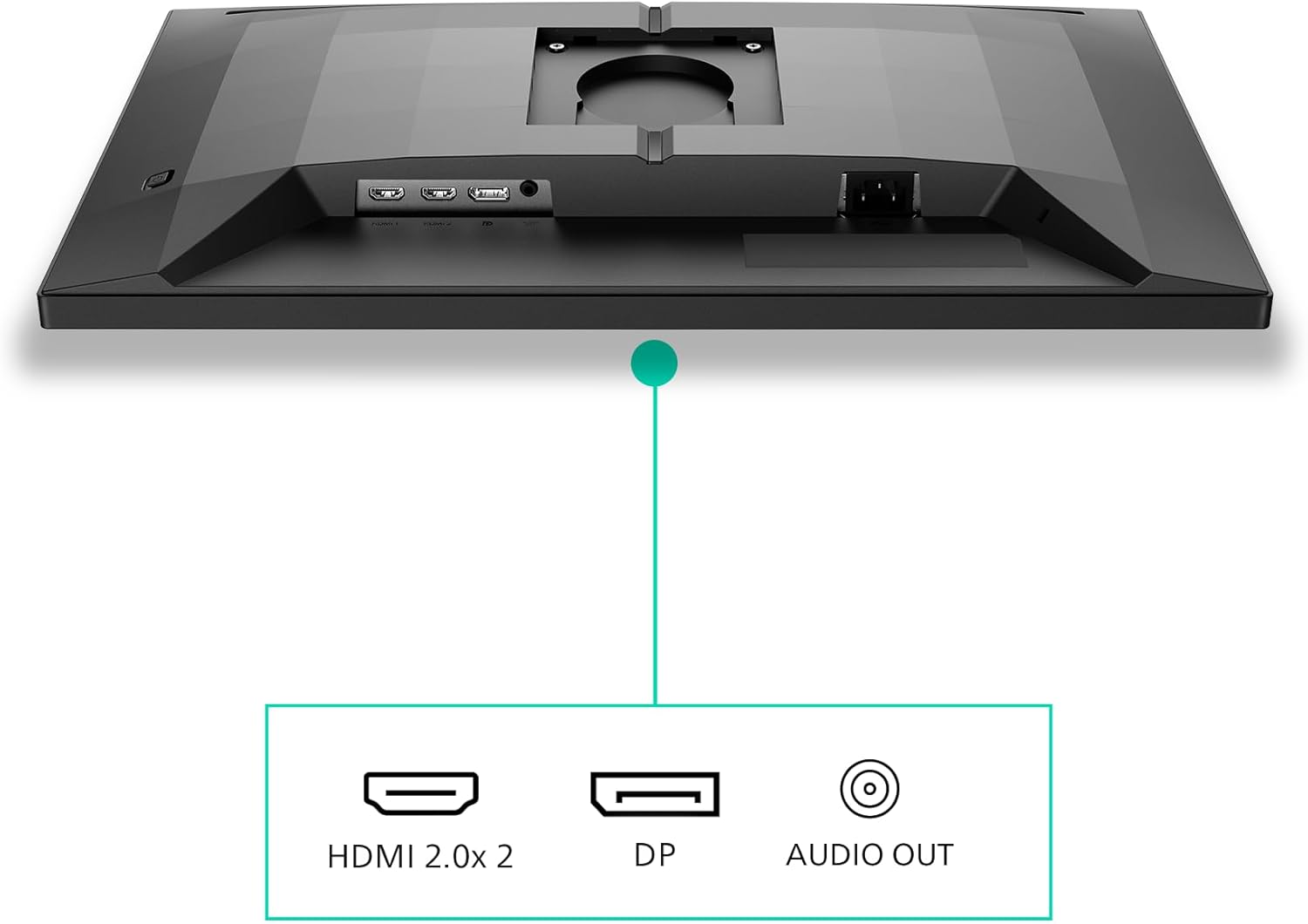
Figure 3: Detailed view of the monitor's connectivity ports.
3. Adjusting the Monitor Position
The PHILIPS Evnia 24M2N3200A offers various ergonomic adjustments for comfortable viewing:
- Height Adjustment: Adjust the monitor height by gently pushing or pulling the monitor up or down. (Up to 130 mm)
- Tilt: Tilt the screen forward or backward to find your preferred viewing angle. (-5° to 20°)
- Swivel: Rotate the monitor horizontally on its base. (-/+ 30°)
- Pivot: Rotate the screen 90 degrees for portrait mode. (-/+ 90°)

Figure 4: Monitor adjustability options for optimal viewing comfort.
Operating the Monitor
1. Powering On/Off
Press the power button, usually located on the back or bottom right of the monitor, to turn it on or off. The power LED will indicate the monitor's status.
2. On-Screen Display (OSD) Menu
The OSD menu allows you to adjust various monitor settings. Navigate the menu using the joystick or buttons typically found on the back or bottom of the monitor.
Common OSD Menu Options:
- Picture: Brightness, Contrast, Sharpness, Gamma, Color Temperature.
- Audio: Volume, Mute.
- Input: Select between HDMI 1, HDMI 2, or DisplayPort.
- Game Settings: OverDrive, FreeSync Premium, SmartImage Game Mode.
- OSD Settings: Language, OSD Transparency, OSD Timeout.
- Setup: Resolution Notification, Reset.
3. SmartImage Game Mode
This monitor features SmartImage Game Mode, which provides optimized presets for different gaming genres. Access this feature through the OSD menu to select modes like FPS, Racing, RTS, or Gamer 1/2 for custom settings.
4. LowBlue Mode and Flicker-Free Technology
To reduce eye strain during long viewing sessions, the monitor incorporates LowBlue Mode, which reduces harmful blue light emissions, and Flicker-Free technology, which regulates brightness to eliminate flickering.
Maintenance
Proper maintenance ensures the longevity and optimal performance of your monitor.
- Cleaning the Screen:
- Always unplug the monitor before cleaning.
- Use a soft, lint-free cloth lightly dampened with water or a specialized screen cleaner.
- Do not spray cleaner directly onto the screen.
- Avoid using abrasive cleaners, alcohol, or ammonia-based solutions.
- Cleaning the Casing: Use a soft, dry cloth to wipe the monitor casing.
- Storage: If storing the monitor for an extended period, unplug it and cover it to protect it from dust.
Troubleshooting
If you encounter issues with your monitor, refer to the following common problems and solutions:
| Problem | Possible Solution |
|---|---|
| No image on screen |
|
| Image is blurry or distorted |
|
| No sound from speakers |
|
| Flickering screen |
|
Specifications
Key technical specifications for the PHILIPS Evnia 24M2N3200A monitor:
| Feature | Detail |
|---|---|
| Screen Size | 24 Inches |
| Panel Type | IPS |
| Resolution | 1920 x 1080 (FHD) |
| Refresh Rate | 180Hz |
| Response Time | 1ms (MPRT) / 0.5ms (GtG) |
| Aspect Ratio | 16:9 |
| Brightness | 300 cd/m² |
| HDR Support | HDR10 |
| Adaptive Sync | FreeSync Premium, G-Sync Compatible |
| Connectivity | 2x HDMI 2.0, 1x DisplayPort 1.4, Audio Out |
| Built-in Speakers | Yes |
| Ergonomics | Height Adjust, Tilt, Swivel, Pivot |
| Dimensions (L x W x H) | 19.5 x 54 x 43.3 cm |
| Weight | 4.6 kg |
Warranty and Support
PHILIPS monitors come with a standard limited warranty. Please refer to the warranty card included in your package or visit the official PHILIPS website for detailed warranty terms and conditions specific to your region.
For technical support, troubleshooting assistance, or service inquiries, please visit the official PHILIPS support page or contact their customer service. You can find more information and contact details on the PHILIPS Store on Amazon.
Ask a question about this manual
Ask about setup, troubleshooting, compatibility, parts, safety, or missing instructions. Manuals+ will review the question and use this page’s manual context to help answer it.