
Meliconi Easytel 4
Meliconi Easytel 4 Universal Remote Control
Instruction Manual
1. Introduction
The Meliconi Easytel 4 is a pre-programmed infrared universal remote control designed to operate up to four different devices, including TV, TNT, Sat, ADSL TV, CABLE, DVD, VIDEO, HIFI, and AUX. It is compatible with a vast range of makes and models, leveraging an extensive and regularly updated database.
This remote control offers 100% functionality of original remote controls and includes smart features like direct access shortcut buttons for streaming services such as Netflix. It is designed for ease of use, featuring tactile markers on the keyboard to assist users with visual impairments.
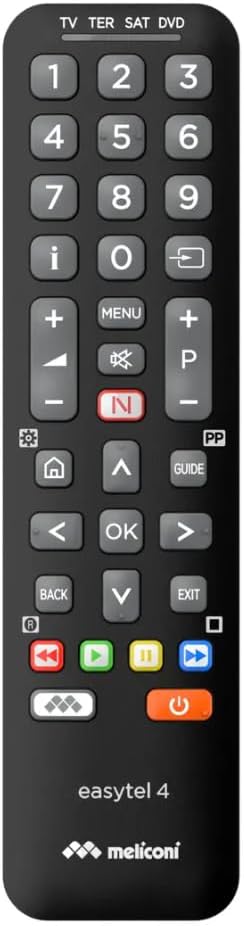
Figure 1: Front view of the Meliconi Easytel 4 universal remote control, showcasing its button layout.
2. Key Features
- Universal Compatibility: Pre-programmed to control almost all makes and models of TV, TNT, Sat, ADSL TV, CABLE, DVD, VIDEO, HIFI & AUX devices.
- Extensive Database: Utilizes one of the market's most comprehensive and daily updated device databases.
- Smart Features: Includes a dedicated shortcut button for Netflix streaming services and allows access to application menus on smart TVs.
- Easy Programming: Offers two simple and fast programming modes: manual code search and direct code entry.
- Customizable Functions: Ability to assign secondary functions to direct access keys on the keyboard.
- Accessibility: Features tactile markers on key buttons (navigation arrows, key 5, on/off button) to assist users with visual impairments.
- Wide Angle Infrared Signal: Ensures reliable signal transmission over a broad area.
- Signal Confirmation: Includes an indicator for signal transmission control and confirmation.
- Memory Retention: Permanently saves programming settings, even when batteries are removed.
- Battery Protection: Equipped with mechanical anti-reverse battery protection.
3. Setup and Programming
3.1. Battery Installation
Before using the remote control, you must install two AAA batteries (not included). Ensure correct polarity (+/-) as indicated inside the battery compartment. The remote control features mechanical anti-reverse battery protection.
3.2. Programming Modes
The Easytel 4 offers two primary methods for programming: Direct Code Entry and Manual Code Search.
3.2.1. Direct Code Entry (Recommended)
- Turn on the device you wish to control (e.g., TV).
- Locate the brand code for your device in the provided code list (usually a separate booklet or online resource).
- Press and hold the device button on the remote (e.g., TV, SAT, DVD) for approximately 5 seconds until the indicator light illuminates.
- Enter the 4-digit code for your device brand using the numeric keypad.
- The indicator light will flash and then turn off, indicating successful programming.
- Test the remote by pressing the Power button. If the device turns off, the programming was successful. If not, try the next code for your brand or proceed to Manual Code Search.
3.2.2. Manual Code Search
If Direct Code Entry is unsuccessful or you cannot find your device's code, use the Manual Code Search method.
- Turn on the device you wish to control.
- Press and hold the device button (e.g., TV) for approximately 5 seconds until the indicator light illuminates.
- Point the remote at the device and repeatedly press the Power button (or CH+ for TV/SAT, PLAY for DVD/VCR) slowly, one press at a time.
- Observe your device. As soon as the device turns off (or changes channel/starts playing), immediately release the button.
- Test the remote's functions (e.g., volume, channel change). If all functions work correctly, the programming is complete. If not, repeat the process, as you may have passed the correct code.
4. Operating the Remote Control
Once programmed, the Meliconi Easytel 4 functions similarly to your original remote control. Below are common button functions and special features.

Figure 2: User holding the Easytel 4 remote control, pointing it towards a television screen.
4.1. Basic Functions
- Device Selection Buttons (TV, TER, SAT, DVD): Press to select the device you wish to control. The indicator light will briefly illuminate.
- Power Button (Orange): Turns the selected device on or off.
- Numeric Keypad (0-9): For direct channel entry or inputting codes during programming.
- Volume Control (+/-): Adjusts the volume of the selected device.
- Channel Control (P+/P-): Changes channels on the selected device.
- Mute Button (Speaker with X): Mutes or unmutes the audio.
- Menu Button: Accesses the device's main menu.
- Navigation Arrows (Up, Down, Left, Right) & OK Button: Used for navigating menus and confirming selections.
- Back Button: Returns to the previous screen or menu.
- Exit Button: Exits the current menu or function.
4.2. Smart Features and Special Buttons

Figure 3: Detailed view of the central navigation and smart function buttons, including the Netflix shortcut.
- Netflix Shortcut Button (Red 'N'): Directly launches the Netflix application on compatible smart TVs.
- App Menu Button (Gear Icon): Provides direct access to the application menu of smart TVs, allowing you to navigate and launch other streaming services or apps.
- Guide Button: Opens the electronic program guide (EPG) on compatible devices.
- Media Playback Controls (Rewind, Play/Pause, Fast Forward, Stop): Standard controls for DVD/Blu-ray players or media playback on other devices.
- Color Buttons (Red, Green, Yellow, Blue): These buttons perform specific functions depending on the device and context, often used for teletext, interactive services, or smart TV features.
5. Maintenance
5.1. Cleaning
To clean the remote control, use a soft, dry cloth. For stubborn dirt, slightly dampen the cloth with water or a mild, non-abrasive cleaner. Do not use harsh chemicals, solvents, or abrasive materials, as these can damage the remote's surface or internal components.
5.2. Battery Replacement
When the remote control's range decreases or buttons become unresponsive, it's time to replace the batteries. Open the battery compartment cover on the back of the remote, remove the old batteries, and insert two new AAA batteries, ensuring correct polarity. Dispose of old batteries responsibly according to local regulations.
The Easytel 4 is designed to retain its programming even without batteries, so you will not need to reprogram your devices after battery replacement.
6. Troubleshooting
| Problem | Possible Cause | Solution |
|---|---|---|
| Remote does not work at all. | Batteries are dead or incorrectly inserted. | Replace batteries, ensuring correct polarity. |
| Remote does not control the device after programming. | Incorrect code entered or device not supported. | Try another code from the code list for your brand. If direct code entry fails, use manual code search. Ensure the remote is pointed directly at the device. |
| Only some functions work. | The programmed code is partially compatible. | Try other codes for your device brand. Some universal remotes may not support all advanced functions of every original remote. |
| Indicator light does not illuminate during programming. | Button not held long enough or batteries low. | Ensure you hold the device button for at least 5 seconds. Replace batteries if necessary. |
| Remote range is poor. | Low batteries or obstruction. | Replace batteries. Ensure no objects are blocking the line of sight between the remote and the device's infrared receiver. |
7. Specifications
- Model: Meliconi Easytel 4
- Compatibility: Universal (TV, TNT, Sat, ADSL TV, CABLE, DVD, VIDEO, HIFI, AUX)
- Connectivity Technology: Infrared
- Power Source: 2 x AAA Batteries (not included)
- Maximum Range: 10 Metres
- Special Features: Pre-programmed, Netflix shortcut, tactile markers, memory retention without batteries, anti-reverse battery protection.
- Manufacturer: Meliconi
- ASIN: B0D7HFCV4F
- First Available: 10 June 2025
8. Warranty and Support
8.1. Warranty Information
The Meliconi Easytel 4 universal remote control comes with a 2-year warranty from the date of purchase. This warranty covers manufacturing defects and malfunctions under normal use. Please retain your proof of purchase for warranty claims.
The warranty does not cover damage caused by misuse, accidents, unauthorized modifications, or normal wear and tear.
8.2. Customer Support
For further assistance, technical support, or to access the latest code lists, please visit the official Meliconi website or contact their customer service department. Contact details can typically be found on the product packaging or the Meliconi official website.
Before contacting support, please ensure you have attempted the troubleshooting steps outlined in this manual and have your product model and ASIN (B0D7HFCV4F) ready.
Ask a question about this manual
Ask about setup, troubleshooting, compatibility, parts, safety, or missing instructions. Manuals+ will review the question and use this page’s manual context to help answer it.