
Introduction
Thank you for choosing the Waillynice L21 Pro TWS Bluetooth 5.0 Wireless Earbuds. These earbuds are designed to provide a high-quality audio experience with stable Bluetooth 5.0 connectivity, a comfortable in-ear design, and long battery life. They are suitable for various activities including sports and travel, offering wireless freedom and effective noise isolation.
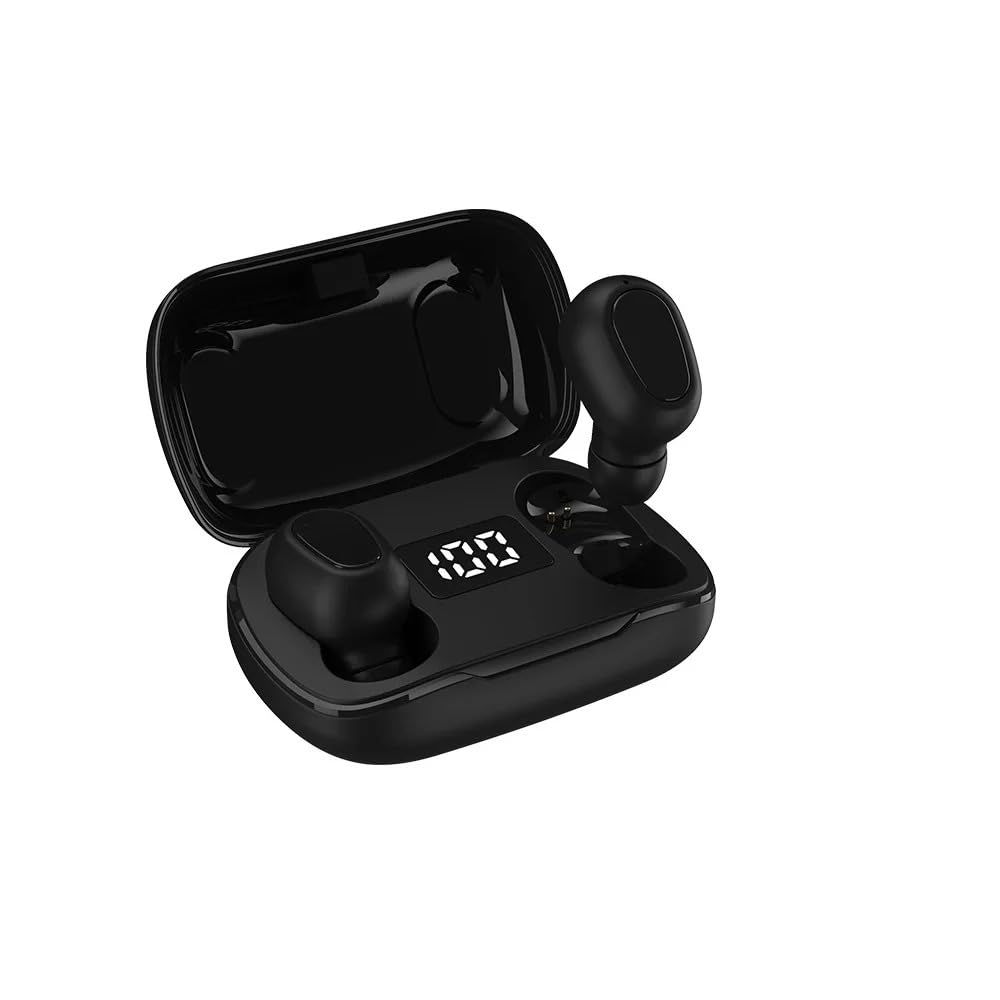
Image: Waillynice L21 Pro TWS Earbuds in their charging case, showcasing the compact design.
Setup
1. Charging the Earbuds and Case
Before first use, ensure both the earbuds and the charging case are fully charged. The charging case can charge the earbuds approximately 4-5 times.
- Place the earbuds into the charging case. Ensure they are correctly seated to make contact with the charging pins.
- Connect the provided charging cable to the charging case and a USB power source.
- The charging indicator on the case will show the charging status. A full charge typically takes 1-2 hours.
2. Pairing with a Device
The L21 Pro earbuds utilize Bluetooth 5.0 for a stable and fast connection.
- Initial Pairing:
- Take both earbuds out of the charging case. They will automatically power on and enter pairing mode.
- On your device (smartphone, tablet, etc.), go to the Bluetooth settings.
- Search for available devices and select "L21 Pro" from the list.
- Once connected, you will hear a confirmation sound, and the earbuds will be ready for use.
- Automatic Reconnection: After the initial pairing, the earbuds will automatically connect to the last paired device when taken out of the charging case, provided Bluetooth is enabled on the device.
Operating Instructions
1. Wearing the Earbuds
The L21 Pro earbuds feature an ergonomic in-ear design for a secure and comfortable fit. Choose the appropriate ear tip size for optimal comfort and sound quality.

Image: Diagram illustrating the comfortable and secure fit of the earbuds, highlighting upper snap-in, three-point support, and lateral fit for all-day comfort.
2. Touch Controls
The earbuds feature touch-sensitive controls for easy management of music and calls.
- Answer/Hang Up Call: Tap once on either earbud.
- Play/Pause Music: Tap once on either earbud.
- Volume Adjust: Tap and hold the right earbud to increase volume, tap and hold the left earbud to decrease volume.
- Next Song: Double-tap the right earbud.
- Previous Song: Double-tap the left earbud.
- Activate Voice Assistant (Siri/Google Assistant): Triple-tap either earbud.
3. Sound Quality
The L21 Pro earbuds are engineered with an 8mm copper ring speaker to deliver clear and immersive audio, enhancing your music listening experience.

Image: The L21 Pro earbuds and charging case, highlighting the digital battery display and the promise of high-quality sound.
Maintenance
- Cleaning: Regularly clean the earbuds and charging case with a soft, dry, lint-free cloth. Do not use abrasive cleaners or solvents.
- Water Resistance: The earbuds are water-resistant, making them suitable for sports and light rain. However, they are not designed for swimming or submersion in water. Ensure they are dry before placing them back in the charging case.
- Storage: When not in use, store the earbuds in their charging case to protect them from dust and damage. Store in a cool, dry place away from extreme temperatures.
- Battery Care: To prolong battery life, avoid fully discharging the earbuds and charging case frequently. Charge them regularly, even if not in constant use.
Troubleshooting
1. Earbuds Not Pairing/Connecting
- Ensure both earbuds are charged.
- Turn off Bluetooth on your device and turn it back on.
- Forget "L21 Pro" from your device's Bluetooth list and attempt to pair again.
- Place the earbuds back into the charging case, close the lid, wait a few seconds, then take them out again to re-enter pairing mode.
- Try pairing with a different device to rule out device-specific issues.
2. Only One Earbud Working
- Ensure both earbuds are charged.
- Place both earbuds back into the charging case, close the lid, and then take them out simultaneously. They should automatically connect to each other.
- If the issue persists, try resetting the earbuds (refer to the full manual if a specific reset procedure is available, otherwise, repeat the pairing process after forgetting the device).
3. Charging Issues
- Ensure the charging cable is securely connected to both the case and the power source.
- Check if the charging pins on the earbuds and inside the case are clean and free of debris.
- Try using a different charging cable or power adapter.
Specifications
| Product Name | TWS-L21pro |
| Wireless Type | Bluetooth V5.0 |
| Communication Distance | 10 meters (without obstacles) |
| Charging Time | Approximately 1-2 hours |
| Standby Time | Approximately 120 hours |
| Music Playback Time | Approximately 2-3 hours |
| Battery Capacity (Case) | 350 mAh |
| Speaker | 8mm copper ring |
| Style | In-ear |
| Charging Case Charges Earbuds | 4-5 times (for both earbuds) |
| Water Resistance Level | Water-resistant |
| Control Method | Remote Control (Touch) |
| Weight | 79.09 g |
| Compatible Devices | Cell phones, Tablets, Laptops, Car audio systems |
Note: Specifications are approximate and may vary slightly.
Customer Support
For any assistance or inquiries regarding your Waillynice L21 Pro TWS Earbuds, please do not hesitate to contact our customer service team. We are committed to providing excellent support and will respond to your queries within 24 hours to help resolve any issues you may encounter.
Please refer to your purchase documentation or the retailer's website for specific contact information.