
Introduction
This manual provides detailed instructions for the installation, operation, and maintenance of your Ant Esports Crystal Z2 Mid-Tower Computer Case. Please read this manual thoroughly before beginning assembly to ensure proper setup and to maximize the performance and longevity of your system components.
Product Features
- Mid-Tower Design: Compact yet spacious, measuring 340 x 270 x 350 mm.
- Tempered Glass Panels: Stylish front and side tempered glass panels for component visibility.
- Motherboard Support: Compatible with Micro-ATX and Mini-ITX motherboards.
- Drive Bays: Features 2 x 3.5" HDD bays and 2 x 2.5" SSD bays.
- I/O Panel: Includes 1 x USB 3.0, 2 x USB 2.0, Audio, MIC, LED Control Button, Power Button, and Reset Button.
- Cooling Support:
- Fan Support: 2 x 120mm (Top), 2 x 120mm (Bottom), 1 x 120mm (Rear), 2 x 120mm (Side).
- Liquid Cooling Support: Top (240mm), Rear (120mm).
- Pre-Installed Fans: 2 x Side Fans, 1 x Rear Fan (ARGB Infinity Mirror Fans).
- Expansion Slots: Four expansion slots available.
- Hardware Compatibility: Supports VGA cards up to 330mm length and CPU coolers up to 155mm height.
- Dual Chamber Design: Optimized for efficient cable management and improved airflow.
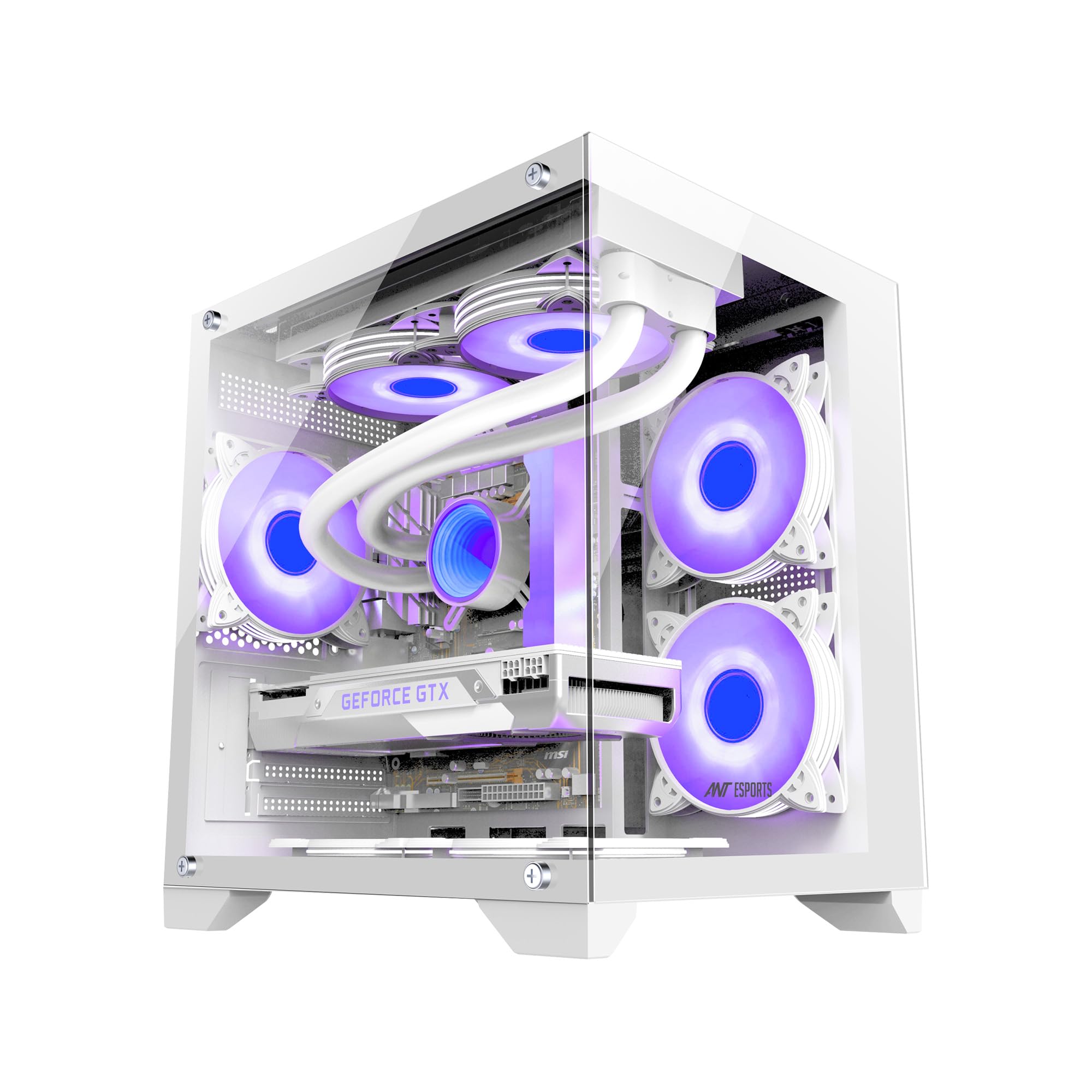
Image: The Ant Esports Crystal Z2 Mid-Tower Computer Case, showcasing its internal layout and ARGB fans.
Setup Instructions
1. Prepare the Case
Unpack the Ant Esports Crystal Z2 case and place it on a stable, flat surface. Carefully remove the tempered glass side panel(s) by unscrewing the thumb screws and sliding the panel off. Keep the screws and panels in a safe place.

Image: The Crystal Z2 case featuring its panoramic glass enclosure, highlighting the removable panels.
2. Install the Motherboard
Align your Micro-ATX or Mini-ITX motherboard with the standoffs inside the case. Ensure the I/O shield is properly seated in the rear opening. Secure the motherboard with the provided screws.

Image: Internal view of the Crystal Z2 case showing designated areas for Mini-ITX and M-ATX motherboards and VGA card length.
3. Install Storage Drives
Locate the 3.5" HDD and 2.5" SSD drive bays. Install your storage devices into the appropriate bays and secure them with screws or tool-less mechanisms if available.
4. Install Graphics Card and Expansion Cards
Remove the necessary expansion slot covers from the rear of the case. Insert your graphics card or other expansion cards into the PCIe slots on the motherboard and secure them with screws.

Image: Close-up of the rear of the Crystal Z2 case, showing the four expansion slots for graphics cards and other add-in cards.
5. Install Power Supply Unit (PSU)
Mount your power supply unit in the designated bottom-mount area. Secure it with screws from the rear of the case.
6. Connect Cables
Connect all necessary power cables from the PSU to your motherboard, graphics card, and storage drives. Connect the front panel I/O cables (USB, Audio, Power, Reset, LED) to the corresponding headers on your motherboard. Utilize the dual-chamber design for effective cable management to improve airflow and aesthetics.

Image: Top-down view of the Crystal Z2 case, illustrating its dual-chamber "fishtank" design for optimized component separation and cable routing.
7. Install Additional Cooling (Optional)
If installing additional fans or an AIO liquid cooler, refer to the fan support diagram. Ensure proper airflow direction (intake from side/bottom, exhaust from top/rear).

Image: Diagram showing the fan and AIO liquid cooling support locations within the Crystal Z2 case, including top, rear, side, and bottom placements.

Image: Airflow diagram for the Crystal Z2 case, illustrating cold air intake from the side and bottom, and hot air exhaust from the top and back for optimized cooling.
8. Final Assembly
Once all components are installed and cables are managed, reattach the tempered glass side panel(s) and secure them with the thumb screws.
Operating Instructions
Power On/Off
Press the Power Button located on the I/O panel to turn your system on or off. A short press typically initiates power on or sleep mode, while a long press (usually 4-5 seconds) forces a shutdown.
Reset Button
The Reset Button can be used to restart your system in case of a system freeze or unresponsiveness.
LED Control Button
Use the dedicated LED Control Button on the I/O panel to cycle through various ARGB lighting effects for the pre-installed fans. The effect typically stays in memory even after power loss.

Image: Close-up of the Crystal Z2 I/O panel, indicating the locations of the USB 3.0, USB 2.0, Mic Port, Headphone Port, LED Button, Reset Button, and Power Button.
Maintenance
Cleaning the Case
Regularly clean the exterior of the case with a soft, damp cloth. For the tempered glass panels, use a glass cleaner and a microfiber cloth to avoid streaks. Ensure the system is powered off and unplugged before cleaning.
Dust Filter Maintenance
The case includes built-in dust filters (e.g., on top). Periodically remove and clean these filters to maintain optimal airflow and prevent dust buildup inside your components. Clean with compressed air or by rinsing with water and allowing to dry completely before reinstallation.
Troubleshooting
- System Not Powering On:
- Check if the power supply is properly connected to the wall outlet and the PSU switch is in the ON position.
- Verify all power cables from the PSU are securely connected to the motherboard and components.
- Ensure the front panel power button cable is correctly connected to the motherboard header.
- Fans Not Spinning / ARGB Not Working:
- Confirm that all fan power cables are connected to the motherboard or fan controller.
- Check ARGB cables for secure connection to the motherboard's ARGB header or the case's LED controller.
- Use the LED Control Button on the I/O panel to cycle through effects.
- No Display Output:
- Ensure your monitor cable is connected to the graphics card (not the motherboard I/O, unless using integrated graphics).
- Reseat the graphics card in its PCIe slot and ensure its power cables are securely connected.
Specifications
| Feature | Detail |
|---|---|
| Brand | Ant Esports |
| Model Name | Crystal Z2 |
| Case Type | Mid Tower |
| Colour | White |
| Dimensions (D x W x H) | 340 x 270 x 350 mm |
| Motherboard Compatibility | Micro ATX, Mini-ITX |
| Enclosure Material | SPCC + Tempered Glass |
| Drive Bays | 2 x 3.5" HDD, 2 x 2.5" SSD |
| Expansion Slots | 4 |
| I/O Panel | 1 x USB 3.0, 2 x USB 2.0, Audio, MIC, LED Control, Power, Reset |
| VGA Card Length (Max) | 330 mm |
| CPU Cooler Height (Max) | 155 mm |
| Fan Support (Top) | 2 x 120mm |
| Fan Support (Bottom) | 2 x 120mm |
| Fan Support (Rear) | 1 x 120mm |
| Fan Support (Side) | 2 x 120mm |
| Liquid Cooling Support (Top) | 240mm |
| Liquid Cooling Support (Rear) | 120mm |
| Pre-Installed Fans | 2 x Side Fans, 1 x Rear Fan (ARGB Infinity Mirror) |
| Cooling Method | Air |
| Item Weight | 4.6 Kilograms |
| Country of Origin | China |

Image: A detailed specifications table for the Ant Esports Crystal Z2, outlining dimensions, material, drive bays, fan support, and compatibility.
Warranty and Support
The Ant Esports Crystal Z2 Computer Case comes with a 1-Year Warranty from the date of purchase. This warranty covers manufacturing defects and material faults under normal use.
For technical support, warranty claims, or any inquiries, please contact Ant Esports customer service. You can find contact information on the official Ant Esports website or through your retailer.
Manufacturer Contact Information: Ant Esports
Importer Contact Information: Acro Engineering Company


