
1. Introduction
The UGREEN Bluetooth 5.3 Adapter & Mouse Jiggler is a versatile USB device designed to enhance your computer's connectivity and productivity. It functions as both a Bluetooth dongle, enabling wireless communication with various Bluetooth devices, and an undetectable mouse jiggler, preventing your computer from entering sleep mode or displaying inactivity. This manual provides detailed instructions for its setup, operation, and troubleshooting.

Image: The UGREEN Bluetooth 5.3 Adapter and Mouse Jiggler device.
2. Features
- Dual Functionality: Combines Bluetooth 5.3 connectivity with an undetectable mouse jiggler.
- Bluetooth 5.3: Provides stable and fast wireless transmission, backward compatible with Bluetooth 5.2/5.1/5.0/4.0.
- Multi-Device Connectivity: Supports simultaneous connection of up to 5 different types of Bluetooth devices (e.g., mouse, keyboard, headset, game controller). Note: Only one audio device of the same type can play music at a time.
- 2 Mouse Jiggler Modes:
- Slight Jiggler Mode: Moves the mouse pointer minimally (1-2 pixels) back and forth, allowing normal mouse use.
- Random Jiggler Mode: Moves the mouse pointer irregularly to maintain computer activity for online reading, meetings, etc.
- 100% Undetectable: Recognized by the computer as a standard "USB Composite Device," ensuring security and privacy.
- Plug and Play: No driver installation required for Bluetooth mode on Windows 11/10/8.1. Mouse Jiggler mode supports Windows 7/8.1/10/11 and macOS.
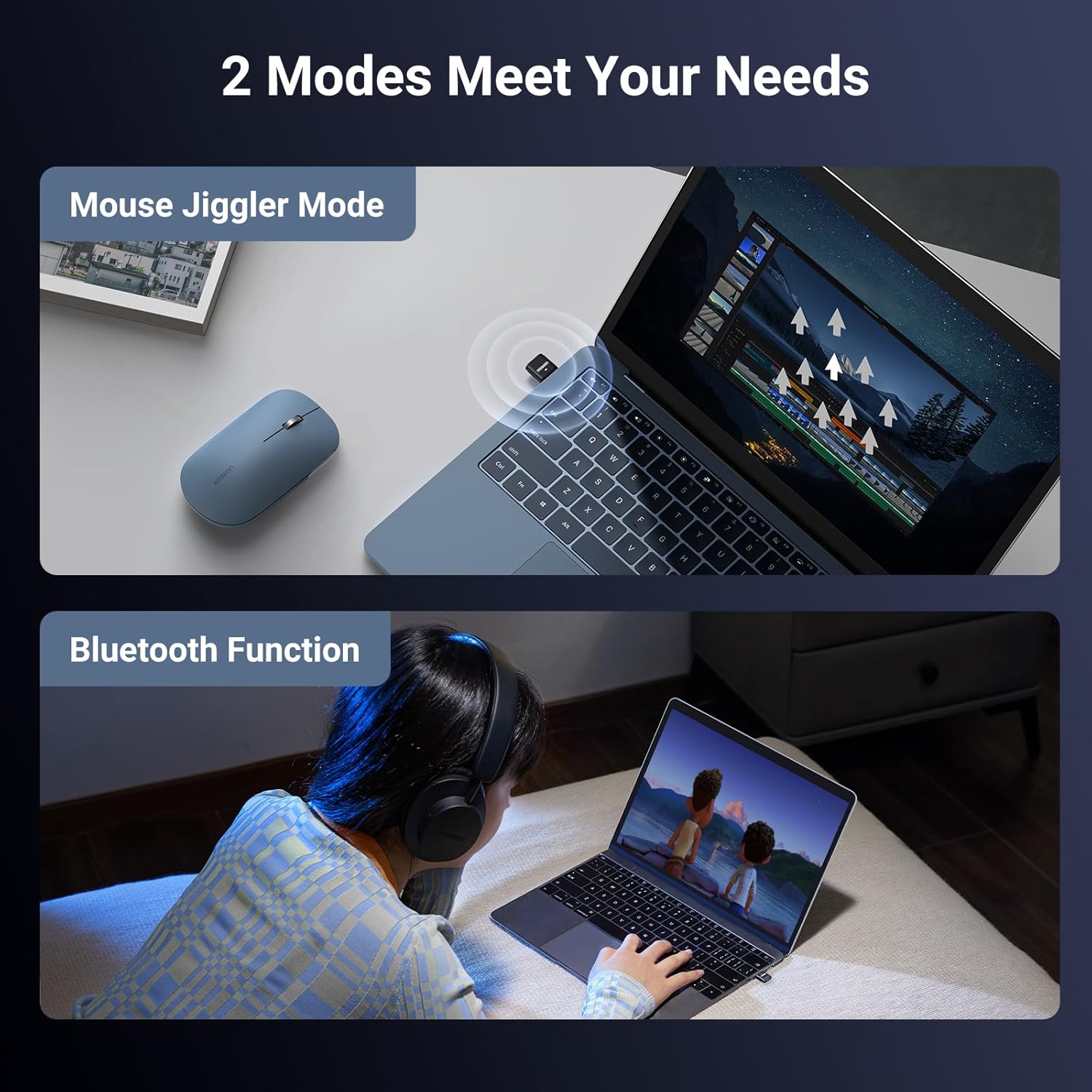
Image: Illustration showing the two primary functions: Mouse Jiggler Mode and Bluetooth Function.
3. Package Contents
- 1 x UGREEN Bluetooth 5.3 Adapter & Undetectable Mouse Jiggler (Model: BT301)
- 1 x User Manual
4. Specifications
| Attribute | Value |
|---|---|
| Model Number | BT301 |
| Bluetooth Version | 5.3 (Backward compatible) |
| Product Dimensions (L x W x H) | 1.12 x 0.63 x 0.28 inches |
| Item Weight | 0.109 ounces (3.1 Grams) |
| Connector Type | USB |
| Compatible Devices | Headset, Game controller, Mouse, Keyboard |
| Supported Operating Systems (Bluetooth Mode) | Windows 11/10/8.1 |
| Supported Operating Systems (Mouse Jiggler Mode) | Windows 7/8.1/10/11, macOS |

Image: Visual representation of the upgraded Bluetooth 5.3 chip technology.
5. Setup
The UGREEN Bluetooth 5.3 Adapter & Mouse Jiggler is designed for plug-and-play functionality, requiring no complex driver installations for most modern operating systems.
5.1 Initial Connection
- Locate an available USB port on your computer (desktop or laptop).
- Insert the UGREEN adapter firmly into the USB port.
- The computer will automatically detect and install the necessary drivers. This process may take a few moments.
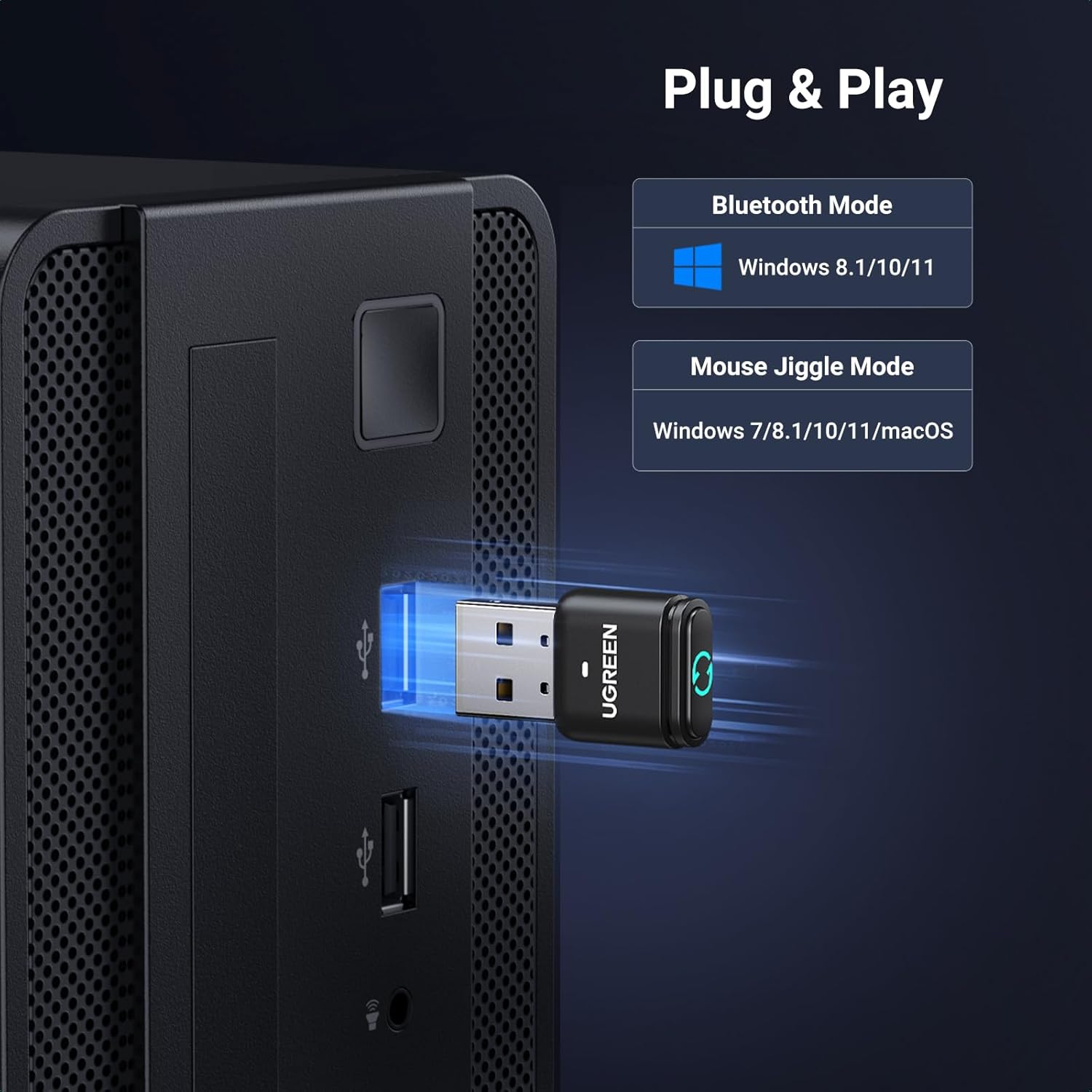
Image: The UGREEN adapter plugged into a USB port of a computer, illustrating its plug-and-play nature.
5.2 Device Recognition
Upon successful installation, the device will be recognized as a "USB Composite Device" by your computer. This ensures its undetectable nature, particularly when using the mouse jiggler function, as it does not appear as an unknown or unsafe device.

Image: A laptop screen displaying a notification indicating the setup of a "USB Mouse & HID" device, confirming the adapter's recognition.
6. Operating
The UGREEN adapter features a multi-function button to switch between its Bluetooth and Mouse Jiggler modes, and to select different jiggler behaviors.
6.1 Switching Between Modes
The adapter has an indicator light and a multi-function button. The indicator light shows the current mode.
- Long Press (approx. 3 seconds): Switches between Bluetooth Mode and Mouse Jiggler Mode.
- Single Click: When in Mouse Jiggler Mode, a single click switches between Slight Jiggler Mode and Random Jiggler Mode.
Note: Bluetooth Mode and Mouse Jiggler Mode cannot be used simultaneously. The product will default to Bluetooth mode every time it's connected.

Image: A close-up diagram of the UGREEN adapter highlighting its indicator light and multi-function button, with instructions for switching modes.
6.2 Bluetooth Mode
In Bluetooth Mode, the adapter enables your computer to connect wirelessly with various Bluetooth-enabled devices.
- Ensure the adapter is in Bluetooth Mode (long press the button if necessary).
- On your computer, navigate to your Bluetooth settings (e.g., Windows Settings > Devices > Bluetooth & other devices).
- Turn on Bluetooth and select "Add Bluetooth or other device."
- Put your desired Bluetooth device (e.g., mouse, keyboard, headphones) into pairing mode.
- Select your device from the list on your computer to complete the pairing process.
The adapter supports connecting up to 5 different types of Bluetooth devices simultaneously without interference. For audio devices of the same type (e.g., multiple headphones), only one can play music at a time.

Image: An illustration demonstrating the UGREEN adapter's ability to connect simultaneously to various Bluetooth devices such as a keyboard, mouse, headphone, controller, and printer.
6.3 Mouse Jiggler Mode
The Mouse Jiggler Mode prevents your computer from going to sleep or activating screen savers, ideal for maintaining activity during long downloads, online meetings, or presentations.
- Ensure the adapter is in Mouse Jiggler Mode (long press the button if necessary).
- The indicator light will confirm the mode.
- To switch between jiggler types: Single click the multi-function button.
- Slight Jiggler Mode: The mouse pointer will move subtly by 1-2 pixels, allowing you to continue using your mouse normally without significant disruption.
- Random Jiggler Mode: The mouse pointer will move irregularly across the screen, ensuring continuous activity. This mode is suitable when you are not actively using the mouse but need the computer to remain awake.

Image: Visual comparison of the two mouse jiggler modes: Mode 1 (Slight Jiggler Mode) showing minimal movement, and Mode 2 (Random Jiggler Mode) showing broader, irregular movement.
7. Troubleshooting
7.1 Bluetooth Adapter Not Working
If your UGREEN Bluetooth adapter is not functioning as expected, follow these steps:
- Disable Existing Bluetooth Devices: Ensure there are no other Bluetooth devices or built-in Bluetooth functions enabled on your computer that might conflict with the UGREEN adapter.
- Access Device Manager: Right-click on "This PC" (or "My Computer") and select "Manage" > "Device Manager."
- Disable Built-in Bluetooth: In Device Manager, expand the "Bluetooth" section. Right-click on any existing Bluetooth devices (e.g., "Intel(R) Wireless Bluetooth") and select "Disable device."
- Re-plug the Adapter: Remove the UGREEN adapter from the USB port, wait a few seconds, and then re-insert it.
- Verify Installation: Check Device Manager again to confirm the UGREEN adapter is recognized correctly.
- Attempt Connection: Try connecting your Bluetooth devices again.

Image: A four-step diagram illustrating how to troubleshoot Bluetooth adapter issues by disabling existing Bluetooth devices in Device Manager and re-plugging the adapter.
8. Maintenance
To ensure the longevity and optimal performance of your UGREEN Bluetooth 5.3 Adapter & Mouse Jiggler, follow these simple maintenance guidelines:
- Keep Clean: Regularly wipe the adapter with a soft, dry cloth to remove dust and debris. Avoid using liquid cleaners.
- Store Properly: When not in use, store the adapter in a cool, dry place away from direct sunlight and extreme temperatures.
- Handle with Care: Avoid dropping the adapter or subjecting it to strong impacts. Do not force it into USB ports.
- Avoid Moisture: Keep the adapter away from water and high humidity to prevent damage to internal components.
9. Warranty and Support
UGREEN products are designed for reliability and performance. For specific warranty terms and conditions, please refer to the warranty information provided with your purchase or visit the official UGREEN website. If you encounter any issues or require technical assistance, please contact UGREEN customer support through their official channels.
For further assistance, you may visit the UGREEN Store online: UGREEN Official Store