
1. Introduction
Thank you for choosing the Vbestlife 4G Portable Router. This device provides high-speed 4G LTE mobile internet access, allowing you to stay connected on the go. It supports up to 10 users simultaneously and is equipped with a 2100mAh battery for extended use. This manual will guide you through the setup, operation, and maintenance of your router to ensure optimal performance.
2. Product Overview
2.1 Package Contents
- 1 x Vbestlife 4G Portable Router
- 1 x 2100mAh Lithium-ion Battery
- 1 x USB Charging Cable
- 1 x User Manual

Image: The Vbestlife 4G Portable Router, its removable battery, and the included USB charging cable.
2.2 Device Features
- High-Speed Connectivity: Supports 4G LTE with download speeds up to 150Mbps and upload speeds up to 50Mbps.
- Wide Band Support: Compatible with 4G LTE bands B1, B3, B5, B40 and 3G UMTS WCDMA bands B1, B3, suitable for regions including Asia, Southeast Asia, Africa, and the Middle East.
- Multi-User Support: Connects up to 10 devices simultaneously, including smartphones, laptops, and tablets.
- Long-Lasting Battery: Integrated 2100mAh Lithium-ion battery provides reliable power, offering up to 50 hours of standby time.
- Portable Design: Lightweight and compact, making it ideal for travel, remote work, and outdoor activities.
- Operating System Compatibility: Supports Windows 7, 8, 10, and Linux operating systems.
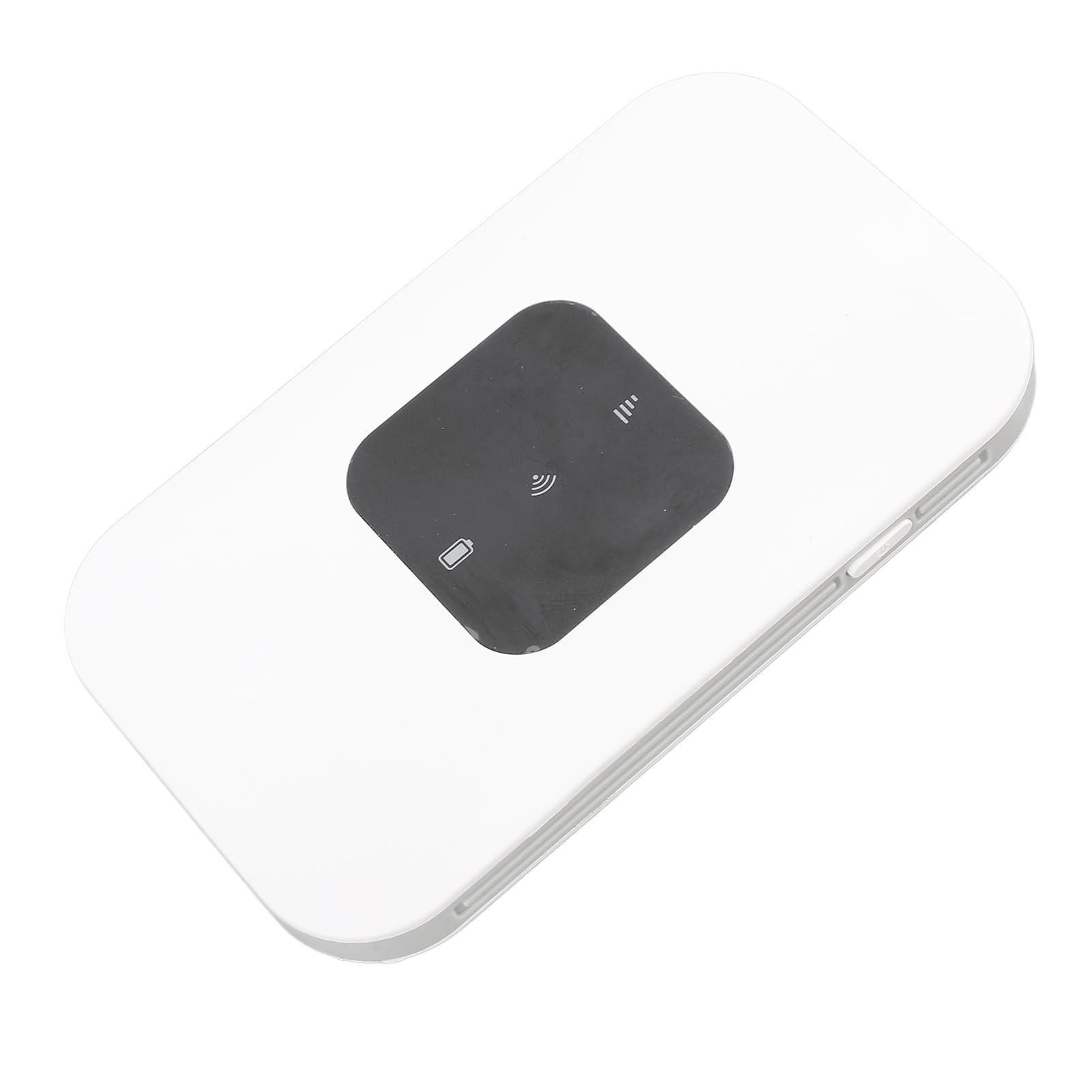
Image: A clear view of the Vbestlife 4G Portable Router, showing its compact white design and indicator lights.
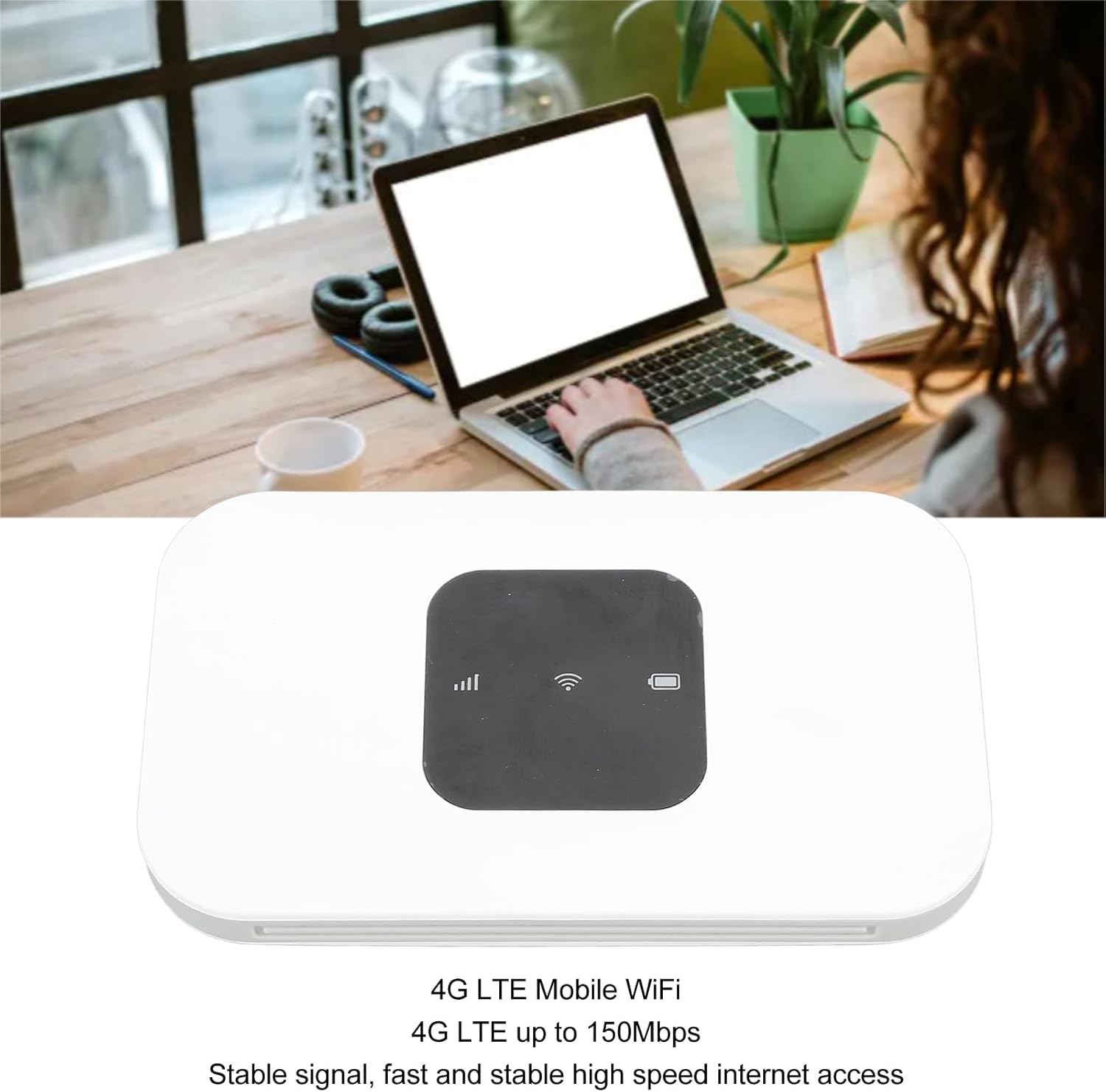
Image: The portable router highlighting its 4G LTE Mobile WiFi functionality and speed up to 150Mbps.

Image: The router indicating its ability to connect up to 10 devices, including mobile phones, laptops, and computers.
3. Setup Guide
3.1 Battery Installation
- Carefully remove the back cover of the router.
- Align the contacts of the 2100mAh Lithium-ion battery with the battery compartment terminals.
- Gently press the battery into place until it is securely seated.
- Replace the back cover, ensuring it clicks into position.
3.2 SIM Card Installation
The router uses a Micro SIM card (sold separately). Ensure your SIM card is activated and has an active data plan.
- With the back cover removed (as in battery installation), locate the Micro SIM card slot.
- Insert the Micro SIM card into the slot with the gold contacts facing down and the notched corner aligned as shown in the diagram (if available on device).
- Push the SIM card gently until it locks into place. You may hear a small click.
- Replace the back cover.

Image: The rear of the router, illustrating the location for battery and Micro SIM card insertion.
3.3 Powering On/Off
- To Power On: Press and hold the Power button (usually located on the side or front) for a few seconds until the indicator lights illuminate.
- To Power Off: Press and hold the Power button again for a few seconds until the indicator lights turn off.
4. Operating Instructions
4.1 Connecting Devices via Wi-Fi
- Ensure your 4G Portable Router is powered on.
- On your device (smartphone, laptop, tablet), go to Wi-Fi settings.
- Search for available Wi-Fi networks. The router's default Wi-Fi name (SSID) and password (KEY) are typically found on a sticker inside the battery compartment or on the device packaging.
- Select your router's SSID from the list.
- Enter the Wi-Fi password when prompted.
- Once connected, your device should have internet access.

Image: A user enjoying mobile internet connectivity with the Vbestlife 4G Portable Router and a laptop.
4.2 Checking Status Indicators
The router features indicator lights to show its status:
- Signal Indicator: Displays the strength of the 4G signal. More bars indicate a stronger signal.
- Wi-Fi Indicator: Lit when Wi-Fi is active and broadcasting.
- Battery Indicator: Shows the current battery level. Refer to the device's specific light patterns for low battery warnings.
4.3 Charging the Router
When the battery indicator shows low power, charge the router using the provided USB cable.
- Connect the small end of the USB charging cable to the router's charging port.
- Connect the other end of the USB cable to a compatible USB power adapter (not included) or a computer's USB port.
- The battery indicator light will show charging status (e.g., blinking while charging, solid when fully charged).
5. Maintenance
- Cleaning: Use a soft, dry cloth to clean the router's exterior. Do not use liquid cleaners or aerosols.
- Battery Care: To prolong battery life, avoid exposing the router to extreme temperatures. If storing for a long period, charge the battery to about 50% and store in a cool, dry place.
- Storage: Store the router in a dry environment, away from direct sunlight and moisture.
6. Troubleshooting
If you encounter issues with your Vbestlife 4G Portable Router, please refer to the following common solutions:
| Problem | Possible Cause | Solution |
|---|---|---|
| No internet connection | SIM card not installed correctly, no data plan, poor signal, incorrect APN settings. | 1. Ensure SIM card is properly inserted. 2. Verify your SIM card has an active data plan. 3. Move to an area with better 4G signal. 4. Check APN settings (refer to your SIM card provider for correct settings). |
| Slow internet speed | Weak signal, too many connected devices, network congestion, limited band support in your region. | 1. Move to an area with stronger signal. 2. Disconnect unnecessary devices. 3. Try again during off-peak hours. 4. Ensure your SIM card's network bands are fully supported by the router in your location. |
| Router won't power on | Low battery, battery not installed, faulty power button. | 1. Charge the router for at least 30 minutes. 2. Ensure the battery is correctly installed. 3. If the issue persists, contact customer support. |
| Unstable Wi-Fi connection | Interference, distance from router, firmware issue. | 1. Reduce distance between device and router. 2. Avoid placing router near other electronic devices that may cause interference. 3. Restart the router. 4. Check for firmware updates (if available through a web interface). |
7. Specifications
| Feature | Detail |
|---|---|
| Brand | Vbestlife |
| Model Name | VBEST2pdg1om04w |
| Item Type | 4G Portable Router |
| Material | ABS |
| Color | White |
| Battery Type | 2100mAh Lithium-ion Battery |
| SIM Card Slot | Micro SIM Card (sold separately) |
| 4G LTE Bands | B1, B3, B5, B40 |
| 3G UMTS WCDMA Bands | B1, B3 |
| Peak Download Speed | 150Mbps |
| Peak Upload Speed | 50Mbps |
| Wi-Fi Standard | 802.11 b/g/n |
| Wi-Fi Frequency | 2.4G |
| System Support | Windows, Linux |
| Max Users | 10 |
| Origin | China |
8. Warranty and Support
For warranty information and technical support, please refer to the documentation included with your purchase or visit the official Vbestlife brand store. You can find the brand store at: Vbestlife Store on Amazon.
Please note that the warranty terms may vary by region and retailer.