
Rimoody Rimoody Car Stereo
Rimoody 7-Inch Double Din Car Stereo with CarPlay and Android Auto User Manual
Model: Rimoody Car Stereo
Introduction
This manual provides detailed instructions for the installation, operation, and maintenance of your Rimoody 7-inch Double Din Car Stereo. Please read this manual thoroughly before using the product to ensure proper function and safety.
Product Overview
Key Features
- 7-inch HD Touch Screen Display
- Apple CarPlay & Android Auto (Wired USB Connection)
- Mirror Link Functionality (iOS & Android)
- Bluetooth for Hands-Free Calling and Audio Streaming
- FM Radio with 18 Preset Stations
- Backup Camera Input (AHD compatible)
- Steering Wheel Control (SWC) Support
- USB/TF Card Input and AUX Audio Input
- Multiple EQ Sound Effects
- 7 Backlight Color Options
What's in the Box
- Rimoody Car Stereo Unit
- Power Cable
- Horn Cable
- Remote Control
- Microphone
- 12LED Rear Camera
- User Manual (this document)

Image: The Rimoody 7-inch Double Din Car Stereo unit, accompanied by its essential accessories including a backup camera, external microphone, and a visual representation of smartphone integration.
Setup and Installation
General Installation Notes
- This car radio is designed for standard 1 DIN size openings.
- The device supports a voltage range of 9V-16V. It is not compatible with 24V systems (e.g., diesel vehicles, large trucks). Verify your vehicle's voltage before installation.
- Always disconnect the vehicle's battery before beginning any electrical installation.
Power Wiring Connection
Connect the power cables correctly before turning on the monitor:
- The black wire is connected to the negative pole (ground).
- The red wire is connected to the positive pole (ACC), which is typically switched with the ignition.
- The yellow wire is connected to the memory positive (B+), providing constant power for settings retention.
Rear View Camera Installation
For the backup camera functionality:
- Connect the black cable of the camera's power wire to the negative pole of the vehicle's battery.
- Connect the red cable of the camera's power wire to the positive pole of the vehicle's battery.
- The short red wire on the RCA plug does not require connection.
- Connect the reverse trigger cable (often labeled "reverse" or "back in") to the positive pole of the reversing headlight. This signal triggers the stereo to switch to reverse view.
- Ensure the camera's video signal input plug is correctly connected to the designated input on the back of the radio.
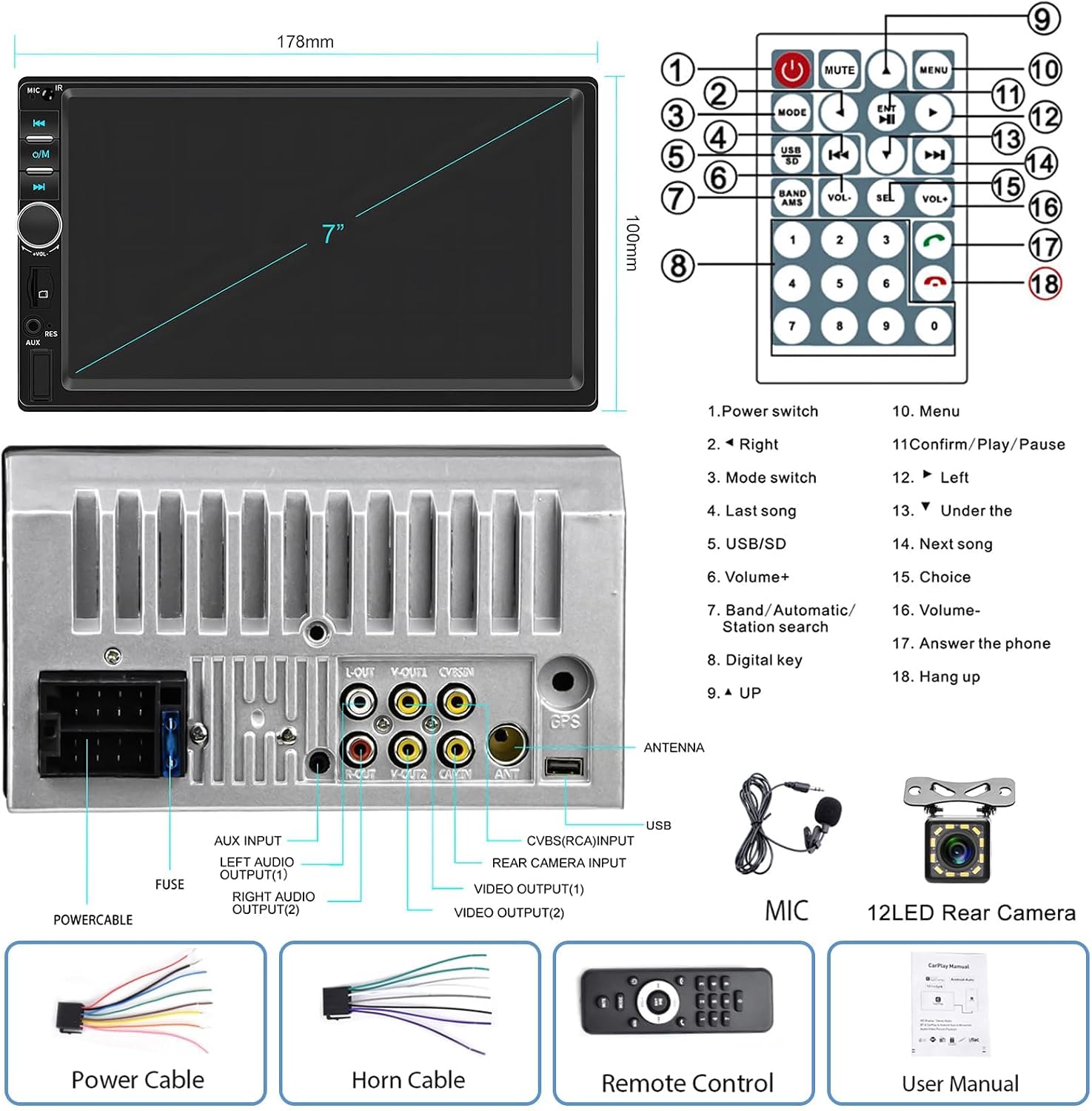
Image: A comprehensive diagram illustrating the rear panel connections of the car stereo, including power, audio, video inputs/outputs, and the antenna port. It also displays the remote control layout and the physical dimensions of the unit.

Image: A visual guide demonstrating the correct wiring for the backup camera, showing connections for power, ground, and video signal to the car stereo.
Operating Instructions
Apple CarPlay & Android Auto
Connect your iPhone or Android smartphone to the car stereo via a USB cable. Use the original USB cable that came with your phone for optimal performance. This feature allows you to access navigation, phone contacts, messages, music, and other compatible applications directly on the stereo's screen.
- Voice Control: Utilize Siri (iOS) or Google Assistant (Android) for hands-free operations like making calls or accessing navigation.
- App Compatibility: Supports most common apps such as Waze, Amazon Music, Spotify, and Pandora. Note that due to system variations, not all third-party apps may be available.

Image: The car stereo screen displaying both Apple CarPlay and Android Auto interfaces, illustrating the wired USB connection for smartphone integration.
Mirror Link
The Mirror Link function allows you to mirror your smartphone's screen onto the car stereo display. Connect your iOS or Android smartphone via a USB cable to enjoy content like maps and videos on the larger screen.

Image: The car stereo screen demonstrating the Mirror Link feature, displaying a mirrored smartphone screen for both iOS and Android devices connected via USB.
Bluetooth Connectivity
Pair your mobile phone with the car stereo via Bluetooth for hands-free calling and wireless audio streaming.
- Navigate to the Bluetooth menu on the stereo.
- Enable Bluetooth on your smartphone and search for available devices.
- Select "Rimoody Car Stereo" (or similar name) from the list on your phone to pair.
- Once connected, you can make/receive calls and play music through the stereo.

Image: A multi-panel image showcasing the car stereo's Bluetooth interface for hands-free communication, FM radio tuning, equalizer settings, and steering wheel control configuration.
FM Radio
Access the FM radio function to listen to local broadcasts. The stereo supports 18 preset stations.
- Use the scan function to automatically search and save stations.
- Manually tune to desired frequencies.
Equalizer (EQ) Settings
Adjust the audio output to your preference using the built-in equalizer. Select from various preset sound effects (e.g., Jazz, Classic, Rock, Pop, Flat) or customize your own settings.
Steering Wheel Control (SWC)
If your vehicle supports steering wheel controls, you can configure them to operate the car stereo. This allows for convenient, hands-free control of functions like volume, track skipping, and call management.
- Access the SWC settings menu on the stereo.
- Follow the on-screen instructions to map your vehicle's steering wheel buttons to the desired stereo functions.
USB/TF Card and AUX Input
The stereo supports playback from USB drives and TF (microSD) cards. Insert your storage device into the corresponding port. An AUX audio input is also available for connecting external audio sources.

Image: The car stereo's main menu interface, displaying various function icons. Below, examples of the customizable colorful button backlighting and the physical AUX and USB cables are shown.
Maintenance
- Cleaning: Use a soft, dry cloth to clean the screen and unit. Avoid abrasive cleaners or solvents.
- Firmware Updates: Periodically check the manufacturer's website for firmware updates to ensure optimal performance and compatibility. Contact support if you encounter issues requiring a firmware update.
- Fuse Replacement: If the unit loses power, check the fuse located on the power cable. Replace it with a fuse of the same rating if blown.
Troubleshooting
| Problem | Possible Cause | Solution |
|---|---|---|
| Unit does not power on. | Incorrect wiring; Blown fuse; Insufficient power supply. | Check power cable connections (black to negative, red to ACC, yellow to B+). Inspect and replace fuse if necessary. Ensure vehicle battery is charged. |
| CarPlay/Android Auto disconnects frequently. | Non-original USB cable; Phone system issues; Loose connection. | Use the original USB cable provided with your smartphone. Ensure the USB connection is secure. Restart your phone and the car stereo. Consider updating stereo firmware if issues persist. |
| No sound or poor audio quality. | Incorrect speaker wiring; Volume too low; EQ settings misconfigured. | Verify speaker wire connections. Adjust volume levels. Reset EQ settings to default or adjust as needed. |
| Backup camera not displaying. | Incorrect camera wiring; Loose video input; Reverse trigger not connected. | Check camera power and video signal connections. Ensure the reverse trigger wire is correctly connected to the reversing light's positive pole. |
| Bluetooth connection issues. | Pairing mode not active; Interference; Phone not discoverable. | Ensure the stereo is in Bluetooth pairing mode. Make sure your phone's Bluetooth is on and discoverable. Delete previous pairings and try reconnecting. |
Specifications
| Feature | Detail |
|---|---|
| Product Dimensions | 2.48 x 4.02 x 2.48 inches (63 x 102 x 63 mm) |
| Item Weight | 1.74 pounds |
| Display Size | 7-inch Touchscreen |
| Connectivity Technology | Bluetooth, USB, TF Card, AUX, Wi-Fi (for Mirror Link/CarPlay/Android Auto via phone) |
| Compatible Devices | Smartphone (iOS and Android) |
| Audio Output Mode | Stereo |
| Surround Sound Channel Configuration | 2.0 |
| Video Encoding Support | MKV, AVI, MOV, MP4 |
| Voltage Support | 9V-16V (DC) |
Warranty and Support
Warranty Information
Rimoody offers a 90-day free return for refund or exchange. Please refer to your purchase documentation for specific warranty terms and conditions.
Technical Support
For technical assistance, installation guidance, or troubleshooting not covered in this manual, please contact Rimoody customer support. A professional technical support team is available for lifetime assistance.
- Response Time: Quick response within 24 hours.
- Contact: Refer to the contact information provided with your product packaging or on the official Rimoody website.
Related Documents - Rimoody Car Stereo
 |
Rimoody 7-Inch Double Din Car Stereo User Manual User manual for the Rimoody 7-inch Double Din Car Stereo, detailing features like Apple CarPlay, Bluetooth, Mirror Link, FM radio, USB, AUX-in, SWC, and backup camera integration. Includes basic operation, system settings, and troubleshooting. |
 |
Android Car Navigation Operation Manual Comprehensive operation manual for Android car navigation systems, detailing features, functions, and setup for various modes including Radio, Music, Video, Bluetooth, and Setup. |
 |
Telescopic Screen CarPlay Manual - User Guide Comprehensive user manual for the Telescopic Screen CarPlay MP5 Player, covering specifications, installation, troubleshooting, and features like Apple CarPlay and Android Auto. |
 |
User Manual for Car Stereo System with Bluetooth and Navigation Comprehensive user manual for a car stereo system, detailing features such as Bluetooth connectivity, telephone functions, music playback, navigation, settings, and troubleshooting. Includes instructions for setup, operation, and maintenance. |
Ask a question about this manual
Ask about setup, troubleshooting, compatibility, parts, safety, or missing instructions. Manuals+ will review the question and use this page’s manual context to help answer it.