
DVT-C9F24992D65E215A7DD6011D34514A46
Instruction Manual
Tucus Remote Control for JVC RM-SUXQ30UW RM-SUXQ30US UX-Q30S UX-Q30B UX-Q30P UX-Q30B UX-Q30W Micro COMPACT COMPONENT Stereo SYSTEM
Model: DVT-C9F24992D65E215A7DD6011D34514A46 | Brand: Generic
Introduction
This manual provides essential information for the setup, operation, and maintenance of your new Tucus replacement remote control. This remote is designed to be compatible with various JVC Micro COMPACT COMPONENT Stereo Systems, including models RM-SUXQ30UW, RM-SUXQ30US, UX-Q30S, UX-Q30B, UX-Q30P, and UX-Q30W. While it is a replacement remote and not the original device's remote, common functions are expected to operate normally. Please review this guide thoroughly to ensure proper use and longevity of your remote control.
Setup
1. Battery Installation
The remote control requires two (2) AA batteries (not included) for operation. Follow these steps to install them:
- Locate the battery compartment on the back of the remote control.
- Slide the battery compartment cover downwards or outwards to open it.
- Insert two AA batteries, ensuring the positive (+) and negative (-) terminals align correctly with the markings inside the compartment.
- Slide the battery compartment cover back into place until it clicks securely.

Figure 1: Back of the remote control showing the battery compartment cover.
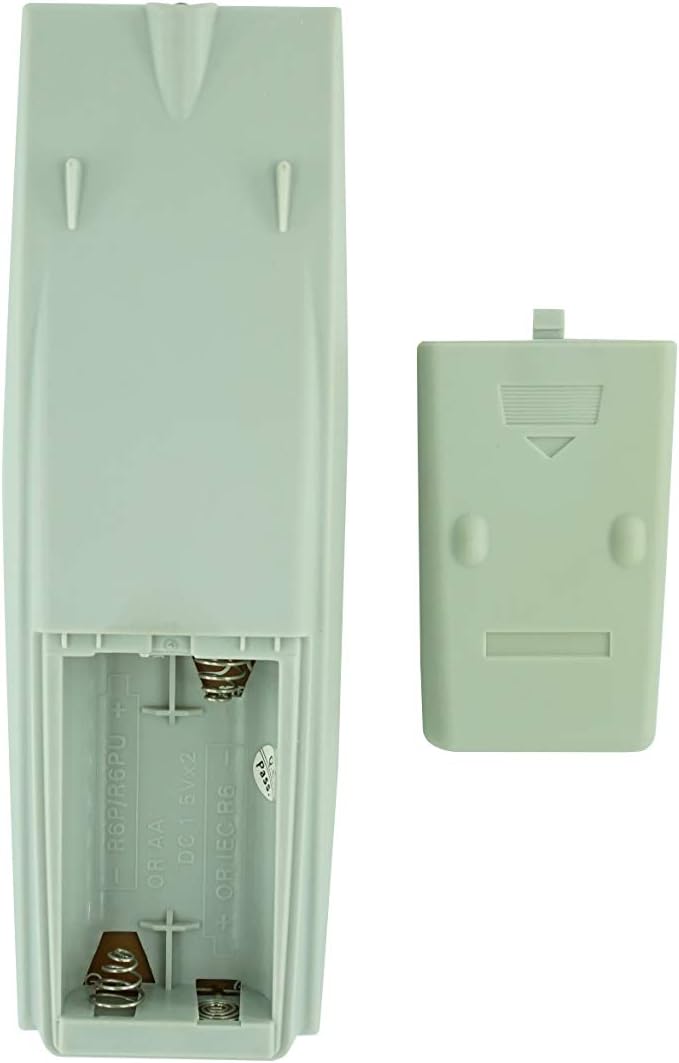
Figure 2: Battery compartment with cover removed, ready for battery insertion.
2. Initial Use
Once batteries are installed, the remote control is ready for use. Point the remote directly at your JVC Micro COMPACT COMPONENT Stereo System. No additional programming is typically required for this replacement remote for the listed compatible models.
Operating Instructions
This remote control provides access to the primary functions of your JVC stereo system. Below is a general overview of common button functions. Please note that while the functionality is guaranteed, the exact button layout may differ slightly from your original remote.

Figure 3: Front view of the remote control with button layout.
Key Functions:
- STANDBY/ON: Powers the stereo system on or off.
- DISPLAY: Changes or shows display information.
- CLOCK/TIMER: Accesses clock and timer settings.
- SLEEP: Sets a sleep timer for automatic power off.
- Number Buttons (0-9, +10): Direct input for track numbers, radio frequencies, etc.
- BASS / TREBLE: Adjusts bass and treble levels.
- Navigation (UP, DOWN, LEFT, RIGHT, SET): Used for menu navigation and selection.
- Playback Controls (PLAY/PAUSE, STOP, FAST FORWARD, REWIND, SKIP): Controls media playback.
- Source Selection (CD, TAPE, FM/AM, AUX/MD): Selects the audio input source.
- FM MODE / REV.MODE: Toggles FM stereo/mono or tape reverse mode.
- AUTO PRESET: Automatically scans and saves radio stations.
- PRGM / RANDOM / REPEAT: Controls program, random, and repeat playback modes.
- PTY SEARCH / PTY SELECT: For Program Type search and selection on radio.
- DISPLAY / TA/News / Info: Provides additional display information or traffic/news announcements.
- AHB PRO: Activates or deactivates Active Hyper-Bass PRO.
- VOLUME (+/-): Adjusts the master volume level.
For specific advanced functions, please refer to the original instruction manual of your JVC Micro COMPACT COMPONENT Stereo System.
Maintenance
Cleaning the Remote Control
To maintain the remote control's appearance and functionality, clean it regularly:
- Wipe the surface with a soft, dry cloth.
- For stubborn dirt, slightly dampen the cloth with water or a mild, non-abrasive cleaner. Do not spray cleaner directly onto the remote.
- Avoid using harsh chemicals, solvents, or abrasive cleaning pads, as these can damage the remote's finish or internal components.
Battery Replacement
Replace batteries when the remote's response becomes sluggish or it stops functioning. Always replace both batteries at the same time with new ones of the same type (AA). Do not mix old and new batteries, or different types of batteries.
Storage
If the remote control will not be used for an extended period, remove the batteries to prevent leakage and potential damage to the remote.
Troubleshooting
- Remote not responding:
- Check if the batteries are inserted correctly with the correct polarity (+/-).
- Replace old batteries with new ones.
- Ensure there are no obstructions between the remote control and the stereo system's infrared receiver.
- Make sure you are within the effective range of the remote control.
- Some buttons not working or unexpected behavior:
- This remote is a replacement and while common functions are supported, the button layout or specific advanced functions might not perfectly match your original remote. Refer to the button layout image in the Operating Instructions section.
- Ensure the stereo system is powered on and set to the correct input source.
- Remote appears damaged:
- If the remote has been dropped or exposed to liquids, internal damage may have occurred. In such cases, replacement may be necessary.
Specifications
| Brand | Generic |
| Manufacturer | TUCUS |
| Model Number | DVT-C9F24992D65E215A7DD6011D34514A46 |
| Compatible Models | JVC RM-SUXQ30UW, RM-SUXQ30US, UX-Q30S, UX-Q30B, UX-Q30P, UX-Q30W Micro COMPACT COMPONENT Stereo SYSTEM |
| Material Type | Other |
| Power Source | 2 x AA Batteries (not included) |
| ASIN | B0D79958PW |
| Date First Available | June 17 2024 |
Warranty Information
This product comes with a 3-month warranty from the date of purchase. This warranty covers manufacturing defects and ensures the remote control functions as intended for compatible models. Please retain your proof of purchase for any warranty claims.
Customer Support
If you have any questions regarding the compatibility or functionality of this remote control, or if your specific device model is not listed, please contact the seller directly for assistance. The seller stocks a wide range of remote controls and parts and can confirm suitability for your needs.
For general inquiries or to provide feedback, please refer to the contact information provided by your retailer or the seller.
Ask a question about this manual
Ask about setup, troubleshooting, compatibility, parts, safety, or missing instructions. Manuals+ will review the question and use this page’s manual context to help answer it.