
1. Product Overview
The MePadKey Universal Touchpad Keyboard Case is designed to enhance your tablet experience, offering a protective case, a detachable keyboard, and a multi-touch trackpad. It is compatible with a wide range of 9.7-11 inch tablets running iOS 13 and above, Android, and Windows operating systems.
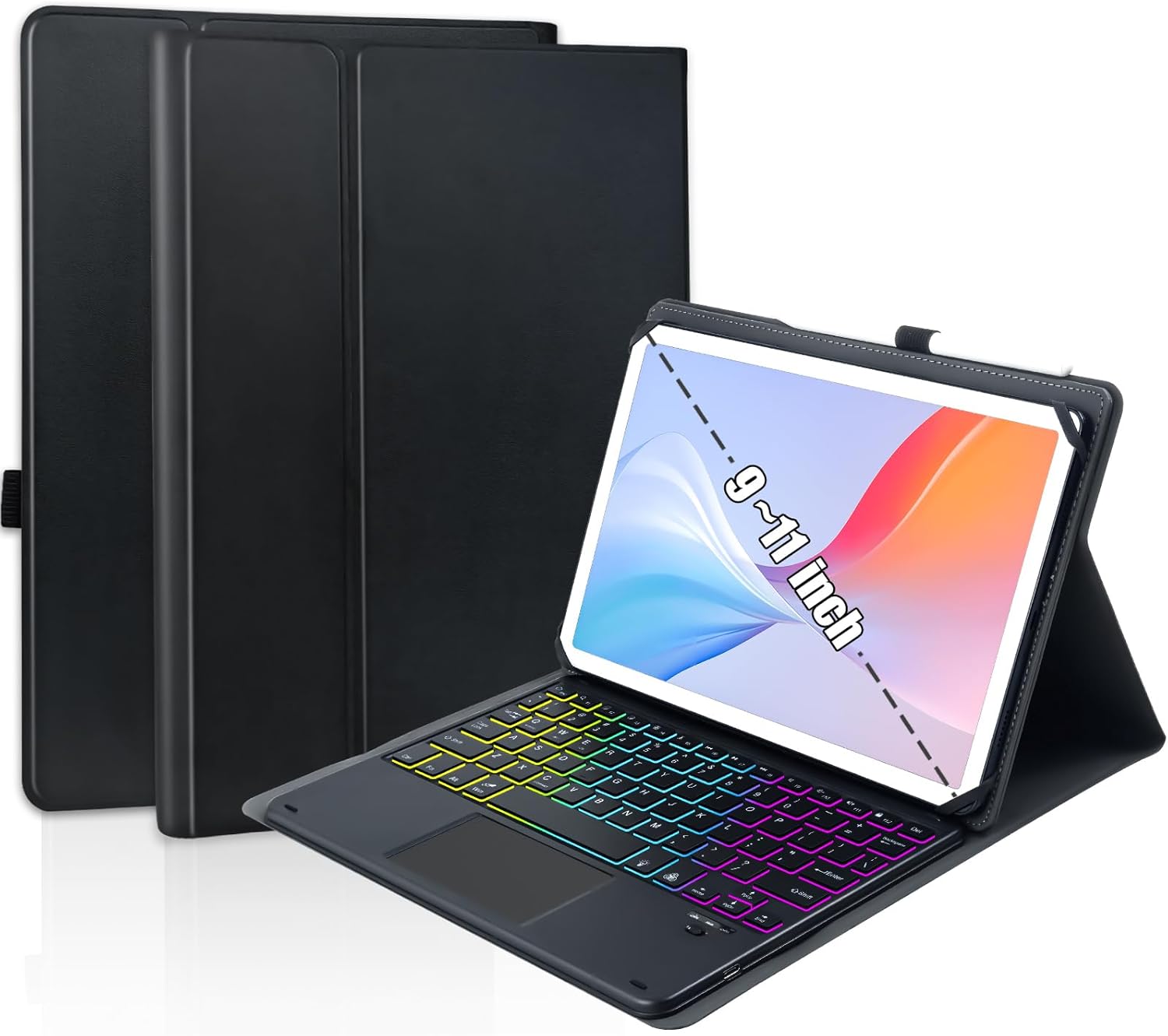
Image 1.1: MePadKey Universal Touchpad Keyboard Case with a tablet displaying a colorful screen and the keyboard's rainbow backlight activated. The case is black and designed to hold tablets between 9 and 11 inches.
Package Contents:
- Tablet Case x 1
- Rainbow Backlight Touchpad Keyboard x 1
- USB-C Charging Cable x 1
- User Manual x 1
2. Setup Guide
2.1 Installing Your Tablet
The case features soft, elastic rubber straps at each corner to securely hold your tablet. Gently stretch these straps over the corners of your tablet to ensure a snug fit. This design accommodates various tablet sizes within the 9.7-11 inch range.
Video 2.1: This video demonstrates the process of installing a tablet into the MePadKey Universal Touchpad Keyboard Case. It shows how to stretch the elastic corner straps to fit the tablet securely.

Image 2.1: A close-up view of the elastic corner straps designed to hold the tablet securely within the case. The image highlights the flexible nature of the straps for accommodating different tablet dimensions.
2.2 Bluetooth Pairing
To connect the keyboard to your tablet via Bluetooth:
- Ensure the keyboard is charged and powered on.
- On your tablet, navigate to Settings > Bluetooth and turn Bluetooth on.
- Press the Fn + C keys simultaneously on the keyboard to activate Bluetooth pairing mode. The Bluetooth indicator light on the keyboard will flash.
- On your tablet, search for available devices. Select the keyboard (e.g., 'Bluetooth Keyboard' or similar) from the list to pair.
- Once paired, the Bluetooth indicator light on the keyboard will stop flashing.
Video 2.2: This video demonstrates the Bluetooth pairing process for the MePadKey Universal Touchpad Keyboard. It shows how to activate pairing mode on the keyboard and connect it to a tablet.
2.3 Switching Operating Systems
The keyboard supports multiple operating systems. To switch between them, press the Fn key along with the corresponding system key:
- Fn + Q for Android
- Fn + W for Windows
- Fn + E for iOS

Image 2.2: A diagram illustrating the keyboard layout and the specific key combinations (Fn + Q/W/E) used to switch between Android, Windows, and iOS operating systems for optimal compatibility.
3. Operating Instructions
3.1 Keyboard Backlight
The keyboard features a rainbow backlight with adjustable colors and brightness levels. To control the backlight:
- Press the light bulb icon key to cycle through different backlight colors.
- Press Fn + light bulb icon key to adjust the brightness level (3 levels available).
- The keyboard also supports a breathing light mode.
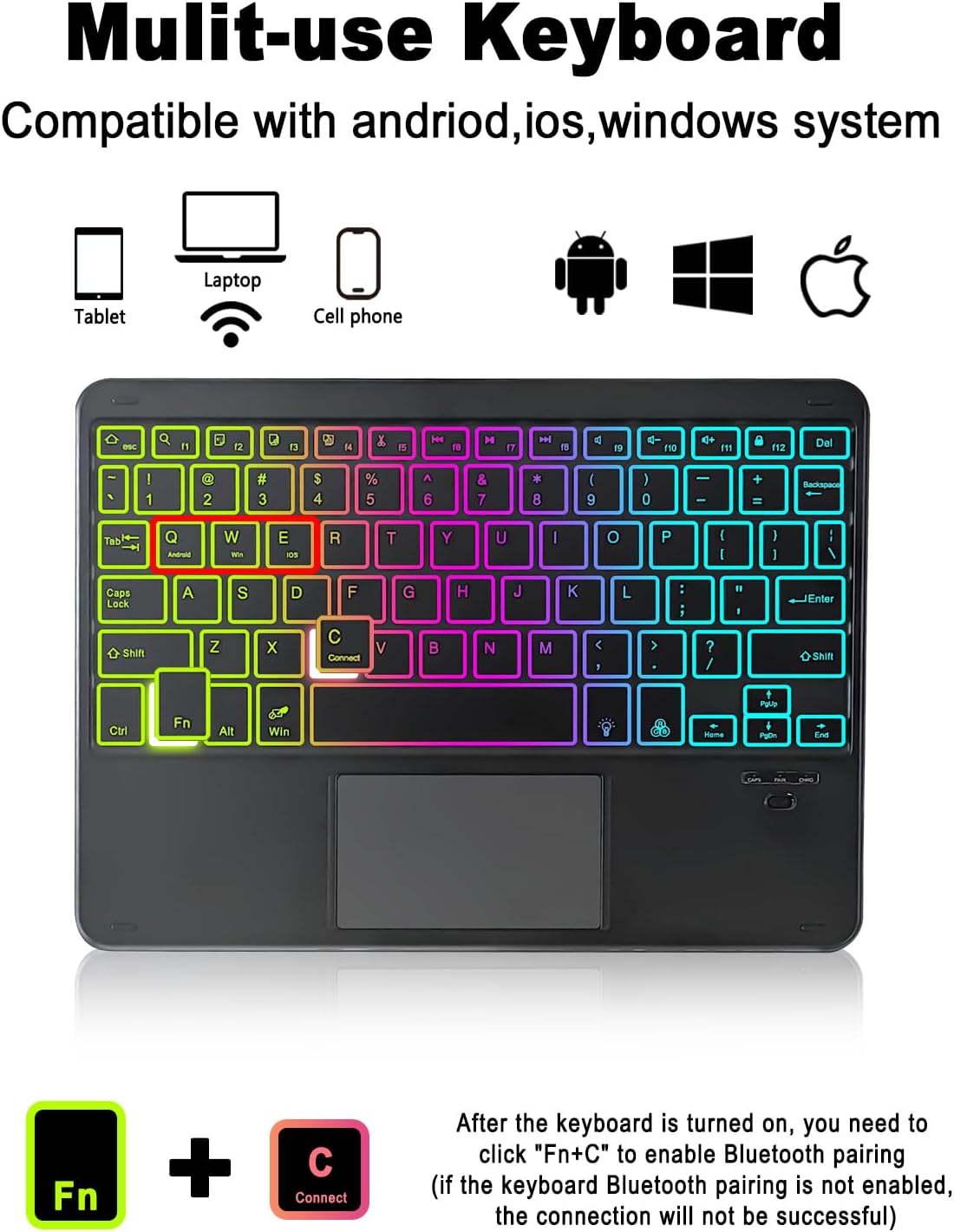
Image 3.1: The keyboard displaying its multi-color backlight feature. Icons above the keyboard indicate compatibility with tablet, laptop, cell phone, Android, Windows, and Apple systems.
3.2 Multi-Finger Touchpad Gestures
The integrated touchpad supports multi-finger gestures, replacing the need for an external mouse. For iOS 13 and above, ensure 'Assistive Touch' is enabled in your iPad settings for full touchpad functionality. Specific gestures may vary slightly depending on the operating system.
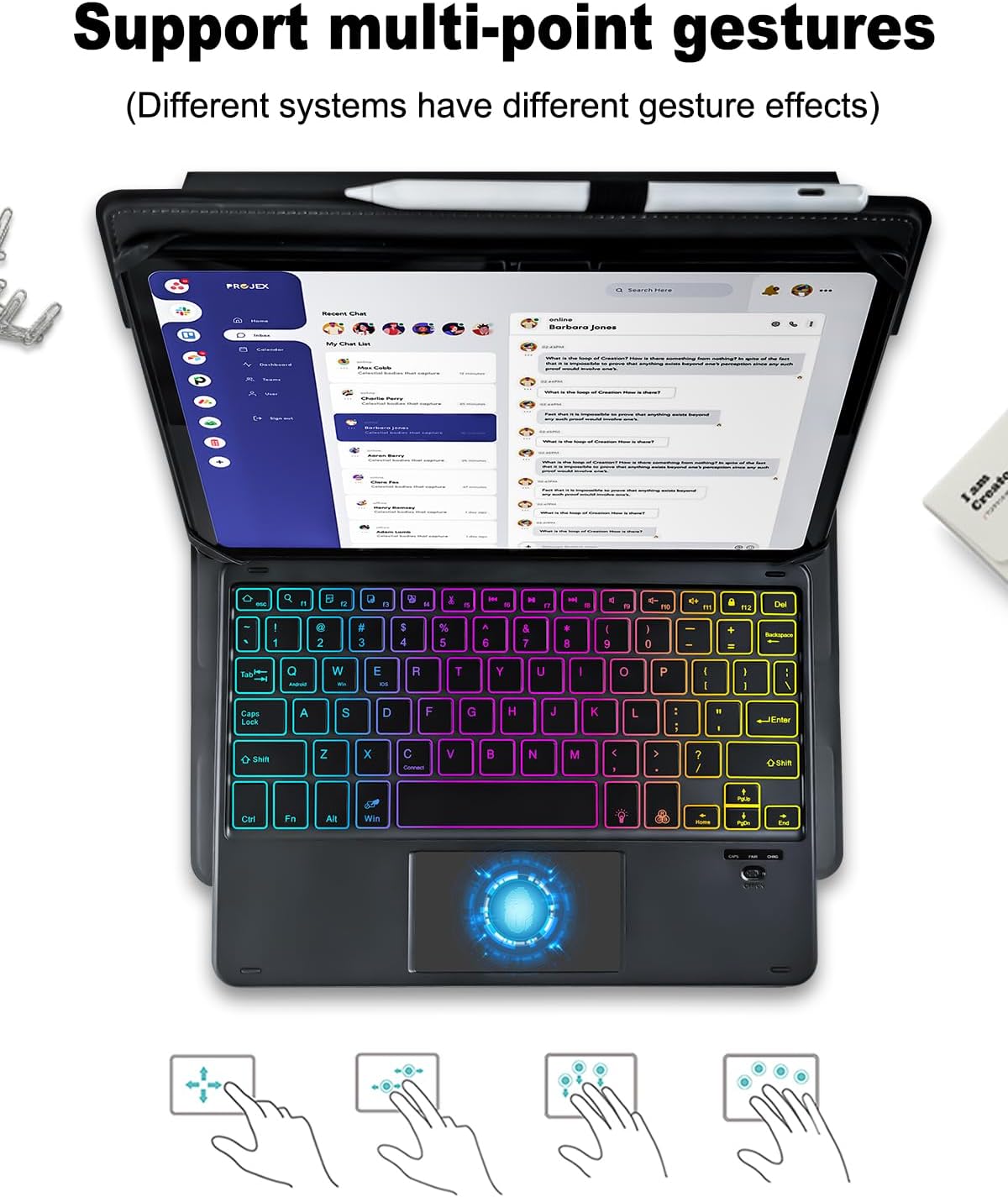
Image 3.2: A visual guide demonstrating common multi-finger touchpad gestures, such as scrolling, zooming, and switching applications, to enhance navigation on your tablet.
3.3 Keyboard Shortcut Keys
The keyboard includes various shortcut keys for common functions:
- Copy: Ctrl + C (Windows/Android), Command + C (iOS)
- Paste: Ctrl + V (Windows/Android), Command + V (iOS)
- Select All: Ctrl + A (Windows/Android), Command + A (iOS)
- Cropping: Specific shortcut may vary by application.
- Media Controls: Dedicated keys for Previous Track, Play/Pause, Next Track, Volume Up, Volume Down, and Mute.
Video 3.3: This video showcases various keyboard shortcut keys, including text manipulation (copy, paste, select all) and media controls (play/pause, volume adjustment), demonstrating their functionality with the tablet.
3.4 Adjustable Viewing Angle
The case allows for multiple viewing angles to suit your preference and environment. The magnetic keyboard can be detached and repositioned to optimize the tablet's angle.

Image 3.4: The MePadKey case configured to provide an adjustable viewing angle for the tablet. The detachable magnetic keyboard is shown positioned for comfortable typing, illustrating the flexibility of the design.
4. Maintenance
4.1 Charging the Keyboard
The keyboard is equipped with a rechargeable battery. When the battery is low, connect the provided USB-C charging cable to the keyboard's charging port and a power source. The charging indicator light will illuminate during charging and turn off when fully charged.
4.2 Cleaning and Storage
To clean the case and keyboard, use a soft, damp cloth. Avoid using harsh chemicals or abrasive materials. When not in use, store the case in a dry, cool place away from direct sunlight and extreme temperatures to prolong its lifespan.
5. Troubleshooting
- Keyboard not connecting via Bluetooth:
Ensure the keyboard is charged, powered on, and in pairing mode (Fn + C). Check that Bluetooth is enabled on your tablet and try re-pairing. Ensure the keyboard is not already connected to another device. - Touchpad not responding (iOS):
For iOS 13 and above, verify that 'Assistive Touch' is enabled in your iPad's Accessibility settings. - Backlight not working:
Ensure the keyboard is powered on and sufficiently charged. Press the light bulb icon key to activate or cycle through backlight modes. - Tablet not fitting securely:
Confirm your tablet's size is within the 9.7-11 inch range. Ensure the elastic corner straps are properly stretched over all four corners of the tablet.
6. Specifications
| Feature | Detail |
|---|---|
| Product Dimensions | 10.35 x 7.8 x 0.71 inches |
| Item Weight | 1.48 pounds |
| Manufacturer | MePadKey |
| Item Model Number | 626f6172-c699-4f47-b5a2-17b0490475be |
| Batteries | 1 Lithium Polymer battery (included) |
| Compatible Devices | Tablets (9.7-11 inch) |
| Connectivity Technology | Bluetooth |
| Keyboard Description | Multi Functional |
| Special Features | Backlit, Detachable, Hotkeys and Media Keys, Rechargeable, Trackpad |
| Keyboard Backlighting Color Support | RGB |
7. Warranty and Support
7.1 Warranty Information
No specific warranty information is provided in the product details. Please refer to the retailer or manufacturer's website for current warranty terms and conditions.
7.2 Customer Support
For further assistance, technical support, or inquiries regarding your MePadKey Universal Touchpad Keyboard Case, please contact MePadKey customer service through their official website or the retailer where the product was purchased.