
Jufodrca 2GB RAM 64GB ROM
Jufodrca Car Radio for Ford F150 (2009-2014) Instruction Manual
Model: 2GB RAM 64GB ROM
1. Introduction
This manual provides comprehensive instructions for the installation, operation, and maintenance of your Jufodrca Car Radio for Ford F150 (2009-2014). Please read this manual thoroughly before using the product to ensure proper function and safety. Keep this manual for future reference.
2. Product Overview
The Jufodrca Car Radio is a 9-inch 1280*800 touch screen stereo head unit designed for specific Ford F-150 models. It integrates advanced features to enhance your in-car entertainment and navigation experience.
Key Features:
- Android 13 Operating System: Provides a modern and intuitive user interface.
- Wireless CarPlay / Android Auto: Seamlessly integrate your smartphone for navigation, calls, music, and more.
- Built-in GPS Navigation: Supports both online and offline navigation applications.
- 5G Wi-Fi Connectivity: Ensures faster internet speeds and stable connections for online features and updates.
- Bluetooth Connectivity: Enables hands-free calling, music streaming, and phonebook access.
- Steering Wheel Control (SWC): Retains original vehicle steering wheel controls for convenience and safety.
- 1080P Backup Camera Support: Enhances safety with clear rear-view imaging.
- FM/RDS Radio: Access to radio stations with Radio Data System information.
- Mirror Link: Project your phone screen onto the head unit display.
- DSP Sound: Digital Sound Processor for enhanced audio quality and customization.
Compatibility:
This unit is compatible with Ford F-150 STX, XLT, and XL models from 2009-2014. It is not compatible with Ford F-150 Lariat, FX4, Platinum, SVT RAPTOR, or Harley-Davidson models from 2009-2014. It only supports vehicles with Manual AC.
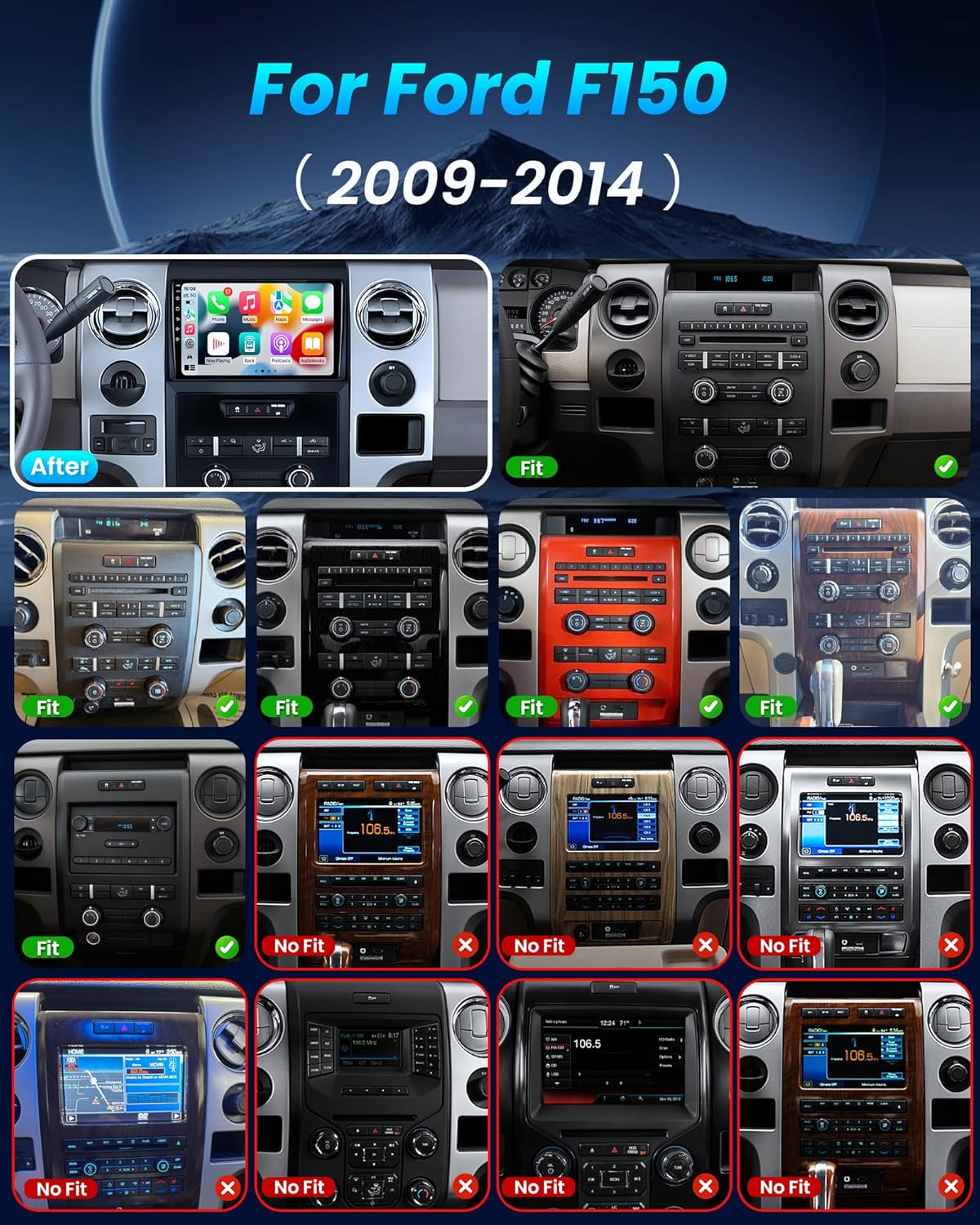
Image: A visual chart indicating which Ford F-150 dashboard configurations are compatible ('Fit') and not compatible ('No Fit') with the Jufodrca car radio, specifically for models between 2009 and 2014.

Image: Another detailed compatibility chart showing various Ford F-150 dashboard layouts, clearly marking which ones are suitable for installation and which are not.
Video: A product demonstration showcasing the Jufodrca car radio's features and interface within a Ford F150, highlighting its functionality and integration.
3. What's in the Box
Carefully unpack all components and verify that you have received the following items:
- 1x Head Unit
- 1x Backup Camera
- 1x Reversing Cable
- 1x CanBus Decoder
- 1x Crowbar (for panel removal)
- 1x Power Cord
- 1x RCA Cable Set
- 2x USB Cables
- 1x Power Cable

Image: The main product image displaying the Jufodrca car radio head unit along with its essential accessories, including the backup camera, external microphone, and various connection cables.
4. Setup and Installation
Professional installation is recommended. Ensure the vehicle's battery is disconnected before beginning installation.
Wiring Connections:
Follow these steps to connect the main components:
- Connect the main power cable harness to the head unit.
- Connect the CanBus box to the 8-pin connector on the power cable harness.
- Connect the 20-pin RCA cable harness for audio/video inputs and outputs.
- Plug in the 3.5mm external microphone into the designated port on the RCA harness.
- Connect the 4-pin and 6-pin USB cables to the head unit.
- Attach the GPS antenna to the green port on the head unit.
- Connect the 10-pin rear camera signal wire to the appropriate port.
Video: A step-by-step guide demonstrating the wiring connections for the Jufodrca car radio, including the power cable, CanBus box, RCA cables, microphone, USB cables, GPS antenna, and rear camera signal wire.
5. Operating Instructions
5.1 Wireless CarPlay / Android Auto
Connect your smartphone wirelessly via Bluetooth to access CarPlay or Android Auto. This allows you to use phone functions like navigation, music, calls, and messages directly on the head unit's display.

Image: The car radio display showing the Apple CarPlay and Android Auto interfaces, demonstrating seamless smartphone integration for various applications.

Image: A graphic illustrating the CarPlay and Android Auto functionalities, emphasizing voice control for navigation and calls, with a smartphone connected to the head unit.
5.2 Bluetooth Connectivity
The built-in Bluetooth module allows for hands-free phone calls and wireless audio streaming. Pair your device through the Bluetooth settings menu on the head unit.

Image: The car radio display showing the Bluetooth connection status and the FM/RDS radio interface, indicating the presence of an independent Bluetooth module and antenna for improved signal.
5.3 GPS Navigation
Utilize the integrated GPS module for accurate navigation. The system supports both online and offline map applications, ensuring you can find your way even without an internet connection.

Image: The car radio display showing various GPS navigation applications, illustrating real-time route planning, offline map access, and multiple route options.
5.4 FM/RDS Radio
The head unit includes an FM/RDS tuner. You can scan for radio stations and view Radio Data System information where available.

Image: A graphic representing sound waves and FM radio frequencies, alongside an equalizer interface, highlighting the customizable audio experience and FM RDS capabilities.
5.5 Steering Wheel Control (SWC)
The unit supports your vehicle's original steering wheel controls, allowing you to manage audio, calls, and navigation without taking your hands off the wheel. Refer to the unit's settings for SWC configuration.

Image: The car radio display showing the steering wheel control mapping interface, with an arrow pointing from a steering wheel to the screen, indicating how controls are integrated.

Image: A graphic demonstrating the benefits of steering wheel controls, showing icons for calls, volume, and track skipping, emphasizing reduced distractions while driving.
5.6 1080P Backup Camera
The included 1080P backup camera automatically displays the rear view when the vehicle is shifted into reverse, providing parking assistance and improving safety.
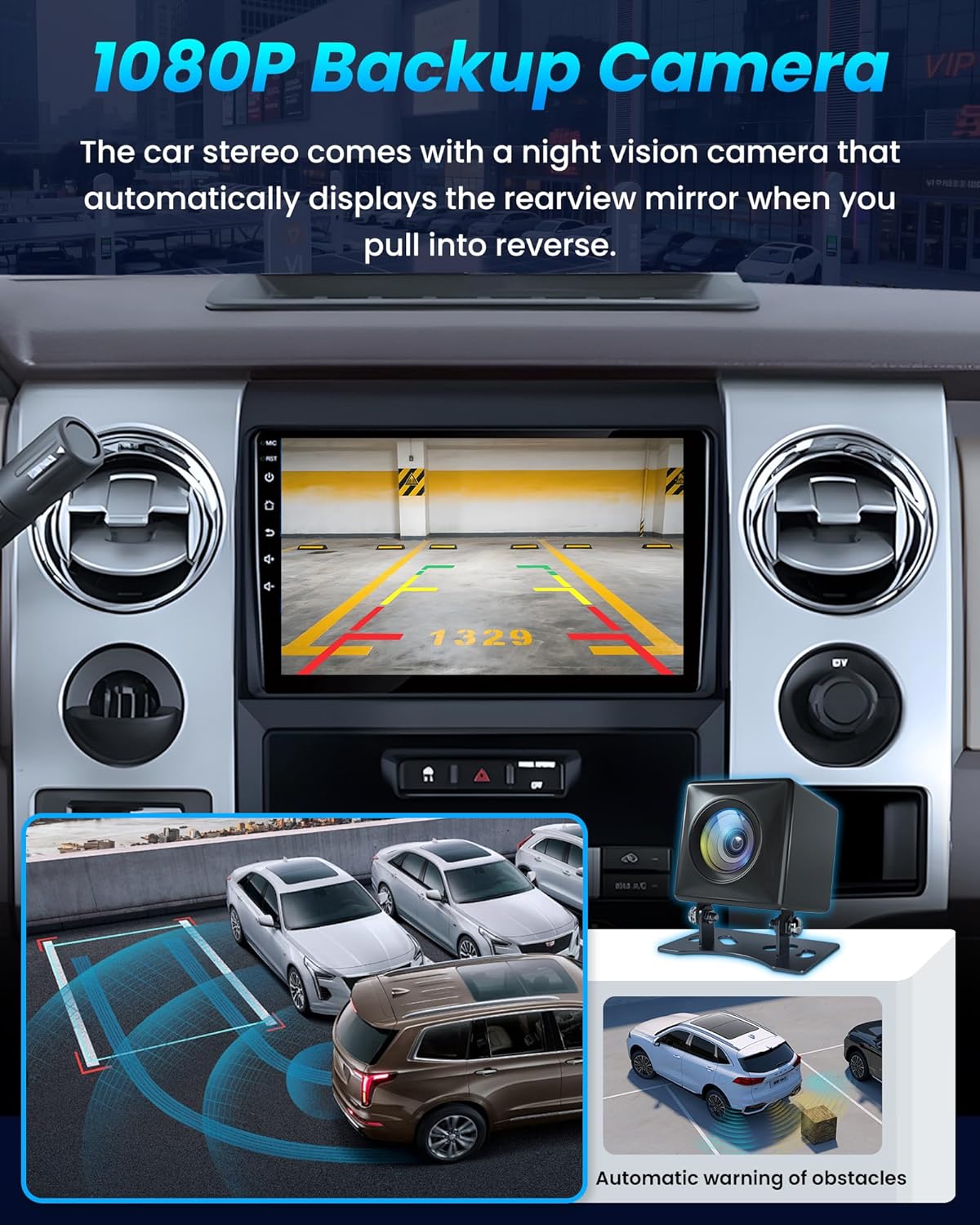
Image: The car radio display showing a clear 1080P backup camera view with dynamic parking guidelines, alongside an inset image of the camera unit and a visual of automatic obstacle warning.

Image: A graphic illustrating the 1080P backup camera's functionality, showing the rear view on the car stereo screen with parking lines and automatic obstacle warnings.
5.7 5G WiFi & OTA Updates
Connect to 5G Wi-Fi for fast internet access, enabling online navigation, streaming, and over-the-air (OTA) software updates to keep your system current.

Image: The car radio display showing the 5G WiFi connection status and a graphic representing OTA updates, indicating faster internet speed and stable signal range.

Image: A graphic highlighting dual-band 2.4G/5G WiFi connections, showing various app icons, emphasizing stable connections and elimination of lag.

Image: A graphic illustrating OTA (Over-The-Air) updates, depicting a car and a cloud icon, signifying automatic online firmware upgrades for smooth and secure software.
5.8 Mirror Link
The Mirror Link function allows you to project your smartphone's screen directly onto the car radio display, enabling you to view content from your phone on a larger screen.

Image: A graphic demonstrating Wireless HD Mirror Link, showing a smartphone screen being mirrored onto the car radio display, highlighting vivid 1280*800 IPS touch screen quality.
5.9 DSP Sound
The Digital Sound Processor (DSP) allows for advanced audio customization, including a 15-band equalizer, sound field adjustments, and bass enhancement, to optimize your listening experience.
6. Maintenance
To ensure the longevity and optimal performance of your Jufodrca Car Radio, follow these general maintenance guidelines:
- Regularly clean the touch screen with a soft, lint-free cloth. Avoid abrasive cleaners.
- Keep the unit free from dust and debris.
- Ensure all cables are securely connected.
- Perform software updates as they become available to benefit from new features and bug fixes.
- Avoid exposing the unit to extreme temperatures or direct sunlight for prolonged periods.
7. Troubleshooting
If you encounter issues with your car radio, refer to the following common troubleshooting steps. For persistent problems, contact customer support.
Common Issues and Solutions:
- No Power: Check all power cable connections. Ensure the vehicle's ignition is on. Verify fuses.
- No Sound: Check speaker connections. Verify volume levels and mute settings. Ensure the correct audio source is selected.
- Touch Screen Unresponsive: Try restarting the unit. Ensure the screen is clean and free from obstructions.
- Bluetooth Disconnection: Ensure your phone's Bluetooth is on and paired correctly. Try re-pairing the device. Check for interference.
- GPS Not Working: Ensure the GPS antenna is properly connected and has a clear view of the sky. Check navigation app settings.
- Backup Camera Not Displaying: Verify the camera and reversing signal wire connections. Check camera settings in the unit's menu.
- Steering Wheel Controls Not Working: Ensure the CanBus decoder is correctly installed and configured in the unit's SWC settings.
8. Specifications
| Feature | Specification |
|---|---|
| Item Weight | 4.71 pounds |
| Product Dimensions | 11.61 x 5.43 x 16.81 inches |
| Display Size | 9 Inches |
| Voice Command | Touchscreen |
| Screen Resolution | 1280*800 HD |
| Connectivity Technology | Bluetooth, Wi-Fi (5G) |
| Special Features | Wireless/Wired CarPlay & Android Auto, GPS Navigation, FM/RDS/SWC, 1080P AHD Rear View Camera Support |
| Map Type | North America |
| Audio Output Mode | Stereo |
| Mounting Type | Dashboard Mount |
| Manufacturer | Jufodrca |
9. Warranty and Support
For warranty information and customer support, please refer to the documentation included with your purchase or contact Jufodrca customer service directly. Keep your proof of purchase for warranty claims.
Online resources and FAQs may also be available on the manufacturer's website.
Ask a question about this manual
Ask about setup, troubleshooting, compatibility, parts, safety, or missing instructions. Manuals+ will review the question and use this page’s manual context to help answer it.