
1. Introduction
The ZHOUCE NF-8506 is a multifunctional TDR network cable tester designed for comprehensive network diagnostics and maintenance. It integrates various testing capabilities including IP scanning, Power over Ethernet (PoE) testing, anti-interference RJ11/RJ45/CAT5/CAT6 connectivity tests, Ping network speed tests, port flashing, sensitivity adjustment, and network cable length measurement. This device is an essential tool for professionals in network engineering, cabling, and equipment maintenance.

Figure 1: ZHOUCE NF-8506 Network Cable Tester and Tracker main unit and receiver.
2. Setup
2.1. Unboxing and Package Contents
Carefully unpack the NF-8506 unit and verify all components are present. The standard package includes:
- Main Tester Unit (Transmitter)
- Receiver Unit
- Test Pens
- USB Charging Cable
- Test Line (RJ45 to Alligator Clip)
- Earphone
- Instruction Manual
- Cloth Bag
- RJ45 Adapter Cable
- Color Box
- Qualification Certificate

Figure 2: Included accessories with the NF-8506 unit.
2.2. Component Identification
Familiarize yourself with the main components of the NF-8506 tester:

Figure 3: Labeled diagram of the NF-8506 transmitter and receiver.
- Transmitter: Main unit with LCD screen and control buttons.
- Receiver: Handheld unit with probe and indicators for cable tracing.
- Screen: High-definition color display for test results and menu navigation.
- ON/OFF/Confirm Button (OK): Powers the device on/off and confirms selections.
- UP/DOWN/LEFT/RIGHT Navigation Buttons: For menu navigation.
- Return Button: Navigates back in menus.
- Charging Port: USB port for charging the internal battery.
- RJ11/RJ45 Ports: For connecting network and telephone cables.
- Probe (Receiver): Used for tracing cables.
- LED Light (Receiver): Illuminates dark work areas.
- Power Indicator (Receiver): Shows power status.
- Signal Indicator (Receiver): Indicates detected signal strength.
- NCV Indicator (Receiver): Non-Contact Voltage detection indicator.
- Signal Sensitivity Switch (Receiver): Adjusts tracing sensitivity.
- Scan Mode Switch (Receiver): Toggles between digital and analog scan modes.
2.3. Powering On and Charging
The NF-8506 is battery-powered. Ensure the device is sufficiently charged before use. Connect the USB charging cable to the charging port on the main unit and a suitable USB power adapter. The battery indicator on the screen will show charging status.
3. Operating Instructions
This section details the various testing functions of the NF-8506.
3.1. Cable Continuity Test
This function checks the wiring sequence, short circuits, open circuits, and crossovers in network cables (RJ45) and telephone cables (RJ11).
- Connect one end of the cable to the RJ45 or RJ11 port on the main unit.
- Connect the other end of the cable to the corresponding port on the receiver unit or a network switch for switch pairing.
- Select the 'Cont' (Continuity) function from the main menu.
- The screen will display the wiring status, indicating 'Good', 'Cable Cross', 'Short Circuit', or 'Cable Open'.

Figure 4: Example display of cable continuity test results.
3.2. Digital Mode / Analog Mode (Cable Tracing)
Use the receiver to trace cables. Digital mode is for fast detection of unshielded cables, while analog mode is for shielded cables.
- Connect the cable to be traced to the main unit.
- Select the 'Scan' function on the main unit.
- On the receiver, select either 'Digital Mode' or 'Analog Mode' using the Scan Mode Switch.
- Move the receiver's probe along the cables to locate the target cable by listening for the signal. Adjust sensitivity as needed.
3.3. Port Flash
This function helps quickly identify the corresponding port on a network switch or router by making its indicator light flash.
- Connect the network cable to the main unit's RJ45 port and the other end to a network device.
- Select the 'Port Flash' function from the main menu.
- The connected port's indicator light on the network device will flash, allowing for easy identification. The tester also displays port information like operating speed and duplex mode.
3.4. Length Measurement (TDR)
The Time Domain Reflectometer (TDR) function accurately measures cable length and identifies fault distances.
- Connect the cable to be measured to the main unit's RJ45 port. Ensure the other end is open (not connected to any device).
- Select the 'Length' function from the main menu.
- The device will display the cable length within the range of 2.5m to 200m (8.2ft to 656ft). It can also indicate the distance to a fault.
3.5. PoE Test
The PoE test function identifies Power over Ethernet devices, detects crossover modes, and checks polarity, supporting IEEE 802.3AF/AT standards.
- Connect the network cable from the PoE source to the main unit's RJ45 port.
- Select the 'PoE' function from the main menu.
- The screen will display information such as PoE standard (IEEE 802.3AF/AT), power level, voltage, and pin configuration (mid-span/end-span).
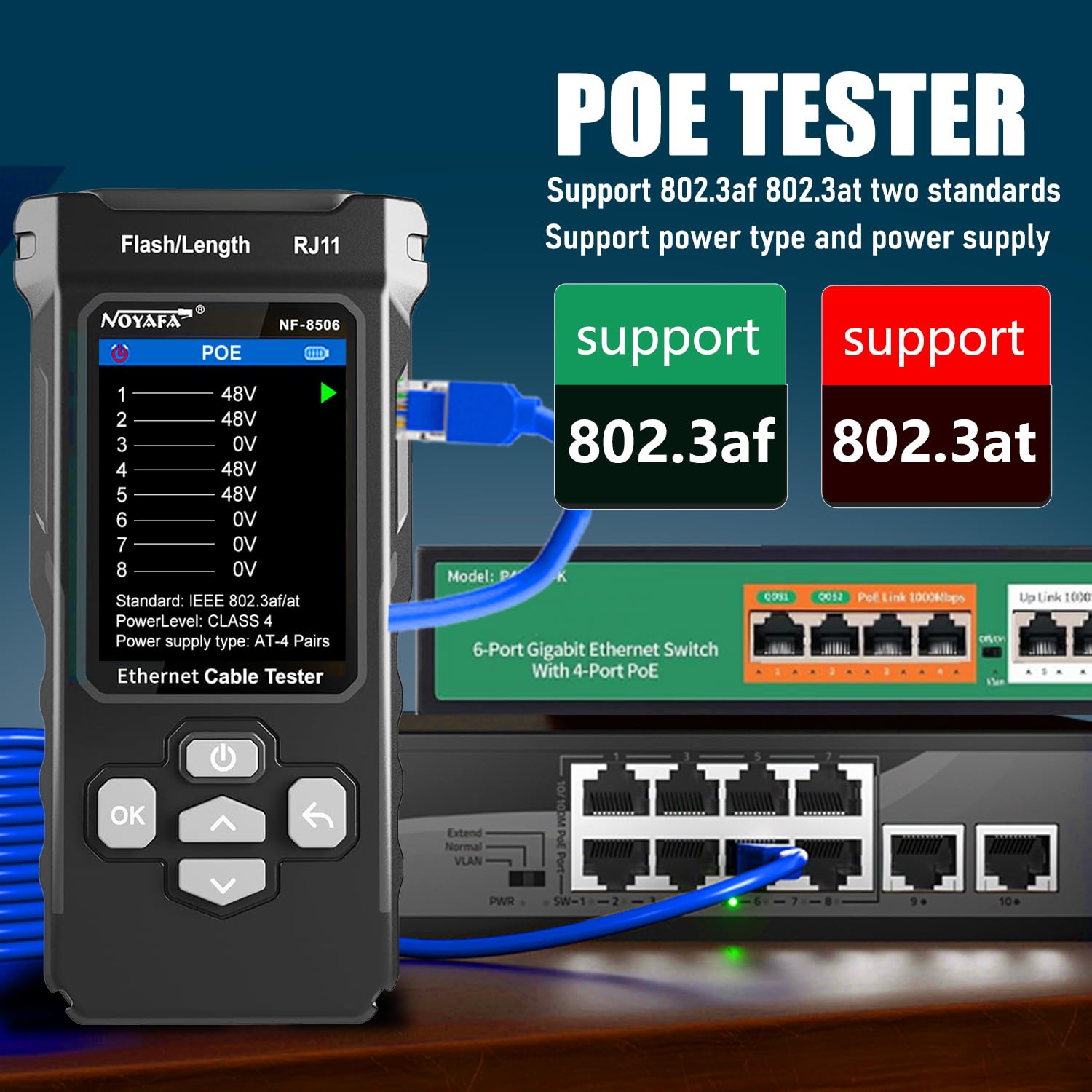
Figure 5: Display showing PoE test results and network rate test options.
3.6. PING/IP Scan
This function allows for diagnosing and maintaining local area networks (LANs) by authenticating connections, checking data integrity, and providing IP addresses.
- Connect the network cable to the main unit's RJ45 port and to the network.
- Select the 'PING' or 'IP Scan' function from the main menu.
- For PING, enter the target IP address to test server responsiveness and network traffic load.
- For IP Scan, the device will scan the network to discover active IP addresses.

Figure 6: The NF-8506 performing an IP scan to identify devices on the network.
3.7. Network Rate Test
Evaluate network rate problems and ensure cable integrity by conducting speed tests.
- Connect the network cable to the main unit's RJ45 port and to the network.
- Select the 'Network Rate Test' function (often integrated with PoE/Switch Test).
- The device will automatically detect and display the network speed (10M/100M/1000M) and duplex mode (full/half duplex).
3.8. NCV / LED Light
The receiver unit includes an NCV (Non-Contact Voltage) function for detecting live equipment and an LED light for working in dark environments.
- NCV: Activate the NCV function on the receiver to identify live wires, sockets, or other electrical equipment without direct contact.
- LED Light: Press the dedicated light button on the receiver to illuminate your workspace.
3.9. Official Product Video Demonstration
Watch this video for a visual guide on the NF-8506's key functions, including cable continuity, tracing, PING, and PoE testing.
Video 1: NF-8506 Network Cable Tester with IP Test PING/POE demonstration by FAN YUE KEJI.
4. Maintenance
Proper maintenance ensures the longevity and accuracy of your NF-8506.
- Cleaning: Use a soft, dry cloth to clean the device. Avoid abrasive cleaners or solvents.
- Storage: Store the device in a cool, dry place away from direct sunlight and extreme temperatures. Use the provided cloth bag for protection.
- Battery Care: Recharge the battery regularly, even if not in frequent use, to maintain battery health. Avoid fully discharging the battery for extended periods.
- Cable Care: Inspect test cables and connectors for damage before each use. Replace worn or damaged cables to ensure accurate readings.
5. Troubleshooting
If you encounter issues with your NF-8506, refer to the following common troubleshooting steps:
- Device does not power on: Ensure the battery is charged. Connect the USB charging cable and allow it to charge for at least 30 minutes before attempting to power on again.
- Inaccurate cable length measurement: Ensure the cable is disconnected from all network devices at the far end. Verify the cable type setting (if applicable) matches the cable being tested.
- No signal during cable tracing: Check if the main unit is in 'Scan' mode. Adjust the signal sensitivity on the receiver. Ensure the cable is properly connected to the main unit.
- PING/IP Scan not working: Verify the network cable is securely connected to an active network port. Ensure the device's IP settings (if manually configured) are correct for your network.
- Screen is dim or unresponsive: Adjust the backlight settings in the device menu. If unresponsive, try restarting the device.
If problems persist, contact ZHOUCE customer support for further assistance.
6. Specifications
Key technical specifications for the ZHOUCE NF-8506 Network Cable Tester:
| Feature | Specification |
|---|---|
| Model | NF-8506 |
| Cable Scan Modes | Digital Mode / Analog Mode |
| Cable Continuity Test | Remote & Switch |
| Cable Length Test Range | 2.5m - 200m (±3m accuracy) |
| Port Flash | 10M/100M/1000M |
| PoE Test | Mid-Span/End-Span (4-pairs), IEEE 802.3af/at |
| Ping Scan Function | Yes |
| IP Scan Function | Yes |
| Transmitter Dimensions | 150 x 75 x 35 mm |
| Receiver Dimensions | 200 x 50 x 33 mm |
| Battery | 3.7V Lithium Battery (both units) |
| Power Source | Battery Powered |
| Item Weight | 1.28 pounds (approx.) |
| Color | Black |
7. Warranty & Support
For warranty information and customer support, please refer to the documentation included in your product packaging or visit the official ZHOUCE brand store.
ZHOUCE Brand Store: https://www.amazon.com/stores/ZHOUCENetworkCableTester/page/87497DC5-5514-4168-AA65-8A21464A30C8
The manufacturer, ZHOUCE, is committed to providing quality products and support. Please retain your proof of purchase for any warranty claims.