
1. Introduction
This manual provides detailed instructions for the setup, operation, and maintenance of your FVBADE 78S Pandora Box Arcade Game Console. Please read this manual thoroughly before using the product to ensure proper functionality and a satisfying gaming experience.
2. Product Overview
2.1 Key Features
- Extensive Game Library: Includes 32,000 pre-installed games, covering a wide range of arcade classics.
- Advanced System: Equipped with the latest H3 8-core 78S system for faster and smoother operation.
- High-Definition Output: Supports enhanced 1280x720 HD resolution for improved visual clarity.
- Game Management: Features include Save, Search, Hide, Pause, and Delete game options.
- Personalized Gaming: Create a Favorite List for quick access to preferred games and browse by game categories.
- Multi-Platform Compatibility: Supports VGA, HDMI, and USB output for connection to TVs, PCs, Xbox 360, monitors, and projectors.
- Multiplayer Support: Designed for 1-4 players, with support for external USB joysticks.
2.2 Package Contents
Verify that all items listed below are included in your package:
- 2 x Arcade Game Consoles (Main Unit)
- 2 x Spare Buttons
- 1 x American Standard Power Plug
- 1 x Power Adapter
- 1 x VGA Data Cable
- 1 x HDMI Data Cable
- 1 x USB Cable
- 1 x User Manual

Image: Contents of the FVBADE 78S Pandora Box Arcade Game Console package, including two console units, cables, power adapter, and spare buttons.
3. Setup Instructions
3.1 Connecting to a Display Device
The FVBADE 78S console supports HDMI and VGA output for connecting to various display devices.
- Power Connection: Connect the power adapter to the DC 12V port on the back of the console and plug it into a power outlet.
- HDMI Connection (Recommended for HD):
- Connect one end of the HDMI cable to the HDMI port on the console.
- Connect the other end of the HDMI cable to an HDMI input port on your TV, monitor, or projector.
- VGA Connection:
- Connect one end of the VGA cable to the VGA port on the console.
- Connect the other end of the VGA cable to a VGA input port on your monitor or projector.
- For audio, connect an audio cable from the console's audio output to your display device or external speakers.
- USB Connection (for PC/Xbox 360 as External Joystick):
- Connect the USB cable from the console's USB port to your PC or Xbox 360. The console can function as an external joystick for compatible games.

Image: Rear view of the FVBADE 78S console showing DC 12V, HDMI, VGA, Audio, Volume, Setting, and USB ports, with diagrams illustrating connections to a projector, monitor, TV, and PC/Xbox.
3.2 Powering On
After connecting the console to your display device and power source, locate the power switch on the back of the console and turn it to the "ON" position. The console will boot up and display the main menu on your screen.
4. Operating Instructions
4.1 Main Menu Navigation
Upon startup, you will see the main game selection interface. Use the joystick to navigate through the game list and the action buttons to select options.
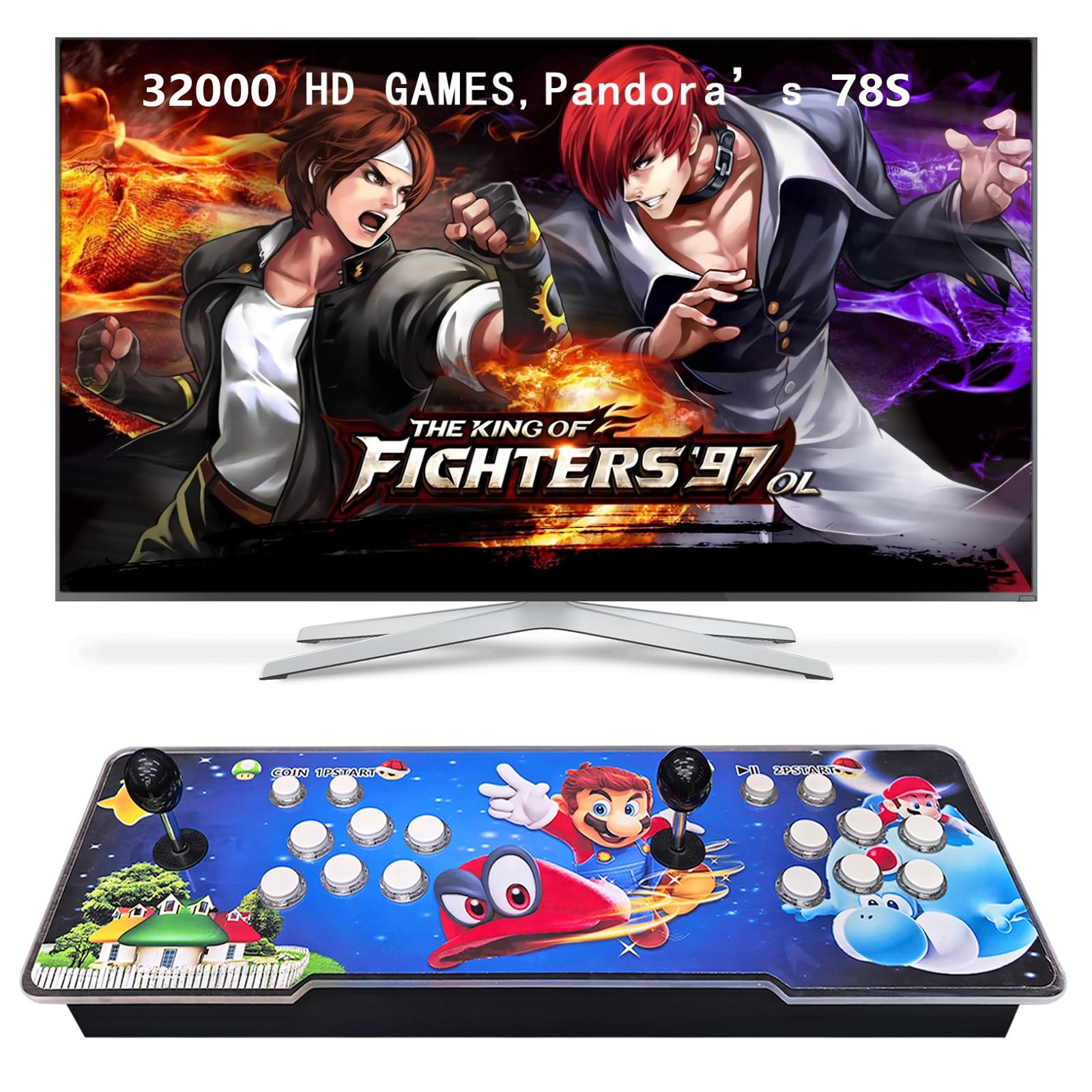
Image: The main menu interface of the FVBADE 78S console, displaying a game list on the left and categories like Recent, Search, 3D Games, Cheats, Fighting, Action, Hot, Shooting, Sports, Puzzle, and Stories on the right.
4.2 Game Functions
- Select Game: Use the joystick to highlight a game and press the A button (or equivalent) to start.
- Save/Load Game: During gameplay, access the system menu (usually by pressing the Pause button) to save your progress or load a previously saved game.
- Search Game: Use the search function in the main menu to find specific games by name.
- Hide/Delete Game: Games can be hidden or deleted from the system through the game management options in the settings.
- Favorite List: Add your preferred games to a "Favorite List" for quick access.
- Game Categories: Games are organized into categories (e.g., Fighting, Action, Sports) for easier browsing.
4.3 System Settings
- HD Enhancement: The console can enhance the resolution from the original 1280x720 HD for a better visual experience. This option can typically be found in the system settings.
- Language Switch: A "One Key Switch Language" feature is available, usually accessible from the main menu or system settings.
- Customize Buttons: Button mapping can be customized to suit your preferences. Refer to the system settings for button configuration options.
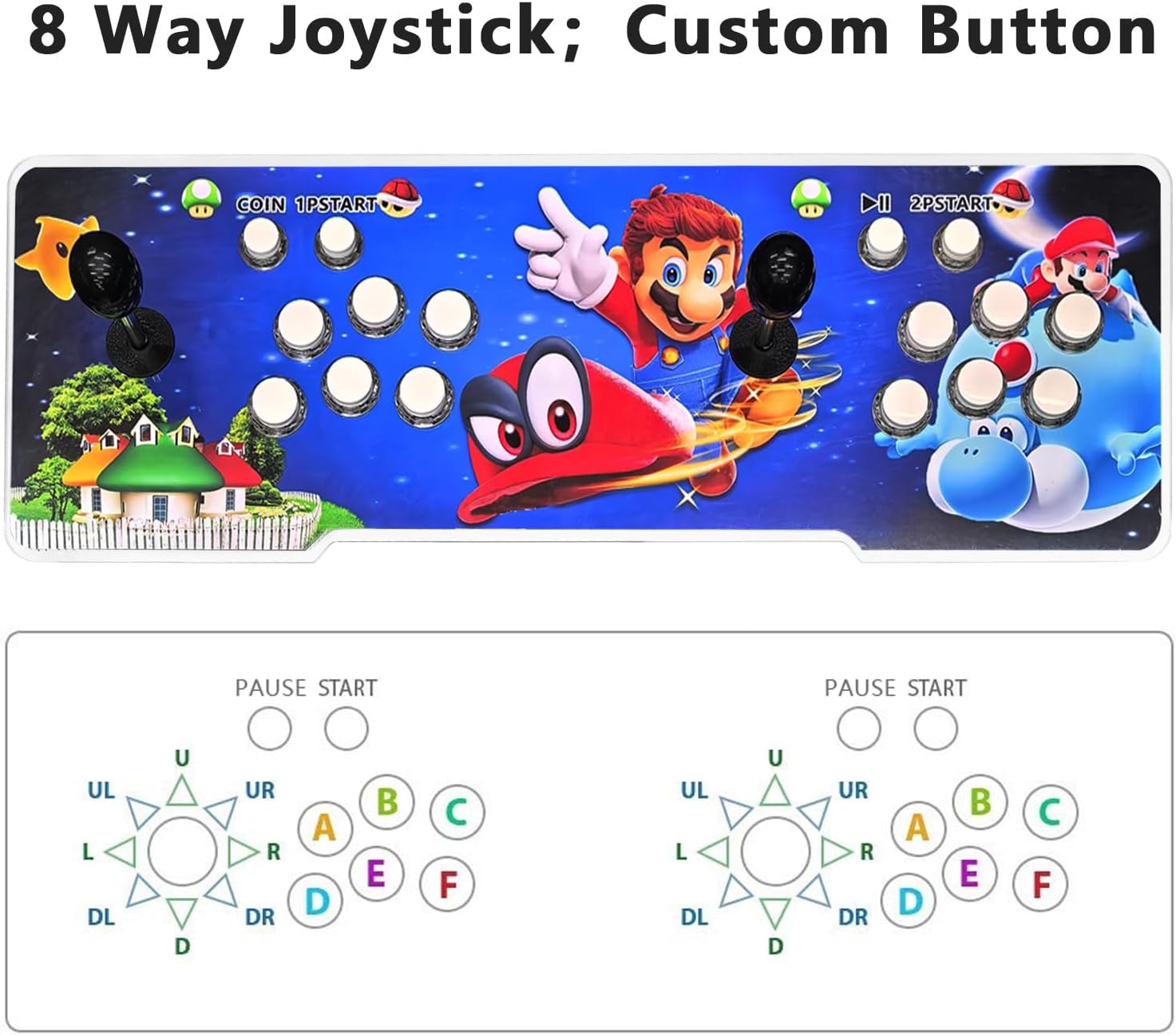
Image: Top-down view of the FVBADE 78S console showing the 8-way joysticks and customizable button layout for two players, including "COIN", "1P START", "2P START", and action buttons labeled A, B, C, D, E, F.
4.4 Multiplayer Gaming
The console supports 1-4 players. For games that support more than two players, an extra USB joystick can be connected to one of the USB ports on the console.
5. Maintenance
To ensure the longevity and optimal performance of your FVBADE 78S Arcade Game Console, follow these maintenance guidelines:
- Cleaning: Use a soft, dry cloth to wipe down the console's surface. Avoid using liquid cleaners or abrasive materials, as they may damage the finish or internal components.
- Storage: Store the console in a cool, dry place away from direct sunlight, extreme temperatures, and high humidity.
- Handling: Handle the console with care. Avoid dropping it or subjecting it to strong impacts.
- Ventilation: Ensure the console has adequate ventilation to prevent overheating. Do not block any ventilation openings.
6. Troubleshooting
If you encounter any issues with your FVBADE 78S Arcade Game Console, please refer to the following troubleshooting tips:
| Problem | Possible Cause | Solution |
|---|---|---|
| No power/Console does not turn on. | Power adapter not connected or faulty; power outlet issue. | Ensure the power adapter is securely connected to the console and a working power outlet. Check the power switch is in the "ON" position. |
| No display on screen. | Incorrect cable connection; wrong input source selected on display device; faulty cable. | Verify HDMI or VGA cable connections are secure. Ensure your TV/monitor is set to the correct input source (e.g., HDMI 1, VGA). Try a different cable if available. |
| Joystick or buttons unresponsive. | Loose connection; internal component issue. | Ensure all connections are secure. Some games may only utilize a subset of buttons; this is normal and not an indication of a fault. If issues persist, contact customer support. |
| Game performance issues (lag, freezing). | System overload; software glitch. | Restart the console. Ensure adequate ventilation. If issues persist, consider checking for system updates (if available) or contacting support. |
7. Specifications
| Model: | 78S |
| Brand: | FVBADE |
| Controller Type: | Button Control, 8-way Joystick |
| Power Source: | AC Adapter (DC 12V) |
| Material: | Plastic |
| Output Ports: | HDMI, VGA, USB (for external joystick/PC connection), Audio |
| Resolution: | Enhanced 1280x720 HD |
| Item Weight: | 8.98 pounds |
| Package Dimensions: | 26.9 x 11.1 x 5.1 inches |
8. Warranty and Support
8.1 Warranty Information
The FVBADE 78S Pandora Box Arcade Game Console comes with a ONE YEAR warranty from the date of purchase. This warranty covers manufacturing defects and ensures the product functions as intended under normal use. Please retain your proof of purchase for warranty claims.
8.2 Customer Support
For any questions, technical assistance, game lists, or other services, please contact FVBADE customer support. Refer to the contact information provided with your purchase or on the official FVBADE website. We are committed to providing excellent service.