
Lurious SW-LSL-60-600
Lurious Smart WiFi RGB LED Christmas Lights (Model SW-LSL-60-600) Instruction Manual
Your guide to setting up and operating your Lurious Smart WiFi RGB LED Christmas Lights.
1. Product Overview
The Lurious Smart WiFi RGB LED Christmas Lights are designed for both indoor and outdoor use, offering a wide range of customizable lighting options. These 196-foot string lights feature 600 RGB LEDs, capable of displaying multiple colors simultaneously. Control is available via a dedicated mobile application, voice commands (compatible with Alexa, Google Assistant, and Siri), and an included remote control. The lights also feature music synchronization, group control, and timing functions.

Image: Lurious Smart WiFi RGB LED Christmas Lights installed on a house and Christmas tree, showcasing multicolor illumination.
2. Package Contents
Ensure all items are present before proceeding with installation:
- 1 x Lurious Smart WiFi RGB LED Christmas Lights (196ft, 600 LEDs)
- 1 x Power Adapter
- 1 x Remote Control
- 1 x User Manual
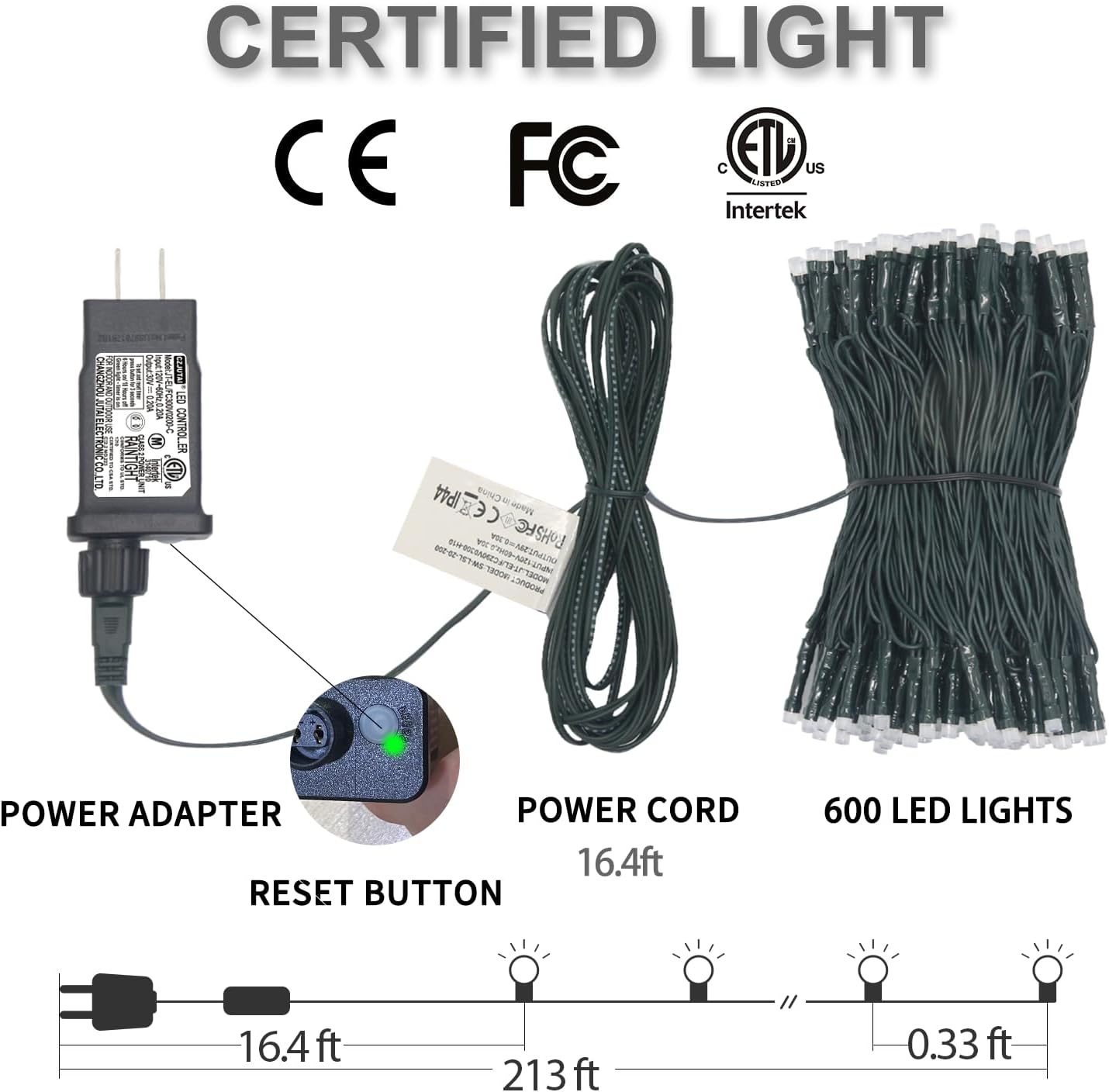
Image: A visual representation of the product components, including the power adapter, power cord, 600 LED lights, and the location of the reset button.
3. Setup and Installation
3.1 Physical Installation
- Uncoil the LED string lights carefully to prevent tangling.
- Position the lights in your desired indoor or outdoor location. The lights are IP44 waterproof, suitable for outdoor use in various weather conditions.
- Connect the LED string to the power adapter.
- Plug the power adapter into a standard electrical outlet.
3.2 App Download and Connection
To unlock the full smart features, download the "Smart Life" application on your smartphone.
- Download the "Smart Life" app from your device's app store (iOS or Android).
- Register or log in to your Smart Life account.
- Resetting the Device: With the lights plugged in, press and hold the reset button on the controller for 4-6 seconds until the green indicator light flashes rapidly. This indicates pairing mode.
- In the Smart Life app, tap "Add Device" or the "+" icon. The app should automatically discover the lights.
- Select the discovered device (e.g., "Smart RGB II") and follow the on-screen prompts to add it.
- Enter your 2.4GHz WiFi network password when prompted. Note: The device only supports 2.4GHz WiFi networks.
- Wait for the device to successfully connect. Once connected, you can rename the device for easier identification.
Video: Demonstrates the process of connecting the Lurious Smart WiFi Christmas Lights to the Smart Life mobile application, including how to reset the device and enter WiFi credentials.
4. Operating Instructions
4.1 Basic Control (App & Remote)
Once connected, you can control your lights using the Smart Life app or the included remote control.
- Power On/Off: Use the power button on the app interface or remote.
- Color Selection: Choose from a wide spectrum of colors using the color wheel in the app or preset color buttons on the remote.
- Brightness Adjustment: Adjust the light intensity from 10% to 100% using the dimmer slider in the app or dedicated buttons on the remote.
Video: Illustrates the multicolor changing capabilities and dimmable features of the Lurious Smart WiFi Christmas Lights, controlled via the mobile app.
4.2 Voice Control
Integrate your lights with smart home assistants for hands-free control.
- Compatibility: Works with Alexa, Google Assistant, and Siri.
- Commands: Use simple voice commands like "Alexa, turn the Christmas lights green" or "Hey Google, turn off the outdoor lights."

Image: Demonstrates voice control functionality with an Alexa device, showing the lights responding to commands.
4.3 Scene Modes
The app offers various preset scene modes for different occasions and moods. You can also create custom DIY modes.
- Access the "Scene" tab in the Smart Life app.
- Choose from 30 preset scene modes, including options for holidays like Christmas, Halloween, and more.
- Utilize the DIY mode to customize color sequences, speeds, and effects.
4.4 Music Sync Mode
The lights can react to music, creating a dynamic visual experience.
- The built-in sound controller and app's music mode can sense live music and human voices.
- Lights will change colors and patterns in rhythm with the audio.
- Note: Brightness adjustment is not supported in music sync mode.

Image: Lurious Smart WiFi RGB LED Christmas Lights changing colors in sync with music during a social gathering.
4.5 Group Control & Timing
Manage multiple light strings and automate their operation.
- Group Control: Add multiple Lurious light strings to the same group within the Smart Life app to control them simultaneously.
- Timing: Set countdown timers or schedules for the lights to turn on or off at specific times.
- Important: Two light strings cannot be physically connected end-to-end to form a longer single string.

Image: Demonstrates the timing function, showing lights set to turn on and off at specific times, creating a comfortable environment.
5. Maintenance
To ensure the longevity and optimal performance of your Lurious Smart WiFi RGB LED Christmas Lights, follow these maintenance guidelines:
- Cleaning: Gently wipe the lights with a soft, dry cloth. Do not use harsh chemicals or abrasive cleaners.
- Storage: When not in use, carefully unstring the lights and coil them neatly. Store them in a cool, dry place away from direct sunlight and extreme temperatures.
- Waterproof Rating: The lights have an IP44 waterproof rating, making them suitable for outdoor use and resistant to water splashes. However, avoid submerging the power adapter or controller in water.

Image: Highlights the IP44 waterproof feature, showing the lights enduring rain, snow, and sun, confirming their suitability for outdoor environments.
6. Troubleshooting
If you encounter issues with your Lurious Smart WiFi RGB LED Christmas Lights, refer to the following common solutions:
| Problem | Possible Cause | Solution |
|---|---|---|
| Lights do not turn on. | No power, loose connection, or faulty outlet. | Check power connection, ensure outlet is functional, and verify all cables are securely plugged in. |
| Cannot connect to WiFi. | Incorrect WiFi password, 5GHz network, or device not in pairing mode. | Ensure you are using a 2.4GHz WiFi network. Verify the WiFi password. Reset the device by holding the controller button for 4-6 seconds until the green indicator light flashes rapidly, then try pairing again. |
| Remote control not working. | Dead battery or obstruction. | Replace the remote control battery. Ensure there is no obstruction between the remote and the light controller. |
| Lights are not responding to app commands. | WiFi connection lost or app issue. | Check your home WiFi connection. Restart the Smart Life app. If the issue persists, try resetting and re-pairing the lights. |
7. Specifications
| Feature | Detail |
|---|---|
| Model Number | SW-LSL-60-600 |
| Brand | Lurious |
| Light Type | RGB LED String Lights |
| Length | 196 Feet |
| Number of LEDs | 600 |
| Color | Multicolor |
| Indoor/Outdoor Usage | Outdoor |
| Waterproof Rating | IP44 |
| Power Source | Corded Electric |
| Voltage | 12 Volts |
| Wattage | 10 watts |
| Control Method | App Control, Voice Control, Remote Control |
| WiFi Frequency | 2.4GHz Only |
| Material | Polyvinyl Chloride |
| Item Weight | 2.53 pounds |
| Manufacturer | Shenzhen Starway Photoelectric Technology Co, Ltd |
8. Warranty and Support
For warranty information and customer support, please refer to the product packaging or contact the manufacturer directly. Keep your purchase receipt for warranty claims.
Ask a question about this manual
Ask about setup, troubleshooting, compatibility, parts, safety, or missing instructions. Manuals+ will review the question and use this page’s manual context to help answer it.