
1. Introduction
This manual provides comprehensive instructions for the WDZP Replacement Remote Control, model 9RC60C-1179. This remote is designed to replace your original remote for YES MAXHD devices, offering a straightforward and efficient user experience without the need for complex programming.
Please read this manual thoroughly before using the remote control to ensure proper operation and to maximize its lifespan.
2. Package Contents
- 1 x WDZP Replacement Remote Control (Model: 9RC60C-1179)
- (Batteries are not included)
3. Setup and Battery Installation
The WDZP Replacement Remote Control requires two AAA batteries (not included) for operation. No programming is required; simply install the batteries, and the remote will be ready for use with compatible YES MAXHD devices.
3.1. Installing Batteries
- Locate the battery compartment cover on the back of the remote control.
- Slide the cover downwards or press the latch (if present) to open the compartment.
- Insert two 1.5V AAA batteries, ensuring the positive (+) and negative (-) terminals match the diagrams inside the compartment.
- Close the battery compartment cover by sliding it back into place until it clicks securely.
Once batteries are installed, the remote is ready for immediate use.

Figure 3.1: Battery installation for the remote control. Insert two AAA batteries according to polarity markings.
4. Operating the Remote Control
This remote control utilizes infrared technology to transmit signals to your YES MAXHD device. Ensure there is a clear line of sight between the remote's emitter and the device's infrared receiver for optimal performance. The remote operates effectively within a range of up to 12 meters (40 feet) and a 180-degree angle.
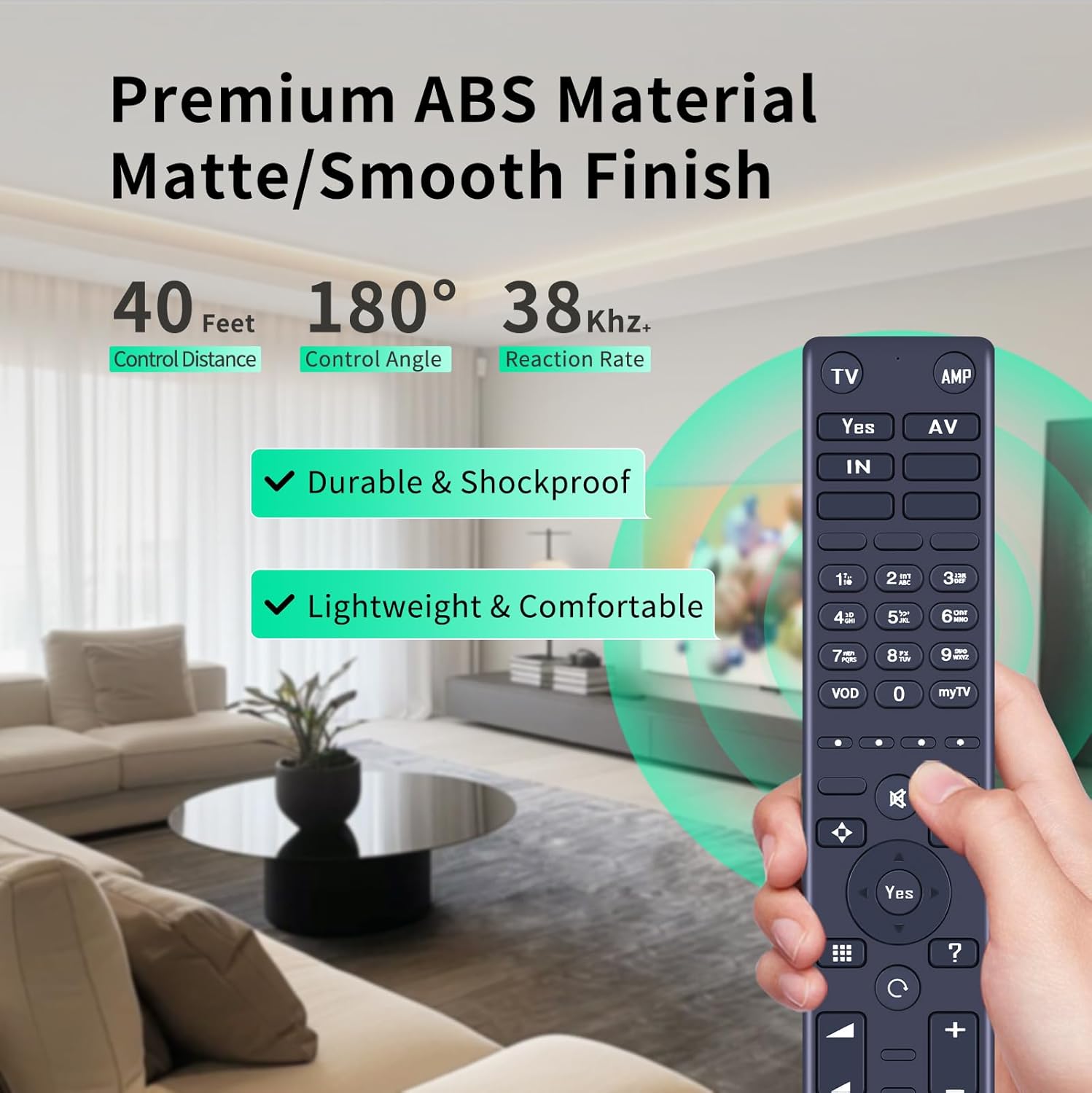
Figure 4.1: The remote control offers a 40-foot operating distance and a 180-degree control angle.
4.2. Key Functions Overview
The remote control features standard buttons for navigating and controlling your YES MAXHD device. Refer to the image below for a visual guide to the button layout.
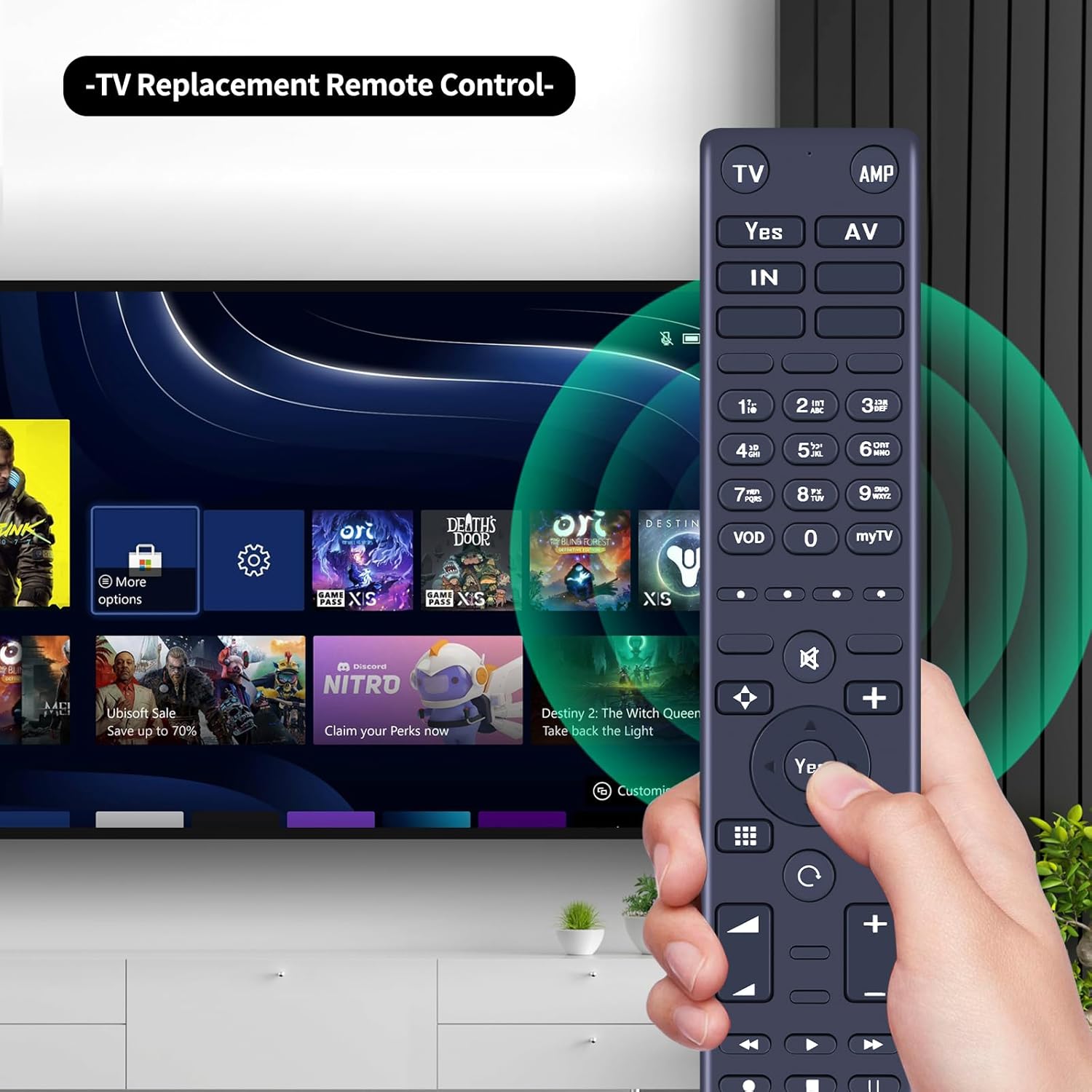
Figure 4.2: Overview of the remote control buttons and typical usage scenario.
- Power Button: Turns the device on or off.
- Number Buttons (0-9): For direct channel input or numerical selections.
- Navigation Pad (Up, Down, Left, Right, OK/Enter): For menu navigation and selection.
- Volume Up/Down: Adjusts the audio volume.
- Channel Up/Down: Changes channels.
- Mute Button: Mutes or unmutes the audio.
- Menu/Home Button: Accesses the main menu or home screen.
- Back/Exit Button: Returns to the previous screen or exits a menu.
- Playback Controls (Play, Pause, Stop, Rewind, Fast Forward): Controls media playback.
- Note: Specific button functions may vary slightly depending on your YES MAXHD device model.
5. Maintenance
Proper maintenance ensures the longevity and optimal performance of your remote control.
5.1. Cleaning
- Wipe the remote control with a soft, dry cloth.
- For stubborn dirt, slightly dampen the cloth with water or a mild, non-abrasive cleaner.
- Do not use harsh chemicals, solvents, or abrasive cleaning pads, as these can damage the remote's surface and internal components.
5.2. Battery Replacement
- Replace batteries when the remote's response becomes sluggish or stops working.
- Always replace both batteries at the same time with new 1.5V AAA batteries.
- Do not mix old and new batteries, or different types of batteries.
- Remove batteries if the remote will not be used for an extended period to prevent leakage.
5.3. Storage
- Store the remote in a cool, dry place away from direct sunlight and extreme temperatures.
- Avoid dropping the remote or exposing it to excessive force, as it is designed to be durable but not indestructible.
6. Troubleshooting
If you encounter issues with your remote control, refer to the following common problems and solutions:
| Problem | Possible Cause | Solution |
|---|---|---|
| Remote is not responding. | Dead or incorrectly installed batteries. | Replace batteries with new 1.5V AAA batteries, ensuring correct polarity. |
| Remote has short range or intermittent response. | Weak batteries; Obstruction between remote and device; Remote sensor on device is blocked. | Replace batteries; Ensure clear line of sight; Clear any obstructions from the device's IR sensor. |
| Certain buttons do not work. | Button malfunction; Device incompatibility for specific functions. | Ensure the remote is compatible with your specific YES MAXHD device model. If the remote is new and buttons are unresponsive, contact customer support. |
| Remote feels less responsive over time. | Accumulated dirt or debris under buttons. | Clean the remote as described in the Maintenance section. |
7. Specifications
| Model | 9RC60C-1179 |
| Brand | WDZP |
| Compatibility | YES MAXHD devices |
| Technology | Infrared (IR) |
| Operating Distance | Up to 12 meters (40 feet) |
| Operating Angle | 180 degrees |
| Power Source | 2 x 1.5V AAA Batteries (not included) |
| Material | ABS |
| Color | BLACK |
| Item Weight | 0.10 kg (0.22 lb) |
| Dimensions (L x W x D) | 9.45 x 1.77 x 0.79 inches |
| Special Feature | Ergonomic design |
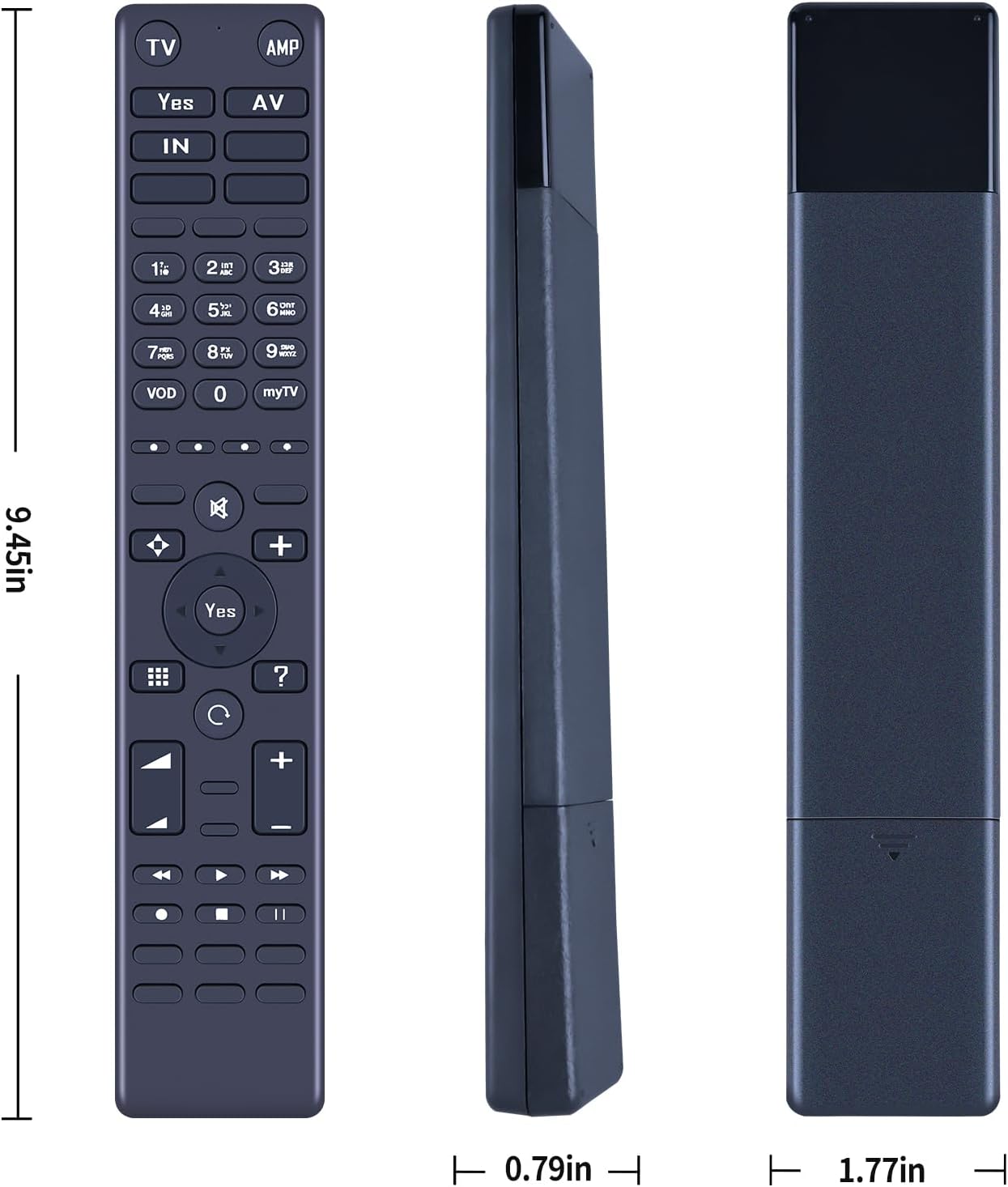
Figure 7.1: Physical dimensions of the WDZP Replacement Remote Control.
8. Warranty and Support
WDZP offers a 12-MONTH warranty for this replacement remote control. This warranty covers manufacturing defects and ensures free exchange or refund in case of quality problems or incompatibility with your equipment.
If you encounter any issues or have questions regarding your remote control, please contact WDZP customer support for assistance. Refer to your purchase documentation for contact details or visit the official WDZP store on Amazon.
For further information or support, please visit the WDZP Store on Amazon.