
1. Introduction
The RSHTECH RSH-ST10C is a high-performance 10-port powered USB hub designed to expand your device connectivity with exceptional speed and stability. This hub features a combination of USB 3.2 Gen 2 (10 Gbps) and USB 3.0 (5 Gbps) ports, ensuring rapid data transfer for various peripherals. Its robust design includes an external 12V/5A (60W) power adapter to support power-hungry devices without compromising performance. Each port is equipped with an individual on/off switch and LED indicator for efficient device management.
Key Features:
- High-Speed Data Transfer: Includes 3 USB 3.2 Gen 2 ports (2 Type-C, 1 Type-A) offering up to 10 Gbps, and 7 USB 3.0 Type-A ports providing up to 5 Gbps. Backward compatible with USB 2.0 and 1.1.
- Stable Powered Operation: Requires an external 12V/5A (60W) power adapter (included) to ensure stable power delivery to all connected devices, ideal for external hard drives and other power-intensive peripherals.
- Individual Port Control: Each port features an independent on/off touch switch with an LED indicator, allowing for selective device management and power saving.
- Broad Compatibility: Compatible with Windows, Mac OS, and Linux operating systems. Supports a wide range of devices including removable drives, keyboards, mice, gaming consoles, printers, and more.
- Enhanced Protection: Built-in safeguards against short circuits, overcurrents, overvoltages, and overheating ensure device safety and stable operation.
- Durable Construction: Features a robust exterior material and heat-resistant connectors for extended lifespan and aesthetic appeal.
2. Package Contents
Please verify that all items are present in your package:
- RSHTECH RSH-ST10C 10-Port USB Hub
- 12V/5A (60W) Power Adapter
- 1-meter USB-C to USB-C Data Cable
- User Manual
3. Product Overview
Familiarize yourself with the layout and components of your RSHTECH USB Hub.
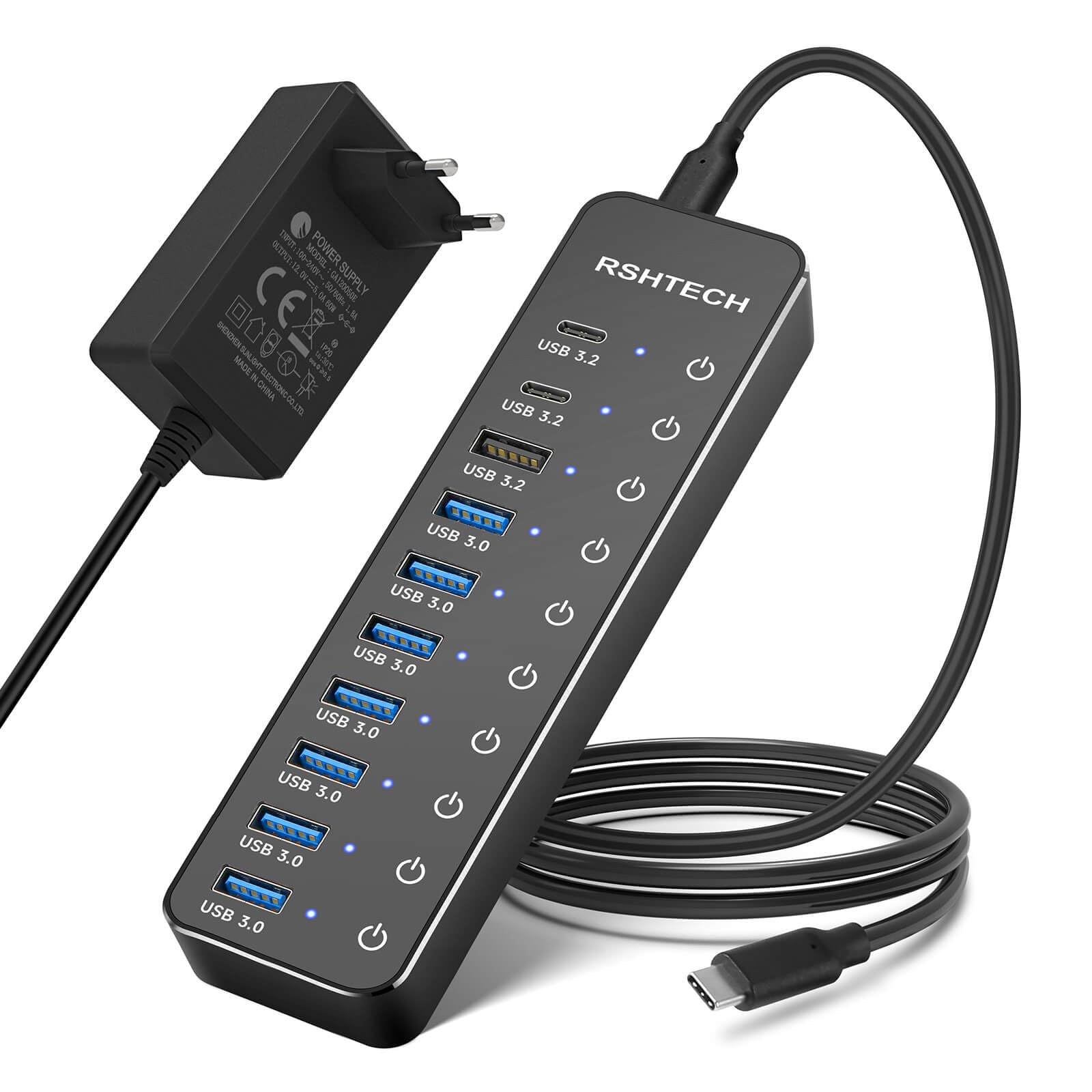
This image displays the RSHTECH RSH-ST10C 10-Port USB Hub, highlighting its various ports and features. It includes two USB-C 3.2 ports (10Gbps), one USB-A 3.2 port (10Gbps), and seven USB-A 3.0 ports (5Gbps). Also visible are the DC 12V/5A power input, LED indicators for each port, and individual touch switches.

A detailed view of the RSHTECH USB Hub's rear panel, showing the DC 12V power input and the USB-C host input. Icons indicate built-in protections against overcurrent, overvoltage, and ensure stable data transmission.
Port Configuration:
- 2 x USB-C 3.2 Gen 2 Ports: Up to 10 Gbps data transfer.
- 1 x USB-A 3.2 Gen 2 Port: Up to 10 Gbps data transfer.
- 7 x USB-A 3.0 Ports: Up to 5 Gbps data transfer.
- DC 12V Power Input: For connecting the external power adapter.
- Host USB-C Input: For connecting to your computer.
4. Setup Instructions
- Connect the Power Adapter: Plug the included 12V/5A power adapter into the DC 12V input port on the back of the RSHTECH USB Hub. Then, plug the power adapter into a wall outlet. The hub requires external power for stable operation, especially when connecting multiple or power-hungry devices.
- Connect to Host Device: Use the provided 1-meter USB-C to USB-C cable to connect the 'HOST' port on the RSHTECH USB Hub to an available USB-C port on your computer (desktop or laptop).
- Plug and Play: The hub is plug-and-play, meaning no additional drivers are required for most operating systems (Windows, Mac OS, Linux). Your computer should automatically detect and configure the hub.
- Connect USB Devices: You can now connect your USB devices (e.g., external hard drives, flash drives, keyboards, mice, printers) to the available USB-A or USB-C ports on the hub.
5. Operating Instructions
The RSHTECH USB Hub is designed for ease of use with individual port control.
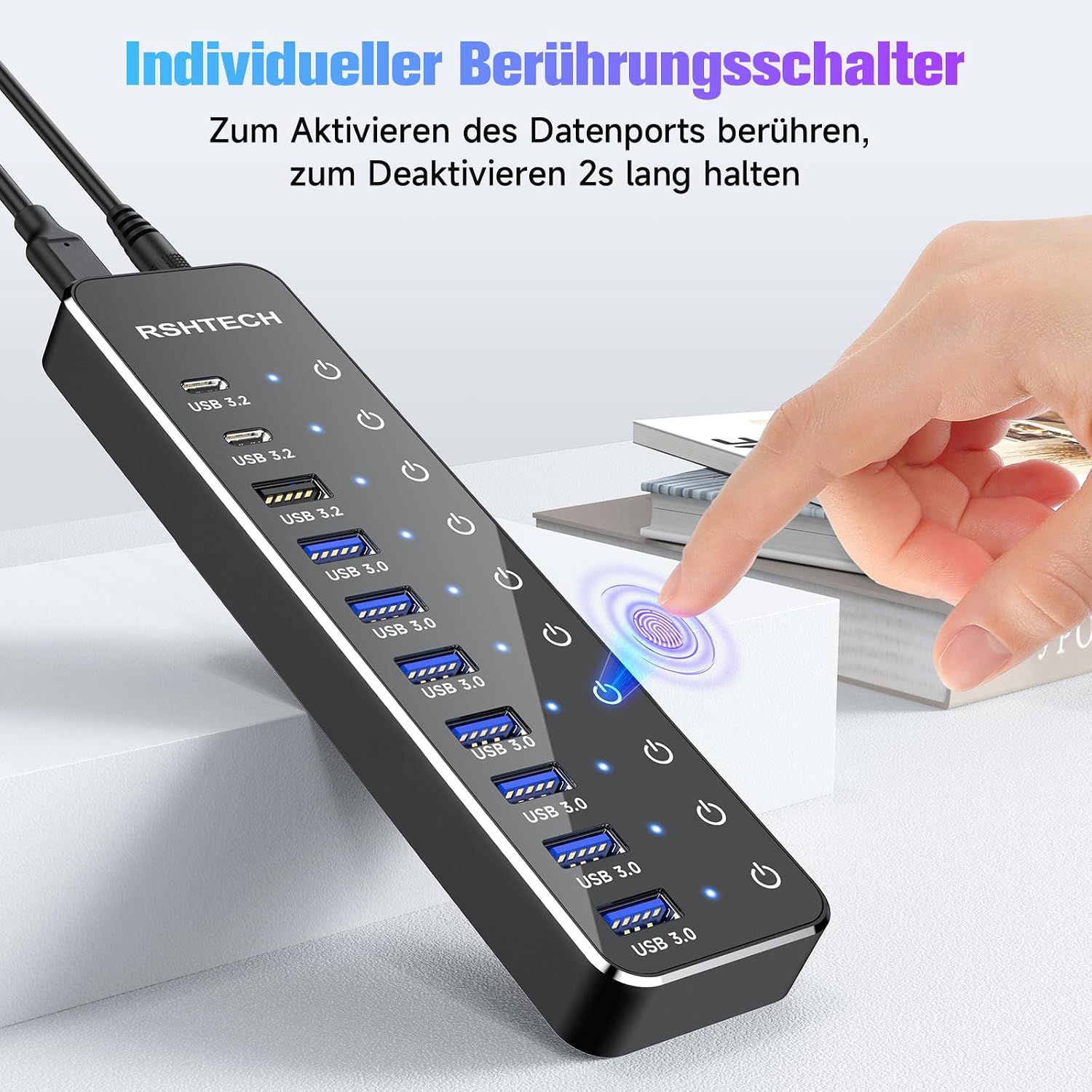
This image illustrates the individual touch switches on each port of the RSHTECH USB Hub. Users can activate or deactivate specific data ports by touching the switch, with blue LED indicators showing the port's status.
Using Individual Port Switches:
- Each USB port on the hub has a dedicated touch-sensitive on/off switch.
- To Turn On a Port: Lightly tap the switch above the desired port. The blue LED indicator for that port will illuminate, signifying it is active.
- To Turn Off a Port: Press and hold the switch above the desired port for approximately two seconds. The blue LED indicator will turn off, indicating the port is deactivated.
- This feature allows you to manage power consumption and connect/disconnect devices without physically unplugging them.
Data Transfer:

This image demonstrates the high-speed data transfer capabilities of the RSHTECH USB Hub, showing connections to a laptop and an external hard drive. It highlights transfer speeds of up to 10 Gbps for USB 3.2 ports and up to 5 Gbps for USB 3.0 ports.
- Connect your USB 3.2 Gen 2 compatible devices to the 10 Gbps ports (2x USB-C, 1x USB-A) for maximum transfer speeds.
- Connect your USB 3.0 compatible devices to the 5 Gbps ports (7x USB-A) for fast data transfer.
- The hub supports hot-swapping, allowing you to connect or disconnect devices while the computer is running.
Power Delivery:

The RSHTECH USB Hub is shown connected to a 60W power adapter, providing stable power to a laptop and several external USB devices. This setup ensures reliable operation for power-hungry peripherals.
- The external 60W power adapter ensures sufficient power for all connected devices, including those with higher power requirements like external hard drives.
- The hub can also be used for charging smartphones and tablets, though dedicated fast chargers may offer quicker charging times.
6. Maintenance
Proper maintenance helps ensure the longevity and optimal performance of your USB hub.
- Cleaning: Avoid using liquid cleaners. If necessary, gently wipe the casing with a dry, soft cloth or a brush to remove dust.
- Environment: Keep the hub in a dry environment and away from direct sunlight or extreme temperatures.
- Handling: Handle the hub with care. Avoid dropping it or subjecting it to strong impacts.
7. Troubleshooting
If you encounter issues with your RSHTECH USB Hub, please refer to the following common solutions:
- Device Not Recognized:
- Ensure the hub's power adapter is securely connected to both the hub and a working power outlet.
- Verify that the USB cable connecting the hub to your computer is securely plugged in at both ends.
- Check if the individual port switch for the connected device is turned on (blue LED illuminated).
- Try connecting the device directly to your computer to confirm it functions independently.
- Restart your computer.
- Slow Data Transfer Speed:
- Ensure both the hub and your connected device support the desired USB standard (e.g., USB 3.2 Gen 2 for 10 Gbps, USB 3.0 for 5 Gbps).
- Confirm that the device is connected to the appropriate high-speed port on the hub.
- Avoid connecting too many power-hungry devices simultaneously, even with the external power supply, as this can sometimes affect overall performance.
- Check your computer's USB port; ensure it is also a high-speed port.
- Hub Overheating:
- The hub is designed with heat-resistant materials and built-in protection. If it feels excessively hot, disconnect all devices and the power adapter immediately.
- Ensure adequate ventilation around the hub.
- Reduce the number of connected power-intensive devices.
- Intermittent Connections:
- Ensure all cables are firmly connected.
- Test with different USB cables to rule out a faulty cable.
- Verify that the external power adapter is providing stable power.
8. Specifications
| Feature | Specification |
|---|---|
| Model Number | RSH-ST10C |
| Brand | RSHTECH |
| Hardware Interface | USB, USB 3.0, USB Type C |
| Special Feature | Powered, Anti-slip, Fast Data Transfer, LED Indicator |
| Total USB Ports | 10 |
| Data Transfer Rate | 10 Gigabits per second |
| Material | Aluminum |
| Product Dimensions (L x W x H) | 18.8L x 12.2W x 5.7H centimeters |
| Minimum OS Requirement | Windows 7 |
| Operating System Compatibility | Linux, Mac OS 9/10 (and higher), Windows 7/8/8.1/10/11, Windows Vista/XP |
| Power Adapter | 12V/5A (60W) |
| Compatible Devices | Headphones/Card Readers/Mice/Keyboards, Gaming Consoles/Digital Cameras, Speakers/Printers/Scanners, USB Flash Drives/Hard Disk Drives, Desktops/Laptops/Tablets/Smartphones |
9. Warranty and Support
RSHTECH products are designed for reliability and performance. For warranty information or technical support, please refer to the documentation included with your purchase or visit the official RSHTECH website. If you encounter any issues that cannot be resolved using this manual, please contact RSHTECH customer service for assistance.
Manufacturer: Shenzhen Rong Sheng Hui Electronics Co., Ltd


