
1. Product Overview
The Zoompix Magnetic Mini Security Camera is a compact, wireless device designed for versatile surveillance. It offers 1080p Full HD video recording, motion detection, and night vision capabilities, making it suitable for monitoring various indoor and outdoor environments. Its magnetic base allows for flexible placement.

Image: Overview of the Zoompix Magnetic Mini Security Camera package contents, including multiple cameras and accessories.
2. Package Contents
Please verify that all items listed below are included in your package:
- Mini Camera (Quantity: 1, 2, or 3, depending on package)
- Bracket (Quantity: 1, 2, or 3, depending on package)
- USB Charging Cable (Quantity: 1, 2, or 3, depending on package)
- User Manual (This document)
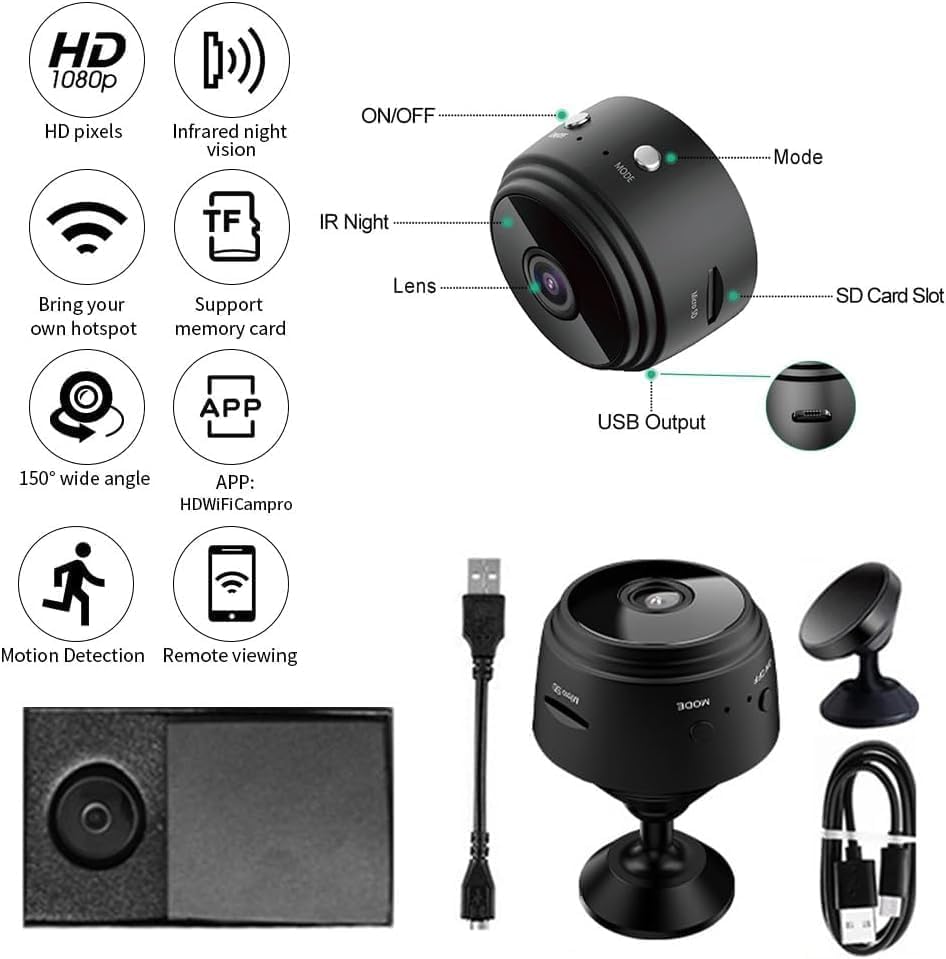
Image: Detailed view of the camera's features and included accessories.
3. Product Features
The Zoompix Magnetic Mini Security Camera offers the following key features:
- 1080P Full HD Resolution: Provides clear 1080P HD video capture at 30 frames per second (fps).
- Smart Motion Detection: Notifies you via push notifications on your phone when motion is detected, allowing real-time monitoring through the app.
- 6M Night Vision: Equipped with 6 non-luminance lights for covert night vision up to 6 meters.
- 150° Ultra-Wide-Angle Lens: Covers a broad area, reducing blind spots.
- Wireless Connectivity: Connects to your phone via Wi-Fi for remote access.
- Built-in Magnet: Allows for easy and flexible mounting on metallic surfaces.
- Remote Record/Snapshot/Playback: Control recording, capture images, and review footage remotely via the app.
- Card Record: Supports local recording to a memory card (not included).

Image: Illustrates the camera's HD and Wi-Fi capabilities.

Image: Demonstrates the camera's portability and remote monitoring feature.
4. Product Specifications
| Attribute | Detail |
|---|---|
| Model Name | Magnetic Mini Security Camera |
| Model Number | XV1DX5VB632 |
| Video Capture Resolution | 1080p |
| Frame Rate | 30 fps |
| Connectivity Technology | Wireless (Wi-Fi) |
| Connectivity Protocol | Bluetooth (for initial setup/pairing) |
| Power Source | Battery Powered / USB Charging |
| Indoor/Outdoor Usage | Outdoor (Recommended Uses For Product: Outdoor Security) |
| Mounting Type | Wall Mount |
| Alert Type | Motion Only |
| Video Capture Format | MP4 |
| Dimensions (L x W x H) | 10 x 2 x 2.7 inches |
| Color | White (for this variant) |
5. Setup Guide
5.1 Initial Charging
Before first use, fully charge the camera using the provided USB charging cable. Connect the cable to the camera's USB port and the other end to a standard USB power adapter (not included) or a computer's USB port. The camera is equipped with a built-in rechargeable battery for portable use. For continuous operation and extended recording, it is recommended to connect the camera to a power source using the provided USB charging cable.
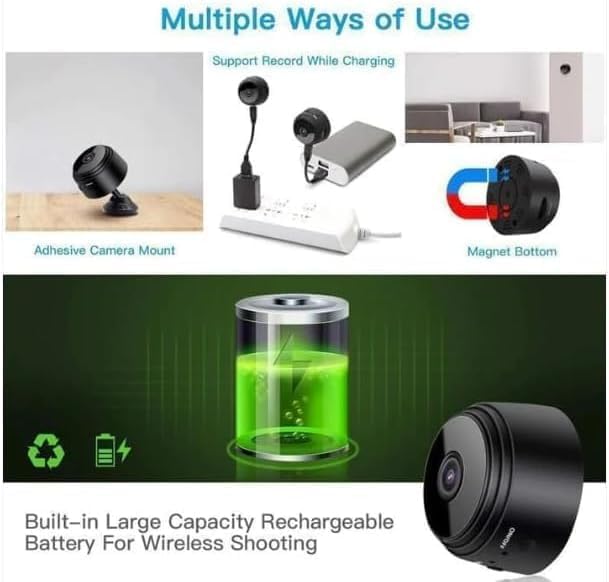
Image: Illustrates charging and various usage methods.
5.2 Inserting a Memory Card (Optional)
To enable local video recording, insert a compatible microSD card (not included) into the camera's SD card slot. Ensure the card is inserted correctly with the contacts facing the proper direction. The camera supports card recording.
5.3 App Download and Connection
To utilize the camera's full features, including remote viewing and motion detection alerts, download the companion application. The app name is typically indicated in the packaging or on the camera itself (e.g., 'HDWIFICampro' as seen in some diagrams). Follow the in-app instructions to connect the camera to your smartphone via Wi-Fi. This usually involves:
- Powering on the camera.
- Opening the app and selecting 'Add Device'.
- Connecting your phone to the camera's temporary Wi-Fi hotspot (usually starts with 'IPC-' or similar).
- Configuring the camera to connect to your home/office Wi-Fi network.
5.4 Mounting the Camera
The camera features a built-in magnet for easy attachment to metallic surfaces. For other surfaces, use the included bracket for wall mounting. Position the camera to ensure optimal viewing angle, utilizing its 150° wide-angle lens.
6. Operating Instructions
6.1 Power On/Off
Locate the ON/OFF button on the camera. Press and hold to power on or off the device. Refer to the camera diagram for button location.
6.2 Video Recording
Once powered on and connected to the app, you can initiate video recording remotely. The camera records in 1080p HD at 30fps. If a memory card is inserted, recordings will be saved locally. You can also record directly to your phone via the app.
6.3 Motion Detection
Activate motion detection through the camera's app settings. When motion is detected within the camera's field of view, you will receive a push notification on your connected smartphone. This feature helps in monitoring for unexpected activity.
6.4 Night Vision
The camera automatically switches to night vision mode in low-light conditions. Its 6 non-luminance infrared lights provide clear visibility up to 6 meters without emitting visible light, ensuring covert operation.
6.5 Remote Viewing and Playback
Use the dedicated mobile application to view live footage from your camera remotely. You can also access and playback recorded videos stored on the memory card or your phone.

Image: Examples of multiple use scenarios for the camera.
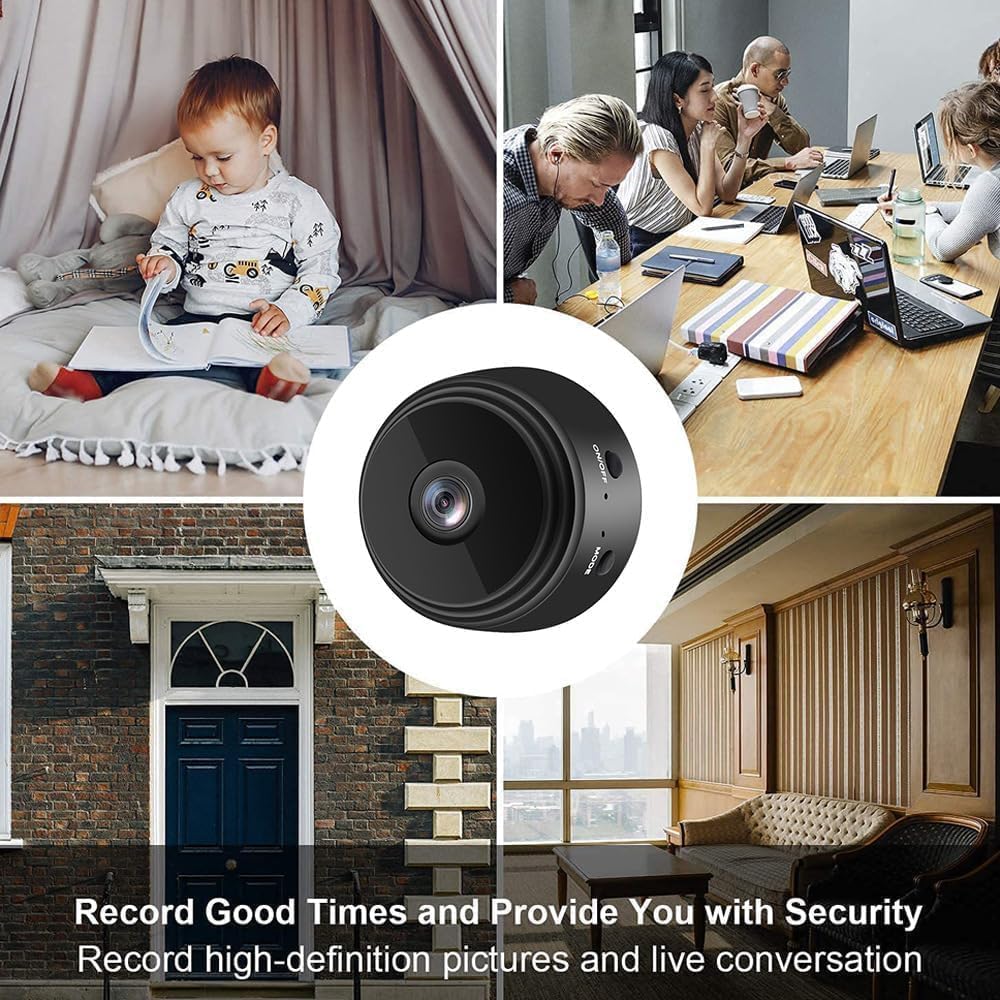
Image: Illustrates various applications for security and monitoring.
7. Maintenance
To ensure the longevity and optimal performance of your Zoompix Mini Security Camera, follow these maintenance guidelines:
- Cleaning: Use a soft, dry cloth to clean the camera lens and body. Avoid using liquid cleaners or abrasive materials that could damage the surface or lens.
- Storage: When not in use for extended periods, store the camera in a cool, dry place away from direct sunlight and extreme temperatures.
- Battery Care: If the camera is battery-powered, avoid completely draining the battery frequently. For long-term storage, charge the battery to about 50% to preserve its lifespan.
- Firmware Updates: Periodically check the companion app for any available firmware updates for the camera. Keeping the firmware updated can improve performance and add new features.
8. Troubleshooting
If you encounter issues with your camera, refer to the following common problems and solutions:
| Problem | Possible Solution |
|---|---|
| Camera does not power on. |
|
| Cannot connect to Wi-Fi or app. |
|
| Poor video quality or blurry image. |
|
| Motion detection not working. |
|
| Camera battery drains quickly. |
|
9. Warranty Information
Specific warranty details for this product are not provided in the available information. Please refer to the product packaging or contact the seller/manufacturer directly for warranty terms and conditions.
10. Customer Support
For technical assistance or further inquiries, please contact the seller or manufacturer through the platform where the product was purchased. Specific contact information for customer support is not available in this manual.