
Wielio Mini Projector B0D6VP2BZP
Wielio Mini Projector User Manual
Model: B0D6VP2BZP
1. Introduction
Thank you for purchasing the Wielio Mini Projector. This manual provides essential information for setting up, operating, and maintaining your projector. Please read it thoroughly before use to ensure optimal performance and safety.

Image 1.1: Wielio Mini Projector displaying a high-quality image, highlighting its native 1080P resolution, 18000 Lumens brightness, 5G/2.4G WiFi, and Bluetooth 5.0 capabilities.
2. Important Safety Instructions
- Do not look directly into the projector lens when the lamp is on.
- Ensure proper ventilation around the projector to prevent overheating.
- Use only the power adapter supplied with the projector.
- Keep the projector away from water or other liquids.
- Do not attempt to repair the projector yourself. Contact customer support for assistance.
- Place the projector on a stable, level surface.
3. Package Contents
Verify that all items are present in your package:
- Wielio Mini Projector
- Remote Control
- Power Cable
- HDMI Cable
- User Manual
4. Product Overview
Familiarize yourself with the projector's components and connection ports.
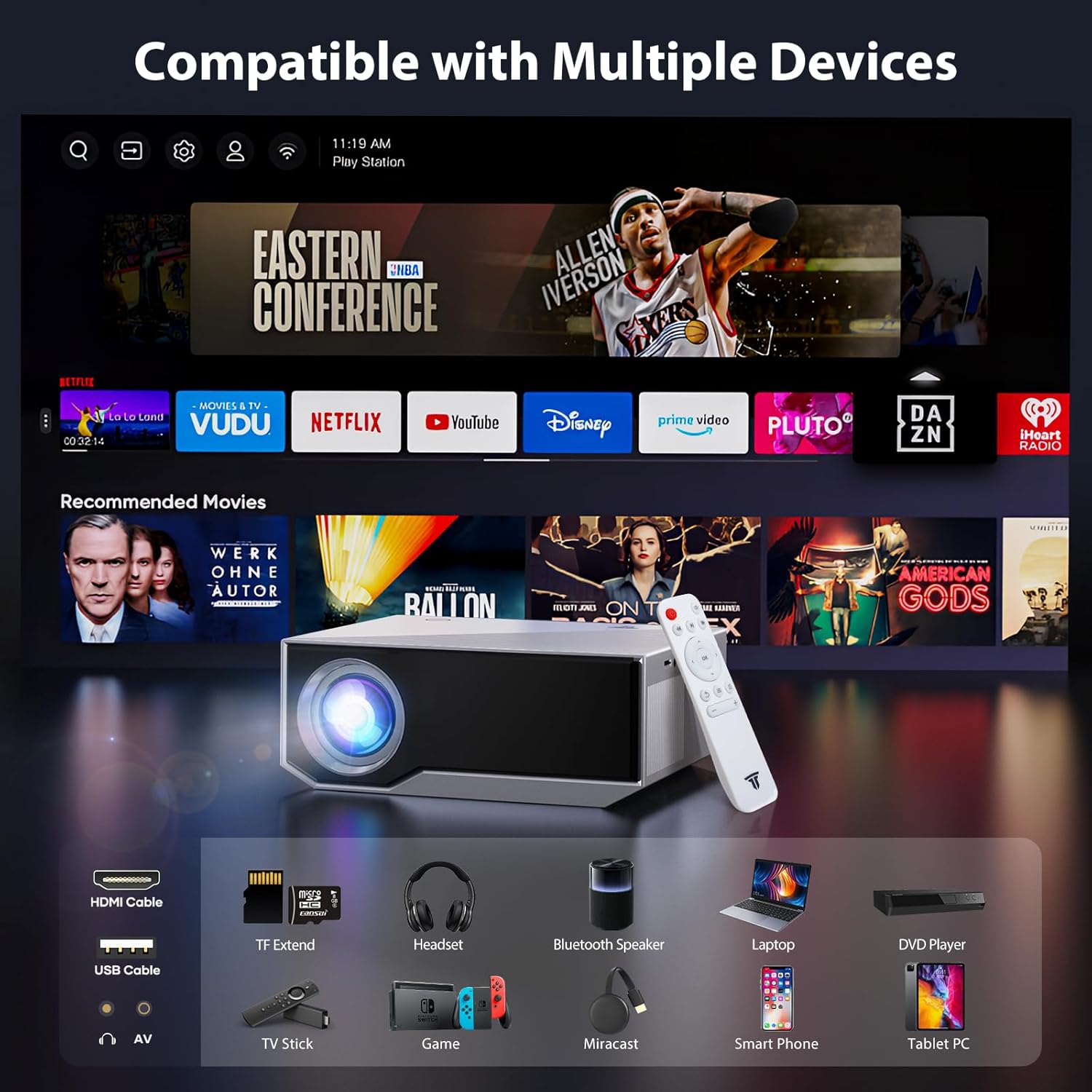
Image 4.1: Overview of the Wielio Mini Projector's compatibility with multiple devices, including HDMI cable, USB, AV, TF Extend, Headset, Bluetooth Speaker, Laptop, DVD Player, TV Stick, Game consoles, Miracast, Smartphone, and Tablet PC.
4.1. Ports and Controls
- HDMI Port: Connect to laptops, gaming consoles, TV sticks, etc.
- USB Port: Connect USB flash drives for media playback.
- AV Port: Connect to older devices using an AV cable.
- Audio Out (3.5mm): Connect external headphones or speakers.
- Power Input: Connect the power adapter.
- Focus Ring: Adjust image clarity.
- Keystone Correction: Adjust image shape.
5. Setup
5.1. Placement
Choose a suitable location for your projector. The projection distance and screen size can vary. The projector supports various mounting options:
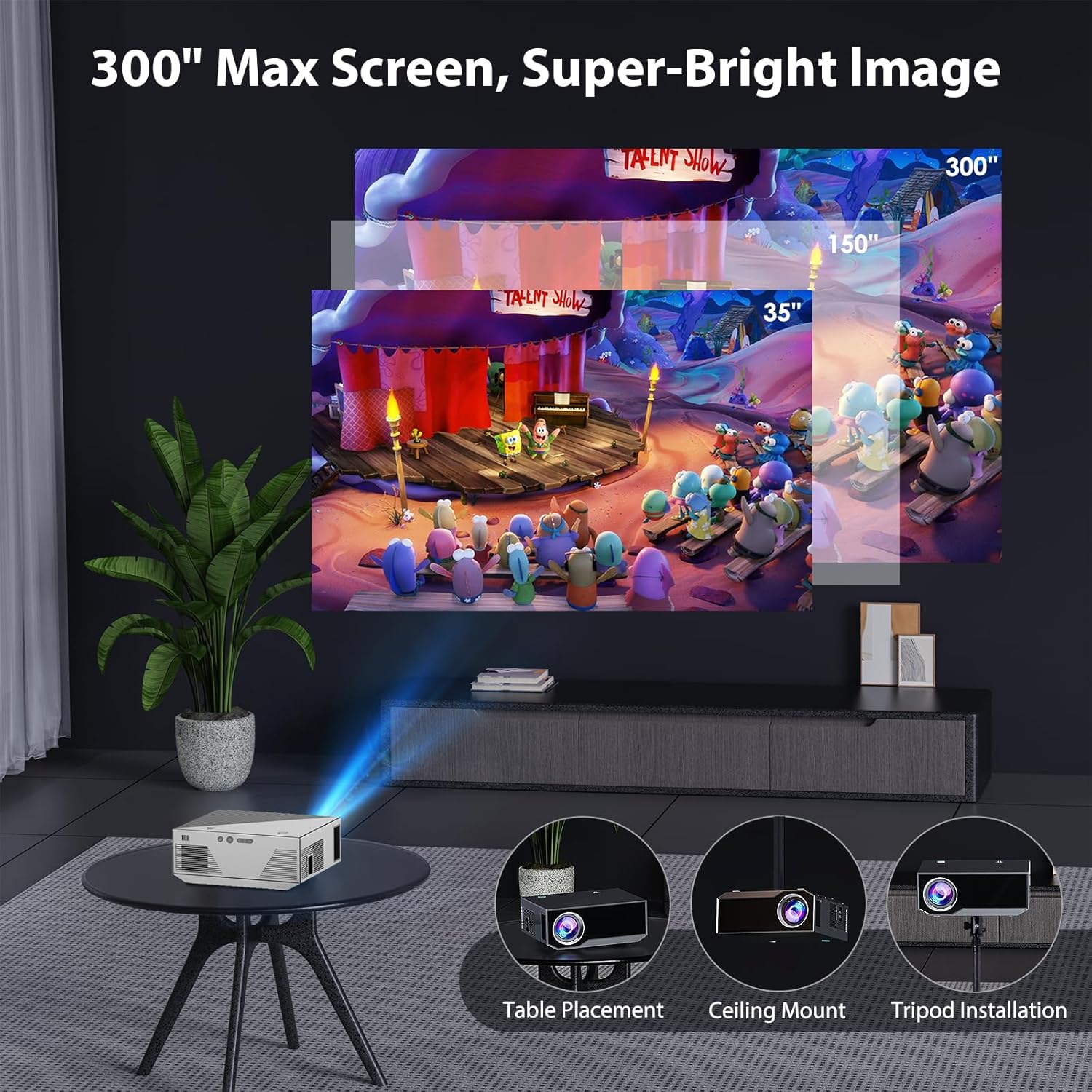
Image 5.1: The projector supports a maximum screen size of 300 inches and can be placed on a table, mounted on the ceiling, or installed on a tripod.
- Table Placement: Place the projector on a flat, stable surface.
- Ceiling Mount: Securely attach the projector to the ceiling using a compatible mount (not included).
- Tripod Installation: Mount the projector on a tripod for flexible positioning.
5.2. Power Connection
- Connect the power cable to the projector's power input port.
- Plug the other end of the power cable into a power outlet.
- Press the power button on the projector or remote control to turn it on.
5.3. Focus and Keystone Adjustment
- Focus: Rotate the focus ring on the projector lens until the image appears clear and sharp.
- Keystone: Use the keystone correction dial or menu option to adjust the image shape if it appears trapezoidal.
6. Operating Instructions
6.1. Basic Operation
- Power On/Off: Press the power button on the projector or remote.
- Navigation: Use the arrow keys and OK button on the remote or projector to navigate menus.
- Source Selection: Press the 'Source' button to select input methods (HDMI, USB, AV, Screen Mirroring).
6.2. Connectivity
6.2.1. HDMI Connection
Connect an HDMI cable from your device (e.g., laptop, TV stick, PS4) to the HDMI port on the projector. Select HDMI as the input source.
6.2.2. USB Media Playback
Insert a USB flash drive into the USB port. Select 'USB' as the input source and navigate to your media files.
6.2.3. Wireless Screen Mirroring (WiFi)
The projector supports 2.4G and 5G WiFi for screen mirroring from iOS and Android devices.
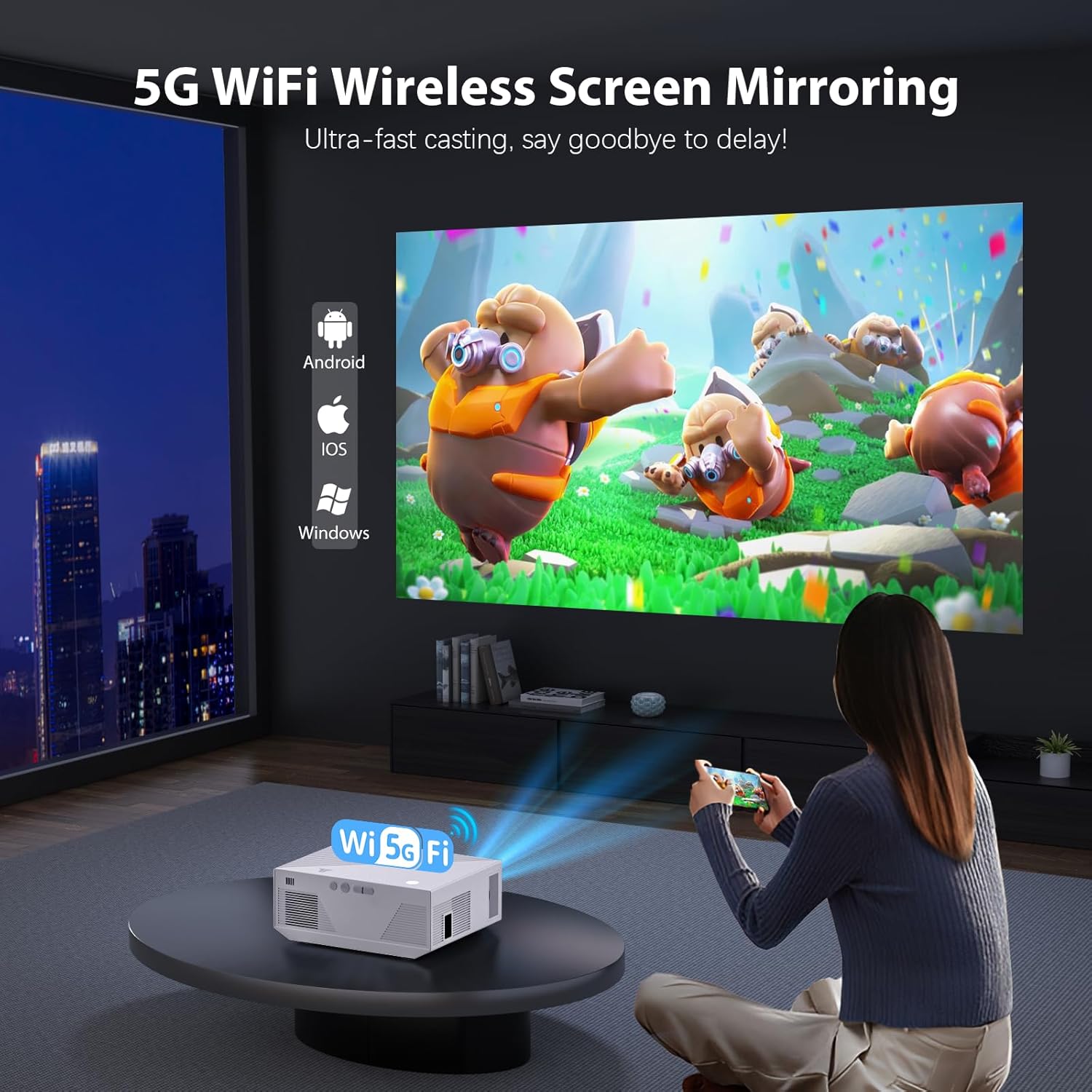
Image 6.1: Wireless screen mirroring via 5G WiFi, compatible with Android, iOS, and Windows devices for ultra-fast casting.
- Select 'Screen Mirroring' or 'Wireless Display' from the projector's input source menu.
- Ensure your mobile device and the projector are connected to the same WiFi network.
- On your iOS device, open Control Center and tap 'Screen Mirroring'. Select the projector from the list.
- On your Android device, enable 'Wireless Display', 'Smart View', or 'Cast' (names may vary) and select the projector.
- Note: Due to copyright restrictions, some streaming services (e.g., Netflix, Hulu, Amazon Prime) may not support screen mirroring via WiFi. An HDMI cable connection from a laptop or TV stick is often required for these services.
6.2.4. Bluetooth Audio Output
Connect external Bluetooth speakers or headphones for enhanced audio.
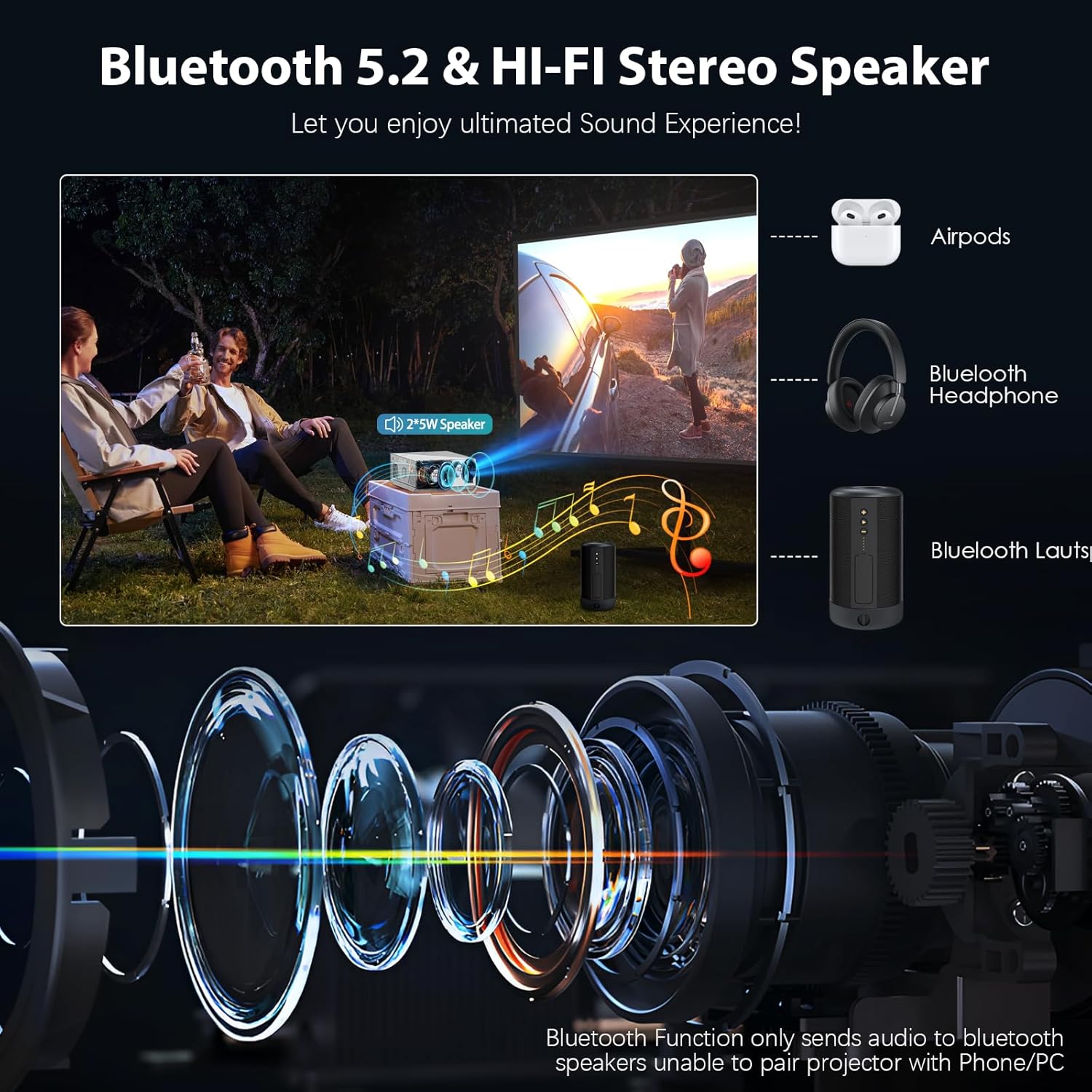
Image 6.2: The projector features Bluetooth 5.2 and a built-in Hi-Fi stereo speaker. It can connect to various Bluetooth audio devices for an enhanced sound experience. The Bluetooth function only sends audio to Bluetooth speakers, not to phones or PCs.
- Go to the projector's 'Settings' menu and select 'Bluetooth'.
- Turn on Bluetooth and scan for available devices.
- Select your Bluetooth speaker or headphones from the list to pair.
7. Maintenance
7.1. Cleaning
- Lens: Use a soft, lint-free cloth specifically designed for optical lenses. Do not use abrasive cleaners.
- Casing: Wipe the projector's exterior with a soft, dry cloth. Avoid using harsh chemicals.
- Ventilation: Regularly check and clean the ventilation openings to ensure proper airflow and prevent dust buildup.
7.2. Storage
When not in use for extended periods, store the projector in a cool, dry place, away from direct sunlight and extreme temperatures. Use the original packaging or a protective case to prevent dust and damage.
8. Troubleshooting
| Problem | Possible Cause | Solution |
|---|---|---|
| No image displayed | Power cable loose, incorrect input source, device not connected | Check power connection, select correct input source, ensure device is properly connected. |
| Image blurry | Focus not adjusted, projector too close/far from screen | Adjust the focus ring, reposition the projector. |
| Image trapezoidal | Projector not perpendicular to screen | Adjust keystone correction. |
| No sound | Volume too low, external audio device not connected, incorrect audio output selected | Increase volume, check external audio connections, ensure correct audio output is selected in settings. |
| Screen mirroring not working | Not on same WiFi, device compatibility, app restrictions | Ensure both devices are on the same WiFi. Check device's screen mirroring function. Use HDMI for restricted content. |
9. Specifications

Image 9.1: The Wielio projector offers native 1080P resolution and 18000 lumens for more realistic and detailed color reproduction compared to standard 720P projectors.
| Feature | Detail |
|---|---|
| Brand | Wielio |
| Model | B0D6VP2BZP |
| Native Resolution | 1920 x 1080 (Native 1080P Full HD) |
| Supported Resolution | Up to 4K |
| Brightness | 18000 Lumens |
| Connectivity Technology | HDMI, USB, AV, 2.4G/5G WiFi, Bluetooth 5.2 |
| Projection Size | Maximum 300 inches |
| Speakers | 2*Speakers (Built-in) |
| Lamp Life | 50,000 Hours |
10. Warranty and Support
10.1. Warranty Information
The Wielio Mini Projector comes with a 2-year warranty from the date of purchase. This warranty covers manufacturing defects and workmanship under normal use. It does not cover damage caused by misuse, accidents, unauthorized modifications, or natural disasters.
10.2. Customer Support
If you encounter any issues or have questions regarding your Wielio Mini Projector, please contact our customer support team. We are committed to providing 100% satisfaction. Our team will respond to inquiries within 24 hours.
For support, please refer to the contact information provided on the product packaging or the official Wielio website.
Related Documents - Mini Projector B0D6VP2BZP
 |
EU Data Act Transparency Declaration for Wielio 2025 Projector This document provides a transparency declaration for the Wielio 2025 Projector, detailing data generation, collection, storage, access, retrieval, and deletion practices in compliance with the EU Data Act. |
 |
EU Data Act Transparency Declaration for Wielio 2025 Proyector Detailed transparency declaration for the Wielio 2025 Proyector, outlining data generation, collection, storage, access, and deletion practices in compliance with the EU Data Act and GDPR. |
 |
Digital Projector User Manual: Setup, Operation, and Safety Comprehensive user manual for a digital projector, covering essential safety precautions, installation, remote control functions, media playback (video, music, images, text), projection settings, time settings, system setup, and wireless connection methods (iOS Cast and Android Miracast). |
 |
YZQ WiFi Video Projector User Manual - Setup, Features, and Troubleshooting Comprehensive user manual for the YZQ WiFi Video Projector (Model P3/Y5). Includes setup guide, interface details, technical specifications, connection instructions for iOS and Android, and troubleshooting tips. |
 |
FUDONI SPARE P1 LCD Video Projector User Manual This user manual provides detailed instructions for operating the FUDONI SPARE P1 LCD Video Projector, including setup, connections, remote control functions, menu settings, screen mirroring, and technical specifications. Learn how to enhance your home theater experience with this versatile projector. |
 |
ProGaga PG610W Projector Instruction Manual Comprehensive instruction manual for the ProGaga PG610W projector, covering setup, operation, settings, connectivity, specifications, and troubleshooting. |
Ask a question about this manual
Ask about setup, troubleshooting, compatibility, parts, safety, or missing instructions. Manuals+ will review the question and use this page’s manual context to help answer it.