
1. Introduction
This manual provides detailed instructions for the installation, operation, and maintenance of your Denash X79SE Plus LGA 2011 Motherboard. This motherboard is designed to support Xeon E5 V1 V2 series processors and DDR3 memory, offering robust performance for various computing needs. Please read this manual thoroughly before installation and use to ensure proper setup and functionality.
2. Key Features
- NVME M.2 Interface: Equipped with an NVME M.2 hard drive interface, providing theoretical bandwidth up to 4 Gbit/s for high-speed storage.
- LGA 2011 Socket: Supports Xeon E5 V1 V2 series processors.
- PCIe 3.0 x16 Slot: Features a dedicated slot for graphics cards, ensuring high-performance visual output.
- Gigabit Ethernet: Integrated RTL8111H Gigabit LAN for stable and fast network connectivity.
- DDR3 Memory Support: Four DDR3 memory slots supporting up to 128GB (1066/1333/1600 MHz).
- 8-Layer PCB Design: Constructed with an 8-layer printed circuit board for enhanced stability and reliability.
- High-Capacity Power Supply: Utilizes a robust 1x8 and 1x24 pin power supply design for stable performance.
- USB 2.0 Ports: Includes six USB 2.0 ports for peripheral connectivity.

Figure 2.1: M.2 NVME/NGFF Slot for high-speed storage.

Figure 2.2: Gigabit Ethernet port for reliable network connection.

Figure 2.3: Solid capacitors ensuring stable power delivery and extended motherboard life.

Figure 2.4: Illustration of the durable 8-layer PCB material.
3. Setup and Installation
3.1 Package Contents
Verify that all items are present in your package:
- 1 x Denash X79SE Plus Motherboard
- 1 x I/O Backplate
- 1 x SATA Data Cable

Figure 3.1: Motherboard, I/O backplate, and SATA cable included in the package.
3.2 Motherboard Layout
Familiarize yourself with the various components and connectors on the motherboard.
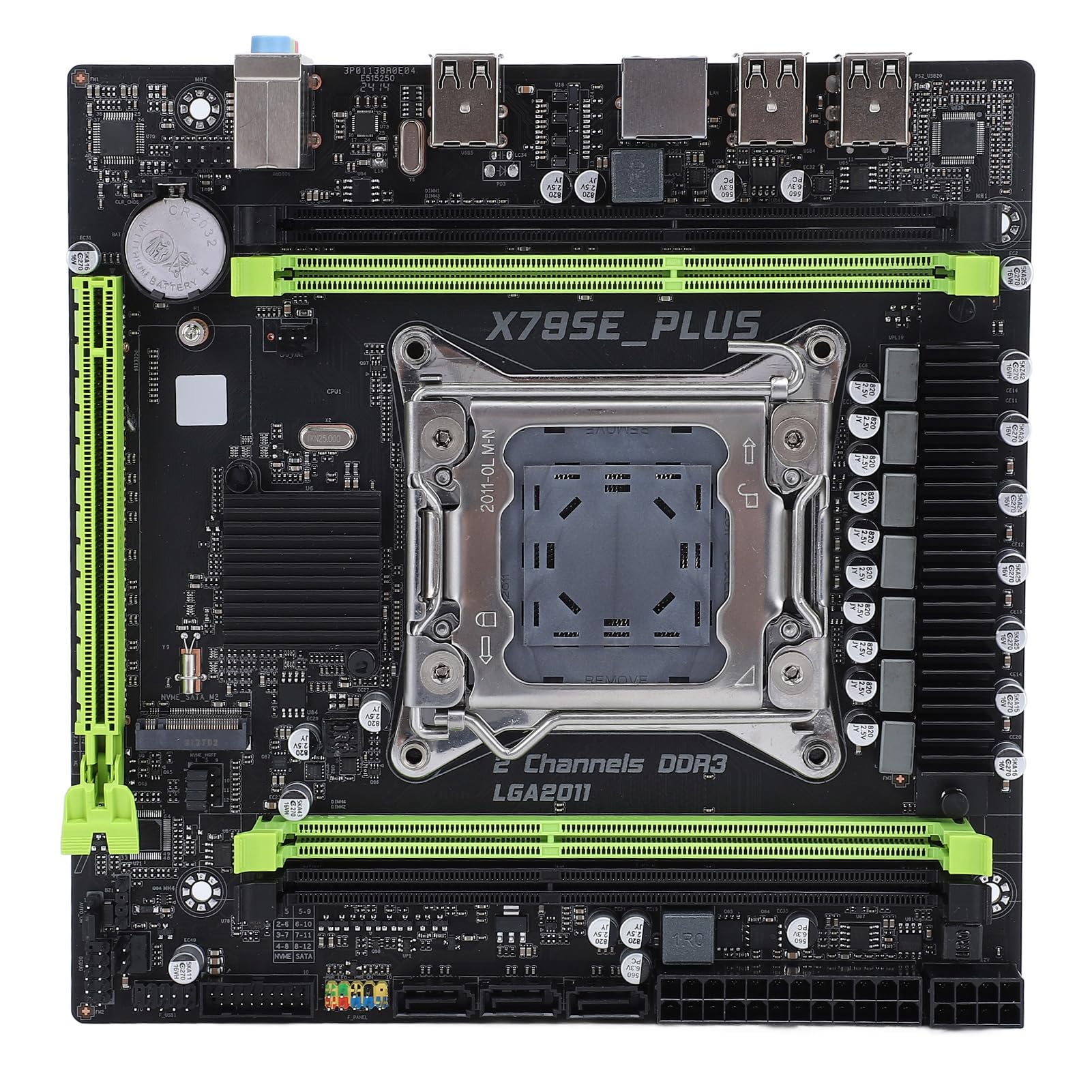
Figure 3.2: Overview of the Denash X79SE Plus motherboard.
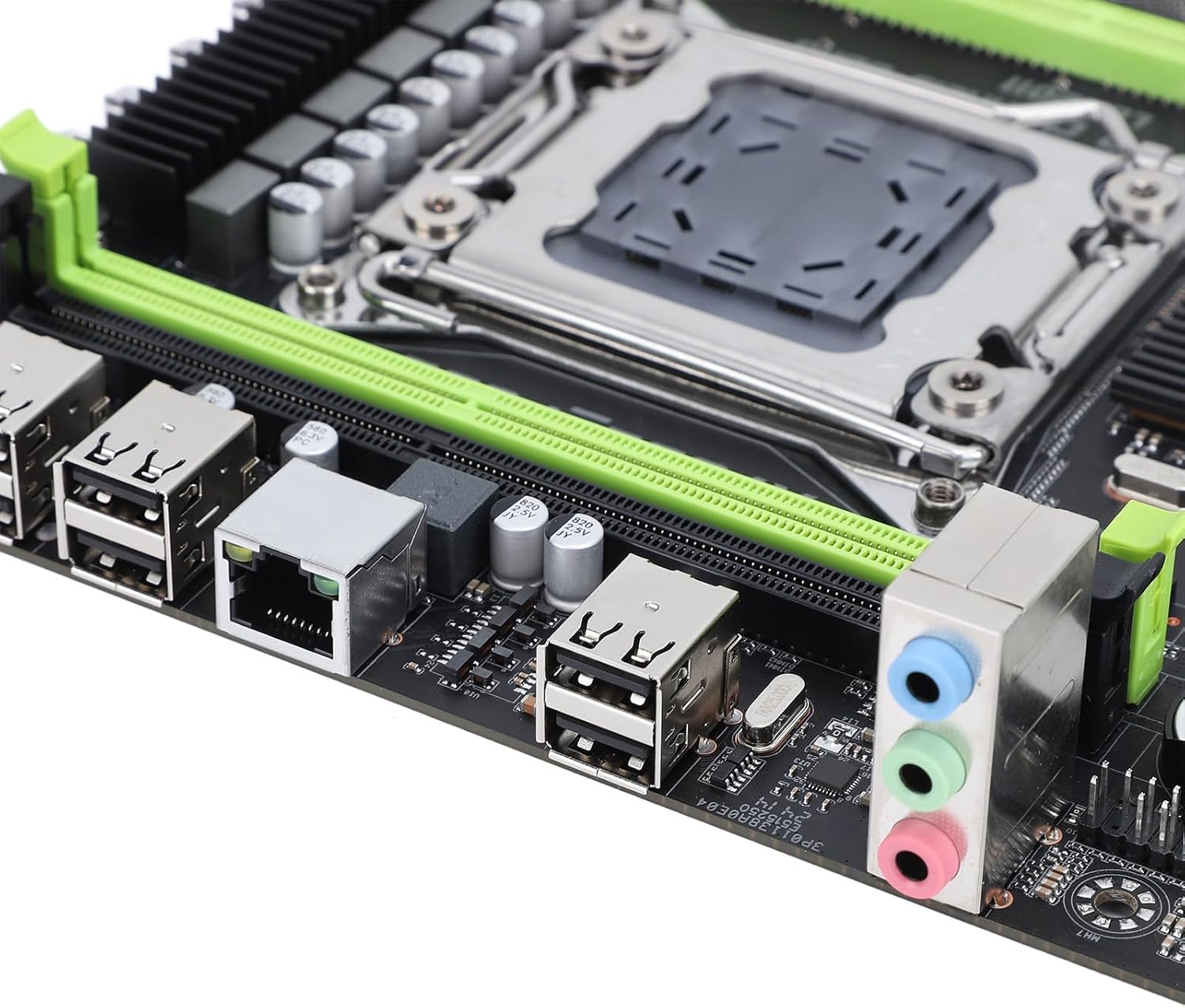
Figure 3.3: Rear I/O panel with USB, Ethernet, and audio ports.

Figure 3.4: SATA 2.0 ports and DDR3 memory slots.
3.3 Component Installation Guide
Follow these steps to install essential components onto your motherboard:
- CPU Installation:
- Carefully open the LGA 2011 CPU socket lever.
- Align the CPU (Xeon E5 V1/V2 series) with the socket, ensuring the triangular mark on the CPU matches the mark on the socket.
- Gently place the CPU into the socket without forcing it.
- Close the socket lever to secure the CPU.
- Apply thermal paste and install the CPU cooler.
- Memory (DDR3) Installation:
- Open the clips on both ends of the DDR3 memory slots.
- Align the memory module's notch with the slot's key.
- Press down firmly on both ends of the memory module until the clips snap into place.
- Storage Device Installation:
- M.2 NVME SSD: Insert the M.2 SSD into the M.2 slot at an angle, then push it down and secure it with a screw.
- SATA Drives: Connect SATA data cables from your storage drives (HDD/SSD) to the SATA 2.0 ports on the motherboard. Connect SATA power cables from your power supply to the drives.
- Graphics Card (PCIe 3.0 x16) Installation:
- Open the retention clip on the PCIe 3.0 x16 slot.
- Align your graphics card with the slot and press down firmly until it is fully seated and the retention clip locks.
- Secure the graphics card to your PC case with a screw.
- Power Supply Connection:
- Connect the 24-pin ATX power connector from your power supply to the main power socket on the motherboard.
- Connect the 8-pin CPU power connector to the corresponding socket near the CPU.
- Connect any additional power cables required for your graphics card or other components.
- Front Panel Connectors:
- Connect the front panel headers (power button, reset button, HDD LED, power LED, USB 2.0, audio) from your PC case to the corresponding pins on the motherboard. Refer to your PC case manual for specific pin assignments.
4. Operating Instructions
4.1 First Power On
After assembling all components and connecting power, press the power button on your PC case. The system should power on, and you should see a display on your monitor.
4.2 BIOS Setup
To enter the BIOS/UEFI setup utility, press the designated key (usually DEL or F2) during the initial boot sequence. In the BIOS, you can configure boot order, system time, CPU settings, and other hardware parameters.
4.3 Operating System Installation
Once the BIOS is configured, you can proceed with installing your preferred operating system (e.g., Windows, Linux). Boot from your OS installation media (USB drive or DVD) and follow the on-screen instructions.
5. Maintenance
5.1 Cleaning
Regularly clean your computer's interior to prevent dust buildup, which can lead to overheating and reduced performance. Use compressed air to remove dust from fans, heatsinks, and other components. Ensure the system is powered off and unplugged before cleaning.
5.2 BIOS Updates
BIOS updates can provide improved compatibility, stability, and new features. Check the manufacturer's website for the latest BIOS versions and follow their instructions carefully. Incorrect BIOS updates can damage your motherboard.
6. Troubleshooting
6.1 Common Issues
- No Power:
- Check all power connections (24-pin ATX, 8-pin CPU, GPU).
- Ensure the power supply switch is in the 'ON' position.
- Verify the front panel power button connection to the motherboard.
- No Display:
- Ensure the monitor is connected to the graphics card (not the motherboard's integrated graphics, if applicable).
- Reseat the graphics card and memory modules.
- Test with a different monitor or display cable.
- System Instability/Crashes:
- Check CPU and GPU temperatures.
- Ensure all components are properly seated.
- Run memory diagnostic tools.
- Update drivers for all components.
- Boot Device Not Found:
- Check SATA/M.2 cable connections to storage drives.
- Verify boot order in BIOS.
- Ensure the operating system is correctly installed on the drive.
7. Technical Specifications
| Feature | Specification |
|---|---|
| Brand | Denash |
| Model Name | X79SE Plus |
| Model Number | Denashsh8g1qz45g |
| CPU Socket | LGA 2011 (Supports Xeon E5 26XXV1/V2) |
| Memory Slots | 4 x DDR3 (Max 128GB, 1066/1333/1600 MHz) |
| SATA Interface | 3 x SATA 2.0 |
| M.2 Slots | 1 x M.2 2280 NVMe 3.0x4, 1 x M.2 2280 NGFF SATA 2.0 Protocol Port SSD |
| Graphics Card Slot | 1 x PCIe 3.0 x16 |
| Audio Chip | HD 5.1 Channel Sound Chip |
| Network Card | 1 x Gigabit Ethernet (RTL8111H) |
| USB Ports | 6 x USB 2.0 |
| Form Factor | Micro ATX |
| Integrated Battery | CR2032x1 240 mAh |
| Warranty | 2 years manufacturer |
8. Warranty and Support
The Denash X79SE Plus LGA 2011 Motherboard is covered by a 2-year manufacturer's warranty from the date of purchase. This warranty covers defects in materials and workmanship under normal use. For warranty claims or technical support, please contact your retailer or the manufacturer directly. Keep your proof of purchase for warranty validation.