
1. Introduction
This manual provides detailed instructions for the installation, operation, and maintenance of your AZUIQiMeng Android Car Stereo. Please read this manual thoroughly before installation and use to ensure proper function and safety. This unit is designed for VW Golf 6 models manufactured between 2008 and 2012.
2. Safety Information
- Professional Installation Recommended: Due to the complexity of car electrical systems, professional installation is strongly recommended to prevent damage to the unit or your vehicle.
- Driving Safety: Do not operate the unit in a way that distracts you from driving. Always prioritize road safety.
- Power Supply: Ensure the unit is connected to a 12V DC power supply with negative grounding.
- Temperature: Avoid exposing the unit to extreme temperatures or direct sunlight for prolonged periods.
- Moisture: Keep the unit dry. Do not expose it to water or excessive humidity.
3. Package Contents
Verify that all items listed below are included in your package. If any items are missing or damaged, please contact customer service.

Image: The main car stereo unit and various connection cables, including power cables, USB cables, camera input, RCA input/output, GPS antenna, instruction manual, Canbus box, and radio adaptor.
- 9-inch Android Car Stereo Unit
- Power Cables (x2)
- USB Cables (x2)
- Camera Input Cable
- RCA Input/Output Cables
- GPS Antenna
- Instruction Manual (this document)
- Canbus Box (if applicable for your vehicle model)
- Radio Adaptor
- AHD Reversing Camera
4. Setup and Installation
Installation of this product requires professional knowledge of car electronics. Incorrect installation can lead to damage to the unit or vehicle. It is highly recommended to seek assistance from a qualified auto repair shop.
4.1 Pre-Installation Checks
- Disconnect the vehicle's battery before starting any electrical work.
- Ensure the vehicle's dashboard opening matches the unit's dimensions.
- Identify all necessary wiring harnesses in your vehicle.
4.2 Wiring Connections
Connect the provided cables to the corresponding ports on the car stereo and your vehicle's wiring harness. Refer to the wiring diagram provided with the unit for specific connections.
- Power Cables: Connect the main power harness. Ensure ACC, B+, and Ground wires are correctly matched.
- GPS Antenna: Connect the GPS antenna and mount it in a location with a clear view of the sky (e.g., dashboard).
- USB Cables: Connect the USB extension cables for external storage or device charging.
- Backup Camera: Connect the AHD reversing camera to the dedicated camera input. Ensure the reverse trigger wire is connected to the vehicle's reverse light signal.
- Radio Antenna: Connect the vehicle's radio antenna to the unit using the provided adaptor if necessary.
- Canbus Box: If your vehicle requires a Canbus system for steering wheel controls or other vehicle data, connect the Canbus box as per the wiring diagram.
4.3 Mounting the Unit
Carefully slide the car stereo into the dashboard opening. Secure it using the vehicle's mounting brackets or the provided screws. Reconnect the vehicle's battery and perform an initial power-on test.
5. Operating Instructions
5.1 Power On/Off
The unit will power on automatically when the vehicle's ignition is turned on. To manually power off or restart, press and hold the power button on the unit.
5.2 Initial Setup
Upon first use, the system may guide you through initial setup steps, including language selection, time zone, and Wi-Fi connection.
5.3 Key Features and Functions
5.3.1 Android Operating System & Touchscreen
The unit runs on an Android 13 operating system, providing a familiar interface. Navigate using the 9-inch capacitive multi-touch screen. The system features a Quad Core 1.6GHz CPU and 2GB RAM for responsive performance.
5.3.2 GPS Navigation
The unit supports both online and offline GPS navigation. Pre-installed with offline map capabilities, you can also download online GPS applications like Waze or Sygic from the Google Play Store after connecting to Wi-Fi. The system supports 2D/3D map views and voice guidance.

Image: Demonstrates GPS navigation with map display and the split-screen feature, allowing two applications to run simultaneously.
5.3.3 Bluetooth Functionality
Connect your smartphone via Bluetooth (Version V4.0) for hands-free calling and A2DP music streaming. The unit supports phonebook download, call records, and includes a built-in microphone. An external 3.5mm jack microphone is also supported for enhanced call quality.
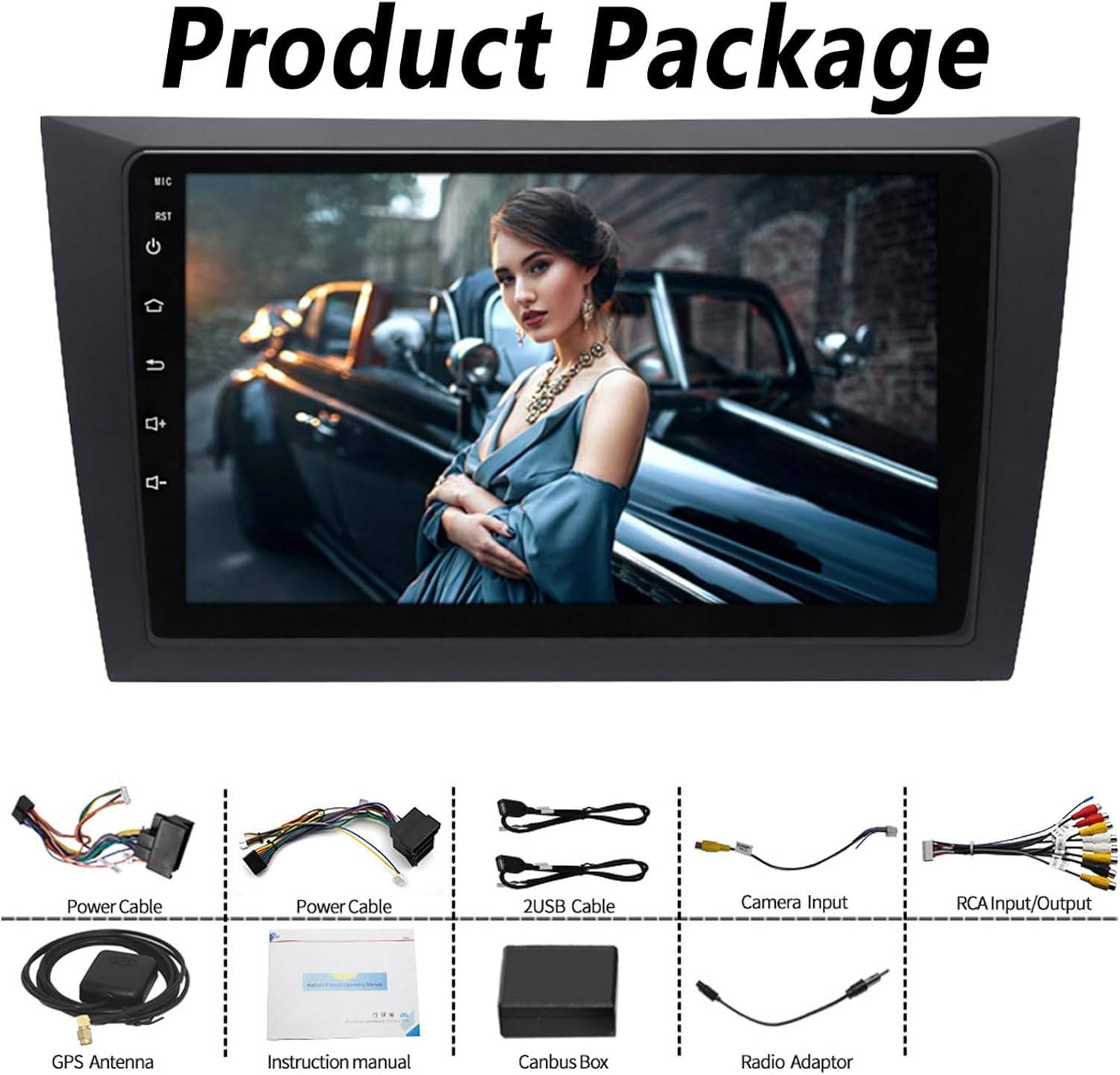
Image: Shows the steering wheel control interface, Bluetooth phone function, FM/AM radio interface, and the graphic equalizer for sound adjustments.
5.3.4 FM/AM Radio
Access FM/AM radio stations with 18 preset stations. The unit supports automatic search and manual tuning. RDS (Radio Data System) is also supported for displaying station information.
5.3.5 CarPlay and Android Auto (Mirror Link)
The unit supports both wireless CarPlay (for iOS devices) and wired Android Auto (for Android devices). This allows you to mirror your smartphone's screen and access compatible apps directly on the car stereo display.
- Wireless CarPlay: Connect via Bluetooth, then follow on-screen prompts to establish the CarPlay connection.
- Wired Android Auto: Connect your Android phone via a USB cable, then follow on-screen prompts.

Image: Illustrates the interfaces for CarPlay and Android Auto, along with the intelligent voice control feature supporting multiple languages.
5.3.6 Steering Wheel Control (SWC)
If your vehicle does not have a Canbus system, the unit supports direct steering wheel control connections. This allows you to control functions like volume, track skipping, and answering calls directly from your steering wheel buttons.
5.3.7 Backup Camera Input
The unit automatically displays the rear view from the included AHD backup camera when the vehicle is shifted into reverse gear, enhancing parking safety.
5.3.8 Wi-Fi & Internet Connectivity
Built-in Wi-Fi allows you to connect to the internet by sharing a hotspot from your smartphone. This enables access to online maps, app downloads, and web browsing.
5.3.9 DSP Processor & EQ Sound Effects
The integrated DSP (Digital Signal Processor) enhances audio quality, providing a multi-dimensional sound experience. Utilize the 9-band equalizer to customize sound output to your preference.

Image: Highlights the unit's CPU (Octa Core), support for a cooling fan, DSP processor for sound effects, and the 1280x720 display resolution.
5.3.10 Split Screen Function
The split-screen feature allows you to run two applications simultaneously on the display, such as navigation and music playback, for improved multitasking.
5.3.11 Voice Control
Utilize intelligent voice control to operate various functions, ensuring hands-free operation and driving safety. The system supports multiple languages.
5.3.12 OBD2 Car Diagnose (Optional)
The unit supports connection to an external Bluetooth OBD2 scanner (ELM327, sold separately) to read vehicle data and error codes.
5.3.13 Headrest Monitor Support (Optional)
The unit can output video to back-seat headrest monitors, allowing passengers to watch content (e.g., from the DVD player feature, if applicable).
6. Troubleshooting
If you encounter issues with your car stereo, refer to the following common problems and solutions:
- No Power:
- Check all power cable connections (B+, ACC, Ground).
- Verify the vehicle's fuse for the stereo is intact.
- No Sound:
- Check speaker wire connections.
- Ensure volume is not muted or set too low.
- Verify audio settings in the system (e.g., fader/balance).
- GPS Not Working:
- Ensure the GPS antenna is securely connected and has a clear view of the sky.
- Check GPS settings in the system.
- Verify that map data is installed or updated.
- Bluetooth Connection Issues:
- Ensure Bluetooth is enabled on both the stereo and your phone.
- Delete previous pairings and try pairing again.
- Restart both devices.
- Backup Camera Not Displaying:
- Check the camera input cable connection.
- Verify the reverse trigger wire is correctly connected to the vehicle's reverse light signal.
- Ensure the camera itself is powered.
For persistent issues, please contact AZUIQiMeng customer support.
7. Specifications
| Feature | Specification |
|---|---|
| Operating System | Android 13 |
| CPU | Rockchip RK3188 Cortex A9 Quad Core 1.6GHz |
| RAM | 2GB DDR3 |
| Internal Storage | 32GB |
| Display Size | 9 inch |
| Screen Resolution | 1024*600 (Capacitive Multi-Touch) |
| Power Output | 4*45W |
| Working Voltage | 10.8-14.8V |
| Bluetooth Version | V4.0 |
| Wi-Fi | Built-in |
| OSD Language | English, Japanese, French, German, Spanish, etc. (60+ languages) |
| Model Number | JADDABFEX-QUADCORE2+32G |
| Item Weight | 50 Grams |
8. Maintenance
- Cleaning the Screen: Use a soft, lint-free cloth to clean the touchscreen. Avoid abrasive cleaners or solvents.
- Software Updates: Periodically check for software updates to ensure optimal performance and access to new features.
- Avoid Liquids: Do not spill liquids on the unit.
9. Warranty and Support
Your AZUIQiMeng Android Car Stereo comes with a standard manufacturer's warranty. Please refer to the warranty card included in your package for specific terms and conditions. For technical support, troubleshooting assistance, or warranty claims, please contact AZUIQiMeng customer service through the retailer where the product was purchased.