
Introduction
Welcome to your GOWENIC Digital Camera. This manual provides comprehensive instructions for setting up, operating, and maintaining your camera to ensure optimal performance and longevity. Please read this manual carefully before using your camera.
What's in the Box
Verify that all items are present in your package:
- Digital Camera
- USB Cable
- User Manual (this document)
- Storage Bag
- Lanyard
- Card Reader
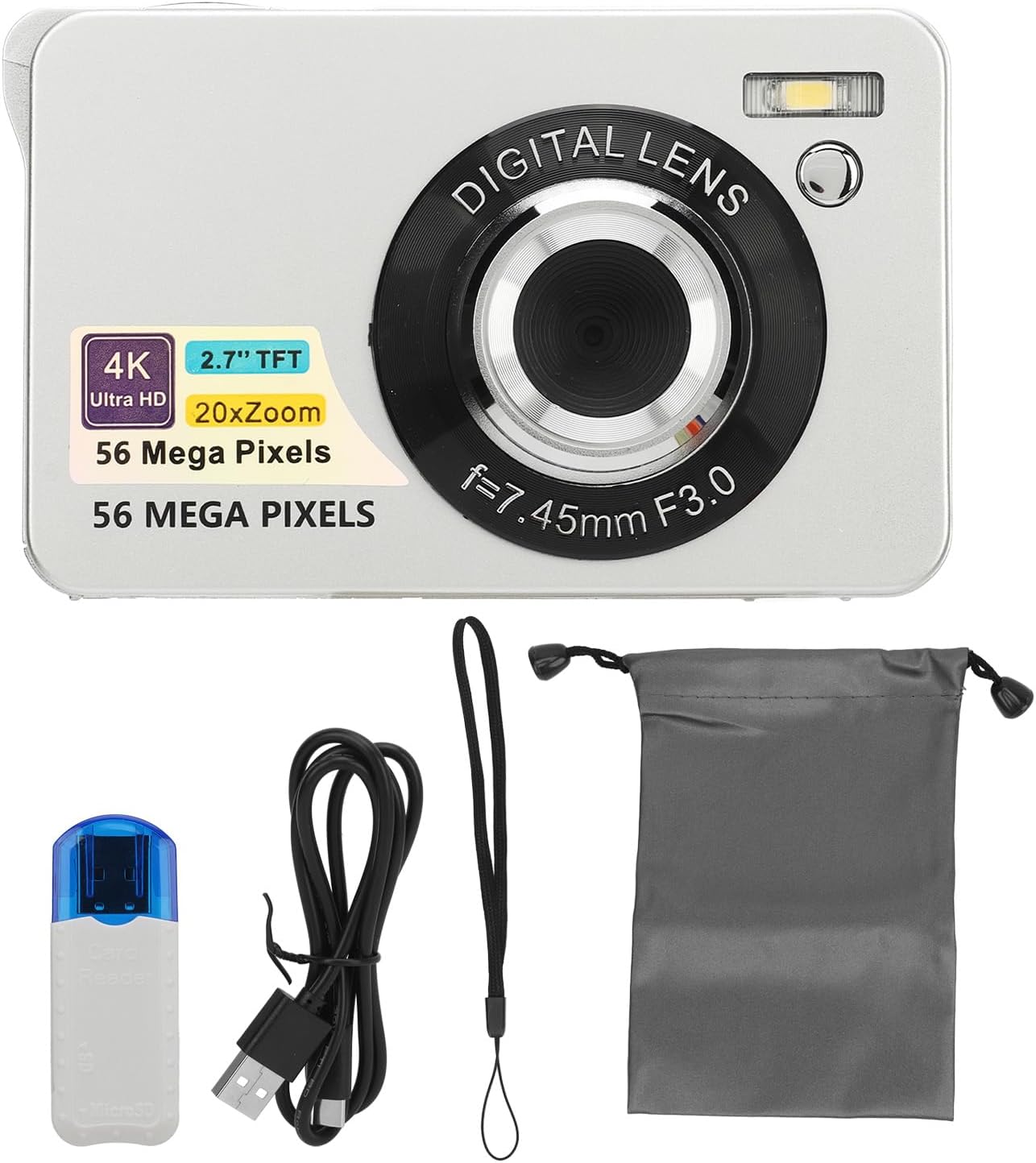
Image: The GOWENIC Digital Camera shown with its accessories, including the USB cable, lanyard, storage bag, and card reader.
Setup
1. Battery Installation
- Locate the battery compartment on the bottom of the camera.
- Slide the battery compartment cover to open it.
- Insert the provided Lithium Ion battery (750 mAh) according to the polarity indicators inside the compartment.
- Close the battery compartment cover securely.
2. Memory Card Installation
The camera supports SD cards up to 128GB (not included).
- Locate the memory card slot, typically next to the battery compartment or on the side.
- Insert the SD card with the metal contacts facing the front of the camera until it clicks into place.
- To remove, gently press the card until it springs out.

Image: Bottom view of the camera, illustrating the location of the battery and memory card slots.
3. Charging the Camera
Use the provided USB cable to charge the camera directly.
- Connect the small end of the USB cable to the camera's USB port.
- Connect the larger end of the USB cable to a USB power adapter (not included) or a computer's USB port.
- The charging indicator light will illuminate during charging and turn off when fully charged.
4. Powering On/Off
Press and hold the power button, usually located on the top or side of the camera, to turn the camera on or off.
Operating the Camera
1. Basic Photography
The camera supports 56MP photography for high-resolution images.
- Autofocus: Lightly press the shutter button to allow the camera to focus on your subject. Once focused, press the shutter button fully to capture the photo.
- Shutter Button: Located on the top of the camera, this button is used to take pictures.
- Zoom: Use the 'W' (Wide) and 'T' (Telephoto) buttons, typically located near the shutter, to adjust the 20x digital zoom.

Image: The camera's autofocus feature in action, highlighting how it sharpens the subject.

Image: A visual representation of the autofocus function, showing the transition from an unfocused to a focused image.
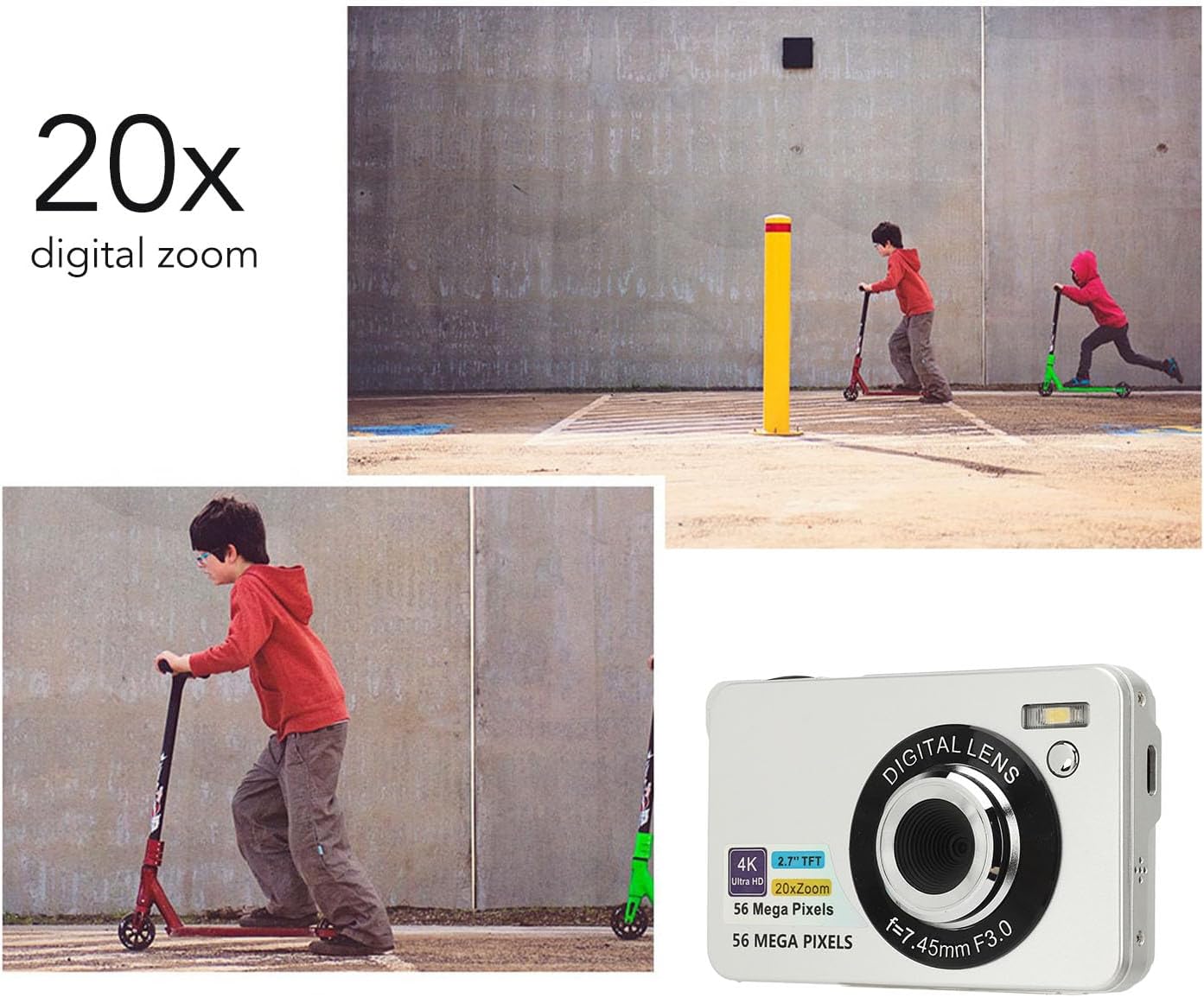
Image: The camera's 20x digital zoom capability, illustrated with a scene of children playing.

Image: A visual demonstration of the camera's 20x digital zoom, showing progressive magnification of a lighthouse.
2. Video Recording
The camera supports 4K (2160p) video recording.
- Switch the camera to video mode using the mode dial or button.
- Press the shutter button to start recording.
- Press the shutter button again to stop recording.

Image: The camera highlighting its 4K UHD video recording and 56MP photography capabilities.
3. Display Screen
The camera features a 2.7-inch LCD screen for convenient viewing of your photos and videos.
- Use the navigation buttons to browse through your captured media.
- Adjust screen brightness in the camera settings if available.

Image: The camera's 2.7-inch screen displaying a captured image of sunflowers.
4. Special Features
- Fill Light: The built-in fill light can be turned on or off as needed to illuminate subjects in low-light conditions. Refer to the camera's menu for activation.
- Time Lapse: Capture sequences of images over time to create time-lapse videos. Settings are available in the camera menu.
- Slow Motion: Record videos in slow motion for dramatic effects.
- Self-Timer: Set a delay (e.g., 2, 5, or 10 seconds) before a photo is taken, useful for group shots or selfies.
- Burst Mode: Capture multiple images in rapid succession by holding down the shutter button. This is ideal for capturing fast-moving subjects.
Video: A short demonstration of capturing motion, illustrating the camera's ability to record dynamic scenes, potentially using burst mode or slow motion.

Image: An illustration of the camera's burst mode, capturing a series of moments in quick succession.
- Image Stabilization: The camera features digital image stabilization to help reduce blur caused by camera shake, resulting in clearer photos and smoother videos.

Image: A comparison demonstrating the effectiveness of the anti-shake feature, showing a blurry image versus a clear one.
5. Transferring Files
Easily transfer photos and videos from your camera to a computer for storage or sharing.
- Connect the camera to your computer using the provided USB cable.
- The camera should appear as a removable drive on your computer.
- Open the camera's folder to access and copy your files.

Image: A visual guide to connecting the camera to a computer via USB for file transfer.

Image: A person demonstrating the USB connection process for transferring files from the camera to a computer.
Maintenance
1. Cleaning
- Use a soft, lint-free cloth to clean the camera body and screen.
- For the lens, use a specialized lens cleaning cloth and solution. Avoid touching the lens directly with your fingers.
- Do not use harsh chemicals or abrasive materials, as they can damage the camera's surfaces.
2. Storage
- When not in use, store the camera in the provided storage bag to protect it from dust and scratches.
- Store the camera in a cool, dry place, away from direct sunlight and extreme temperatures.
- Remove the battery if the camera will not be used for an extended period to prevent leakage.
Troubleshooting
If you encounter issues with your camera, refer to the following common solutions:
| Problem | Solution |
|---|---|
| Camera does not power on. | Ensure the battery is fully charged and correctly inserted. Try charging the camera for at least 30 minutes. |
| Images are blurry. | Ensure autofocus is engaged by lightly pressing the shutter button before fully pressing. Check lighting conditions. Use the anti-shake feature if available. |
| Cannot transfer files to computer. | Verify the USB cable is securely connected to both the camera and computer. Ensure the camera is in the correct mode for data transfer (check camera settings). Try a different USB port or cable. |
| Memory card error. | Ensure the SD card is inserted correctly. Check if the card is damaged or full. Try formatting the card (this will erase all data). Ensure the card is compatible (up to 128GB). |
| Flash not working. | Check flash settings in the camera menu. Ensure the fill light is enabled if desired. |
Specifications
Key technical specifications for the GOWENIC Digital Camera (Model GOWENIC8fderhqtab-12):
| Feature | Detail |
|---|---|
| Brand | GOWENIC |
| Model Name | GOWENIC8fderhqtab-12 |
| Effective Still Resolution | 56 MP |
| Video Resolution | 4K (2160p) |
| Digital Zoom | 20x |
| Screen Size | 2.7 Inches (LCD) |
| Photo Sensor Technology | CMOS |
| Image Stabilization | Digital |
| Supported File Formats | JPEG, RAW (for photos), MP4 (for video) |
| Memory Storage Capacity | Supports up to 128 GB (SD card) |
| Battery Type | Lithium Ion |
| Battery Capacity | 750 Milliamp Hours |
| Connectivity Technology | USB |
| Special Features | Autofocus, Fill Light, Time Lapse, Slow Motion, Self-Timer, Burst Mode |
| Form Factor | Compact |
| Skill Level | Novice |
Warranty and Support
For warranty information or technical support, please refer to the documentation included with your purchase or contact GOWENIC customer service through their official channels. Keep your purchase receipt as proof of purchase for warranty claims.