
3MP WiFi Smart Security Camera
Generic 3MP WiFi Smart Security Camera User Manual
Model: 3MP WiFi Smart Security Camera
1. Introduction
This manual provides comprehensive instructions for the installation, operation, and maintenance of your Generic 3MP WiFi Smart Security Camera. This device is designed to offer reliable indoor surveillance with high-definition video, advanced detection features, and remote control capabilities. Please read this manual thoroughly before using the product to ensure proper setup and functionality.
2. What's in the Box
- Generic 3MP WiFi Smart Security Camera
- Power Adapter
- USB Cable
- Mounting Accessories (Screws, Wall Plugs)
- Quick Start Guide

Image 1: Generic 3MP WiFi Smart Security Camera. This image displays the white camera unit with its spherical top and cylindrical base, featuring the lens and indicator light.
3. Product Overview
Familiarize yourself with the main components of your security camera.
- Camera Lens: Captures video footage.
- Microphone: For audio input and two-way communication.
- Speaker: For audio output and two-way communication.
- Status Indicator Light: Shows the camera's current status (e.g., powered on, connecting, recording).
- MicroSD Card Slot: For local video storage (card not included).
- Reset Button: Used to reset the camera to factory settings.
- Power Port: Connects to the power adapter.
4. Setup Instructions
4.1 Initial Power-Up
- Connect the USB cable to the camera's power port.
- Plug the power adapter into a standard electrical outlet.
- The camera will power on, and the status indicator light will begin to flash, indicating it is ready for setup.
4.2 App Download and Installation
The camera operates with a dedicated mobile application. Search for "Myannke App" in your device's app store.
- For iOS devices: Download from the Apple App Store.
- For Android devices: Download from the Google Play Store.

Image 2: Setup steps for the camera. This image illustrates plugging in the camera, downloading the Myannke App from app stores, and then adding the camera within the app for plug-and-go security.
4.3 Camera Pairing
- Open the Myannke App and create an account or log in.
- Tap the "+" icon to add a new device.
- Follow the on-screen instructions to connect the camera to your 2.4GHz Wi-Fi network. This typically involves scanning a QR code generated by the app with the camera lens.
- Once connected, the status indicator light will turn solid, and the camera will be ready for use.
4.4 Placement
Place the camera on a flat surface or mount it to a wall or ceiling using the provided accessories. Ensure it has a clear line of sight to the area you wish to monitor and is within range of your Wi-Fi signal.
5. Operating Instructions
5.1 Live View and Recording
Access the live video feed through the Myannke App. You can manually record video or capture screenshots directly from the live view.

Image 3: Live view of the camera feed on a smartphone. The image shows the camera monitoring a child and a puppy, demonstrating its use for home surveillance.
5.2 Pan and Tilt Control
Use the directional controls within the app to remotely adjust the camera's viewing angle. The camera supports 350° horizontal pan and 60° vertical tilt, providing comprehensive coverage of your space.
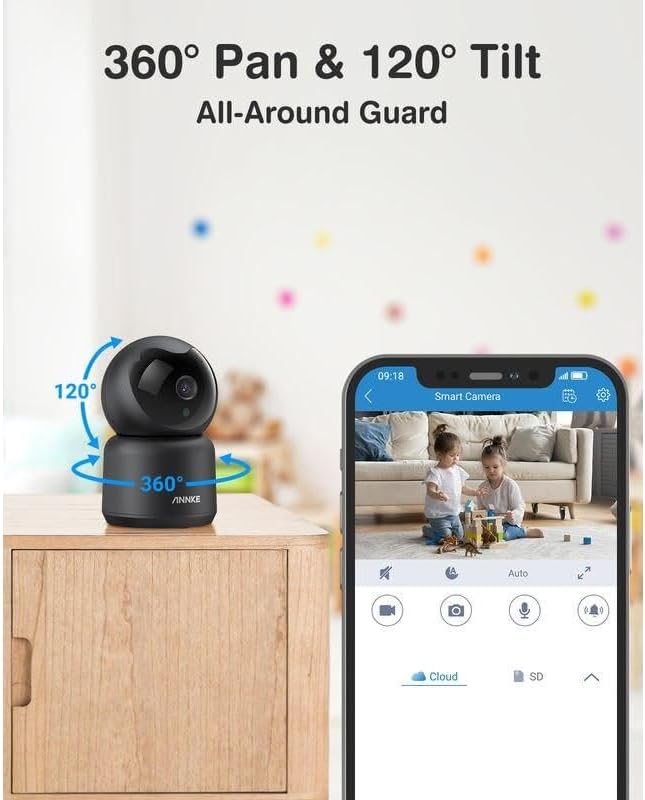
Image 4: Camera demonstrating 360° pan and 120° tilt capabilities. Arrows indicate the range of motion, highlighting its ability to cover a wide area.
5.3 Two-Way Audio
The built-in microphone and speaker allow for two-way communication. Tap the microphone icon in the app to speak through the camera, and listen to audio from the camera's environment.

Image 5: Illustration of the two-way audio feature. A dog is shown next to the camera, with a speech bubble indicating communication through the device.
5.4 Smart Detection and Tracking
- Human Detection: The camera can identify human shapes, reducing false alarms from pets or inanimate objects.
- Sound Detection: Receive alerts for unusual sounds detected in the camera's vicinity.
- Smart Tracking: When motion is detected, the camera can automatically follow the moving object to keep it within the frame.
Configure detection sensitivity and notification preferences within the Myannke App settings.
5.5 Night Vision
The camera is equipped with enhanced night vision, allowing it to capture clear video footage even in low-light or complete darkness. This feature activates automatically.
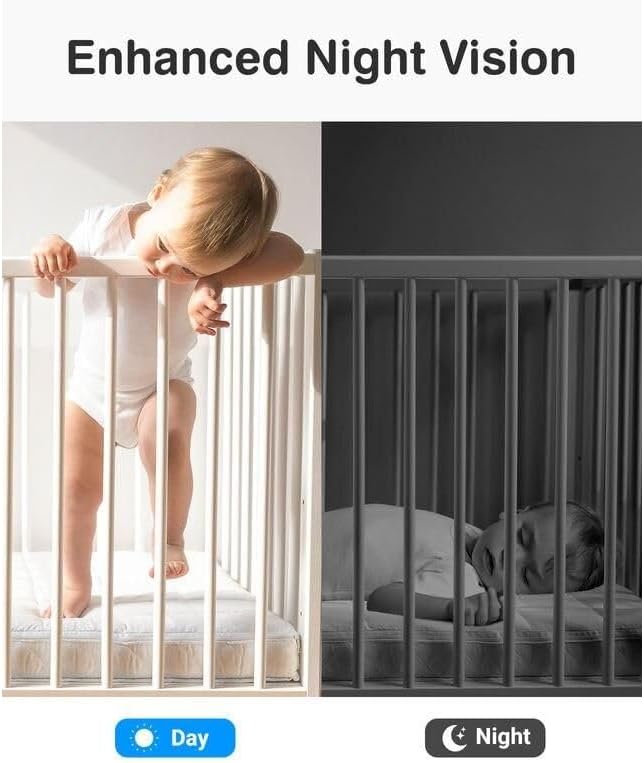
Image 6: Comparison of day and night vision. One panel shows a baby in a crib during the day, and the other shows the same scene in monochrome, demonstrating the camera's night vision capability.
5.6 Storage Options
- MicroSD Card Storage: Insert a MicroSD card (up to 128GB, not included) into the designated slot for local recording. The camera supports continuous recording or event-triggered recording.
- Cloud Storage: Optional cloud storage services may be available through the Myannke App for secure off-site video backup. Refer to the app for subscription details.

Image 7: SD card and cloud storage options. A smartphone screen displays video playback, with icons for cloud and SD card storage, indicating privacy protection and support for up to 128GB Micro SD card.
5.7 Alexa Integration
The camera can be integrated with Amazon Alexa for voice control. Follow the instructions in the Myannke App or your Alexa app to link the devices. This allows for commands such as "Alexa, show me the living room camera."
6. Maintenance
- Cleaning: Gently wipe the camera lens and body with a soft, dry cloth. Avoid using harsh chemicals or abrasive materials.
- Software Updates: Regularly check the Myannke App for firmware updates. Keeping the camera's software up-to-date ensures optimal performance and security.
- MicroSD Card Management: If using a MicroSD card, periodically review and back up important footage. Format the card within the app if performance issues arise.
7. Troubleshooting
| Issue | Possible Cause | Solution |
|---|---|---|
| Camera fails to connect to Wi-Fi | Incorrect Wi-Fi password, 5GHz network, weak signal, camera too far from router. | Ensure correct 2.4GHz Wi-Fi password. Move camera closer to router. Reset camera and try pairing again. |
| No video feed | Camera offline, power issue, app malfunction. | Check power connection. Verify Wi-Fi status. Restart camera and app. |
| Motion detection not working | Sensitivity too low, detection zone not set, notifications disabled. | Adjust sensitivity in app. Define detection zones. Enable notifications. |
| Two-way audio issues | Microphone/speaker blocked, app permissions, network latency. | Ensure no obstructions. Grant microphone permissions to app. Check internet connection speed. |
| MicroSD card not recording | Card full, corrupted, or not inserted correctly. | Check card status in app. Format card. Reinsert card. Replace if corrupted. |
8. Specifications
| Feature | Detail |
|---|---|
| Model | 3MP WiFi Smart Security Camera |
| Resolution | 3 Megapixels |
| Connectivity Technology | Wireless (Wi-Fi 2.4GHz) |
| Connectivity Protocol | Bluetooth (for initial setup) |
| Pan/Tilt Range | 350° Horizontal, 60° Vertical |
| Audio | Two-Way Audio (Built-in Microphone & Speaker) |
| Detection | Human Detection, Sound Detection, Smart Tracking |
| Night Vision | Enhanced Night Vision |
| Storage | MicroSD Card (up to 128GB, not included), Cloud Storage (optional) |
| Power Source | AC Powered (via adapter) |
| Controller Type | Android, iOS (via Myannke App) |
| Compatible Devices | Smartphones (Android, iOS) |
| Color | White |
| Material | Plastic |
| Dimensions | 4.49 x 2.76 x 2.76 inches (approximate) |
9. Warranty Information
Specific warranty details are typically provided with your purchase documentation or on the manufacturer's official website. Please refer to these resources for information regarding warranty coverage, duration, and terms.
10. Customer Support
For technical assistance, troubleshooting not covered in this manual, or other inquiries, please contact the product manufacturer or retailer where the camera was purchased. Refer to your product packaging or the Myannke App for contact information.
Ask a question about this manual
Ask about setup, troubleshooting, compatibility, parts, safety, or missing instructions. Manuals+ will review the question and use this page’s manual context to help answer it.