1. Introduction
This manual provides comprehensive instructions for the installation, operation, and maintenance of your Hiseeu 16CH Full HD Security Network Video Recorder (NVR) System. This system is designed to provide reliable surveillance for your property, featuring a built-in WiFi router and support for up to 16 cameras and up to 6TB of hard disk drive storage.

Figure 1.1: The Hiseeu 16CH Full HD Security NVR System unit.
2. Product Features
- 16-Channel Support: The NVR system supports connection and recording from up to 16 cameras.
- Full HD Recording: Capable of recording in Full High Definition for clear video surveillance.
- Built-in Dual WiFi Router: Features a built-in WiFi router for wireless camera connectivity. Cameras can be paired to the NVR without requiring an external network connection.
- Hard Drive Support: Supports up to 6TB HDD for extensive video storage (HDD not included).
- 2.4G WiFi Compatibility: The system connects to your network via 2.4G WiFi only; 5G WiFi is not supported.
- HDMI Output: Connects to HD TVs via HDMI cable for video and audio output (NVR itself has no audio output, audio is passed through HDMI if camera supports it).
- Multi-device Viewing: View live feeds and recordings on various devices including iPad, PC, Phone (Android/iOS), and Notebook (Windows).
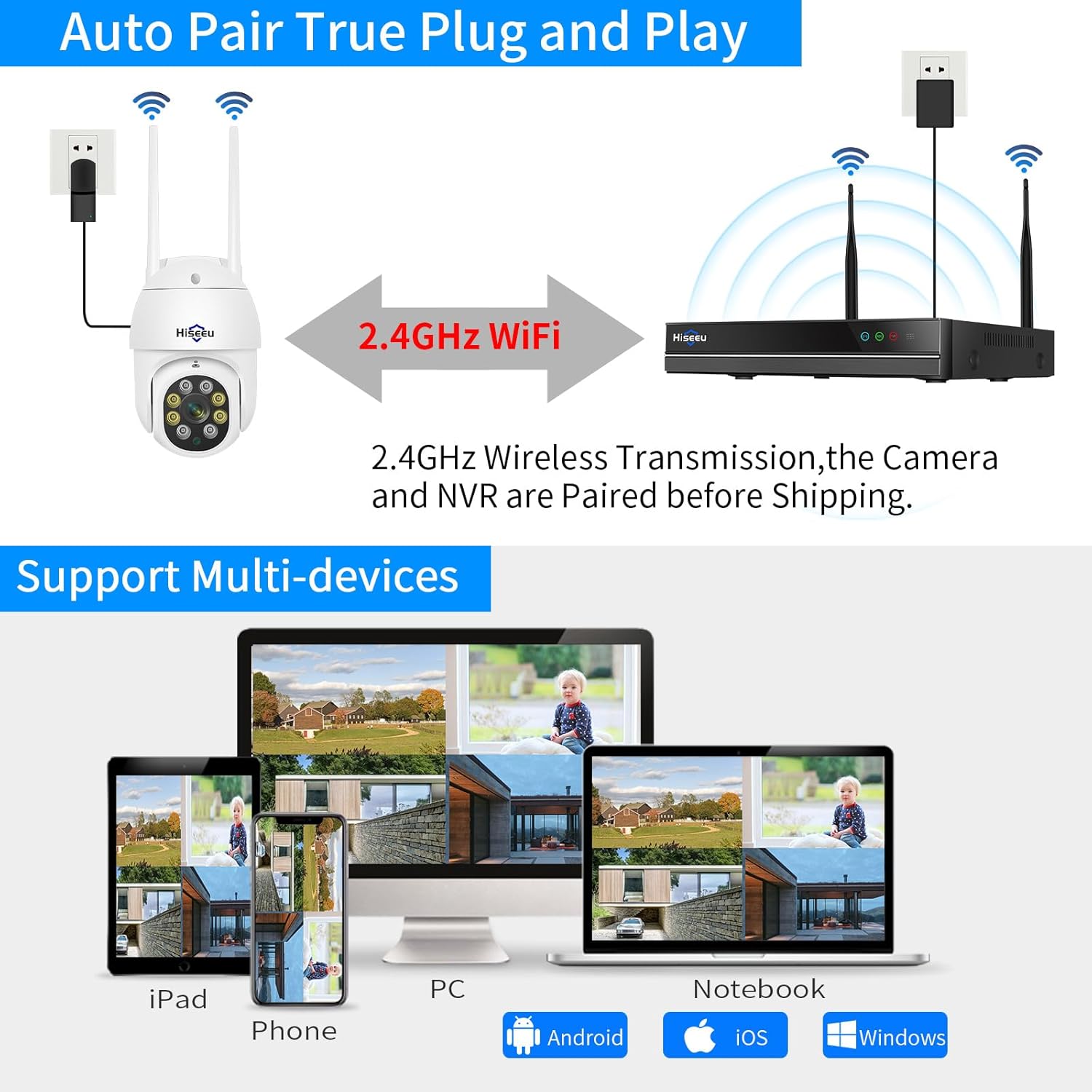
Figure 2.1: The Hiseeu NVR system supports multi-device viewing, allowing access from smartphones, tablets, and computers.
3. What's in the Box
Upon unboxing your Hiseeu NVR System, please verify that all components are present:
- Hiseeu 16CH Full HD Security NVR Unit
- Power Cable for NVR
- (Note: Hard Disk Drive and cameras are sold separately and are not included in this package.)
4. Setup Guide
4.1. Hard Disk Drive (HDD) Installation
The NVR system does not include a pre-installed Hard Disk Drive. An HDD is required for recording and storing video footage. The system supports up to 6TB HDD. Please ensure the NVR is powered off and unplugged before installing the HDD.
- Carefully open the NVR casing.
- Connect the SATA power and data cables from the NVR to your HDD.
- Secure the HDD within the NVR casing using the provided screws (if any).
- Close the NVR casing securely.
Important Power Supply Note: The wireless NVR requires a 12V 2A or 12V 3A power supply. Using a 12V 1A power supply (e.g., from a camera) for the NVR will not provide sufficient power to drive the hard drive, potentially leading to performance issues or failure to record.
4.2. Initial Power-On and Connection
- Connect the NVR to a power outlet using the provided power cable.
- Connect the NVR to your HD TV or monitor using an HDMI cable. This is necessary for viewing the interface and hearing audio if your cameras support it.
- Connect a USB mouse to the NVR for navigation.
- The system will boot up. Follow any on-screen prompts for initial setup, such as setting the date, time, and network configuration.
4.3. Camera Pairing
The Hiseeu NVR and compatible cameras are designed for automatic pairing. If cameras are not automatically detected or if you are adding new cameras, follow these steps:
- Right-click the NVR mouse to access the main menu, then select "Camera".
- On the camera you wish to pair, press and hold the reset button for approximately 6 seconds.
- On the NVR interface, click the "+" icon to initiate the pairing process.
- Wait for the camera's IP address (e.g., 172.20.14.xx) to appear on the screen, indicating successful pairing.

Figure 4.1: The NVR system features auto-pairing for easy camera setup.
5. Operating Instructions
5.1. Live View and Recording
Once cameras are paired, their feeds will appear on the connected monitor. The system is designed for 24/7 recording, provided a functional HDD is installed.

Figure 5.1: The Hiseeu NVR system supports continuous 24/7 recording for comprehensive surveillance.
5.2. Accessing System Settings
To access various system settings, right-click the NVR mouse and navigate through the menu options. For example, to check your NVR version, go to "System Setup" then "General Setup".
5.3. Mobile App Usage (EseeCloud App)
For remote viewing and management, download the EseeCloud app on your smartphone or tablet. Ensure your NVR is connected to your home network (2.4G WiFi) for app functionality. The app allows you to view live feeds, playback recordings, and manage system settings from anywhere.
For two-way audio functionality, the system needs to be connected to the network, and your cameras must support audio. Two-way audio is typically managed through the mobile application.
6. Maintenance
Regular maintenance ensures the longevity and optimal performance of your NVR system.
- Power Supply: Always use the correct power adapter (12V 2A or 12V 3A) for the NVR. An insufficient power supply can lead to unstable operation, especially for the hard drive.
- Dust Removal: Periodically clean the NVR unit to prevent dust buildup, which can affect cooling and performance.
- Firmware Updates: Check the Hiseeu official website for any available firmware updates to ensure your system has the latest features and security patches.
- HDD Health: Monitor the health of your installed HDD through the NVR's system settings to prevent data loss.
7. Troubleshooting
This section addresses common issues you might encounter with your Hiseeu NVR system.
7.1. No Video Output / NVR Not Powering On
- Ensure the power cable is securely connected to both the NVR and a working power outlet.
- Verify that you are using the correct 12V 2A or 12V 3A power adapter for the NVR.
- Check the HDMI cable connection to your TV/monitor.
7.2. Cameras Not Pairing or Showing Video
- Ensure cameras are powered on and within range of the NVR's WiFi signal.
- Repeat the camera pairing process (Section 4.3).
- Check for any physical obstructions or excessive distance between the camera and NVR.
7.3. Video Playback Skipping or Unstable Recording
- This issue is often related to insufficient power for the hard drive. Ensure you are using a 12V 2A or 12V 3A power supply for the NVR. If currently using 12V 2A, consider upgrading to a 12V 3A power supply.
- Check the HDD connection inside the NVR.
- Verify the health of your HDD through the NVR's system settings.
7.4. Mobile App Connectivity Issues
- Ensure your NVR is connected to your home network via 2.4G WiFi. 5G WiFi is not supported.
- Verify your smartphone/tablet has a stable internet connection.
- Ensure the EseeCloud app is updated to the latest version.
- Restart both the NVR and your mobile device.
8. Specifications
| Feature | Specification |
|---|---|
| Model Number | US-TZ-NVR16 |
| Brand | Hiseeu |
| Supported Cameras | Up to 16 |
| Max HDD Capacity | 6 TB |
| Connectivity Technology | HDMI, 2.4G WiFi |
| Power Supply Input | 12V 2A or 12V 3A |
| Package Dimensions | 13.74 x 11.69 x 3.03 inches |
| Item Weight | 2.51 pounds |
| Country of Origin | China |
9. Warranty and Support
Hiseeu is committed to providing high-quality products and excellent customer service. Your Hiseeu NVR system comes with dedicated support.
9.1. Lifetime Support
Hiseeu offers lifetime support for its products, ensuring you have assistance whenever needed. Support channels include Email, Phone call, and Online chat.

Figure 9.1: Hiseeu provides lifetime support with high-quality response and considerate service.
9.2. Certifications
The Hiseeu NVR system complies with various international standards and holds certifications such as CE, FCC, and RoHS, ensuring product quality and safety.

Figure 9.2: Product certifications including CE, FCC, and RoHS.