1. Introduction
This manual provides essential information for setting up, operating, and maintaining your BEASTCOM Q5 Pro Gaming PC. Please read this manual thoroughly before using the product to ensure optimal performance and safety.

Image: The BEASTCOM Q5 Pro Gaming PC, showcasing its transparent side panel and customizable RGB internal lighting.
2. Safety Information
Always follow basic safety precautions to reduce the risk of fire, electric shock, and injury to persons. This includes, but is not limited to:
- Ensure proper ventilation to prevent overheating.
- Do not open the PC casing unless instructed by qualified personnel.
- Keep liquids away from the computer.
- Use only the provided power cord and accessories.
- Disconnect power before cleaning or performing maintenance.
3. Setup Guide
Follow these steps to set up your BEASTCOM Q5 Pro Gaming PC:
- Unpacking: Carefully remove the PC from its packaging. Retain all packaging materials for future transport or service.
- Internal Packaging Removal: Open the side panel (usually tempered glass) and remove any internal foam or protective packaging that secures components during shipping.
- Component Check: Ensure all internal cables are securely connected, especially to the graphics card and storage drives.
- Monitor Connection: Connect your monitor to the graphics card's output ports (HDMI, DisplayPort). Do not use the motherboard's video output ports for dedicated graphics cards.
- Peripherals Connection: Connect your keyboard, mouse, and other peripherals to the available USB ports.
- Power Connection: Connect the power cord to the PC's power supply unit and then to a wall outlet. Ensure the power supply switch is in the 'ON' position.
- First Boot: Press the power button on the front of the PC. The system will boot into Windows 11 Pro. Follow the on-screen instructions for initial setup.

Image: An internal view of the BEASTCOM Q5 Pro PC, showing the protective foam packaging that needs to be removed before first use.
4. Operating Instructions
4.1 Power On/Off
- Power On: Press the power button located on the front panel.
- Shut Down: Click the Start button, then Power, and select "Shut down".
- Restart: Click the Start button, then Power, and select "Restart".
4.2 Windows 11 Pro
Your PC comes pre-installed with Windows 11 Pro. Ensure all drivers are up-to-date for optimal performance. Windows Update will typically handle most driver updates, but graphics card drivers may require manual updates from the NVIDIA website.
4.3 Connectivity
- Wi-Fi: The PC supports WiFi 5 (802.11ac). Ensure the external antennas are connected for optimal wireless reception.
- Ethernet: Connect an Ethernet cable to the RJ45 port on the rear I/O panel for a wired internet connection.
- USB Ports: Utilize the various USB 2.0 and USB 3.0 ports for connecting peripherals and external devices.
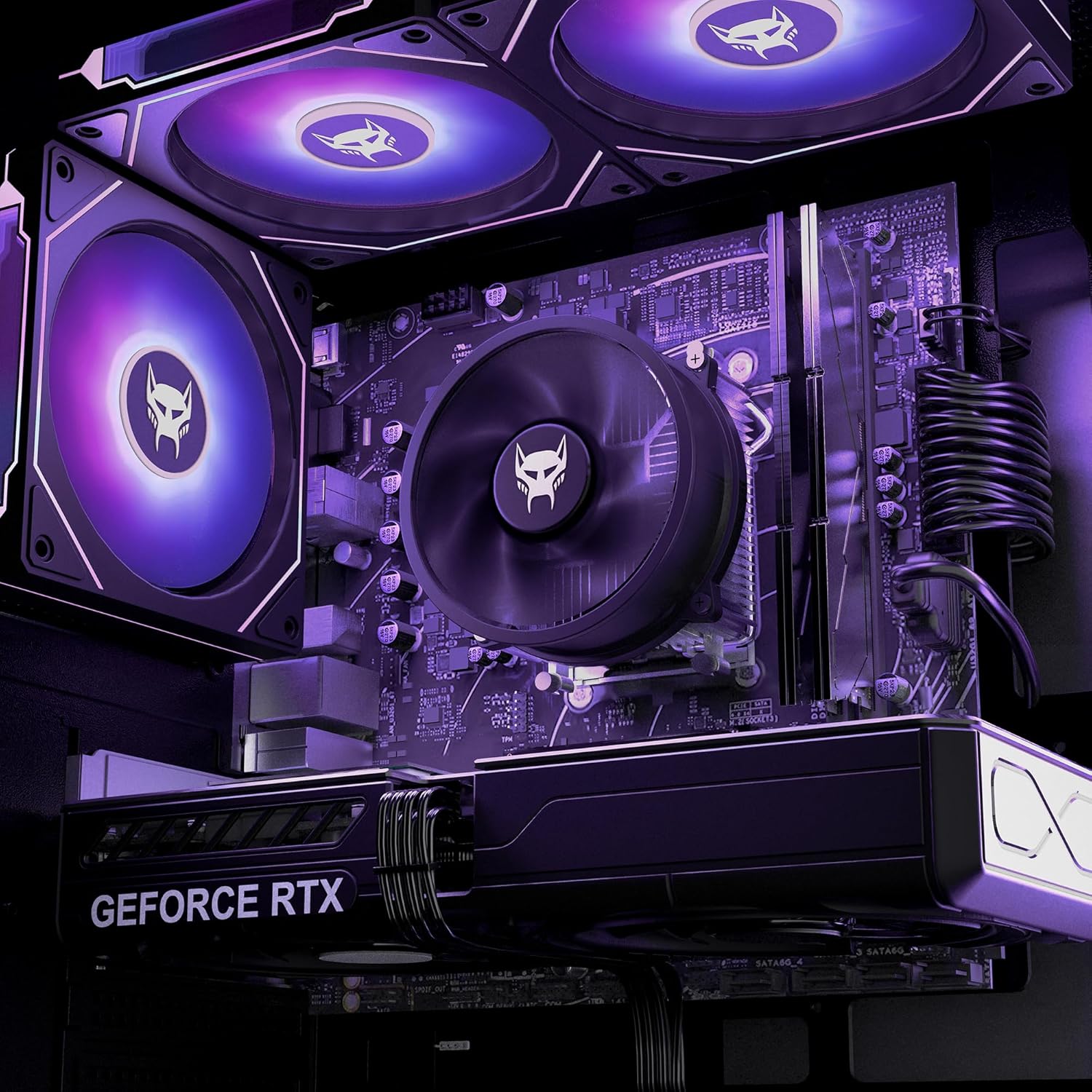
Image: The rear input/output panel of the BEASTCOM Q5 Pro PC, highlighting the various ports for connectivity including USB, Ethernet, and audio jacks.
5. Maintenance
5.1 Cleaning
- Exterior: Use a soft, damp cloth to clean the exterior of the PC. Avoid abrasive cleaners.
- Interior (Dust): Periodically (every 3-6 months) use compressed air to remove dust from internal components, especially fans and heatsinks. Ensure the PC is powered off and unplugged before cleaning.
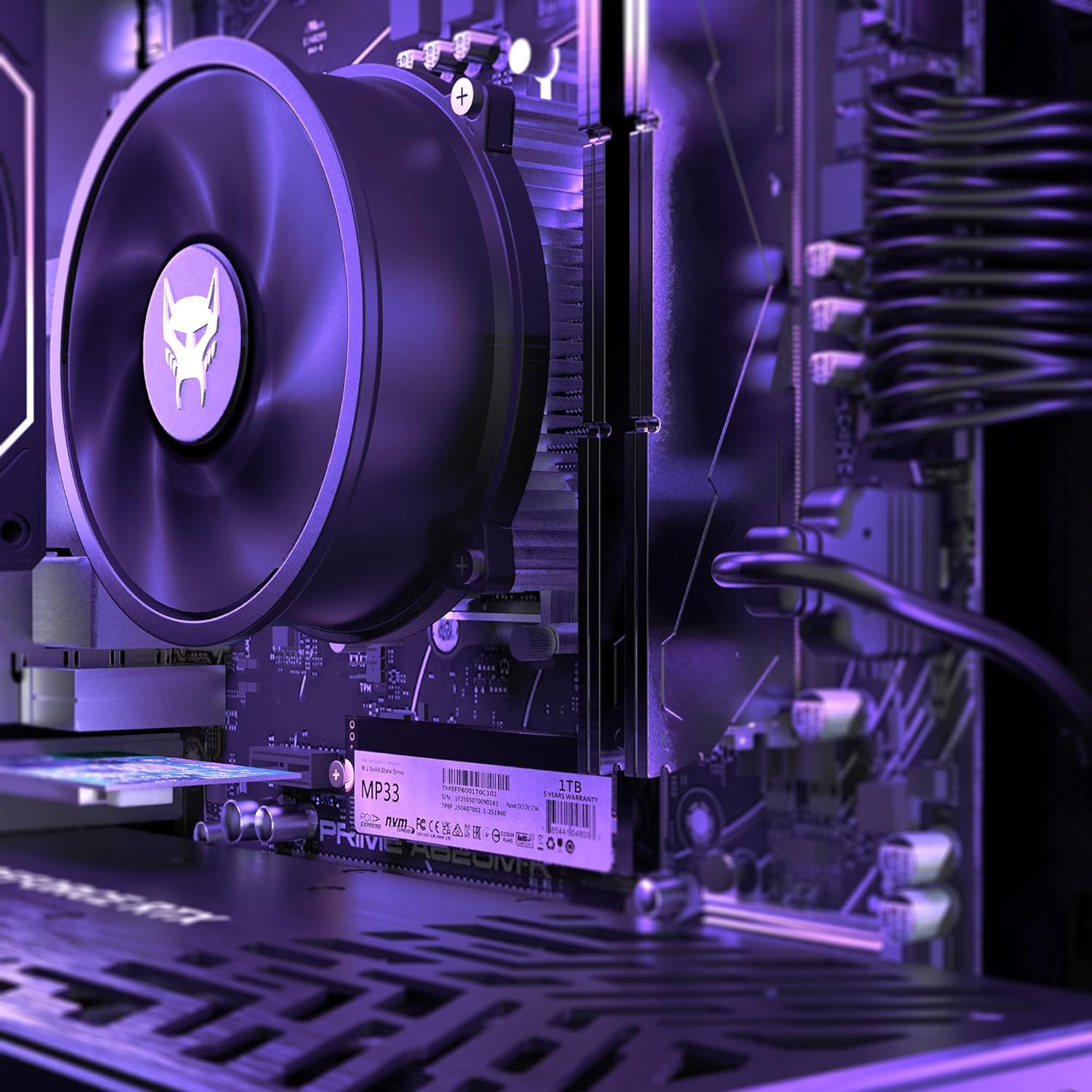
Image: A detailed view of the internal components of the BEASTCOM Q5 Pro PC, showing the CPU cooler and RAM modules, which require periodic dust removal.
5.2 Software Updates
- Regularly check for Windows updates to ensure system stability and security.
- Update graphics drivers from the NVIDIA website for optimal gaming performance.
6. Troubleshooting
| Problem | Possible Cause | Solution |
|---|---|---|
| No display on monitor | Monitor cable connected to motherboard instead of graphics card; loose cable. | Ensure monitor cable is connected to the graphics card. Check cable connections. |
| PC not powering on | Power cable loose; PSU switch off. | Check power cable connection. Ensure PSU switch is ON. |
| Poor gaming performance | Outdated graphics drivers; high graphics settings. | Update graphics drivers. Lower in-game graphics settings. |
| No internet connection | Loose Ethernet cable; Wi-Fi antennas not connected; driver issues. | Check Ethernet cable. Connect Wi-Fi antennas. Update network drivers. |
7. Specifications
| Component | Detail |
|---|---|
| Model Number | Q5-917Z1 |
| Processor | Intel i9-10900F (10 Cores, up to 5.2 GHz) |
| Graphics Card | NVIDIA GeForce RTX 5060 8GB GDDR6 (DLSS 3, 4K HDR, Raytracing) |
| RAM | 32 GB DDR4 |
| Storage | 1 TB NVMe SSD |
| Operating System | Windows 11 Pro |
| Wireless Connectivity | WiFi 5 (802.11ac) |
| USB Ports | 6x USB 2.0, 3x USB 3.0 |
| Max Screen Resolution | 3840x2160 |
| Item Weight | 23.9 pounds |
| Dimensions | 20 x 20 x 13 inches |
8. Warranty and Support
For warranty information and technical support, please refer to the documentation included with your purchase or visit the official BEASTCOM website. You may also consider purchasing extended protection plans for additional coverage.
- Protection Plans:
- 3-Year Protection Plan: $129.99
- Complete Protect (Monthly): $16.99/month
- Manufacturer Support: Visit the BEASTCOM Store on Amazon for product information and support resources.


